
Insight Blog
Agility’s perspectives on transforming the employee's experience throughout remote transformation using connected enterprise tools.
1 hour and 33 minutes reading time
(18619 words)
12 Video Conferencing Software Tools Worth Switching To in 2027

12 Video Conferencing Software Tools Worth Switching To in 2027
Compare 12 video conferencing software tools modern teams should switching to in 2027, including free options, key features, security and conference-room fit.
12 Video Conferencing Software Tools Worth Switching To in 2027

How many meetings have started late because someone could not find the link, could not connect to the meeting-room system, or simply could not hear the people sitting around the table?
It happens more often than most businesses would like to admit—and it is why choosing the right video conferencing software matters.
Video calls are no longer just for fully remote teams.
They now support everyday check-ins, employee onboarding, training sessions, customer calls, leadership updates and quick conversations between colleagues working from different locations.
52%
work hybrid
Gallup reports that 52% of remote-capable employees work in a hybrid arrangement, while a further 26% work fully remotely. Reliable video conferencing software is now a daily requirement for a large part of the workforce.
Source: Gallup
Gallup reports that 52% of remote-capable employees work in a hybrid arrangement, while a further 26% work fully remotely.
That means a large proportion of today's workforce depends on reliable digital meeting tools to stay involved, informed and able to contribute. Gallup's hybrid work data
But not every platform suits every workplace. Some teams need simple peer-to-peer video and screen sharing, while others need virtual workshops, secure internal calls, customer demos, training sessions or better support for meeting rooms.
In this guide, we compare 12 video conferencing software tools that modern teams are switching to.
You will see what each platform is best for, where it may fall short, which options offer free plans, and how to choose a tool your employees will actually want to use.
Key Takeaways
- The best video conferencing software is the platform that fits how employees, clients and partners actually meet—not simply the one with the longest feature list.
- Video conferencing apps should be assessed for easy joining, reliable audio, screen sharing, mobile access, guest controls and compatibility with existing workplace tools.
- Video conferencing software free plans can work for smaller teams, but meeting limits, recording controls, admin features and conference-room support often become issues as a business grows.
- Training, webinars, customer demonstrations, virtual events and quick employee calls often need different tools, so businesses should start with their real meeting needs.
- A strong conference-room setup depends on the complete experience: software, camera, microphone, speaker, display, room controls and network connection.
- Clear recording rules, accessible captions, secure access and a central place for decisions make video meetings more useful and inclusive for everyone.
Why teams are moving beyond the video tool they started with
Video calls have made it far easier for distributed employees to stay connected. A manager can bring together people working from home, the office, customer sites and different countries in minutes.
Teams can share their screens, answer questions in real time and keep projects moving without needing everyone in the same room.
But the original video tool a business chose a few years ago may no longer fit how the organisation works today.
As teams grow, they often end up with several meeting apps across different departments, unreliable access for external guests and conference rooms where people can see each other but cannot hear each other properly.
Remote employees can also feel left out when important conversations happen in the room rather than through the meeting platform.
The practical answer is not always to add another app. It is to choose a core video conferencing platform that fits the organisation's everyday needs, create simple meeting rules and make sure important decisions, recordings and follow-up actions are easy for employees to find afterwards.
The meeting problem is rarely just "we need better video"
Poor video quality is frustrating, but it is only one part of the problem.
Employees now join meetings from phones, laptops, home offices, customer sites and shared meeting rooms. Their internet connections, devices and working environments are not always the same.
Common issues include:
- Different departments using different video conferencing apps, making it harder for employees and external guests to join.
- Remote workers struggling to hear people talking in a meeting room or missing what has been written on a physical whiteboard.
- Back-to-back calls leaving little time for focused work, preparation or follow-up.
- Employees receiving meeting links through chat, email and calendars, with no clear source of truth.
- Recordings, actions and decisions being difficult to locate after the meeting has ended.
- Unclear rules about whether meetings can be recorded, who can access recordings and how long they should be kept.
A good platform helps, but the best employee experience comes from combining reliable technology with better meeting habits.
What video conferencing software actually includes
Video conferencing software allows people to meet live through video and audio, whether they are working from home, in an office or on the move. Most platforms now offer more than a basic camera call.
Depending on the tool, teams may also have access to screen sharing, in-meeting chat, file sharing, recording, captions, calendars, virtual backgrounds, breakout rooms, meeting notes and administrative controls.
However, not every tool is designed for the same job.
- Video meeting apps are built for everyday conversations between colleagues, managers, customers and external partners. They are usually best for team check-ins, one-to-one calls and project discussions.
- Webinar platforms are designed for one-to-many sessions, such as company announcements, staff training, product demonstrations and customer events. They often include registration pages, audience controls, polls and reporting.
- Conference-room systems combine video conferencing software with cameras, microphones, speakers, displays and room controls. These are important for organisations running hybrid meetings where some people are in the room and others are joining remotely.
- Digital workplace and intranet platforms support what happens before and after the call. They can help organisations publish meeting guidance, share recordings and updates, store policies, communicate decisions, keep knowledge organised and make information easier for employees to find.
12 video conferencing software tools modern teams are switching to at a glance
The best video conferencing software is not necessarily the platform with the longest list of features.
It is the one that makes sense for how your employees, customers and partners actually communicate.
Some teams need quick peer-to-peer video calls and screen sharing, while others need interactive workshops, client demos, company training or secure meetings across several office locations.
This list of video conferencing platforms includes established alternatives and more specialised video conferencing apps for different workplace needs.
Several offer a video conferencing software free plan or trial, although free features, participant limits, recording options and admin controls vary by provider.
Use the table as a starting point, then assess security, integrations, employee adoption and the type of meetings your organisation runs most often.
| Tool | Best for | Why it adds a different angle | Key features |
| AgilityPortal | Secure employee video calls within a digital workplace | Combines peer-to-peer video, voice and screen sharing with employee communication, knowledge and collaboration tools | • Peer-to-peer video calling • Voice calling • Screen sharing • Employee chat and collaboration spaces • Knowledge, documents and company updates in one platform |
| Livestorm | Webinars, training and customer events | Strong for browser-based, structured sessions | • Browser-based video meetings • Registration pages and email reminders • Polls, questions and audience engagement • Session recordings and replays • Analytics for attendance and engagement |
| Kumospace | More natural virtual offices | Spatial, interactive meeting experience | • Virtual office environments • Spatial audio conversations • Customisable rooms and layouts • Screen sharing and video calls • Interactive objects and collaboration spaces |
| Butter | Workshops and team collaboration | Designed around facilitated, engaging sessions | • Workshop agendas and session templates • Breakout rooms • Polls, icebreakers and interactive tools • Screen sharing and collaborative activities • Meeting recording and playback |
| Demodesk | Sales and customer-facing teams | Built for guided sales meetings and coaching | • Guided meeting playbooks • Screen sharing and presentation controls • Meeting scheduling tools • AI-supported meeting notes and summaries • CRM and sales workflow integrations |
| Sessions | AI-supported meetings and client calls | Focuses on meeting workflows, notes and follow-up | Video meetings and screen sharing • AI meeting assistance • Meeting notes and summaries • Scheduling and booking pages • Branded client meeting rooms |
| Whereby | Branded client meetings | Simple browser-based rooms and embedded video | • Browser-based video calls • Custom branded meeting rooms • Screen sharing and in-meeting chat • Embedded video meetings for websites or apps • Simple guest joining without downloads |
| Pexip | Enterprises with complex video environments | Useful for secure interoperability and existing room systems | • Video interoperability across platforms • Conference-room integration • Self-hosted and private deployment options • Enterprise management controls • Secure video meeting infrastructure |
| TrueConf | Private-network and security-focused organisations | Good angle for controlled, self-hosted deployments | Video conferencing for internal networks • On-premises deployment options • Screen sharing and collaboration tools • Conference-room support • Centralised user and meeting management |
| BigBlueButton | Training, learning and education-led organisations | Purpose-built for virtual classrooms and interactive learning | • Virtual classroom tools • Shared whiteboards and presentation features • Breakout rooms for group learning • Polling and engagement tools • Session recording and playback |
| Jitsi Meet | Open-source flexibility | Relevant for organisations wanting more technical control | • Open-source video conferencing • Screen sharing and in-meeting chat • Browser-based meeting access • Self-hosting capability • Customisation for technical teams |
| Airmeet | Large online events and community sessions | Better suited to interactive events than ordinary calls | • Virtual event and community spaces • Live sessions and audience engagement • Networking tables and breakout conversations • Registration and event management tools • Analytics and post-event insights |
1. AgilityPortal — best for secure employee video calls inside a complete digital workplace
Best for: Businesses that want employees to make quick one-to-one video or voice calls, share their screens and continue the conversation without jumping between several separate workplace apps.
1. AgilityPortal — best for secure employee video calls inside a complete digital workplace
Why teams switch to it
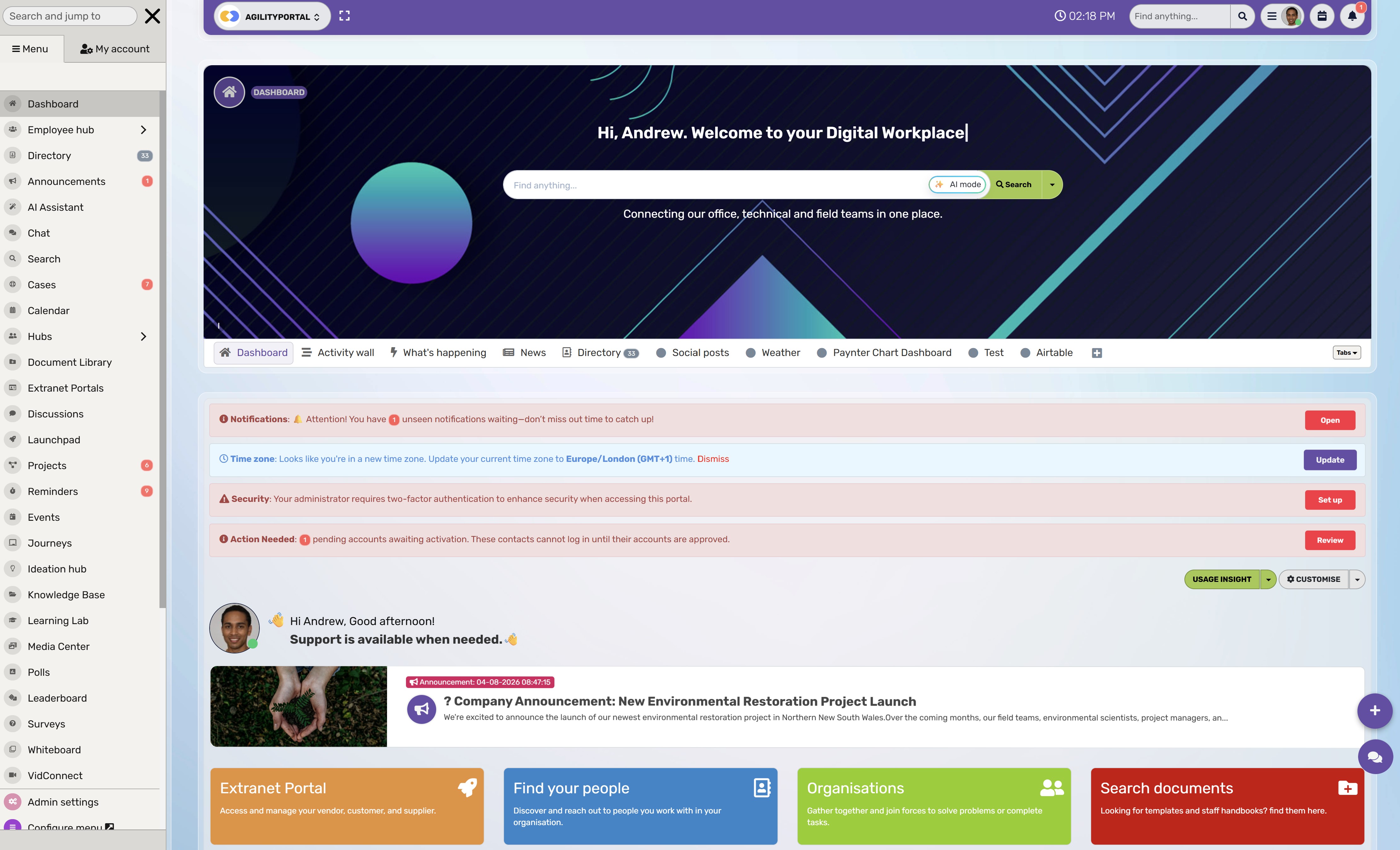
AgilityPortal Vidconnet module will appeal to teams that are tired of using one tool for company news, another for chat, another for documents and yet another for quick video calls.
The peer-to-peer calling experience is useful when someone needs a fast conversation rather than a formal meeting link, calendar invitation and room setup.
What stands out is the context around the call.
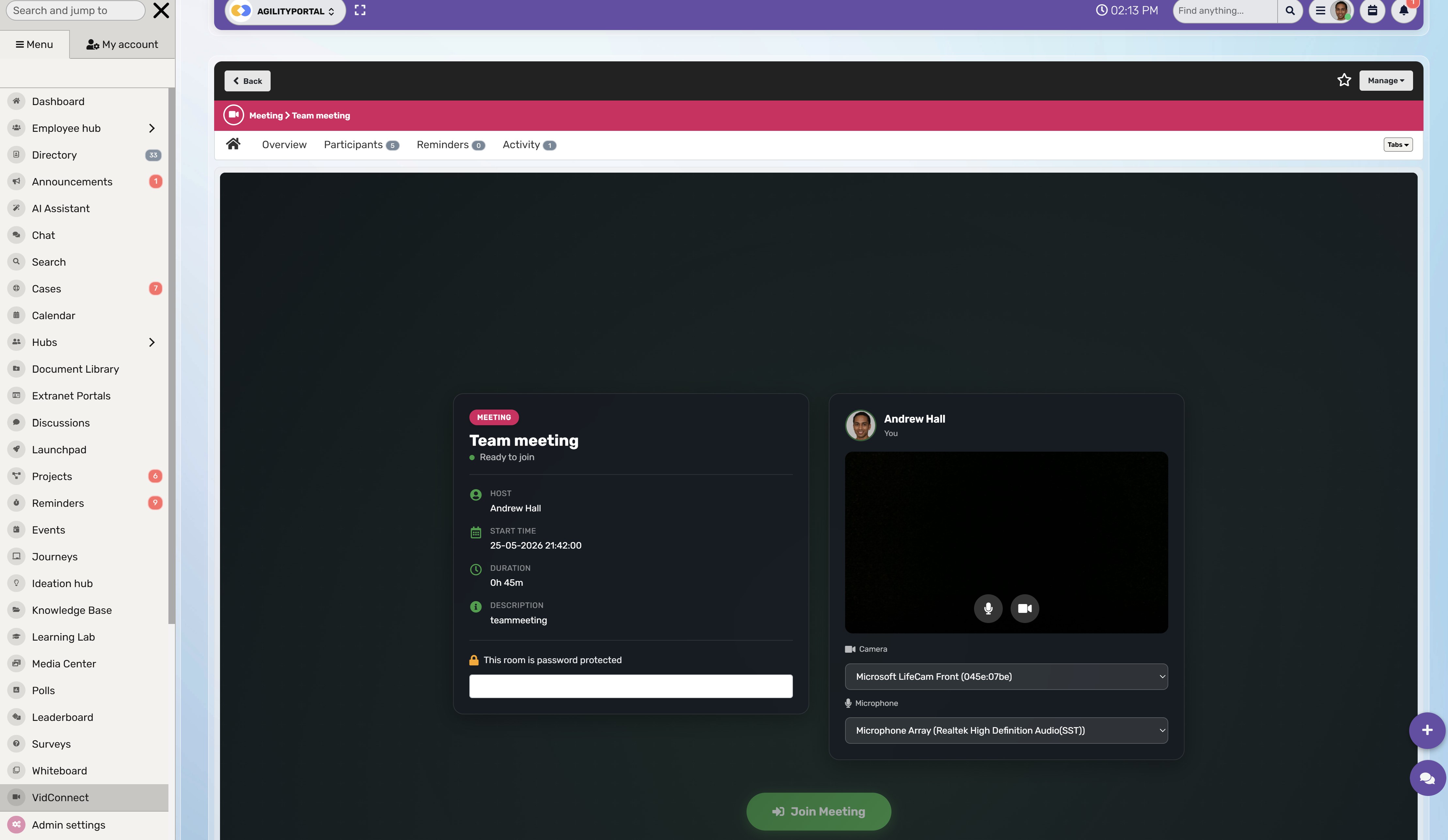
Employees can move from a chat conversation into a video or voice call, share what is on their screen, then return to the same workspace where documents, updates and team knowledge already live. It feels more joined up than using a standalone video app for every small conversation.
Key strengths
- Peer-to-peer video calls for quick employee conversations.
- Voice calling when a video call is unnecessary.
- Screen sharing for walking a colleague through a document, system or task.
- Built-in chat, spaces, announcements and knowledge tools around the conversation.
- A stronger fit for internal employee communication than tools designed mainly for external meetings or webinars.
- It is built around employee communication and collaboration, rather than large-scale webinars or public virtual events.
- Organisations running formal boardroom meetings may still need dedicated conference-room hardware and a platform designed for that setup.
- Teams that rely heavily on advanced webinar features, such as large audience registration and event analytics, may need a specialist tool alongside it.
- The value is strongest when employees use more than just the calling feature; using it only for video calls would miss much of the platform's wider benefit.
AgilityPortal is a strong option for HR teams, internal communications leaders, operations managers and growing businesses that want a more connected employee experience.
It is particularly useful for organisations where people regularly need to ask a quick question, show someone their screen or speak face to face without leaving the digital workplace.
Our Verdict · Top Pick
AgilityPortal
Best for secure employee video calls, voice calls and screen sharing inside a complete digital workplace.
Top
Pick
Starting price
From $99/month for 25–99 employees, with a 14-day free trial.
Best feature
Employees can move from chat into peer-to-peer video or voice calls and screen sharing without leaving their digital workplace.
AgilityPortal is a strong choice for organisations that want video calls to sit alongside employee chat, company updates, knowledge, documents, spaces and collaboration tools. It is particularly useful for quick internal conversations where arranging a formal meeting would slow people down.
What clients like
- Video, voice, chat and screen sharing are part of one employee platform.
- Teams can keep conversations, documents and follow-up information connected.
- Flexible modules let organisations tailor the experience around their needs.
- Mobile access helps keep frontline, remote and office employees involved.
What clients do not like
- The number of available features can feel busy for new users at first.
- Teams need a clear rollout plan so employees know which tools to use and when.
- It is better suited to internal employee communication than large public webinars.
- Organisations with complex boardroom setups may still need dedicated meeting-room hardware.
Pricing, product features and plan availability can change. Confirm current details with AgilityPortal before purchasing.
2. Livestorm — best for browser-based webinars, training and customer events
Best for: Teams that run webinars, employee training, product demonstrations or customer events and want people to join without downloading an app

2. Livestorm — best for browser-based webinars, training and customer events
Why teams switch to it
Livestorm is a good fit when a normal video meeting starts to feel too informal or difficult to manage. It gives businesses more control over the full event experience, from registration and reminders through to the live session and follow-up afterwards.
The browser-based setup is one of its strongest points. Attendees can usually join from a link, which removes a common barrier for customers, job candidates and employees who are not regular users of the platform. It also gives hosts more tools to keep larger sessions organised than a standard team call.
Key strengths- Browser-based meetings help reduce download and joining friction.
- Registration pages, automated email reminders and attendee management support organised events.
- Polls, questions and chat make training sessions and webinars more interactive.
- Recordings make it easier to share sessions with people who could not attend live.
- Attendance and engagement data give teams a clearer view of how an event performed.
- It is more suited to structured webinars and larger sessions than quick peer-to-peer employee calls.
- Teams looking for a full internal chat, intranet and knowledge platform will need other tools around it.
- The most useful event, automation and analytics features may sit behind paid plans.
- It can be more platform than a small team needs for a simple weekly catch-up.
Livestorm is worth shortlisting for HR and learning teams running employee training, marketing teams hosting webinars, and sales teams delivering polished product demonstrations. It is particularly useful where easy joining, registration and post-event follow-up matter as much as the live video call itself.
Our Verdict · Strong Pick
Livestorm
Best for browser-based webinars, employee training and customer events that need a more organised experience.
Top
Choice
Best for
Webinars, training sessions, product demonstrations and customer-facing events.
Best feature
A browser-based experience with registration, reminders and engagement tools built around structured live sessions.
Livestorm is a practical choice when a basic meeting link is no longer enough. It gives teams more control over attendee registration, reminders, live engagement and follow-up, while helping guests join without the usual download friction.
What users tend to like
- Browser-based joining makes it easier for guests and attendees to take part.
- Registration pages and reminders help teams run more organised events.
- Polls, chat and questions make webinars feel more interactive.
- Recordings and attendance data help with follow-up after the session.
What to consider
- It is better for structured sessions than fast one-to-one employee conversations.
- Teams may still need a separate chat or digital workplace platform for daily internal communication.
- Some advanced features may require a paid plan.
- Smaller teams may not need all of its event-focused functionality.
Features, plan limits and pricing can change. Confirm current details with Livestorm before purchasing.
3. Kumospace — best for creating a more natural virtual office experience
Best for: Remote and hybrid teams that want everyday online conversations to feel less formal than a standard meeting link.

3. Kumospace — best for creating a more natural virtual office experience
Why teams switch to it
Kumospace takes a different approach to video conferencing. Instead of asking employees to join another grid of faces, it creates a virtual office where people can move between rooms, sit with colleagues and start conversations more naturally.
It is especially useful for teams that miss the quick chats that happen before a meeting, at someone's desk or in a shared office space. The spatial audio experience means people can move closer to a group conversation or step away when they need privacy.
That makes it better suited to team connection, drop-in discussions and virtual social events than a formal webinar or client presentation.
Key strengths- Virtual rooms create a more engaging alternative to standard video-call layouts.
- Spatial audio lets conversations feel more natural in busy team spaces.
- Employees can move between groups instead of joining fixed breakout rooms.
- Screen sharing supports project discussions, presentations and collaborative work.
- Customisable spaces can reflect different departments, events or workplace needs.
- It may feel unfamiliar to employees who prefer a simple meeting link and a traditional video layout.
- It is not the strongest choice for formal webinars, large training events or highly controlled presentations.
- Teams still need clear communication rules so employees know when to use it instead of chat or scheduled meetings.
- The virtual-office style may not suit every company culture or every type of meeting.
Kumospace is worth shortlisting for remote-first businesses, creative teams, agencies and organisations that want to make virtual collaboration feel more social and less transactional.
It is a particularly good fit for teams that value spontaneous conversations, team culture and informal connection alongside their scheduled meetings.
Our Verdict · Strong Pick
Kumospace
Best for remote and hybrid teams that want a more natural, social virtual office experience.
Top
Choice
Best for
Virtual offices, drop-in conversations, hybrid collaboration and team connection.
Best feature
Spatial audio and virtual rooms that let employees move naturally between conversations.
Kumospace makes online teamwork feel less like a queue of scheduled calls and more like a shared workplace. Its virtual rooms and spatial audio are useful for teams that want more spontaneous conversations, informal collaboration and stronger day-to-day connection.
What users tend to like
- Virtual office spaces feel more social than a standard video-call grid.
- Spatial audio makes it easier to move between group conversations.
- Employees can have quick drop-in chats without arranging a formal meeting.
- Customisable rooms can support team events, departments and collaboration sessions.
What to consider
- The virtual-office format can take time for new employees to get used to.
- It is less suited to formal webinars or highly structured customer presentations.
- Teams need simple guidance on when to use it instead of chat or scheduled calls.
- Some employees may still prefer a traditional meeting experience for focused discussions.
Features, plan limits and pricing can change. Confirm current details with Kumospace before purchasing.
4. Butter — best for interactive workshops and team collaboration
Best for: Teams that run workshops, planning sessions, training or collaborative meetings where people need to do more than just watch and listen.
Butter — best for interactive workshops and team collaboration
Why teams switch to it
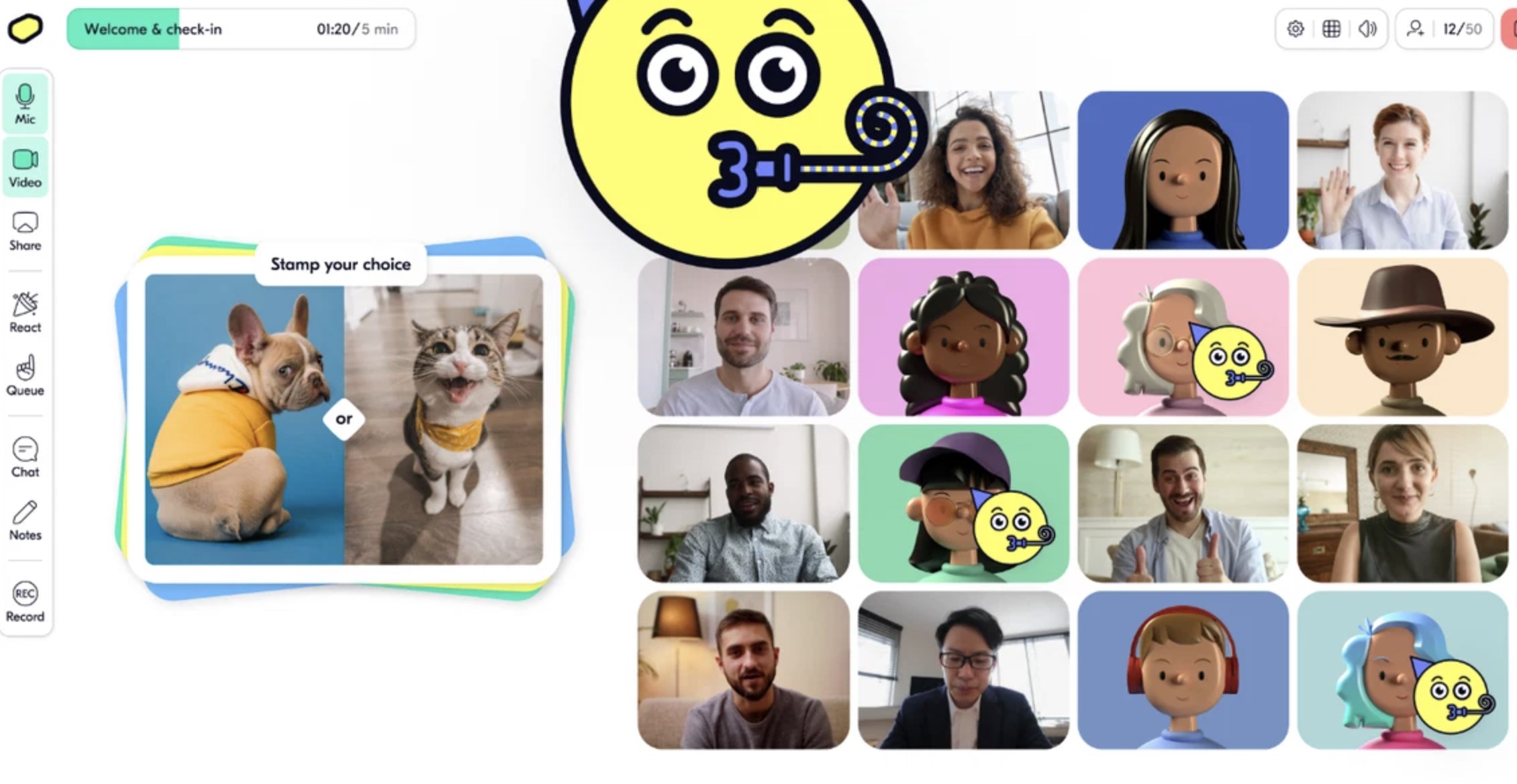
Butter is built for meetings that need energy. If your team spends a lot of time running brainstorming sessions, onboarding workshops, retrospectives or training, a standard video call can feel flat very quickly.
Butter gives facilitators more ways to involve people instead of leaving them staring at the same screen for an hour.
The platform is especially useful when someone needs to lead a session with a clear agenda, split people into smaller groups, run polls or icebreakers, and bring everyone back together without losing momentum. It will not be the obvious choice for every everyday call, but it is a strong option when participation matters.
Key strengths- Built-in agendas help facilitators keep workshops moving.
- Breakout rooms make smaller group discussions easier to run.
- Polls, reactions and icebreakers encourage people to take part.
- Screen sharing and collaboration tools support more active sessions.
- Templates can reduce the preparation time for recurring workshops.
- It may be more than a team needs for simple one-to-one calls or quick check-ins.
- Employees may need a short introduction before they are comfortable using all the interactive tools.
- It is better suited to facilitated sessions than large, formal webinars.
- Teams still need a central place to store decisions, documents and follow-up actions after the workshop ends.
Butter is worth shortlisting for HR and learning teams, workshop facilitators, project managers, consultants and remote-first teams that want online sessions to feel more engaging. It is particularly useful for businesses where collaboration, participation and group problem-solving are regular parts of the working week.
Our Verdict · Strong Pick
Butter
Best for interactive workshops, training sessions and collaborative team meetings.
Top
Choice
Best for
Workshops, employee training, brainstorming, planning sessions and remote team collaboration.
Best feature
Built-in agendas, breakout rooms and interactive activities that help facilitators keep people involved.
Butter is designed for sessions where participation matters. Rather than relying on a basic meeting grid, it gives facilitators practical ways to guide workshops, involve attendees and keep collaborative sessions from becoming passive video calls.
What users tend to like
- Agendas make it easier to structure and run workshops.
- Breakout rooms support smaller discussions without disrupting the wider session.
- Polls, reactions and icebreakers help encourage participation.
- Templates can save time when teams run similar sessions regularly.
What to consider
- It can be more than a team needs for a quick check-in or one-to-one call.
- New users may need a short introduction to get the most from the interactive tools.
- It is better for workshops than large, formal webinar-style events.
- Teams need another central place for documents, decisions and follow-up information.
Features, plan limits and pricing can change. Confirm current details with Butter before purchasing.
5. Demodesk — best for sales teams running customer-facing video meetings
Best for: Sales teams that want more structure around discovery calls, product demonstrations, coaching and follow-up.
5. Demodesk — best for sales teams running customer-facing video meetings
Why teams switch to it
Demodesk is not trying to be the video platform for every type of workplace meeting. It is built around the sales conversation.
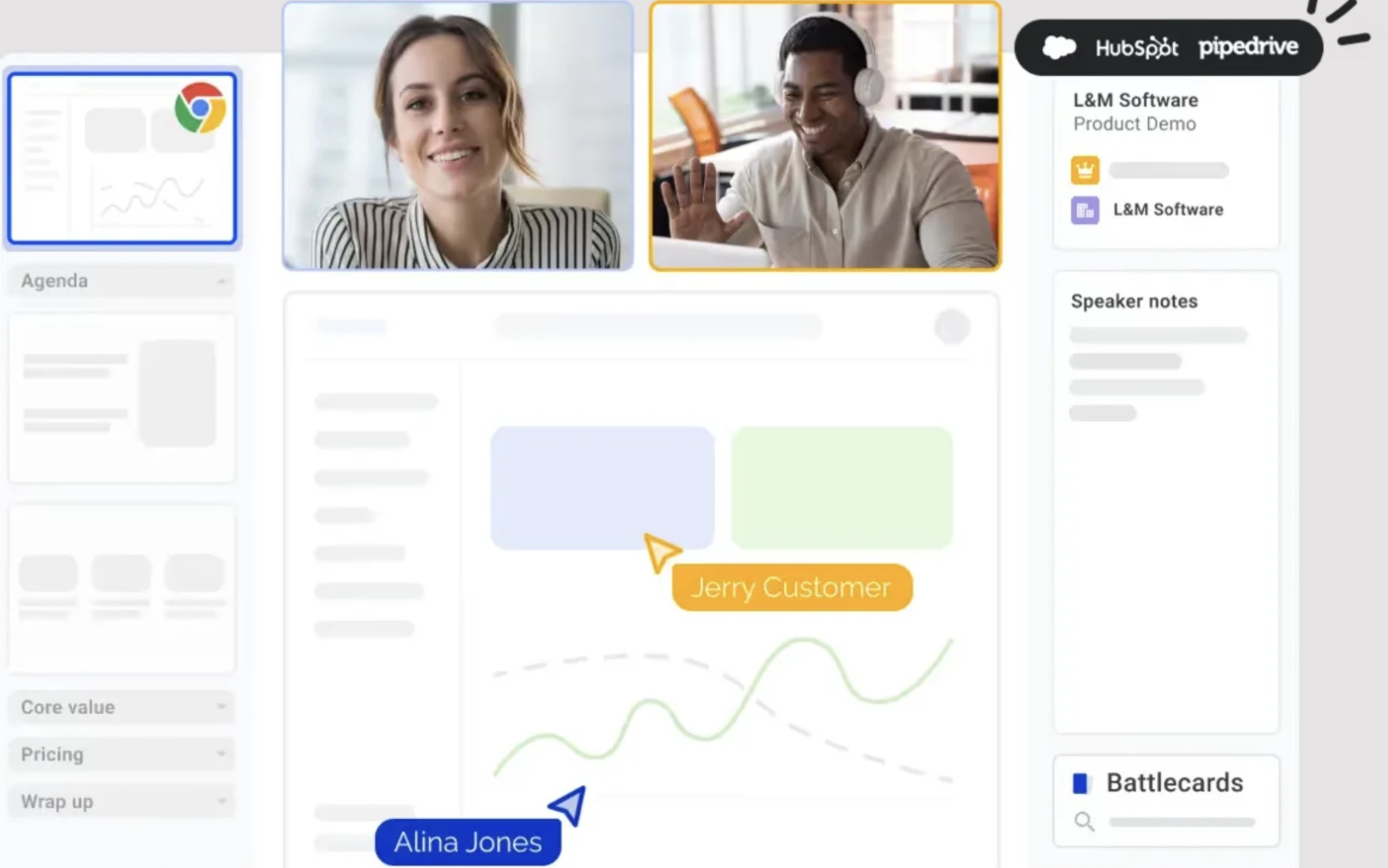
That makes it a stronger fit for teams that want reps to follow a consistent demo flow, share materials smoothly and capture useful information without spending ages writing notes afterwards.
The platform is most useful when sales leaders want better visibility into how calls are being run. It can help reduce the gap between a strong sales rep and someone still learning the process, while giving managers more material for coaching and follow-up.
Key strengths- Guided meeting playbooks help sales reps follow a consistent structure.
- Screen sharing and presentation controls support smoother product demonstrations.
- AI meeting notes can reduce the amount of manual follow-up work.
- Sales coaching tools help managers review calls and support team development.
- CRM integrations can help keep customer information connected to the sales process.
- It is designed mainly for sales conversations, not everyday internal team communication.
- The platform may be too specialised for businesses with a small or simple sales process.
- Teams still need a separate place for company news, employee chat and internal knowledge.
- Sales teams need clear processes to make the most of playbooks, notes and coaching features.
Demodesk is worth shortlisting for B2B sales teams, account executives, customer-success teams and organisations that run regular product demonstrations.
It is particularly useful for businesses that want a more repeatable sales meeting process and clearer coaching opportunities for customer-facing employees.
Our Verdict · Strong Pick
Demodesk
Best for sales teams that want more structure, coaching and follow-up around customer-facing video meetings.
Top
Choice
Best for
Sales demonstrations, discovery calls, customer meetings and sales-team coaching.
Best feature
Guided sales meeting workflows that help teams keep product demos and customer conversations consistent.
Demodesk is a focused choice for sales-led organisations. It gives customer-facing teams more structure around how they run calls, share products, capture insights and improve performance over time.
What users tend to like
- Guided playbooks help sales reps follow a more consistent meeting flow.
- Screen sharing and presentation controls support smoother product demonstrations.
- AI meeting notes can reduce time spent on manual follow-up.
- Coaching features give sales leaders more visibility into customer calls.
What to consider
- It is built for sales conversations rather than general internal communication.
- Smaller businesses may not need the full sales-meeting feature set.
- Teams still need another platform for employee news, documents and workplace knowledge.
- The best results depend on having clear sales processes and coaching habits in place.
Features, plan limits and pricing can change. Confirm current details with Demodesk before purchasing.
6. Sessions — best for AI-supported client meetings and follow-up
Best for: Consultants, agencies, sales teams and client-facing businesses that want video calls, scheduling and meeting follow-up in one place.

6. Sessions — best for AI-supported client meetings and follow-up
Why teams switch to it
Sessions is built around the whole meeting workflow, not just the call itself. It is useful for teams that spend time arranging meetings, sharing screens, taking notes and trying to remember what was agreed once the call is over.
The platform is particularly appealing for client-facing work because it can bring scheduling, branded meeting rooms and AI-supported notes into one experience. That means less switching between calendar tools, video apps and manual follow-up documents.
Key strengths
- Branded meeting rooms can give client calls a more polished feel.
- Scheduling tools help make booking meetings simpler.
- AI-supported notes and summaries can reduce manual admin after calls.
- Screen sharing supports demos, project updates and client presentations.
- Meeting follow-up is easier when notes and actions are captured in the same workflow.
Potential drawbacks
- It is more focused on client meetings than broad internal employee communication.
- Businesses that need large webinars or complex conference-room systems may need another platform.
- AI-generated notes still need a human check before they are shared or acted on.
- Teams may need separate tools for company news, internal chat and knowledge management.
Who should shortlist it
Sessions is worth shortlisting for consultants, agencies, account managers, sales teams and service businesses that hold frequent client calls. It is a strong option when the business wants every meeting to be easier to schedule, more professional to attend and simpler to follow up afterwards.
Our Verdict · Strong Pick
Sessions
Best for AI-supported client meetings, scheduling and follow-up in one organised workflow.
Top
Choice
Best for
Client meetings, consultations, sales calls, project updates and service-based businesses.
Best feature
Combines video meetings, scheduling and AI-supported notes to make follow-up less manual.
Sessions is a practical choice for teams that want to make client meetings easier from start to finish. It brings together the booking process, live video conversation, screen sharing and follow-up so employees are not constantly moving between disconnected tools.
What users tend to like
- Scheduling and video meetings can be managed in a more connected workflow.
- Branded meeting rooms help create a more polished client experience.
- AI-supported notes can reduce the amount of manual follow-up work.
- Screen sharing works well for demonstrations, consultations and project discussions.
What to consider
- It is more focused on client-facing meetings than all-company internal communication.
- AI-generated notes should always be checked for accuracy before being shared.
- Teams hosting large webinars may need a more event-focused platform.
- Businesses still need a central place for employee news, documents and internal knowledge.
Features, plan limits and pricing can change. Confirm current details with Sessions before purchasing.
7. Whereby — best for simple, branded client video meetings
Best for: Businesses that want clients, candidates or partners to join a video meeting quickly without installing an app.

7. Whereby — best for simple, branded client video meetings
Why teams switch to it
Whereby is a good choice for teams that want to make video calls feel simple from the other person's side. Instead of asking a client to download software, create an account or work out which meeting app they need, businesses can send them a link to a branded meeting room.
That makes it particularly useful for consultations, interviews, customer support, agency calls and client check-ins. It is not trying to replace a full digital workplace or an enterprise meeting-room system.
Its strength is removing friction from smaller, customer-facing conversations.
Key strengths- Browser-based joining makes client calls easier to attend.
- Branded meeting rooms create a more professional customer experience.
- Screen sharing supports demonstrations, consultations and presentations.
- Embedded video options are useful for businesses that want calls inside their own website or app.
- Simple room links work well for repeat client meetings.
- It is not designed to be a full employee communication or intranet platform.
- Businesses running large webinars or company-wide events may need a more specialised tool.
- Advanced enterprise controls and complex room hardware support may be stronger elsewhere.
- Teams still need another place to manage internal chat, documents and company knowledge.
Whereby is worth shortlisting for agencies, consultants, recruiters, customer-success teams, healthcare providers and service businesses. It is especially useful when the priority is making client calls feel simple, professional and easy to join.
Our Verdict · Strong Pick
Whereby
Best for simple, branded video meetings that clients and guests can join directly in their browser.
Top
Choice
Best for
Client consultations, recruitment interviews, customer support and repeat external meetings.
Best feature
Browser-based branded meeting rooms that reduce friction for clients and external guests.
Whereby is a straightforward choice for businesses that want external video meetings to feel easy from the moment someone receives the link. Its browser-based rooms and branding options make it particularly useful for client-facing conversations.
What users tend to like
- Guests can join calls in a browser without the usual download friction.
- Branded rooms create a cleaner, more professional client experience.
- Simple room links work well for recurring client conversations.
- Screen sharing supports consultations, product demos and presentations.
What to consider
- It is not intended to replace an all-in-one employee communication platform.
- Large webinars and company-wide events may need a more specialist solution.
- Organisations with complex meeting-room hardware needs should assess compatibility carefully.
- Teams still need another place for internal communication, documents and workplace knowledge.
Features, plan limits and pricing can change. Confirm current details with Whereby before purchasing.
8. Pexip — best for enterprises with complex video environments
Best for: Larger organisations that need secure video meetings across different platforms, meeting rooms, devices and existing technology investments.

Why teams switch to it
Pexip is a different type of video conferencing choice. It is not mainly aimed at replacing every everyday meeting app with another familiar interface. Instead, it helps organisations connect the systems they already use, especially where meeting rooms, external guests, security requirements and different video platforms all need to work together.
This is useful for enterprise IT teams that have invested in several meeting-room systems over time, or organisations that need tighter control over where video data is handled. Pexip can help reduce the friction of asking employees, customers and partners to all use the same video platform before they can join a meeting.
Key strengths- Video interoperability helps connect different meeting platforms and room systems.
- Enterprise controls suit organisations with more complex security requirements.
- Private and self-hosted deployment options can support stricter data needs.
- Meeting-room integration helps businesses make better use of existing hardware.
- Centralised management is useful for IT teams supporting large numbers of users and rooms.
- It is more technical than a simple browser-based meeting app.
- Smaller businesses may not need the level of interoperability or infrastructure control it provides.
- It usually requires IT involvement to plan, deploy and manage effectively.
- It is not designed to replace employee chat, intranet content or everyday workplace communication.
Pexip is worth shortlisting for enterprise IT leaders, regulated organisations, government bodies, healthcare providers and businesses with multiple offices or meeting-room systems. It is especially relevant when secure access, interoperability and control matter more than simply choosing the quickest video app to set up.
Our Verdict · Strong Pick
Pexip
Best for enterprises that need secure video interoperability across meeting platforms, rooms and devices.
Top
Choice
Best for
Enterprise video environments, regulated industries, meeting-room integration and cross-platform access.
Best feature
Video interoperability that helps organisations connect different meeting platforms and room systems.
Pexip is built for organisations where video conferencing is more complicated than sending a meeting link. It helps IT teams connect platforms, rooms and devices while keeping stronger control over how video meetings are managed across the business.
What users tend to like
- Interoperability can make mixed video environments easier to manage.
- Meeting-room integration helps organisations use existing hardware more effectively.
- Enterprise controls support more complex access and security requirements.
- Centralised management is useful for IT teams supporting many users and locations.
What to consider
- It is a more technical option than a simple browser-based meeting app.
- Smaller businesses may not need its level of infrastructure control.
- IT planning and deployment support are usually needed to get the best results.
- Teams still need separate tools for employee chat, company updates and internal knowledge.
Features, deployment options and pricing can change. Confirm current details with Pexip before purchasing.
9. TrueConf — best for private-network video conferencing and data control
Best for: Organisations that need video calls, chat and collaboration tools to operate within their own private infrastructure.
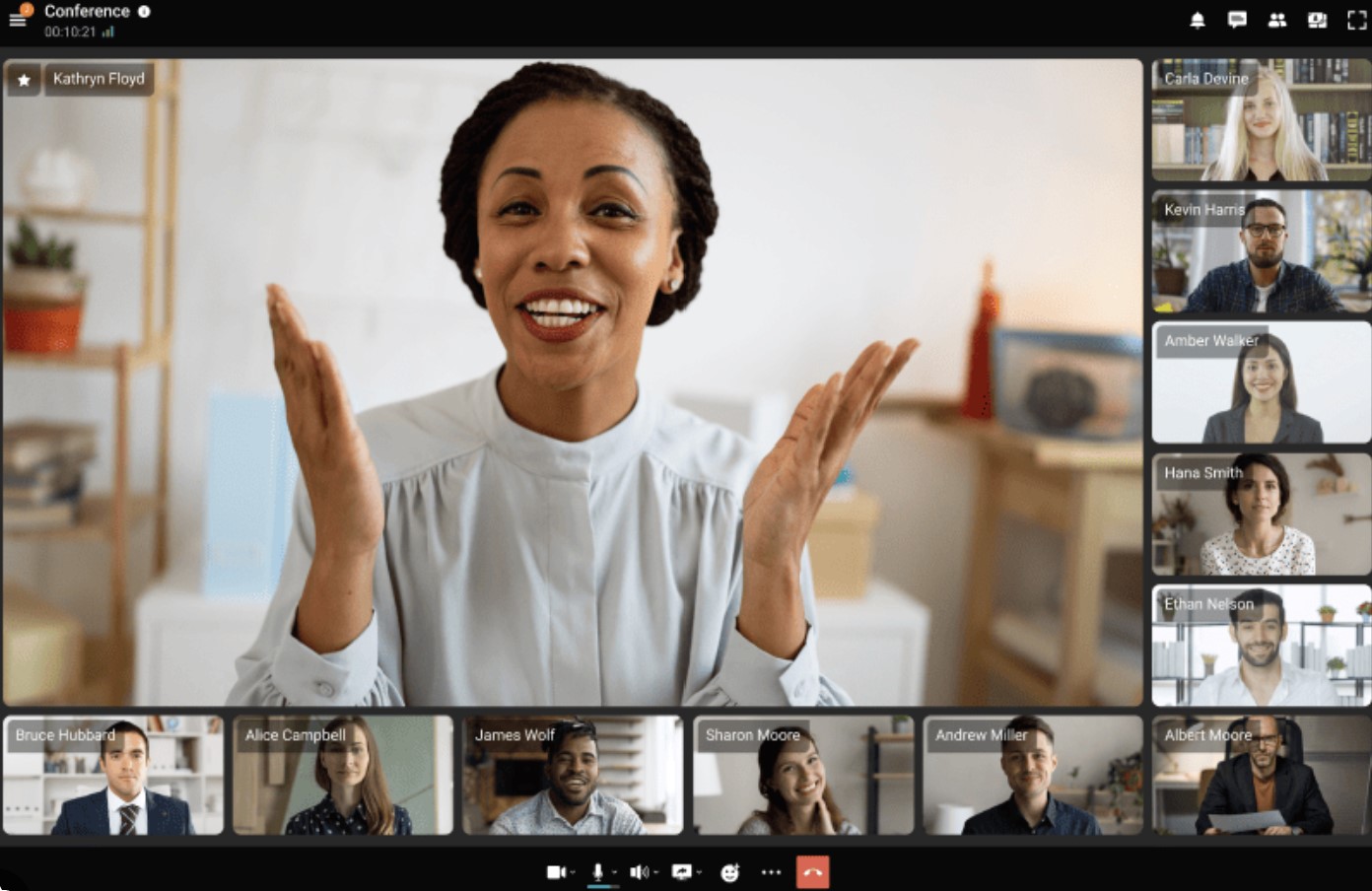
9. TrueConf — best for private-network video conferencing and data control
Why teams switch to it
TrueConf is aimed at organisations that want more control over where their video communications run and how they are managed.
Instead of relying entirely on a public cloud meeting service, businesses can deploy it within their own network, which can be important for government, healthcare, finance and other security-conscious environments.
It also combines video meetings with chat, scheduling and collaboration features, so it can work as a broader unified communications platform. The trade-off is that it needs proper IT ownership. A private deployment gives an organisation more control, but it also means the organisation must stay on top of configuration, updates and security patching.
Key strengths- On-premises deployment supports organisations with strict data-control requirements.
- Video meetings, messaging and collaboration can sit in one platform.
- Active Directory, SSO and identity integrations support user management at scale.
- Conference-room and endpoint interoperability can support existing video environments.
- Private-network use can be useful where internet access is limited or tightly controlled.
- It needs more IT involvement than a simple browser-based meeting tool.
- The setup and management requirements may be excessive for smaller businesses.
- Organisations must apply security updates promptly and maintain their own deployment properly.
- It is less suited to casual client calls where frictionless browser joining is the main priority.
TrueConf is worth shortlisting for government organisations, healthcare providers, financial services businesses, large enterprises and teams operating in controlled or private-network environments.
It is best suited to organisations that value infrastructure control and are prepared to give IT clear ownership of deployment, administration and patch management.
Our Verdict · Strong Pick
TrueConf
Best for organisations that need private-network video conferencing, stronger data control and IT-led management.
Top
Choice
Best for
Government, healthcare, finance and organisations with strict privacy or infrastructure-control needs.
Best feature
On-premises deployment that lets organisations run communications within their own private network.
TrueConf is built for organisations that need more control than a standard cloud meeting platform can offer. It brings together video, chat and collaboration while supporting private deployment, but it works best when IT has clear ownership of setup and maintenance.
What users tend to like
- Private deployment supports stronger control over communications and data.
- Video meetings, messaging and collaboration can be managed in one platform.
- Identity integrations can make access management easier for IT teams.
- Conference-room and endpoint support can work well in more complex environments.
What to consider
- It needs more IT planning and management than a simple browser-based meeting tool.
- Smaller organisations may not need its private-deployment capabilities.
- Security updates and patch management need to be handled promptly and consistently.
- It may not be the easiest choice for casual external guest meetings.
Features, deployment options and pricing can change. Confirm current details with TrueConf before purchasing.
10. BigBlueButton — best for virtual classrooms and employee learning
Best for: Training teams, education providers and organisations running structured online learning sessions.
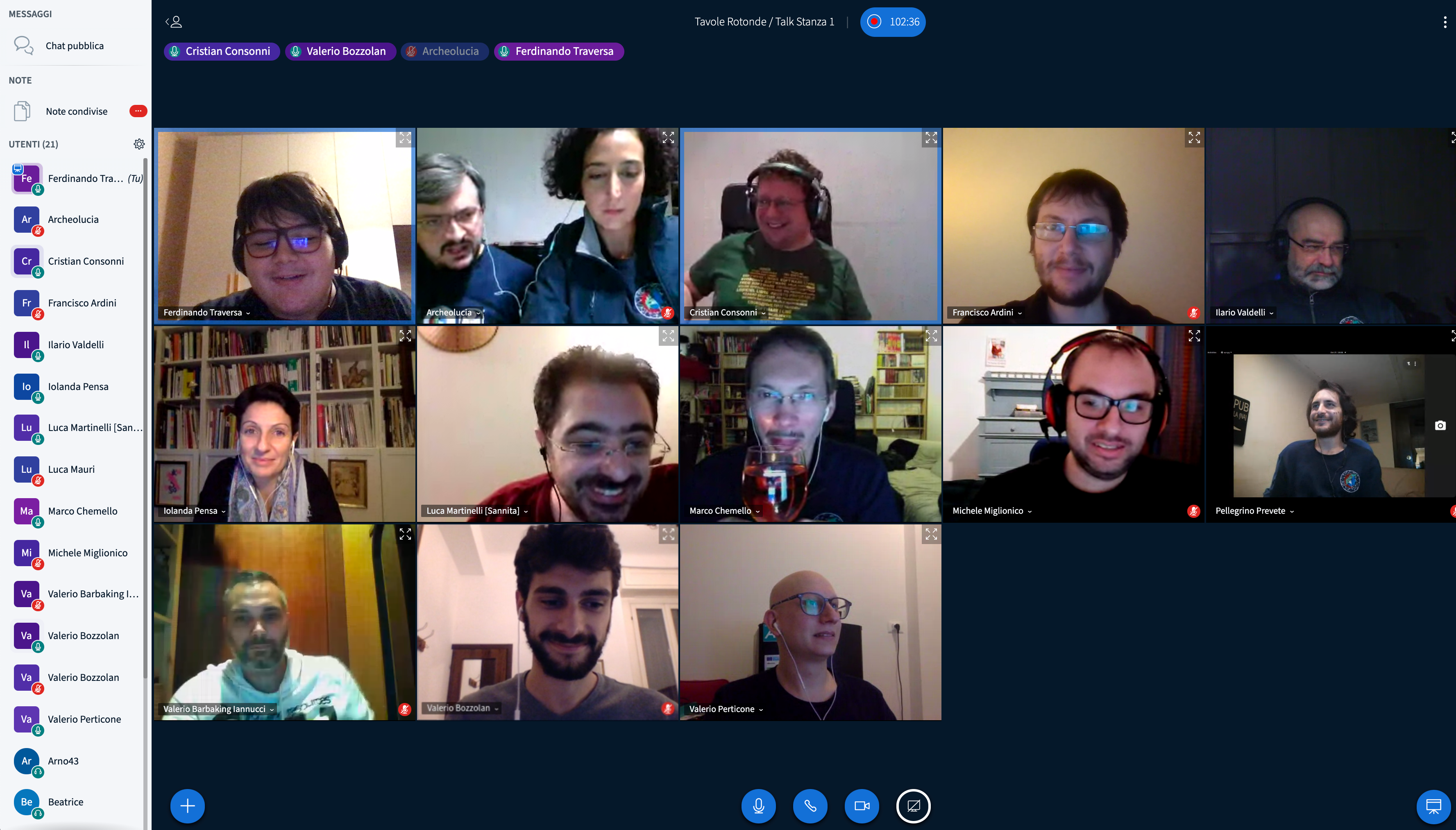
10. BigBlueButton — best for virtual classrooms and employee learning
Why teams switch to it
BigBlueButton is designed around teaching and learning rather than everyday business meetings.
That difference shows in the tools available during a session: shared whiteboards, breakout rooms, polls, uploaded presentations, notes and engagement features that help a facilitator see whether people are following along.
It is a strong choice for organisations delivering onboarding, compliance training, workshops or formal learning programmes. It can also work well alongside a learning management system, where employees need a clear place to access courses, attend live sessions and revisit recordings.
Key strengths- Breakout rooms support small-group exercises and discussions.
- Multi-user whiteboards make training sessions more interactive.
- Polls, hand raising and chat give facilitators ways to check engagement.
- Shared notes and presentation tools keep learning materials visible during the session.
- Open-source deployment can appeal to organisations wanting more technical control.
- It is built primarily for learning, not for casual day-to-day employee calls.
- The open-source route requires technical hosting, configuration and support.
- Client-facing businesses may prefer a more polished meeting platform for sales calls and consultations.
- Teams still need a wider employee communication platform for news, chat, documents and company knowledge.
BigBlueButton is worth shortlisting for learning and development teams, HR departments running onboarding, education providers, membership organisations and businesses delivering regular internal training.
It is especially useful where active participation matters more than simply hosting a video call.
11. Jitsi Meet — best for quick, open-source video meetings
Best for: Small teams, technical organisations and privacy-conscious businesses that want a simple video conferencing option without forcing every participant to create an account.
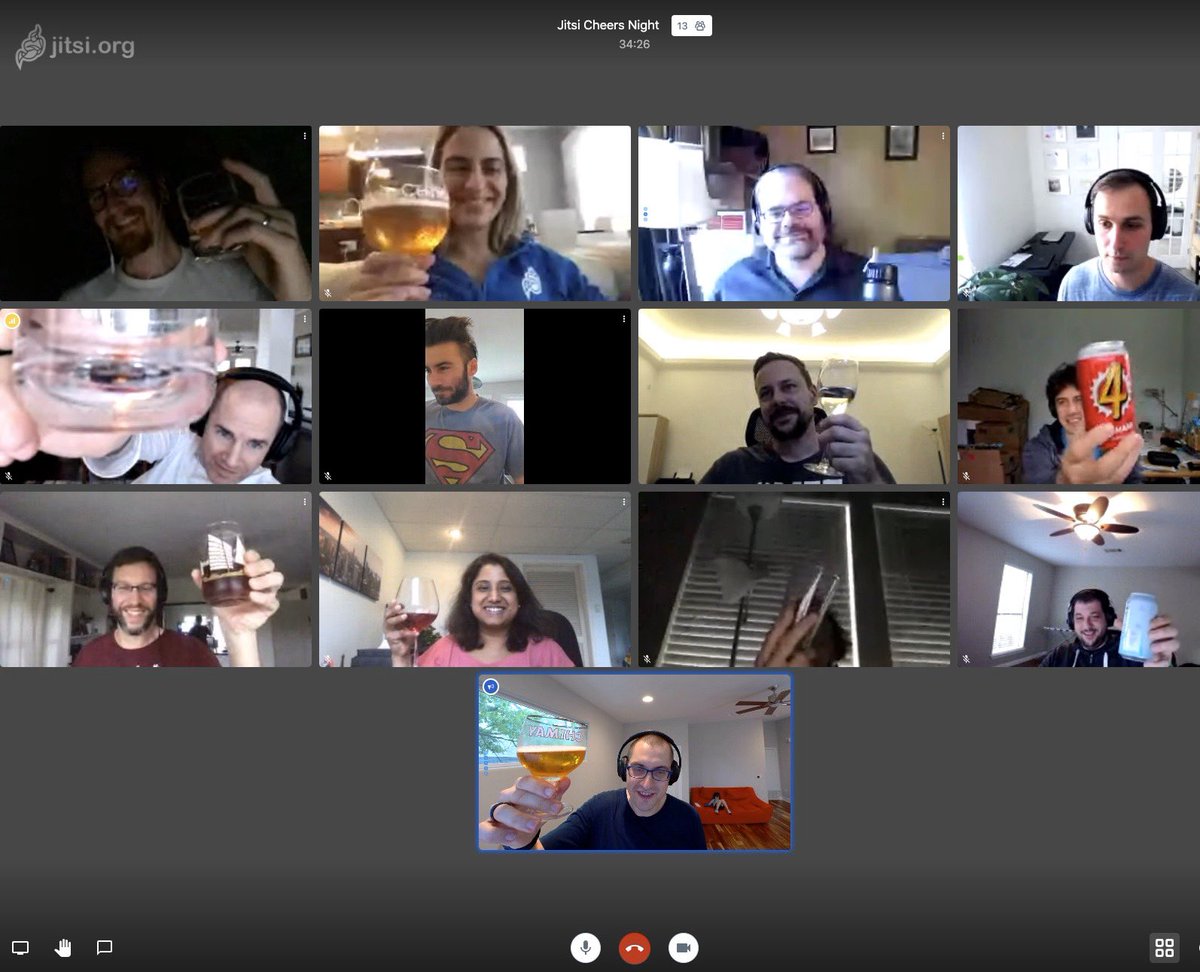
11. Jitsi Meet — best for quick, open-source video meetings
Why teams switch to it
Jitsi Meet is appealing because it gets out of the way.
Someone can create a meeting, share the link and start talking without the usual download, login or subscription friction. That makes it useful for quick internal calls, interviews, support conversations and smaller remote-team meetings.
Its open-source foundation is another reason teams shortlist it. Organisations with technical capability can self-host Jitsi for more control over their meeting environment, branding and data.
The trade-off is that self-hosting needs real IT ownership; it is not something most businesses should treat as a "set it and forget it" tool.
Key strengths- Browser-based joining makes meetings quick and simple to start.
- Participants do not need to create an account for many meeting setups.
- Screen sharing and chat support everyday collaboration.
- Open-source software gives technical teams more flexibility and control.
- Self-hosting can suit organisations with specific privacy or deployment requirements.
- Large meetings can be less consistent than on platforms built for enterprise-scale events.
- The interface and advanced features can feel more basic than premium alternatives.
- Recording and self-hosting can require extra setup and technical support.
- Businesses needing webinar tools, deep analytics or a full employee communication platform may need additional software.
Jitsi Meet is worth shortlisting for small teams, IT-led organisations, nonprofits, developers and businesses that value flexibility and low-friction access. It is especially useful for quick video conversations or organisations that have the technical skills to manage a self-hosted deployment.
Our Verdict · Strong Pick
Jitsi Meet
Best for simple, open-source video meetings that people can join quickly without creating an account.
Top
Choice
Best for
Quick team calls, technical organisations, privacy-conscious teams and self-hosted video conferencing.
Best feature
Browser-based meetings with simple access, open-source flexibility and self-hosting options.
Jitsi Meet is a practical option for teams that want less meeting friction. It is easy to start and join a call, while its open-source model gives technically capable organisations more freedom to control how their video conferencing environment is deployed.
What users tend to like
- Meetings can be started and joined quickly without account-creation friction.
- Browser-based access makes it simple for guests and smaller teams.
- Screen sharing, chat and core meeting features support everyday collaboration.
- Open-source and self-hosting options appeal to privacy-conscious technical teams.
What to consider
- Call quality and stability can be less consistent for larger meetings.
- The experience can feel more basic than premium enterprise platforms.
- Self-hosting, recording and advanced configuration need technical support.
- Teams may need other tools for webinars, analytics and internal communication.
Features, hosting options and pricing can change. Confirm current details with Jitsi or your chosen hosting provider before purchasing.
12. Airmeet — best for interactive virtual and hybrid events
Best for: Organisations running large webinars, company-wide events, online communities, training programmes or virtual networking sessions.
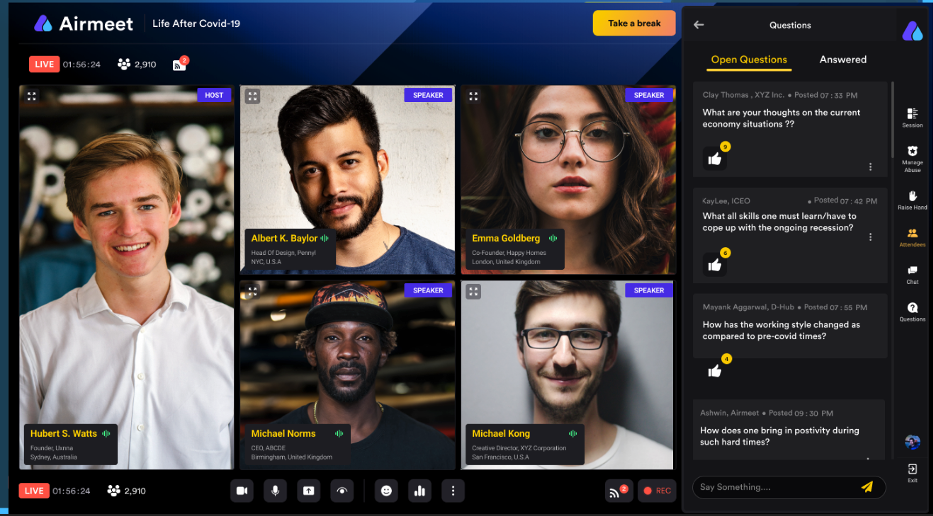
12. Airmeet — best for interactive virtual and hybrid events
Why teams switch to it
Airmeet is designed for occasions where a normal video meeting is too limited. It gives event organisers a more complete way to manage registrations, live sessions, audience engagement, networking and post-event reporting.
It is particularly useful for internal communications teams running all-hands events, HR teams hosting learning programmes and marketing teams creating customer events.
The virtual tables and networking areas are a big part of the appeal because they give attendees somewhere to interact outside the main presentation.
Key strengths- Virtual event spaces support webinars, conferences and larger online sessions.
- Networking tables give attendees a more natural way to meet and talk.
- Registration, event branding and agenda tools help organisers manage the full experience.
- Polls, questions and audience interaction tools make sessions more engaging.
- Event analytics help teams understand attendance and engagement afterwards.
- It is more event-focused than a typical day-to-day video conferencing app.
- Smaller teams may find it too feature-rich for simple internal meetings.
- A successful event still needs strong planning, hosts and clear attendee communication.
- Teams need a separate platform for everyday employee chat, documents and internal knowledge.
Airmeet is worth shortlisting for internal communications teams, HR leaders, learning teams, associations, community managers and marketing teams. It is especially useful for organisations that need to create engaging online events rather than simply broadcast a presentation.
Our Verdict · Strong Pick
Airmeet
Best for interactive virtual and hybrid events, webinars and online networking experiences.
Top
Choice
Best for
Virtual events, company all-hands, webinars, community sessions and interactive training programmes.
Best feature
Event spaces and networking tables that help attendees interact beyond the main presentation.
Airmeet is a strong choice when a standard meeting link is not enough. It helps teams create more structured, engaging online events with live sessions, networking opportunities, audience participation and event insights in one platform.
What users tend to like
- Virtual event spaces make webinars and larger sessions feel more engaging.
- Networking tables encourage conversations outside the main stage.
- Registration, agendas and branding help organisers manage a more complete event experience.
- Analytics give teams useful visibility into attendance and session engagement.
What to consider
- It is more event-focused than a simple day-to-day video meeting platform.
- Smaller teams may not need all of its event and networking features.
- Good outcomes still depend on event planning, clear agendas and strong facilitation.
- Teams need separate tools for internal chat, documents and company knowledge.
Features, event limits and pricing can change. Confirm current details with Airmeet before purchasing.
What should you look for before choosing a video conferencing platform?
It is easy to compare video conferencing software by looking at pricing pages and feature lists.
The better approach is to start with the meetings your business actually runs.
A platform that works well for a quick one-to-one chat may be frustrating for employee training, customer demonstrations or a busy boardroom.
The goal is not to find the app with the most features. It is to find one that helps people join easily, communicate clearly and get useful work done without creating another layer of confusion.
Start with the meetings your people actually have
Imagine a 250-person business with sales calls, weekly team meetings, staff training and boardroom meetings. The sales team needs clients to join quickly. Managers need simple team check-ins. HR needs training sessions where people can ask questions and work in smaller groups. Meanwhile, the leadership team needs a meeting-room setup where remote employees can hear every person at the table.
One tool might handle one-to-one calls brilliantly but struggle with external guest access, interactive training or a conference room with six people sharing one microphone.
Before choosing a platform, list the types of meetings that matter most in your organisation:
- Internal team meetings and quick employee conversations.
- Customer, supplier and partner calls.
- Company-wide updates and all-hands sessions.
- Staff training, onboarding and compliance sessions.
- Boardroom and conference-room meetings.
- Mobile access for frontline, deskless and travelling employees.
This gives you a much clearer picture of what the platform must do well, rather than what looks impressive in a product demo.
The features that make a practical difference
Once you understand your meeting needs, look beyond basic video quality.
These features often have the biggest impact on whether employees actually use a platform:
- One-click or browser-based joining: People should not need to download software, create an account or contact IT just to join an important meeting.
- Reliable audio and noise suppression: Poor sound can make a meeting unusable, especially when people are joining from shared offices, homes or busy sites.
- Screen sharing and collaboration tools: These are useful for product demonstrations, problem-solving, training and working through documents together.
- Live captions and transcripts: Captions can make meetings more inclusive, while transcripts can help employees revisit key points afterwards.
- Recording controls and storage: Businesses need to decide which meetings should be recorded, who can access them and how long recordings should be kept.
- Breakout rooms: These matter for workshops, training and sessions where smaller groups need time to discuss an issue.
- Calendar integrations: A good calendar connection reduces missed meetings and makes scheduling less manual.
- Guest access and waiting rooms: External clients and suppliers should be able to join easily, while hosts still need control over who enters.
- Mobile experience: Employees without desks need a platform that works properly on a phone, not a stripped-back afterthought.
- Analytics, admin controls and auditability: IT and internal communications teams may need visibility into adoption, user access and meeting activity.
- Conference-room compatibility: Businesses running hybrid meetings need to know that cameras, microphones, speakers and displays will work smoothly with the chosen software.
Don't ignore accessibility and meeting fairness
A video meeting is not inclusive simply because everyone received the same link.
Employees need to be able to participate properly, whether they are joining from a laptop at home, a mobile phone on a worksite or a meeting room with colleagues.
Look for live captions, keyboard navigation, readable controls and clear layouts that work for different accessibility needs. Dial-in access can also be important for employees or guests with limited internet connections.
Time-zone awareness matters too, particularly for international teams, as the same people should not always be expected to join outside normal working hours.
Most importantly, remote employees need to be heard as clearly as people sitting in the room.
If the meeting-room microphone only picks up the person closest to it, or the camera never shows the whiteboard, remote participants are being asked to attend without being fully included.
The right video conferencing software, supported by good meeting habits and suitable room equipment, helps create a fairer experience for everyone.
Is free video conferencing software enough for your business?
A video conferencing software free plan can be a sensible place to start.
For a small team, a freelancer or an early-stage business, there is little point paying for a large enterprise platform before you know how often people will actually use it.
Many free video conferencing apps cover the basics well.
They can support short internal meetings, quick one-to-one calls, simple screen sharing and occasional conversations with customers or suppliers. If the meeting is small, informal and does not need to be recorded or managed closely, a free option may be all you need.
A free plan can work well for:
- Very small teams with straightforward communication needs.
- Short internal meetings and quick project check-ins.
- Freelancers and early-stage businesses managing costs carefully.
- Occasional customer, supplier or partner calls.
- Teams testing a platform before committing to a paid plan.
However, the best video conferencing app free for a small team may not be the best choice once the business grows. This is usually where the limitations start to show.
Businesses often outgrow free plans because of:
- Meeting-length restrictions: Free calls may end after a set period, which is not ideal for training, workshops or important customer meetings.
- Participant limits: A free plan may support only a smaller number of attendees, making company-wide updates more difficult.
- Recording and storage limits: Teams may be unable to record meetings, store recordings securely or keep them available for long enough.
- Limited admin and identity controls: IT may have fewer options for managing users, permissions, single sign-on and guest access.
- Fewer compliance, reporting and support options: Growing organisations may need clearer audit trails, reporting, retention controls and reliable support.
- Inconsistent conference-room integration: Free plans may not work as smoothly with dedicated cameras, microphones, meeting-room displays and room-booking systems.
A free plan is not automatically a security risk, but it may not give IT enough control for how your organisation works.
The right decision comes down to the meetings you run, the information being discussed and how much control your business needs over access, recordings and employee use.
What is the best video conferencing system for a conference room?
The best video conferencing system for a conference room is not simply the app on the screen.
It is the combination of video conferencing software, camera, microphone, speaker, display, room controller and network connection working properly together.
A business can have a great video platform, but the meeting will still be poor if remote employees cannot hear the people in the room, the camera only shows half the table or staff need ten minutes to work out how to join.
The right setup depends on the size of the room, how many people use it and the type of meetings the business runs.
Small rooms
For a small huddle room or meeting space, simplicity is usually more important than a complicated AV setup.
An all-in-one video bar or USB camera and speaker device can often cover the basics well, particularly for two to six people.
Look for:
- A camera with a wide enough view to include everyone at the table.
- Clear microphones that can pick up voices without people leaning forward.
- Built-in speakers or a speakerphone that avoids echo and feedback.
- One-touch or simple meeting joining.
- A straightforward room-booking process so employees know when the space is available.
The goal is to make the room easy enough that employees can walk in, join a call and start talking without needing IT support.
Medium and large rooms
Larger meeting rooms need more planning because the distance between people, microphones and cameras becomes more important. A setup that works well for four people may not work for 12 people spread across a boardroom table.
For medium and large rooms, assess:
- Microphone coverage: Can remote attendees hear every person, including those sitting at the far end of the room?
- Camera framing: Does the camera show the whole room, follow the speaker or adjust automatically when people move?
- Wireless presentation: Can employees share content from their laptops without passing cables around the table?
- Multiple displays: Is there enough screen space for remote participants and shared content to be visible at the same time?
- Room controls: Can employees start, join and manage meetings from a simple touch panel or controller?
- Management at scale: Can IT monitor devices, apply updates and solve problems across several office locations?
The best conference-room system is one that gives remote employees the same chance to see, hear and contribute as the people sitting in the room.
The hybrid-meeting test every business should run
Before committing to a video conferencing system, run a real test with employees in the room, remote attendees and at least one external guest. Do not test it only with the IT team standing next to the equipment.
Ask these questions:
- Can a remote attendee hear every person in the room clearly?
- Can they see the speaker, shared presentation and any important visual material?
- Can an external guest join without needing IT help?
- Are captions, recording permissions and recording settings working as intended?
- Can employees enter the room and join the meeting within two minutes?
If the answer to any of these is no, the issue may not be the video conferencing software itself. It could be the room layout, microphone placement, camera angle, network connection or the joining process.
Testing the full experience before rollout will save employees a great deal of frustration later.
Here's where things get complicated: security, privacy and recording
Video conferencing software makes it easy to connect people, but it can also create a large amount of sensitive information.
A meeting may include employee discussions, customer details, commercial plans, health information, recruitment conversations or financial data. Once a call is recorded or transcribed, that information can remain accessible long after the meeting has ended.
This is why businesses should treat video meeting governance as more than an IT setting. It needs clear rules that employees understand and can follow.
Recording is not a default setting—it is a policy decision
Recording can be extremely useful. It helps employees catch up on training, revisit project discussions and share leadership updates with people who could not attend live. But recording every meeting by default can create unnecessary privacy, storage and security risks.
Before enabling recordings, businesses should decide:
- Which meeting types can be recorded and which should never be recorded.
- Who is allowed to start, stop, download or share a recording.
- How employees, customers and external guests will be told that recording is taking place.
- Whether consent is needed, particularly for external participants or sensitive conversations.
- Where recordings and transcripts will be stored.
- Who can access them after the meeting ends.
- How long recordings should be retained before they are deleted.
- Whether recordings should be excluded from certain conversations, such as disciplinary meetings, health discussions, legal matters or confidential HR conversations.
The same rules should apply to AI-generated transcripts and meeting summaries. A transcript may be easier to search than a video recording, but it can contain the same sensitive information and needs the same level of care.
What IT, HR and Legal should agree before rollout
A successful rollout needs shared ownership.
IT may manage the technology, but HR, Legal, Compliance and Internal Communications all have a role in making sure employees use it safely and consistently.
| Role | Responsibility | Why it matters |
| CIO or IT Director | Chooses the platform, manages identity integration, supports devices and oversees administration. | Prevents tool sprawl, weak setup and avoidable reliability issues. |
| CISO | Sets security controls, assesses risk, manages secure access and plans incident response. | Helps protect meeting links, employee accounts, recordings and sensitive content. |
| Data Protection Officer | Reviews lawful data use, privacy implications, retention periods and employee rights. | Helps the business manage recordings, transcripts and personal data responsibly. |
| HR Director | Creates employee guidance, onboarding and fair-use expectations. | Makes the platform easier and safer for employees to use in day-to-day work. |
| Internal Communications lead | Defines meeting standards and communicates changes clearly across the organisation. | Ensures employees understand what is changing, why it matters and where to get help. |
| Department managers | Set good meeting habits, model the right behaviour and address poor adoption. | Stops bad habits, unnecessary recordings and inconsistent use from becoming normal practice. |
| Legal and Compliance teams | Review contracts, regulatory requirements, data-processing terms and internal policies. | Essential where meetings involve regulated, confidential or commercially sensitive information. |
When these teams agree the rules before rollout, employees are far less likely to make their own assumptions about recording, sharing and storing meeting information.
How to roll out video conferencing software without creating more confusion
Choosing the best video conferencing software is only part of the job.
A platform can have great features, but employees will still struggle if different departments use different video conferencing apps, no one knows the recording rules or meeting-room equipment is difficult to use.
A clear rollout gives employees confidence from day one and helps IT avoid unnecessary support requests later.
A practical rollout checklist
- Review the tools people already use Find out which video conferencing apps teams are already using for internal calls, customer meetings, training and external events. This will highlight duplicated costs, security risks and employee preferences.
- Identify the meeting types that matter most Separate quick employee calls from customer demonstrations, training sessions, all-hands meetings and boardroom calls. The best platform for one use case may not suit another.
- Choose a primary platform and define exceptions Give employees a clear default choice. If the business needs a separate webinar or event platform, explain when it should be used instead of adding another tool without guidance.
- Test the software with real employees Include remote employees, office staff, deskless workers, managers and external guests. Ask them to join from laptops, mobile phones and meeting rooms before committing to a wider rollout.
- Check security, privacy and identity settings Confirm single sign-on, guest access, waiting rooms, recording permissions, transcript settings and data-retention rules before employees begin using the platform.
- Test conference-room compatibility Make sure cameras, microphones, speakers, displays and room controllers work properly with the chosen video conferencing software. A good platform cannot compensate for poor room audio.
- Create a simple recording and meeting policy Employees should know when recording is allowed, how participants are notified, where recordings are stored and when they are deleted.
- Train managers first Managers set the tone for meeting culture. Show them how to run inclusive hybrid meetings, use the right tools and avoid unnecessary calls.
- Publish guidance in one easy-to-find place Keep joining instructions, troubleshooting guidance, room-booking information and recording rules in a central employee hub. This is where a digital workplace platform such as AgilityPortal can help.
- Measure adoption and improve the experience Track common support issues, meeting-room problems, employee feedback and usage patterns. Review the setup regularly instead of assuming the original rollout will work forever.
A thoughtful rollout helps employees see the new platform as a useful improvement, not just another app they are expected to learn.
Video calls are changing, but good communication still needs a home
Video conferencing software is becoming more useful, not just more advanced. AI summaries can help employees catch up on a missed call. Automated transcripts make it easier to search for a decision or action.
Real-time captions can make meetings more accessible, while smarter room cameras and better cross-device joining can help remote employees feel less like they are watching from the sidelines.
These improvements matter, especially for hybrid teams. Someone joining from a phone on a worksite should still be able to follow the conversation. A remote employee should be able to hear people in the meeting room clearly. And an employee who misses a training session should not have to rely on a colleague's memory of what was said.
But technology still needs human judgment. An AI summary may miss important context. A transcript can record what people said without explaining what was agreed. A recording can show the discussion, but it does not automatically make the decision easy for someone to find three weeks later.
McKinsey has estimated that knowledge workers can spend around one-fifth of their working time searching for and gathering information. That is a major productivity problem when important updates, meeting recordings, chat messages and documents are spread across different systems. McKinsey research
The practical answer is to capture the outcome of important meetings and give it a clear home. For example, a manager can share the final decision, key actions, relevant documents and recording link in a central employee space rather than leaving everything buried in a calendar invite or chat thread.
This is where a digital workplace platform such as AgilityPortal can add value. Video calls, voice calls and screen sharing help employees have the conversation. Employee spaces, announcements, documents, knowledge pages and search help the organisation keep the outcome visible, useful and easy to find afterwards.
Other free and open-source video conferencing tools worth considering
If you are looking for video conferencing software free, there are plenty of options beyond the platforms reviewed above.
Some offer a free plan with limits, while others are open-source tools that give technical teams more control over hosting and configuration.
We have put together a list of video conferencing platforms includes tools for quick team calls, browser-based meetings, virtual classrooms and self-hosted deployments.
| Platform | Availability | Best for | Worth knowing |
| Google Meet | Free plan | Google Workspace users | Simple browser-based calls and Calendar integration |
| Zoom Workplace | Free plan | General team meetings | Familiar interface, but free-plan meeting limits apply |
| Microsoft Teams Free | Free plan | Small Microsoft-focused teams | Chat, calls and collaboration in one app |
| Cisco Webex | Free plan | Professional business meetings | Strong business-meeting and collaboration features |
| Discord | Free | Informal communities and smaller teams | Voice channels and quick video conversations |
| Slack Huddles | Free plan | Teams already using Slack | Fast audio-first conversations with optional video and screen sharing |
| Zoho Meeting | Free plan | Zoho users and smaller businesses | Useful for meetings, webinars and simple scheduling |
| FreeConference.com | Free plan | Basic conference calls and online meetings | Straightforward option for smaller teams |
| Brave Talk | Free plan | Privacy-conscious users | Browser-based video calls built into the Brave ecosystem |
| Talky | Free | Quick informal browser calls | Simple room links with minimal setup |
| Jitsi Meet | Free and open source | Quick calls and self-hosting | No-account meetings and flexible deployment options |
| BigBlueButton | Open source | Virtual classrooms and training | Whiteboards, polls, breakout rooms and learning tools |
| Nextcloud Talk | Open source | Organisations already using Nextcloud | Video calls, chat and file collaboration within a private workspace |
| Element Call | Open source | Privacy-focused Matrix users | Decentralised communication and open standards |
| Apache OpenMeetings | Open source | Self-hosted web conferencing | Meetings, whiteboards, recordings and collaboration features |
| Jami | Free and open source | Peer-to-peer private communication | Decentralised voice, video and messaging |
| MiroTalk | Open source | Simple self-hosted video rooms | Browser-based meetings and flexible room setup |
| Galène | Open source | Technically capable teams | Lightweight self-hosted video conferencing |
| OpenVidu | Open source | Developers building video into their own product | Video infrastructure rather than a ready-made meeting app |
| LiveKit | Open source | Product and engineering teams | Build custom real-time video, voice and screen-sharing experiences |
Which Video Conferencing Software Should You Choose?
Choosing video conferencing software is a bigger decision than it first appears.
The wrong platform can mean employees wasting time joining calls, clients struggling to access meetings and IT managing tools that do not fit the business. With so many options available, it is worth taking a step back before committing.
Most platforms now offer reliable video and familiar meeting controls. The real difference is how well they support the way your organisation works. Start by looking at your most common meeting types: quick internal calls, client demonstrations, employee training, company-wide events or formal conference-room meetings.
Meeting size and budget are a useful first filter. A small team may be well served by a free or lower-cost plan, while a growing business may need stronger admin controls, recordings, analytics or support. Look beyond the headline price too. Premium support, storage, webinar features, meeting-room hardware and additional licences can all increase the overall cost.
Next, decide which features matter most. If your business needs tighter control over private deployments and complex video environments, a platform such as Pexip or TrueConf may be worth considering.
If you run training and interactive workshops, BigBlueButton or Butter may be a better fit. For customer events, webinars and networking, Livestorm or Airmeet may be more useful than a standard meeting app.
Also consider the software your employees already use. A platform that works naturally with your existing calendar, documents, identity system and communication tools is easier to adopt. Just as importantly, think about where employees will join calls: from laptops, mobile phones, customer sites or meeting rooms.
Whichever provider looks right on paper, test it with real employees before making a final decision. Use a free plan, trial or product demo where available, and include remote workers, office staff and external guests in the test.
That is the quickest way to find out whether a platform will genuinely make meetings easier.
Related Video Conferencing, Internal Communication and Business Video Guides
Choosing video conferencing software is only one part of helping employees communicate clearly. These AgilityPortal guides explore voice and video collaboration, internal communication, training videos, explainer content and the practical ways organisations can use video to keep teams informed, engaged and connected.
- Introducing AgilityPortal’s New Voice, Video and Screen Sharing—Now Free in Beta
- Reasons Why Video Is the Right Internal Communication Method
- How to Boost Employee Communication Through Video
- How Brand Videos Can Help Improve Your Internal Communication
- How to Compress Video Files and Reduce Video Size for Internal Communication
- 9 Tips for Using Training Videos to Support Employee Success
- How SaaS Explainer Videos Make Complex Product Features Easier to Understand
- A Guide to Corporate Video Production
- How Video Became an Essential Part of Business Marketing Strategy
- How Video Content Helps Achieve Business Goals
Together, these guides support a stronger topic cluster around video conferencing, employee video communication, screen sharing, internal communications, training videos and connected digital workplaces.
Common problems to look out for when choosing video conferencing software
Choosing video conferencing software is not only about video quality or the monthly price.
Many businesses choose a platform that looks good in a demo, then discover that employees struggle to join meetings, external guests cannot access calls easily, or the meeting-room setup does not work properly.
Before committing, look out for these common issues:
- Difficult joining experience: If employees or guests need to download software, create an account or follow several steps just to join a call, adoption will suffer.
- Poor audio in meeting rooms: Video quality gets attention, but bad audio is often the bigger problem. Test whether remote participants can hear everyone in the room, not only the person closest to the microphone.
- Free-plan limits that interrupt meetings: A free plan may have time limits, participant caps, limited recordings or restricted admin features. Check these before relying on it for customer calls or employee training.
- Weak mobile access: Frontline and deskless employees may need to join from a phone. Make sure the mobile experience is easy to use and not missing important features.
- Limited guest access: Customers, suppliers and job candidates should be able to join without needing help from IT. Waiting rooms and guest permissions should be simple to manage.
- Recording and privacy confusion: Employees need clear rules around recording, AI transcripts, sharing and retention. Without them, businesses can create unnecessary privacy and compliance risks.
- Poor integration with existing tools: Check whether the platform works with your calendar, single sign-on, document tools, employee directory and meeting-room equipment.
- Hidden costs: The starting price may not include webinar capacity, larger meetings, recordings, cloud storage, premium support or conference-room hardware.
- Too many features and not enough guidance: A complex platform can overwhelm employees if there is no clear rollout, training or guidance on when to use each feature.
- No central place for follow-up: A meeting recording is not enough. Teams need somewhere to store the final decision, actions, documents and important updates so people can find them later.
The best video conferencing software should make communication feel easier, not create another system employees need to work around.
Choosing video conferencing software that people will actually use
The best video conferencing software is not necessarily the tool with the longest feature list or the most recognisable name.
It is the platform that works reliably for your employees, fits into the systems your business already uses and makes meetings easier rather than more complicated.
Start with the reality of how your people work.
A small remote team may need fast browser-based calls and screen sharing. A growing business may need stronger admin controls, recordings and secure guest access.
HR and learning teams may need breakout rooms, polls and training tools, while larger organisations may need reliable conference-room setups and tighter control over data.
Technology matters, but it cannot fix every meeting problem on its own.
A feature-rich platform will not solve poor room audio, unclear ownership, unnecessary calls or a culture where key decisions are never written down afterwards. Businesses still need simple meeting rules, clear recording policies and a central place to share important outcomes.
When employees can join easily, hear and be heard clearly, contribute on equal terms and find the decisions that matter after the call ends, video meetings become a useful connection point.
That is when video conferencing stops feeling like another workplace frustration and starts helping people work together properly.
Frequently asked questions about video conferencing software
What is video conferencing software?
Video conferencing software lets people hold live online meetings using video, audio and chat. Most platforms also include screen sharing, meeting recordings, captions, breakout rooms and calendar integrations.
What are some video conferencing software examples?
Common video conferencing software examples include AgilityPortal, Livestorm, Kumospace, Butter, Demodesk, Sessions, Whereby, Pexip, TrueConf, BigBlueButton, Jitsi Meet and Airmeet.
Each is designed for a different type of meeting, from quick employee calls to training and large virtual events.
What is the best video conferencing software?
The best video conferencing software depends on your business needs.
AgilityPortal is a strong choice for secure employee video calls inside a complete digital workplace, while Livestorm suits webinars, Butter works well for workshops, and Pexip is better suited to complex enterprise video environments.
Which are 5 video conferencing software options?
Five video conferencing software options worth considering are:
- AgilityPortal for employee video calls, voice calls and screen sharing.
- Livestorm for webinars and training.
- Whereby for simple client-facing video meetings.
- BigBlueButton for virtual learning and onboarding.
- Jitsi Meet for free and open-source video calls.
What is the best software for video meetings?
The best software for video meetings is the one that suits the type of meeting you run most often. For quick internal conversations, prioritise easy joining, chat and screen sharing.
For customer calls, look for branded rooms and simple guest access. For training, choose tools with polls, breakout rooms and recordings.
Is there video conferencing software free for businesses?
Yes. Video conferencing software free options include Google Meet, Zoom Workplace, Microsoft Teams Free, Cisco Webex, Jitsi Meet and BigBlueButton.
Free plans can work well for smaller teams, but check meeting limits, recording options, user management and security controls before relying on one for the whole business.
What is the best video conferencing app free?
The best video conferencing app free depends on your priorities.
Jitsi Meet is useful for quick browser-based calls and open-source flexibility.
Google Meet is convenient for Google Workspace users, while Microsoft Teams Free can suit small businesses that already use Microsoft tools.
What are some video conferencing examples at work?
Practical video conferencing examples include a manager running a weekly team check-in, a sales rep delivering a product demonstration, HR hosting onboarding training, a leadership team holding an all-hands meeting, or a remote employee sharing their screen to solve a customer issue.
What is the best video conferencing system for conference room use?
The best video conferencing system for conference room use combines the right platform with reliable hardware. This normally includes a suitable camera, microphone, speaker, display, room controller and stable network connection.
The key test is whether remote participants can hear and see everyone in the room clearly.
What is replacing Zoom?
Nothing is replacing Zoom for every business, but teams are increasingly choosing more specialised tools.
For example, Livestorm is popular for webinars, Kumospace for virtual offices, Butter for workshops, Demodesk for sales demonstrations and Jitsi Meet for open-source video conferencing.
The right replacement depends on what Zoom is not doing well for your team.
Where can I find a list of video conferencing platforms?
This article includes a detailed list of video conferencing platforms, including paid, free and open-source options.
When comparing platforms, look at your meeting types, employee needs, guest access, room compatibility, security requirements and total cost—not only the headline price.
AI Summary
- The best video conferencing software helps employees join meetings easily, share screens, communicate clearly and stay connected whether they are working remotely, in the office or on the move.
- AgilityPortal is a strong choice for secure peer-to-peer employee video calls, voice calls and screen sharing within a complete digital workplace.
- Livestorm, Airmeet and BigBlueButton are better suited to structured webinars, employee training, virtual events and learning sessions, while Whereby and Sessions work well for simpler client-facing meetings.
- Video conferencing software free options can work well for small teams and short calls, but businesses should check meeting limits, recording access, participant numbers, admin controls and conference-room compatibility.
- Organisations with stricter privacy, self-hosting or interoperability requirements may want to consider platforms such as Pexip, TrueConf, Jitsi Meet, Nextcloud Talk or other open-source video conferencing apps.
- The right platform still needs good meeting habits: clear recording rules, reliable room equipment, accessible captions and a central place where employees can find decisions and follow-up information.
Most Popular Posts

Effective communication among team members is vital for the productivity and success of any organization. Surprisingly, 60% of companies lack a long-term internal communication strategy, which p...


Businesses thrive on communication for efficiency, productivity and accomplishment. When the right information is passed from the right designation in the organization, it promotes positivity an...

Categories
Blog
(3248)
Business Management
(399)
Employee Engagement
(237)
Digital Transformation
(224)
Growth
(151)
Intranets
(142)
Internal communications
(110)
Remote Work
(68)
Sales
(53)
Collaboration
(53)
Customer Experience
(33)
Culture
(30)
Project management
(30)
Knowledge Management
(29)
Leadership
(20)
Comparisons
(9)
News
(1)

Related Posts

Searching for "communal work spaces near me" but unsure which option will actually suit your growing business? By the end of this guide, you'll know how to compare offices to rent, spot extra costs and ask the right questions before committing....

Do you know what happens to your information after you share it with an AI assistant? That question sits at the heart of AI privacy—and it's easy to overlook when you're trying to finish a task. You paste in a customer email, upload a spr...

What would happen if your website moved successfully, but your customers and employees suddenly couldn't reach you by email? Email migration tools can help transfer your messages, but keeping business communication running takes more than copyi...

Does your team still message HR to ask where the holiday policy is? Employee self service should make everyday tasks easier, giving people a straightforward way to find answers, access documents and submit requests. But when policies are buried...

How quickly can a new partner go from signing an agreement to confidently working with your business? If the answer involves chasing documents, forwarding training links and answering the same questions repeatedly, your onboarding process may n...


Jill Romford
I am a digital nomad, lover of exploring new places and making friends.
I love to travel and I love the internet. I take pictures of my travels and share them on the internet using Instagram.
Traveler, entrepreneur, and community builder. I share my insights on digital marketing and social media while inspiring you to live your fullest life.
Ready to learn more? 👍
One platform to optimize, manage and track all of your teams. Your new digital workplace is a click away. 🚀
Free for 14 days, no credit card required.