Insight Blog
Agility’s perspectives on transforming the employee's experience throughout remote transformation using connected enterprise tools.
1 hour and 8 minutes reading time
(13511 words)
11 Powerful AI Tools for Remote Teams That Make Collaboration Faster and Far Less Chaotic

11 Powerful AI Tools for Remote Teams That Make Collaboration Faster and Far Less Chaotic
Discover 11 powerful AI tools for remote teams, including free options for meetings, writing and workflows, with practical tips for secure adoption.
11 Powerful AI Tools for Remote Teams That Make Collaboration Faster and Far Less Chaotic

Remote work gives businesses access to wider talent and more flexibility, including people working in remote administrative jobs.
However, it can also create a familiar problem: employees spend too much time chasing updates, sitting through meetings, rewriting the same information and trying to work out who owns the next step.
The right AI tools for remote teams can reduce that friction by summarising meetings, drafting routine content, organising knowledge and helping employees find answers without another call or long email thread.
66%
of UK enterprises surveyed
IBM found that 66% of surveyed UK enterprises were already seeing significant AI-driven productivity improvements. Yet only 38% were prioritising AI upskilling opportunities.
Source: IBM UK AI productivity survey
There is a genuine opportunity here.
IBM reported that 66% of surveyed UK enterprises were already seeing significant AI-driven productivity improvements, although only 38% were prioritising AI upskilling.
That gap matters. Buying tools is easy; helping people use them safely and consistently is the harder part.
This guide looks at 11 practical tools remote and hybrid teams can shortlist, including free AI tools for office work.
It also covers where AI can go wrong, who should own governance, and how to introduce it without creating another confusing layer of workplace technology.
Key Takeaways
- AI tools for remote teams work best when they solve clear problems, such as meeting overload, scattered knowledge and unclear task ownership.
- Free AI tools can support low-risk testing, but businesses still need to assess security, data retention, permissions and future costs.
- Meeting summaries and AI-generated content should be reviewed by people before they become final decisions, actions or workplace communications.
- Clear AI-use guidance, approved tools and practical employee training reduce the risk of shadow AI and accidental data exposure.
- The strongest AI rollouts improve existing workflows and employee experience rather than adding more disconnected workplace apps.
Remote Work Is Flexible—But Collaboration Can Get Messy Fast

Remote Work Is Flexible—But Collaboration Can Get Messy Fast
AI can make remote work feel far less fragmented.
It can reduce repetitive admin, cut down the time people spend searching for information, and help teams leave meetings with clearer notes and next steps. For employees working across locations, time zones or shifts, that can make a real difference.
But there is a catch. When people use unapproved AI tools to summarise calls, draft documents or analyse information, confidential business, customer or employee data may be shared in ways the organisation cannot properly control.
AI-generated content can also be wrong, incomplete or missing important context. If employees feel that meeting tools are recording or analysing everything they say without clear explanation, trust can quickly suffer too.
The sensible approach is to start with defined workplace problems rather than buying every new tool that appears. Decide what AI is allowed to help with, what information must never be entered, who checks important outputs, and where employees can find approved guidance. Training matters just as much as the technology itself.
This is becoming increasingly important from a governance perspective.
The European Commission states that AI literacy is an obligation for providers and deployers within the scope of Article 4 of the EU AI Act.
In simple terms, organisations need to make sure people using AI at work understand enough about the tools, their limits and the risks involved.
What Are AI Tools for Remote Teams, Exactly?
AI tools for remote teams are workplace platforms that use artificial intelligence to help distributed employees communicate, create content, find information, organise work and automate routine tasks.
They are not all designed to do the same thing. Some focus on meeting notes, while others help with writing, project management, knowledge sharing or internal communication.
The most useful tools usually help teams with five everyday jobs:
- Capturing meetings and turning discussions into notes, summaries and action points.
- Writing and improving workplace content, including updates, policies and emails.
- Searching across documents, conversations and knowledge bases for quicker answers.
- Managing projects, tasks and repetitive workflows with less manual follow-up.
- Keeping communication and important knowledge in one accessible place.
The aim is not to remove people from the process.
It is to take away the low-value work that slows them down, so managers and employees can spend more time making decisions, supporting customers and doing work that needs human judgement.
Ask AI to Compare AI Tools for Remote Teams
Use these AI tools to compare the platforms featured in this guide, find the best AI tools for remote teams free, compare meeting notes, writing support, project management, security controls, pricing and integrations, and choose the right option for your remote or hybrid workforce.


11 powerful AI tools for remote teams worth shortlisting
The best AI tools for remote teams solve specific problems: missed meeting actions, slow document creation, unclear project ownership and information buried across too many apps.
The right choice will depend on the systems your business already uses, the type of work employees do, and how much control you need over data and access.
Here is a practical starting point. Always check each supplier's current pricing, free-plan limits and data-handling settings before rolling a tool out across the business.
| Tool | Best for | Useful AI capability | Free option? |
| AgilityPortal AI | Internal communication and employee knowledge | Centralised updates, searchable workplace information and AI-assisted support | Trial available |
| Microsoft 365 Copilot | Microsoft-based organisations | Drafting, meeting recaps and support across Microsoft apps | Licence-dependent |
| ChatGPT Business | Writing, research and structured ideation | Drafts, summaries, analysis and reusable prompts | Free individual version available |
| Zoom AI Companion | Teams already using Zoom | Meeting summaries, highlights and action items | Included with eligible paid plans |
| Google Workspace with Gemini | Google-based teams | Writing support, meeting assistance and document help | Licence-dependent |
| Notion AI | Shared documentation and project knowledge | Writing, summaries and workspace search | Limited/free access may vary |
| Asana AI | Project coordination | Status updates, task summaries and workflow support | Free plan available |
| Slack AI | Fast-moving internal conversations | Channel recaps and search assistance | Paid plan dependent |
| Otter.ai | Transcription and meeting notes | Live transcription, summaries and searchable notes | Free tier available |
| Bluedot | Meeting recording and notes | Automated notes, summaries and follow-ups | Free tier may be available |
| Grammarly | Clearer everyday workplace writing | Tone suggestions, grammar support and drafting help | Free plan available |
1. AgilityPortal: Best for Keeping Remote Employees Informed
1. AgilityPortal: Best for Keeping Remote Employees Informed
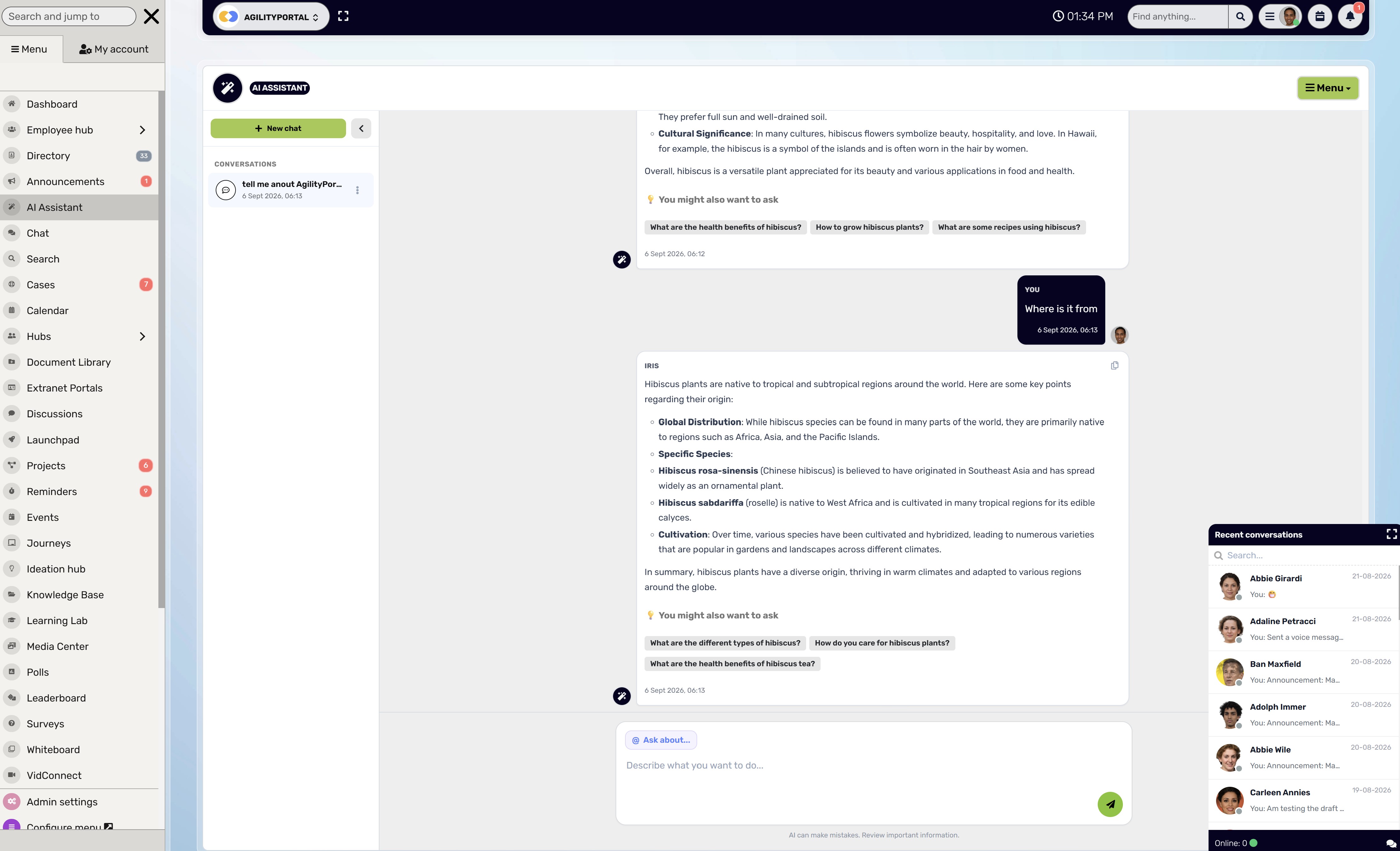
AgilityPortal is a strong choice for organisations that want to reduce the time employees spend searching through chat messages, email threads and disconnected folders.
Instead of relying on people to remember where an update was posted, teams can use one central digital workplace to share information and keep work visible.
It can bring together announcements and targeted updates, knowledge pages, document access, forms, tasks, discussions and employee directories.
This is especially useful for distributed and deskless employees who may not be sitting at a computer all day.
Mobile access helps ensure important updates, policies and resources are available wherever employees are working.
It can also provide one central location for AI-use guidance, approved-tool lists and employee training materials. That is important because people are far more likely to follow a policy when they can actually find it.
Our Verdict · Top Pick
AgilityPortal
Best for bringing remote employee communication, knowledge and AI-use guidance into one secure digital workplace.
Top
Pick
Starting price
From $99/month for 25–99 employees, with a 14-day free trial.
Best feature
Gives remote teams one central place for announcements, employee chat, knowledge, documents, tasks and approved AI-use guidance.
AgilityPortal is a strong choice for organisations that want AI tools to support better remote work without creating another disconnected app. It brings employee communication, searchable information, documents, spaces and collaboration tools together, helping teams share approved guidance and keep important updates easy to find.
What clients like
- Announcements, chat, knowledge and documents sit in one employee platform.
- Teams can publish clear AI-use policies, training and approved-tool guidance centrally.
- Flexible modules allow organisations to tailor the experience around their workforce.
- Mobile access helps connect frontline, remote and office-based employees.
What clients should consider
- The range of available modules can feel busy for new users at first.
- Teams need a clear rollout plan so employees know where to find updates and guidance.
- It works best when organisations agree clear ownership for content and knowledge.
- Businesses may still use specialist AI tools for functions such as advanced transcription or analytics.
Pricing, product features and plan availability can change. Confirm current details with AgilityPortal before purchasing.
2. Microsoft 365 Copilot: Best for Teams Already Working in Microsoft 365
Microsoft 365 Copilot is designed for businesses already using tools such as Word, Excel, PowerPoint, Outlook and Teams.
It can help employees draft content, recap meetings, find information and turn rough ideas into a more usable first version of a document or presentation.
For remote teams, that means less time switching between separate tools and less effort catching up after a meeting. A manager could use it to prepare a first draft of a project update, while employees may use it to summarise long email threads or get help structuring a report.
However, permissions and data access need to be reviewed carefully before rollout.
AI can only be as secure as the information and permissions it can access, so organisations should make sure employees are not able to surface sensitive content they should not normally see.
Our Verdict · Strong Pick
Microsoft 365 Copilot
Best for Microsoft-based remote teams that want AI support inside the tools employees already use every day.
Top
Choice
Best for
Businesses using Microsoft 365, Teams, Outlook, Word, Excel and PowerPoint for everyday remote work.
Best feature
Brings AI assistance into familiar Microsoft apps to support drafting, meeting follow-up, information discovery and everyday productivity.
Microsoft 365 Copilot is a practical choice for organisations that want to help remote employees work faster without adding another standalone AI platform. It can support content drafting, meeting recaps and everyday tasks within the Microsoft environment, helping teams spend less time switching between tools.
What users tend to like
- AI support is available within familiar Microsoft 365 applications.
- It can help employees create first drafts, summaries and follow-up actions faster.
- Teams can use it alongside existing Microsoft collaboration workflows.
- It can reduce the time spent catching up on emails, meetings and documents.
What to consider
- It delivers the most value for organisations already invested in Microsoft 365.
- Permissions and data access should be reviewed before a wider rollout.
- Licensing and availability can vary by Microsoft plan and region.
- Employees still need training and human review for important AI-generated outputs.
Features, licensing, plan availability and pricing can change. Confirm current details with Microsoft before purchasing.
3. ChatGPT Business: Best for Flexible Writing, Brainstorming and Analysis
ChatGPT Business can be useful for teams that need flexible support with writing, research, analysis and idea generation.
It is not limited to one type of work, which makes it a practical option for internal communications, HR, operations and managers.
Remote teams may use it for:
- Drafting first versions of internal communications.
- Turning rough notes into a policy outline.
- Creating training questions and learning materials.
- Summarising non-sensitive information.
- Improving the clarity of a manager's update before it is sent.
The key word here is "first." AI can help people get started and work faster, but someone should still check the final output for accuracy, tone and context.
Employees should never paste confidential employee, customer, payroll, financial, legal or security information into unapproved AI accounts. Businesses should provide clear guidance on which AI tools are approved and what information is safe to use within them.
Our Verdict · Strong Pick
ChatGPT Business
Best for remote teams that need flexible AI support for writing, brainstorming, research and everyday workplace tasks.
Top
Choice
Best for
Drafting internal communications, summarising non-sensitive information, generating ideas and improving workplace content.
Best feature
A flexible AI workspace that helps teams turn rough ideas and notes into clearer, more useful first drafts.
ChatGPT Business is a useful option for remote teams that want one AI tool for a wide range of day-to-day tasks. It can help employees draft updates, organise ideas, create training materials and improve the clarity of documents, without forcing every team into a separate specialist platform.
What users tend to like
- Flexible support for writing, ideation, summaries and everyday analysis.
- Helps employees get past the blank-page stage and create stronger first drafts.
- Useful across HR, internal communications, operations, management and customer teams.
- Can support faster, clearer communication for distributed employees.
What to consider
- Important outputs still need human review for accuracy, context and tone.
- Employees need clear guidance on what business information is safe to enter.
- It is a broad AI assistant, not a replacement for specialist project or meeting tools.
- Teams should agree practical prompts, use cases and approval standards before scaling use.
Features, plan availability and pricing can change. Confirm current details with OpenAI before purchasing.
4. Zoom AI Companion: Best for Reducing Meeting Follow-Up Work
Zoom AI Companion is useful for teams that already run a large part of their remote work through Zoom.
Meeting summaries, key discussion points and suggested action items can help employees spend less time taking notes and more time participating in the conversation.
This is particularly helpful when colleagues work across different time zones or cannot attend every call. A well-written summary gives them a quicker way to understand what happened and what they need to do next.
Still, AI-generated meeting notes should not be treated as the final record without review. Someone in the meeting needs to confirm decisions, owners and deadlines.
Otherwise, a small error in a summary can quickly become a missed task or misunderstanding.
Our Verdict · Strong Pick
Microsoft 365 Copilot
Best for Microsoft-based remote teams that want AI support inside the tools employees already use every day.
Top
Choice
Best for
Businesses using Microsoft 365, Teams, Outlook, Word, Excel and PowerPoint for everyday remote work.
Best feature
Brings AI assistance into familiar Microsoft apps to support drafting, meeting follow-up, information discovery and everyday productivity.
Microsoft 365 Copilot is a practical choice for organisations that want to help remote employees work faster without adding another standalone AI platform. It can support content drafting, meeting recaps and everyday tasks within the Microsoft environment, helping teams spend less time switching between tools.
What users tend to like
- AI support is available within familiar Microsoft 365 applications.
- It can help employees create first drafts, summaries and follow-up actions faster.
- Teams can use it alongside existing Microsoft collaboration workflows.
- It can reduce the time spent catching up on emails, meetings and documents.
What to consider
- It delivers the most value for organisations already invested in Microsoft 365.
- Permissions and data access should be reviewed before a wider rollout.
- Licensing and availability can vary by Microsoft plan and region.
- Employees still need training and human review for important AI-generated outputs.
Features, licensing, plan availability and pricing can change. Confirm current details with Microsoft before purchasing.
5. Google Workspace with Gemini: Best for Google-First Remote Teams
Google Workspace with Gemini can be a natural option for organisations that already rely on Gmail, Google Docs, Google Drive and Google Meet.
It gives employees AI support within tools they already use rather than asking them to learn another standalone platform.
Teams may use it to help draft emails, improve documents, support meeting follow-up and find information across shared files.
For remote businesses, this can make everyday work feel more connected because employees are not constantly copying information from one system into another.
The value is strongest when the organisation already has clear file permissions, sensible Drive structures and agreed ways of working. AI can make information easier to find, but it cannot fix a folder system that nobody understands.
Our Verdict · Strong Pick
Google Workspace with Gemini
Best for Google-based remote teams that want AI assistance inside the tools they already use to communicate and collaborate.
Top
Choice
Best for
Businesses using Google Workspace, including Gmail, Docs, Drive, Meet, Sheets and Slides.
Best feature
Brings AI help into familiar Google apps to support drafting, information discovery, meeting follow-up and document work.
Google Workspace with Gemini is a practical option for remote and hybrid teams already working in Google’s ecosystem. It can help employees draft content, work with documents and get support across everyday collaboration tools, reducing the need to move work into a separate AI platform.
What users tend to like
- AI support is available within familiar Google Workspace tools.
- Helps employees draft, refine and organise content more quickly.
- Useful for distributed teams that already share work through Google Drive and Meet.
- Can reduce unnecessary tool switching during everyday office work.
What to consider
- It is most useful for organisations already committed to Google Workspace.
- Admins should review sharing permissions and data access before rollout.
- Features, licensing and availability can vary by plan and region.
- Important AI-generated content still needs human review before it is published or acted on.
Features, licensing, plan availability and pricing can change. Confirm current details with Google before purchasing.
6. Notion AI: Best for Teams Building a Shared Knowledge Base
Notion AI is useful for businesses that want to turn scattered notes, project updates and informal guidance into a more organised knowledge base.
Remote employees often lose time asking the same questions repeatedly because information exists but is difficult to find.
Teams can use Notion AI to help draft pages, summarise longer documents and make project information more accessible. It can work well for team FAQs, onboarding guides, process documentation and project hubs.
The tool is most effective when someone owns the quality of the knowledge base. Outdated information is still a problem, even if AI helps employees find it faster.
Our Verdict · Strong Pick
Notion AI
Best for remote teams that want to turn scattered notes, documents and project updates into a more useful shared knowledge base.
Top
Choice
Best for
Team wikis, project documentation, internal FAQs, meeting notes and shared workplace knowledge.
Best feature
Helps teams write, summarise and find information within the workspace where their notes and knowledge already live.
Notion AI is a practical choice for remote teams that need a clearer home for internal knowledge. It can help turn rough notes into useful documentation, summarise longer pages and make key information easier to find, reducing repeat questions and the need to search through disconnected files.
What users tend to like
- Knowledge, notes and project information can live in one flexible workspace.
- AI can support first drafts, page summaries and faster information discovery.
- Useful for building team wikis, onboarding guides and internal FAQs.
- Helps distributed employees access shared context without another meeting.
What to consider
- It needs clear ownership to prevent the knowledge base becoming outdated.
- Teams should agree page structures and naming conventions before scaling use.
- Permissions and sharing settings need careful administration for sensitive information.
- It may not replace specialist systems for complex project, HR or document-management needs.
Features, AI availability, plan limits and pricing can change. Confirm current details with Notion before purchasing.
7. Asana AI: Best for Turning Plans Into Visible Next Steps
Asana AI is designed to help teams manage projects, tasks and workflows with more clarity.
For remote teams, that can mean fewer messages asking, "Who is doing this?" or "What happened with that task?"
It can support project summaries, clearer task descriptions, status updates and workload visibility. This gives managers a better view of progress while helping employees understand what they own and what is due next.
It works best when teams use consistent project structures.
AI can make task information easier to understand, but it cannot create accountability if work is not being updated or assigned properly.
Our Verdict · Strong Pick
Asana AI
Best for remote teams that need clearer project ownership, task updates and visibility of work in progress.
Top
Choice
Best for
Project coordination, task tracking, status updates and keeping distributed teams aligned on next steps.
Best feature
Helps turn project information into clearer summaries, updates and tasks so teams can see what needs to happen next.
Asana AI is a practical choice for remote teams that need to reduce the daily back-and-forth around project progress. It helps make work more visible by supporting task clarity, project summaries and status updates, so employees can understand what they own without chasing colleagues for information.
What users tend to like
- Tasks, ownership and deadlines are easier to see in one shared workspace.
- AI support can help turn project activity into clearer updates and summaries.
- Useful for teams managing work across locations, departments and time zones.
- Can reduce repeated status-chasing messages and unclear handovers.
What to consider
- It works best when employees consistently update their tasks and project information.
- Teams need agreed project structures, naming conventions and ownership rules.
- Advanced AI capabilities and administration options may depend on the plan.
- It is a project coordination tool, not a full replacement for employee communication or knowledge platforms.
Features, AI availability, plan limits and pricing can change. Confirm current details with Asana before purchasing.
8. Slack AI: Best for Catching Up on Busy Conversations
Slack AI can help employees catch up on fast-moving channels by summarising conversations and assisting with search.
That is useful when someone has been in meetings, working a different shift or returning from annual leave.
Rather than reading hundreds of messages, an employee may be able to get the main themes, decisions and relevant updates more quickly. For remote teams, that can reduce the fear of missing something important just because they were offline.
However, it does not fix poor communication habits. If channels are badly named, updates are posted in the wrong place or decisions are buried in casual conversations, AI summaries will only partly solve the problem.
Teams still need clear rules about where important information belongs.
Our Verdict · Strong Pick
Slack AI
Best for fast-moving remote teams that need help catching up on busy conversations and finding useful information quickly.
Top
Choice
Best for
Teams with active Slack channels, frequent internal conversations and employees working across different schedules or time zones.
Best feature
Helps employees catch up on conversations and surface information without reading every message in a busy channel.
Slack AI is a useful option for remote teams that already rely on Slack for day-to-day communication. It can help employees get a quicker view of active discussions and search for relevant context, making it easier to return from leave, switch projects or catch up after time offline.
What users tend to like
- Can make it easier to catch up on long or fast-moving team conversations.
- Helps employees search for useful information and shared context.
- Useful for distributed teams that work different hours or time zones.
- Supports quicker communication without adding a separate AI workspace.
What to consider
- AI summaries cannot fix poorly organised channels or unclear communication habits.
- Teams still need clear rules about where decisions and important updates should live.
- AI features and availability can vary by Slack plan and region.
- Businesses should review permissions and sensitive information before enabling wider access.
Features, AI availability, plan limits and pricing can change. Confirm current details with Slack before purchasing.
9. Otter.ai: Best AI Meeting Note Taking App for Lightweight Transcription
Otter.ai is often considered one of the stronger options for businesses looking for the best AI meeting note taking app for lightweight transcription and searchable meeting notes.
It can help record conversations, create transcripts and generate summaries that employees can revisit later.
This is useful for remote teams where not everyone can attend the same meeting or where employees need to check exactly what was said. Searchable notes can also reduce the need to replay long recordings.
Before using any meeting transcription tool, businesses should be clear about consent, recording notices, retention periods and who can access the notes.
People should know when a meeting is being recorded and what will happen to the information afterwards.
Our Verdict · Strong Pick
Otter.ai
Best for remote teams that want lightweight meeting transcription, searchable notes and faster follow-up.
Top
Choice
Best for
Teams that need live transcription, searchable meeting notes and a simpler way to review discussions after a call.
Best feature
Creates meeting transcripts and summaries that employees can revisit instead of relying on manual notes or memory.
Otter.ai is a practical option for remote teams looking for a lightweight way to capture meeting discussions. It can help employees who miss a call, work different hours or need to check what was agreed, while making conversations easier to search and revisit later.
What users tend to like
- Live transcription reduces the need for employees to take detailed manual notes.
- Searchable records make it easier to revisit useful conversations.
- Helpful for remote teams working across different schedules and time zones.
- Can give employees a quicker way to catch up after missing a meeting.
What to consider
- Meeting participants should be informed when transcription or recording is taking place.
- Important decisions, actions and deadlines should still be checked by a meeting owner.
- Teams need to review recording access, retention settings and sharing permissions.
- Accuracy can vary depending on audio quality, speakers and workplace terminology.
Features, transcription limits, plan availability and pricing can change. Confirm current details with Otter.ai before purchasing.
10. Bluedot AI Note Taker: Best for Teams That Want Automated Meeting Follow-Up
The Bluedot AI note taker is aimed at teams that want to reduce manual meeting admin through recordings, notes, summaries and follow-up support. It can be useful for managers, sales teams, project leads and internal teams that hold regular online discussions.
The main benefit is simple: less time spent writing up what happened after every meeting. Instead, employees can review a structured summary and focus on confirming priorities and completing the next action.
Before committing, businesses should check the current plan details, meeting-platform integrations, recording controls, retention options and privacy settings.
These details matter far more than a long list of AI features.
Our Verdict · Strong Pick
Bluedot AI Note Taker
Best for remote teams that want automated meeting notes, recordings, summaries and clearer follow-up after calls.
Top
Choice
Best for
Teams that hold regular online meetings and want a simpler way to capture discussions, actions and follow-up.
Best feature
Automates meeting notes and summaries so employees can focus on the conversation instead of writing everything down.
Bluedot AI Note Taker is a useful option for remote teams looking to reduce manual meeting administration. It can help turn discussions into recordings, notes and summaries that employees can revisit later, making it easier to keep track of conversations when people work across locations and time zones.
What users tend to like
- Automated meeting notes can reduce repetitive follow-up work.
- Recordings and summaries make it easier for employees to catch up after a call.
- Useful for managers, project teams and customer-facing employees with regular meetings.
- Can provide a clearer starting point for agreed actions and next steps.
What to consider
- Teams should confirm current integrations with their preferred meeting platform before purchasing.
- Meeting participants need clear notice when calls are recorded or transcribed.
- Important decisions, actions and names should be checked by a meeting owner.
- Businesses should review privacy settings, access controls and retention options before rollout.
Features, integrations, plan limits and pricing can change. Confirm current details with Bluedot before purchasing.
11. Grammarly: Best for Clearer, More Confident Written Communication
Grammarly can help remote employees communicate more clearly by improving grammar, tone and readability. This matters because written communication carries much more weight when employees are not sitting beside each other.
A short message can easily sound abrupt, unclear or more negative than intended. Writing support can help managers make announcements easier to understand, help employees write more confidently and reduce avoidable back-and-forth.
It is not a replacement for good judgement or company communication standards. But it can make day-to-day messages clearer, more professional and easier for remote colleagues to act on.
Our Verdict · Strong Pick
Grammarly
Best for remote teams that want clearer, more confident written communication across everyday messages and documents.
Top
Choice
Best for
Improving emails, internal updates, documents and workplace messages where clarity and tone matter.
Best feature
Provides real-time writing suggestions that help employees communicate with greater clarity, consistency and confidence.
Grammarly is a practical option for remote teams because written communication carries more of the context when people are not working side by side. It can help employees make messages clearer, reduce avoidable misunderstandings and improve the quality of everyday workplace writing before it is shared.
What users tend to like
- Writing suggestions can improve clarity across emails, chat messages and documents.
- Tone support can help employees avoid messages sounding unclear or abrupt.
- Useful for managers and teams that write frequent internal communications.
- Available across common workplace writing environments and devices.
What to consider
- Suggestions should be reviewed so the final message still sounds natural and appropriate.
- It improves writing quality but does not replace sound judgement, context or company communication standards.
- Businesses should review plan features, privacy settings and administration options before rollout.
- Employees may still need writing guidance for sensitive HR, legal or customer-facing messages.
Features, AI availability, plan limits and pricing can change. Confirm current details with Grammarly before purchasing.
Why These Tools Can Improve the Employee Experience
Used well, AI tools can make remote work feel more manageable rather than more demanding.
The biggest benefit is not that AI does everything for people; it is that it removes small, repetitive tasks that take attention away from meaningful work.
For employees, this can mean fewer manual meeting notes, less time hunting through old conversations and faster access to the information they need.
Managers can spend less time rewriting the same updates and more time coaching people, resolving issues and making decisions.
It can also improve inclusion for colleagues working different shifts or time zones, as they can catch up through approved summaries and shared information instead of relying on being present in every meeting.
The same principle applies when people are searching for the right role. Someone with customer-facing troubleshooting experience, for example, may benefit more from a focused collection of remote tech support jobs than from repeatedly filtering thousands of generic remote listings. Better tools help people reach relevant information faster, whether they are doing their job or looking for one.
Here is a realistic workplace example:
A regional operations manager records a weekly update once. AI creates a transcript and a first-draft summary, while AgilityPortal publishes the approved version to the relevant employee groups.
Employees can read it when their shift begins instead of joining another meeting. The manager still checks the final message, but the process becomes quicker, clearer and easier for everyone to follow.
Free AI Tools Can Help—But "Free" Is Not a Governance Strategy
It is understandable that businesses start by looking for the best AI tools for remote teams free. Free plans can be a sensible way to test whether an AI assistant actually saves time before committing to a larger rollout. They are particularly useful for low-risk activities, such as drafting a non-sensitive internal update, improving spelling or testing how well a meeting-summary tool works.
There are plenty of powerful AI tools free to try, and a typical free AI tools list may include writing assistants, transcription platforms, project tools and general AI chat assistants. However, a free plan is not automatically suitable for business-wide use. In some cases, it may have limited security controls, storage restrictions or no practical way for IT to manage users.
Before approving any free AI tools for office work, businesses should check the following:
- Data retention and model-training terms: Understand whether information is stored, how long it is kept, and whether it may be used to improve the supplier's AI models.
- Admin controls and user management: Check whether IT can add or remove users, manage permissions and keep access under control when someone leaves.
- Export and deletion options: Make sure the organisation can retrieve or delete business information if it changes supplier or closes an account.
- Security assurances: Review the supplier's security documentation, encryption approach and relevant compliance commitments.
- Integration needs: Confirm whether the tool works with the systems employees already use, rather than forcing people to copy information between apps.
- Limits that could disrupt adoption later: Free plans may restrict usage, storage, integrations or the number of users. A tool that works well for a small test may become impractical once more employees rely on it.
The safest approach is to treat free tools as a controlled trial, not an unofficial company standard.
Test one use case, use non-sensitive information, gather employee feedback and involve IT or security before encouraging wider adoption.
What Can Go Wrong When Employees Start Using AI Without a Plan?
AI can make remote work easier, but an unplanned rollout can create new problems just as quickly.
The biggest risks usually come from unclear rules, poor tool choices and the assumption that employees will somehow know what is safe to do.
Shadow AI Is Usually a Process Problem, Not Just an Employee Problem
"Shadow AI" happens when employees use AI tools that have not been approved by the business.
This is often presented as an employee behaviour issue, but it is usually a process issue too.
If approved systems are slow, difficult to use or simply unavailable, people will look for quicker alternatives. An employee who needs to summarise a meeting, improve a client email or draft a policy may turn to a public AI tool because it feels like the easiest option.
The better response is not simply banning every tool. Businesses should provide safe, practical alternatives, explain what information can and cannot be shared, and make their guidance easy to find.
Employees are more likely to follow a policy when it helps them get their work done.
Inaccurate Summaries Can Become Inaccurate Decisions
AI-generated meeting notes and summaries can save time, but they should not be accepted without a quick human check. AI may miss the tone of a conversation, misunderstand who agreed to do something or leave out an important qualification.
For example, a meeting summary may state that a project deadline was agreed, when the team only discussed it as a possible target.
If that summary is shared without review, it can create confusion, unnecessary pressure or the wrong business decision.
After important meetings, a manager or meeting owner should confirm the final decisions, action owners and deadlines. AI can prepare the first draft, but people should remain responsible for the final record.
Privacy, Confidentiality and Trust Can Take a Hit
AI tools may process information that employees and customers reasonably expect to remain private. That does not mean businesses should avoid AI altogether, but it does mean they need to think carefully about the type of data involved and who can access it.
Areas that need particular attention include:
- Employee data: Performance information, absence records, personal details and HR discussions can be highly sensitive.
- Customer information: Contact details, support cases, contracts and commercial conversations should not be placed into unapproved tools.
- Commercially sensitive documents: Financial plans, pricing, product roadmaps and acquisition discussions may create serious risk if shared incorrectly.
- Meeting recordings: Employees should understand when recordings are taking place, who can access them and how long they will be kept.
- Cross-border data transfers: Information may be stored or processed in another country, which can affect the organisation's privacy responsibilities.
- Accessibility and fairness: AI outputs may not work equally well for every employee or may produce language that is un
- clear, biased or inaccessible.
The right level of control will depend on the organisation, the location of its employees and the type of information it handles.
Before rolling out AI tools widely, involve legal, privacy, IT and security teams so they can assess the risks and agree sensible safeguards.
Who Should Own AI Tools for Remote Teams?
AI tools should not sit entirely with IT, HR or individual department managers.
The best approach is shared ownership, with each team responsible for the part of the rollout they are best placed to manage.
IT may choose and support the technology, but HR needs to consider employee experience and training.
Security and privacy teams need to assess risk, while managers need to make sure the tools are being used responsibly in daily work.
| Role | Responsibility | Why It Matters |
| CIO or IT Director | Selects, integrates and supports approved AI tools. | Prevents fragmented technology decisions and reduces the number of unapproved tools employees rely on. |
| CISO | Assesses security risks, user access, supplier controls and incident response requirements. | Helps protect company, employee and customer data. |
| Data Protection Officer | Reviews personal-data use, data retention, recordings and privacy implications. | Supports privacy compliance and helps prevent avoidable misuse of sensitive information. |
| HR Director or Chief People Officer | Defines employee-use expectations, training and people-related safeguards. | Builds employee trust and improves adoption without creating unnecessary anxiety. |
| Internal Communications Lead | Creates clear guidance, launch communications and practical workplace standards. | Ensures employees understand what tools are approved, what they can use them for and where to get help. |
| Legal or Compliance Lead | Reviews contracts, risk, regulated use cases and policy requirements. | Reduces avoidable legal and compliance exposure. |
| Department Managers | Check important AI outputs, set appropriate team standards and lead by example. | Makes policy real in day-to-day work rather than leaving it as a document nobody reads. |
| Employees | Use approved tools responsibly, follow guidance and raise concerns when something does not seem right. | Keeps AI adoption practical, safe and aligned with real work. |
For smaller businesses, one person may cover several of these responsibilities.
The important thing is not the job title; it is making sure technology, security, privacy, people and day-to-day operations are all represented before AI becomes widely used.
A Sensible Rollout Plan: Start With One Real Problem
The easiest way to create confusion is to introduce AI because it feels like something every business should be doing.
A better approach is to start with one genuine workplace problem, test a small number of tools and only expand when there is clear evidence that employees are benefiting.
For example, a remote team may be spending too much time writing meeting notes, searching for policies or chasing project updates.
Those are practical problems that AI may help solve. A vague goal such as "we need to use AI more" is much harder to measure and manage.
Use this checklist to introduce AI tools in a controlled, employee-friendly way:
- Identify the real collaboration problem. Look for issues such as meeting overload, missed updates, poor knowledge access, slow content creation or unclear project ownership.
- Choose one or two low-risk use cases to test. Start with activities such as drafting non-sensitive internal updates, summarising routine meetings or helping employees find published guidance.
- Check the supplier's security, privacy and data-use terms. Understand where information is stored, how long it is kept, who can access it and whether it may be used to train AI models.
- Decide which information must never be entered into AI tools. Clearly identify restricted data, such as employee records, customer details, payroll information, legal advice, financial plans and security information.
- Involve IT, HR, security, privacy and legal teams early. Each team sees different risks. Involving them before rollout is much easier than trying to resolve problems after employees have already adopted a tool.
- Give employees approved tools instead of simply banning public ones. If people do not have a safe and useful option, they are more likely to find their own workaround. Make the approved route practical.
- Publish clear acceptable-use guidance in one accessible place. Explain which tools are approved, what they can be used for, what information is restricted and who employees should contact with questions.
- Train managers to review AI-generated work and meeting outputs. Managers should understand that AI can create useful first drafts, but they remain responsible for checking accuracy, context, actions and final decisions.
- Ask employees what is genuinely saving time and what is causing confusion. Feedback will quickly show whether the tool is helping people work better or simply adding another platform to manage.
- Measure adoption, quality, time saved and employee sentiment. Look beyond login numbers. Track whether teams are completing work faster, reducing repeated questions, improving communication and feeling more supported.
- Review permissions, costs and policies every quarter. AI tools, pricing, capabilities and regulations change quickly. Regular reviews help the organisation remove unused licences, tighten access and keep guidance current.
A careful rollout does not need to be slow. It simply needs to be intentional. Start small, learn from employees and scale the tools that make remote work clearer, faster and easier to manage.
How to Choose the Right Tool Without Adding More Chaos
The best AI tool is not necessarily the one with the longest feature list.
It is the one that solves a real problem without giving employees yet another login, dashboard or process to manage.
Before choosing a tool, involve the people who will actually use it. A platform may look impressive in a demo, but if it does not fit into existing workflows or is difficult to access on mobile, adoption will quickly drop.
Use this checklist when comparing AI tools for remote teams:
- Does it solve a specific remote-work problem? Be clear about the issue first. Is the goal to reduce meeting admin, improve knowledge access, speed up internal communication or make project ownership clearer?
- Will employees actually use it? Consider how simple it is to learn, whether it fits into people's daily work and whether it creates more value than effort.
- Does it work with the systems already in place? Check whether it integrates with the tools your employees already rely on, such as Microsoft 365, Google Workspace, Zoom, Slack or your employee communication platform.
- Can admins manage users, permissions and data? IT should be able to add and remove users, control access, manage permissions and maintain visibility over how the tool is being used.
- Does it support your privacy and compliance requirements? Review data storage, retention, security documentation, supplier terms and any industry-specific obligations before sharing business information.
- Can deskless employees access it easily? A tool should work well for frontline, mobile and shift-based employees, not only for office-based staff with a laptop.
- Is the cost still reasonable once the free plan ends? Free trials and entry-level plans can be useful, but check the real cost of additional users, storage, advanced features, integrations and admin controls.
- Does it reduce tool switching rather than create more of it? The right tool should make work simpler. If employees must constantly copy and paste information between systems, it may be creating a new problem rather than solving an old one.
A simple rule is to choose tools that fit around the way employees already work. The fewer unnecessary steps people need to take, the more likely the AI rollout is to deliver meaningful results.
The Future Is Not "AI Everywhere"—It Is Better Work Design
The organisations that benefit most from AI will not be the ones with the most subscriptions or the longest list of new tools.
They will be the ones that use AI to improve real workflows: reducing unnecessary meetings, making knowledge easier to find, helping managers communicate clearly and removing repetitive admin from employees' days.
That requires clear governance as well as useful technology.
Employees need to know which tools are approved, what information they can use, when human review is required and where to ask for support. Without those basics, AI can easily become another source of confusion, duplicated work and unmanaged risk.
IBM found that 66% of surveyed UK enterprises were already seeing significant AI-driven productivity improvements. However, only 38% were prioritising AI upskilling opportunities. The message is straightforward: businesses cannot expect employees to use AI well simply because they have been given access to it. IBM UK AI productivity survey
The most effective approach is to pair tools with practical training, simple guidance and ongoing feedback.
Give employees enough confidence to use AI responsibly, but keep people accountable for important decisions, sensitive information and final outputs. That is how AI becomes part of better work design rather than just another workplace trend.
Final Thoughts
The best AI tools for remote teams make work clearer and less repetitive; they should not add more noise, meetings or disconnected apps to an employee's day.
Used thoughtfully, they can help teams capture key decisions, find information faster, write more clearly and keep projects moving without constant follow-up.
Start with one real collaboration problem, such as meeting overload, poor access to knowledge or unclear task ownership. Then give employees safe, approved tools that fit into the systems they already use.
Most importantly, treat training, privacy, security and human review as part of the rollout from day one—not as issues to solve later.
AI works best when it supports people rather than trying to replace their judgement.
Frequently Asked Questions About AI Tools for Remote Teams
What are the best AI tools for remote teams?
The best option depends on the problem your team needs to solve.
AgilityPortal is useful for internal communication and employee knowledge, while Microsoft 365 Copilot and Google Workspace with Gemini support businesses already using those productivity suites.
Zoom AI Companion, Otter.ai and the Bluedot AI note taker can reduce meeting follow-up work, while Asana AI can help teams manage projects and ownership more clearly.
What are the best AI tools for remote teams free?
The best AI tools for remote teams free usually include ChatGPT's free version, Grammarly, Otter.ai, Notion and Asana. These can be useful for testing writing support, transcription, knowledge organisation and task management before paying for a wider rollout.
However, businesses should always review usage limits, privacy settings, security controls and commercial-use terms. Free access is helpful for trials, but it may not offer the admin controls needed for a long-term company-wide implementation.
What should be on a free AI tools list for office work?
A practical free AI tools list for office work could include:
- ChatGPT for drafting, brainstorming and summarising non-sensitive content.
- Grammarly for clearer emails, documents and internal updates.
- Otter.ai for meeting transcription and note-taking.
- Notion for team documentation and knowledge sharing.
- Asana for project and task coordination.
- Canva's AI features for simple visual content and presentations.
These free AI tools for office work can be useful starting points, but employees should only use approved accounts and avoid entering confidential business information.
What are the top 5 AI apps in the world for business users?
here is no single official answer because the right tool depends on the job being done.
However, five widely used categories of business AI tools include ChatGPT for general writing and analysis, Microsoft 365 Copilot for Microsoft-based work, Google Workspace with Gemini for Google-based teams, Zoom AI Companion for meeting support, and Grammarly for clearer written communication.
The important question is not simply which tools appear in a "top 5 AI apps in the world" list. It is whether the tool fits your existing systems, security requirements and employee workflows.
What are some powerful AI tools free to try?
Several powerful AI tools free to test include ChatGPT, Grammarly, Otter.ai, Notion and Asana.
Free versions can help teams see where AI may save time, such as drafting an internal update, summarising routine notes or improving a project brief.
Keep initial tests low-risk. Do not use confidential employee, customer, payroll, legal or financial information unless the tool has been formally approved by the business.
What is the best AI meeting note taking app?
The best AI meeting note taking app depends on your meeting platform, consent requirements, security needs and budget.
Otter.ai is useful for live transcription and searchable notes, while Zoom AI Companion can be a natural choice for teams already using Zoom. The Bluedot AI note taker may also be worth comparing for automated recordings, notes, summaries and follow-up support.
Before choosing a meeting tool, check recording notices, access controls, retention periods and whether employees and external participants are clearly informed.
What are the top 10 AI tools for workplace productivity?
A useful top 10 AI tools shortlist for remote and hybrid workplaces could include:
- AgilityPortal
- Microsoft 365 Copilot
- ChatGPT Business
- Zoom AI Companion
- Google Workspace with Gemini
- Notion AI
- Asana AI
- Slack AI
- Otter.ai
- Grammarly
This is not a one-size-fits-all ranking. The best choice is the tool that solves a specific workplace problem while meeting your requirements for security, privacy, accessibility and cost.
Can remote employees use public AI tools for work?
Only when the organisation has approved the tool and employees understand what information is safe to enter.
Sensitive employee, customer, legal, financial and security information should never be put into unapproved AI accounts.
Do AI tools replace remote managers?
No.
I can reduce admin, organise information and produce useful first drafts, but managers still need to provide context, make decisions, support employees and check important outputs before acting on them.
AI Summary
- AI tools for remote teams can reduce meeting admin, speed up routine writing, improve knowledge access and make project ownership clearer across distributed workplaces.
- The most useful tools solve practical problems, such as missed updates, scattered information, repetitive follow-up work and unclear next steps after meetings.
- Free AI tools for office work can be useful for low-risk testing, but businesses should review data retention, security controls, user management and usage limits before wider adoption.
- Meeting tools such as Otter.ai, Zoom AI Companion and the Bluedot AI note taker can create transcripts and summaries, but managers should still confirm important actions, decisions and deadlines.
- Remote businesses need clear AI-use guidance so employees understand which tools are approved, what information must remain private and when human review is required.
- The best AI tools for remote teams support better work design by making communication clearer and less repetitive, while keeping employees, managers and governance teams accountable.
Most Popular Posts

Effective communication among team members is vital for the productivity and success of any organization. Surprisingly, 60% of companies lack a long-term internal communication strategy, which p...


Businesses thrive on communication for efficiency, productivity and accomplishment. When the right information is passed from the right designation in the organization, it promotes positivity an...

Categories
Blog
(3248)
Business Management
(399)
Employee Engagement
(237)
Digital Transformation
(224)
Growth
(151)
Intranets
(142)
Internal communications
(110)
Remote Work
(68)
Sales
(53)
Collaboration
(53)
Customer Experience
(33)
Culture
(30)
Project management
(30)
Knowledge Management
(29)
Leadership
(20)
Comparisons
(9)
News
(1)

Related Posts

Searching for "communal work spaces near me" but unsure which option will actually suit your growing business? By the end of this guide, you'll know how to compare offices to rent, spot extra costs and ask the right questions before committing....

Do you know what happens to your information after you share it with an AI assistant? That question sits at the heart of AI privacy—and it's easy to overlook when you're trying to finish a task. You paste in a customer email, upload a spr...

What would happen if your website moved successfully, but your customers and employees suddenly couldn't reach you by email? Email migration tools can help transfer your messages, but keeping business communication running takes more than copyi...

Does your team still message HR to ask where the holiday policy is? Employee self service should make everyday tasks easier, giving people a straightforward way to find answers, access documents and submit requests. But when policies are buried...

How quickly can a new partner go from signing an agreement to confidently working with your business? If the answer involves chasing documents, forwarding training links and answering the same questions repeatedly, your onboarding process may n...


Annet Herges
I am a digital nomad, lover of exploring new places and making friends.
I love to travel and I love the internet. I take pictures of my travels and share them on the internet using Instagram.
Traveler, entrepreneur, and community builder. I share my insights on digital marketing and social media while inspiring you to live your fullest life.
Ready to learn more? 👍
One platform to optimize, manage and track all of your teams. Your new digital workplace is a click away. 🚀
Free for 14 days, no credit card required.