
Insight Blog
Agility’s perspectives on transforming the employee's experience throughout remote transformation using connected enterprise tools.
46 minutes reading time
(9140 words)
What Is Virtual Office Software? A Practical Guide for Remote Teams

What Is Virtual Office Software? A Practical Guide for Remote Teams
What is virtual office software? Learn how it works, which features remote teams need, and how to decide whether your business needs a virtual office.
What Is Virtual Office Software? A Practical Guide for Remote Teams

What is virtual office software, and could it help your remote team feel more connected?
Working from home has its perks, but having plenty of calls and messages doesn't always mean feeling part of a team.
That figure covers employees across working arrangements, but it highlights why connection at work deserves attention.
Imagine being able to see who's available, ask a quick question or work through a problem together without booking another meeting.
22%:
of employees worldwide reported experiencing loneliness
for much of the previous day
Gallup’s State of the Global Workplace: 2026 Report found that 22% of employees globally experienced loneliness for much of the previous day, using data collected in 2025. This finding covers employees across working arrangements. It highlights the importance of employee connection, but does not establish that remote work causes loneliness or that virtual office software reduces it.
Source: Gallup, State of the Global Workplace 2026 — Global Data Summary
That's the idea behind virtual office software: a shared online space where colleagues can interact from different locations.
Some platforms recreate an office with rooms and avatars, while others focus on video, chat and availability indicators.
Software alone won't fix loneliness or build a great team culture. But the right setup can give people more opportunities to connect during their working day.
Here, we're talking about remote collaboration software rather than services that provide a business address or handle your mail.
In this guide, you'll learn how virtual office software works, which features matter, what its limitations are, and how to decide whether your team needs it—or could get more from the tools you already use.
Key Takeaways
- Virtual office software gives remote colleagues a shared online space to see availability, start conversations and collaborate.
- Features vary between platforms: virtual rooms, avatars, spatial audio and screen sharing are options to check, rather than assume.
- Choose software around a specific team need, such as easier onboarding support or quick discussions, and check whether your existing tools already meet it.
- Evaluate usability, accessibility, privacy, access controls and total cost. Availability indicators should help coordinate work, not measure productivity.
- Start with a small pilot, protect focus time and document important decisions so colleagues can keep working across different schedules.
What is virtual office software?
Virtual office software is a shared online environment where remote colleagues can see who's available, communicate and collaborate.
Depending on the platform, it may include virtual rooms, video calls, screen sharing, avatars or spatial audio, making it easier to have everyday conversations without scheduling a meeting each time.
Think about those small moments in an office: asking someone a quick question, getting help with a task or catching up before a meeting starts.
A virtual office gives your team an online space for similar interactions, even when everyone works from different locations.
You'll often hear these spaces described as persistent.
That simply means the workspace stays available between meetings. Your team can return to the same shared rooms throughout the day, rather than creating a fresh meeting link for every conversation.
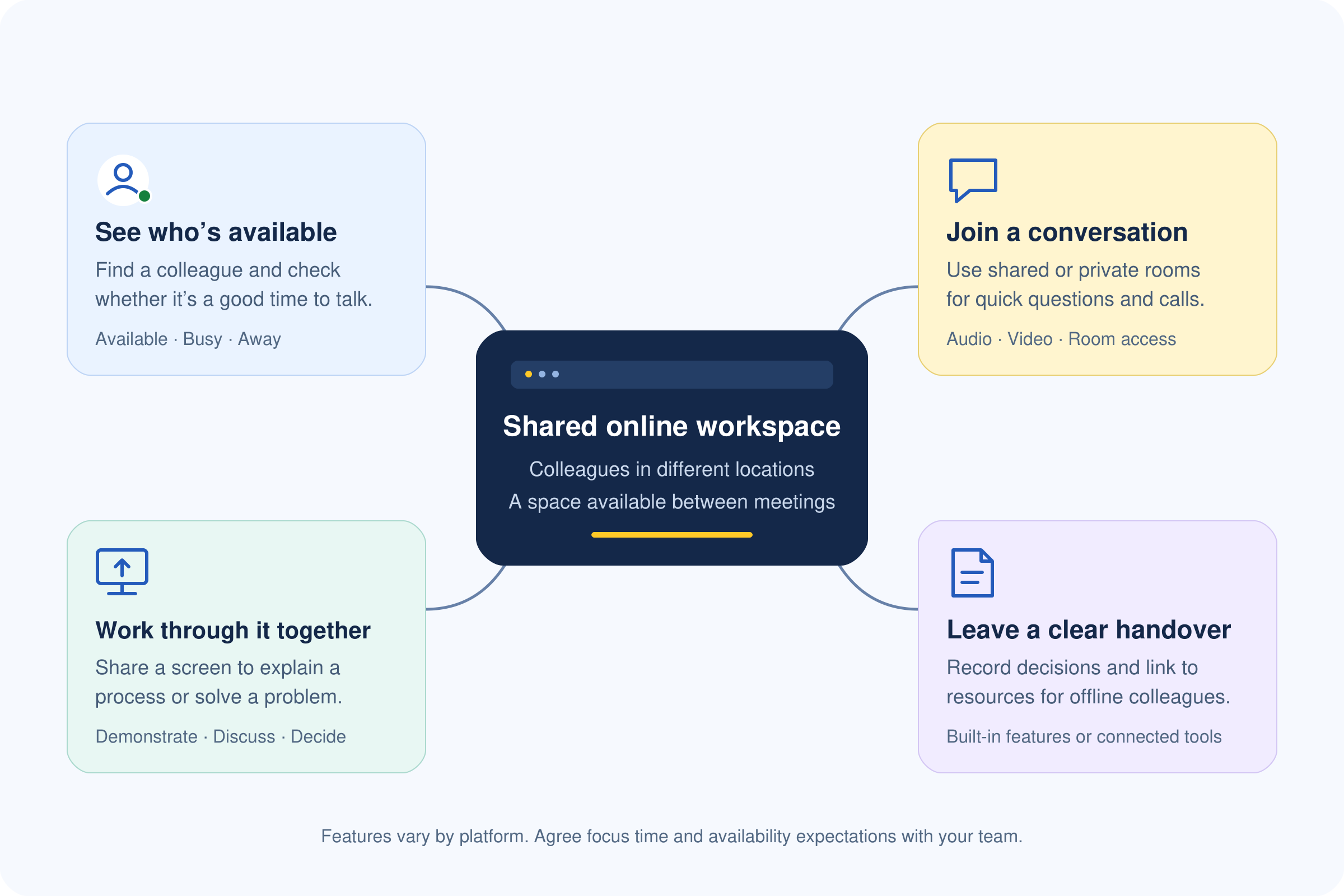
What is virtual office software
What does a virtual office look like?
That depends on the software.
One platform might show a floor plan with desks, meeting rooms and avatars. Another might use a simpler layout with video rooms and availability indicators.
For example, a workspace could have:
- A team room where colleagues can join a discussion or ask for help.
- A private meeting room for conversations with controlled access.
- A social space for optional coffee breaks and informal catch-ups.
- A focus area that signals someone is working without interruptions.
Some platforms also offer spatial audio, where you hear people nearby in the virtual space and their voices fade as you move away.
Others use straightforward room-based calls. Neither approach automatically makes a platform better; what matters is whether your team finds it useful and comfortable to use.
How would your team use virtual office software?
Here are a few practical examples.
These are illustrative scenarios, rather than claims about specific products.
| Use case | What it could look like | What makes it useful |
| Helping a new starter | A new employee joins an onboarding room during agreed hours to ask their buddy questions. | Gives them a clear place to get help while they learn the ropes. |
| Solving a problem together | Two colleagues move into a room and share a screen to work through an issue. | Supports a quick discussion when written messages become difficult to follow. |
| Running drop-in sessions | IT or HR opens a help room at set times for employee questions. | Makes support available without requiring a separate appointment for every query. |
| Coordinating a project | Team members use a shared room during a launch, then record decisions in their project tool. | Provides a place for live coordination while keeping a written record elsewhere. |
| Making space for social interaction | Colleagues join an optional coffee room during a break. | Creates an opportunity to catch up beyond task-focused conversations. |
Here are a few practical examples.
These are illustrative scenarios, rather than claims about specific products.
Is a virtual office the same as a virtual workspace?
The terms overlap, but "virtual workspace" can mean something broader.
It might describe a shared document environment, a project collaboration tool or a digital workplace where employees find company information.
Virtual office software usually places more emphasis on people being available and interacting in a shared online space. An intranet or employee portal may focus more on announcements, policies, knowledge and employee resources.
Your team might need both.
For example, a new starter could ask a question in a virtual office, then follow a link to the official onboarding guide in your employee portal.
The conversation helps them move forward; the documented guide gives them something reliable to return to.
How does virtual office software work?
Virtual office software gives your team a shared place to meet and work online.
You sign in, see who's around and choose where to join in.
The exact setup varies between platforms, but the idea is straightforward: make everyday remote team communication easier without turning every small question into a calendar invitation.
Here's how that might look during a normal working day.
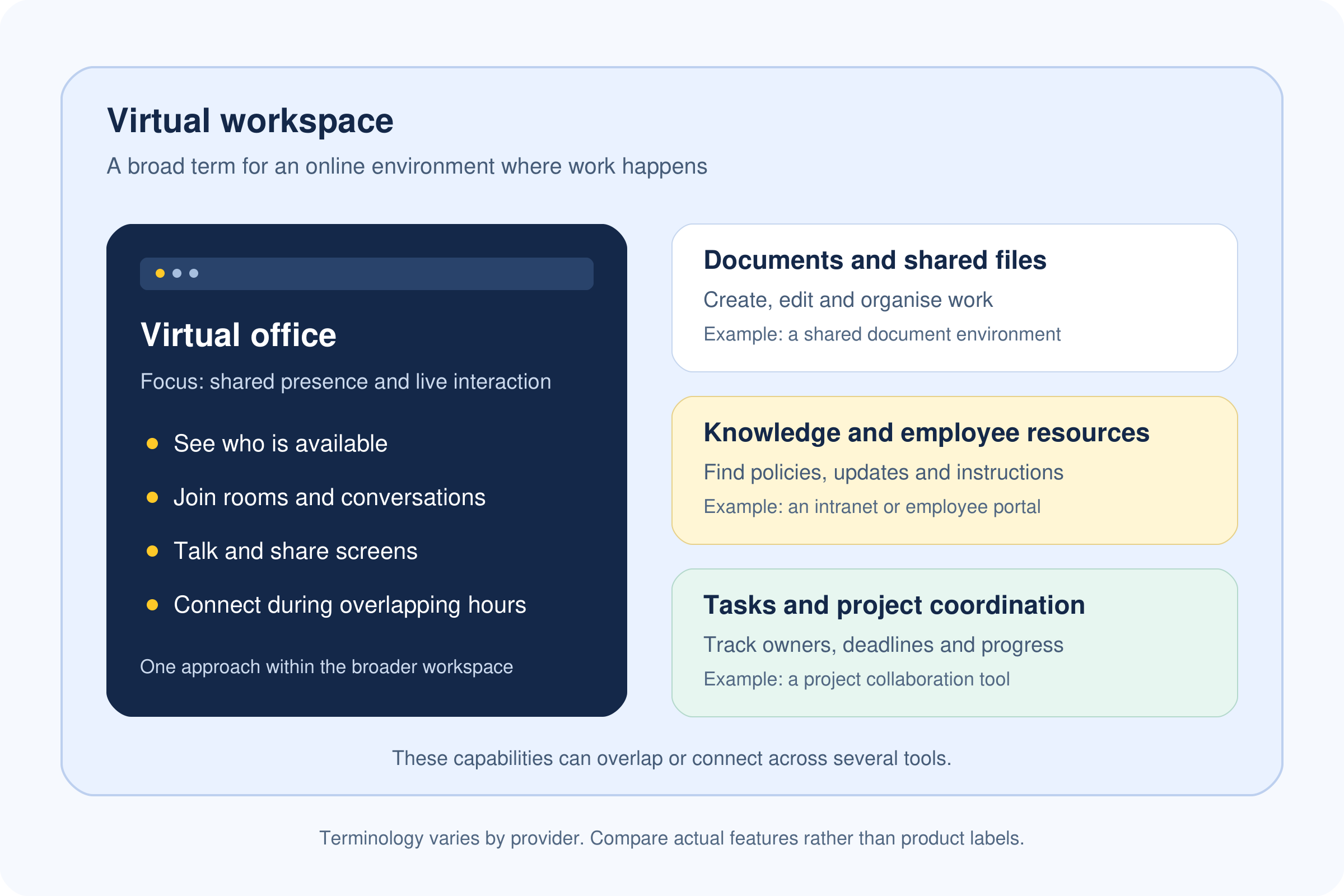
How does virtual office software work?
Join a shared workspace and set your availability
You start by signing in through your browser or an app, depending on the platform.
Once you're inside, you might see virtual rooms, a team directory or a workspace map showing where colleagues are.
From there, you can join your team's space and set your availability.
For example:
- Available: You're happy for someone to approach you.
- Busy or focusing: You need time without interruptions.
- Away: You've stepped out and may reply later.
Think of it as giving colleagues a little context before they contact you.
If you're concentrating on a deadline, they know to leave a message instead of expecting an immediate conversation.
These indicators are useful for coordinating work, but they don't tell the whole story. Someone marked "available" may still need a moment to respond, and being offline doesn't mean they aren't working.
Start conversations without scheduling every interaction
Say you need a colleague's opinion on something that would take two minutes to explain.
Booking a meeting feels excessive, but typing everything out could take longer than talking.
Depending on your virtual office platform, you could invite them into a room, request a quick conversation or join an open discussion. Some platforms support proximity-based audio, where moving your avatar closer to someone lets you hear and speak to them.
It's a bit like walking over to a colleague's desk, with one important habit carried across: check whether it's a good time first.
For remote collaboration, these quick exchanges can be useful when you need to clarify a task, solve a small problem or ask a follow-up question. Private conversations should take place in rooms with suitable access controls.
Share screens and connect your existing tools
Once you're talking, you may want to show what you mean.
Screen sharing lets you walk a colleague through a document, demonstrate a process or look at the same problem together.
For example, you might discuss a customer request, open the relevant task and agree on the next step. You can then update the task owner or arrange a follow-up in your calendar.
This is where it helps to understand the difference between built-in features and integrations:
| Feature type | What it means | Example |
| Built-in feature | The capability is provided within the virtual office software. | Starting a video conversation or sharing your screen. |
| Integration | The platform connects with another service, with capabilities depending on the connection. | Linking a calendar or receiving updates from a project tool. |
| Shared link | You direct someone to content in another system. | Posting a link to an onboarding guide in your employee portal. |
Those distinctions matter when comparing virtual workspace tools.
Being able to share a document link doesn't necessarily mean you can edit, search or manage that document inside the platform.
Keep work moving when colleagues are offline
Of course, your whole team won't always be online together. Someone might be finishing their day just as you're starting yours.
That's why a useful digital workspace for remote teams needs to support more than live conversations. Important decisions, instructions and handovers should be written down somewhere colleagues can find them later.
After a discussion, make sure you capture:
- What was decided.
- Who owns the next action.
- When it needs to happen.
- Where to find the relevant documents or instructions.
Some virtual office software includes messaging and searchable conversation history.
Other platforms rely on connected team collaboration tools, an intranet or a knowledge base for asynchronous work—work that happens without everyone being online at the same time.
A simple rule helps here: if someone needs the information to do their job tomorrow, don't leave it only in today's conversation.
A practical example: helping a new starter
Imagine it's your first week, and you're unsure how to submit an expense claim.
You see that your onboarding buddy is available and ask whether they have a moment.
They invite you into a shared room, show you the process through screen sharing and answer your questions.
Watch: What does a virtual office look like?
Finding it tricky to picture? This Gather Classic walkthrough shows how desks, shared spaces and meeting areas can fit together in a virtual office. It’s one platform’s approach—other tools use different layouts and features.
Before you finish, they send you a link to the official expense procedure in the company knowledge base.
You can return to it next month without asking them to explain everything again.
That's how virtual office software for remote teams can fit into everyday work: a quick conversation gets you unstuck, while clear documentation helps you handle the task independently next time.
How is a virtual office different from other workplace tools?
If you're thinking, "We already have video calls, team chat and somewhere to store documents—what would a virtual office add?", that's a fair question.
The difference usually comes down to what you need to do. Are you looking for someone to talk to, joining a planned meeting or trying to find the latest company policy?
Each tool gives you a different starting point.
Here's how they compare:
| Tool category | Main purpose | Typical use |
| Virtual office software | Shared presence and informal interaction | Finding an available colleague for a quick conversation |
| Video conferencing software | Scheduled or instant audio and video calls | Hosting a customer presentation or weekly team meeting |
| Team messaging software | Written conversations | Asking questions, sharing updates and following discussion threads |
| Intranet or employee portal | Organised company information and employee resources | Finding policies, announcements and onboarding materials |
| Virtual office address service | Business-address and administrative services | Receiving business mail at a designated address |
Think about how you'd handle a question about annual leave.
You might check your employee portal for the policy first.
If something is unclear, you could send HR a message or ask whether someone is available for a quick conversation in your virtual office.
A more detailed discussion might need a scheduled video call.
Those tools can support the same task at different stages.
Where do the features overlap?
Quite a lot, actually.
Team messaging software may include video calls and availability indicators.
Video conferencing tools may offer chat and persistent rooms.
An intranet platform may bring conversations, documents and employee services into one place.
That's why it helps to look beyond the product label. Check how each platform handles the activities your team relies on, including how easily people can find information afterwards.
For example, a virtual office might make it easier to discuss a policy, but you still need a reliable place to publish the current version.
Likewise, a searchable knowledge base can answer common questions, but it doesn't provide the same experience as talking through an unfamiliar problem with a colleague.
Your team may use several workplace collaboration tools together.
Before adding another one, identify the gap you want to close. If people struggle to find documents, start with information organisation. If they struggle to find someone available to help, shared presence and drop-in conversations may be worth exploring.
Which features should remote teams look for?
It's easy to get distracted by a virtual office that looks impressive.
But once the novelty wears off, your team still needs to hear each other clearly, find the right people and get on with work.
When comparing virtual office software for remote teams, start with the situations your employees deal with every day.
Can a new starter ask for help easily?
Can someone protect their focus time? Can your administrator remove access when an employee leaves?
Use the features below as a checklist. Their availability—and how well they work—will vary between platforms and subscription plans.
Two minutes:
average interval between incoming communication pings
during core hours for Microsoft’s highest-volume user group
Microsoft’s 2025 Work Trend Index reported an average two-minute interval between meeting invites, emails and chats during an eight-hour workday for the top 20% of users by incoming ping volume. The analysis used aggregated, anonymised Microsoft 365 signals and excluded education and EU tenants. This provides context for evaluating notification controls and focus settings; it does not show that virtual office software reduces interruptions.
Source: Microsoft, 2025 Work Trend Index — Microsoft 365 telemetry methodology
Communication and availability
You want conversations to be easy to start, with enough control to stop them becoming a constant distraction.
That balance matters.
Microsoft's 2025 Work Trend Index reported that, in its Microsoft 365 telemetry, meetings, emails and chats interrupted employees every two minutes on average during core working hours.
This describes activity in the tools Microsoft analysed; it doesn't prove virtual office software reduces interruptions. It does give you a good reason to examine notification controls carefully.
| Feature to check | What it's used for | How it helps your team |
| Clear availability indicators | Showing whether someone is available, busy or away | Helps colleagues decide whether to ask now or leave a message |
| Reliable audio and video | Holding quick conversations and longer discussions | Makes it easier to explain something without repeated connection problems |
| Screen sharing | Demonstrating a process or looking at an issue together | Gives colleagues shared context when words alone aren't enough |
| Private rooms and guest controls | Managing who can enter conversations | Helps separate internal discussions from meetings with external visitors |
| Notification and interruption controls | Muting alerts, setting quiet periods and controlling invitations | Gives employees more control over when they can concentrate |
For example, your IT colleague might welcome drop-in questions during support hours but need uninterrupted time for maintenance later.
A useful platform should make those boundaries clear and manageable.
Try this during a demo: set yourself to busy, mute notifications and ask someone to invite you into a conversation. Check what actually happens rather than relying on the feature description.
Everyday usability and accessibility
Imagine inviting someone into your virtual workspace, then spending the first ten minutes explaining how to unmute or find the meeting room.
That's friction your team will encounter repeatedly.
Look for straightforward navigation, clearly labelled controls and a joining process that makes sense to someone using it for the first time.
Accessibility belongs in that evaluation from the start. W3C's accessibility principles explain why people need different ways to perceive information and operate digital interfaces, including keyboard access and alternatives to audio.
| Feature to check | What it's used for | How it helps your team |
| Simple joining and navigation | Entering the workspace, finding colleagues and moving between rooms | Reduces the guidance employees need for everyday tasks |
| Keyboard access | Operating essential controls without a mouse | Supports employees who use keyboards or compatible assistive technology |
| Live captions | Providing text for spoken conversations | Helps employees who cannot hear the audio clearly follow discussions |
| Performance on everyday devices | Running calls and shared spaces on employees' actual equipment | Reveals whether the software remains usable beyond a polished demonstration |
| Mobile access, where needed | Joining relevant activities from a phone or tablet | Supports colleagues whose work takes them away from a desk |
W3C's resources on keyboard accessibility and captions provide useful starting points for your checks.
Test whether captions are available in the conversations your team will use, and whether employees can reach essential controls using a keyboard.
Try this during a pilot: ask employees with different devices, connections and access needs to complete the same tasks. Have them join a room, start a conversation, enable captions and share a screen. Their experience will tell you more than a feature checklist alone
Administration and integrations
These features may get less attention during a sales demo, but they matter once you're responsible for running the workspace.
You need a manageable way to add people, control access and connect the platform to your existing remote collaboration tools.
| Feature to check | What it's used for | How it helps your organisation |
| User provisioning | Creating accounts and assigning access | Makes onboarding more consistent, particularly as the team grows |
| Access removal | Disabling accounts and ending access when someone leaves | Helps prevent former employees retaining access to the workspace |
| Roles and permissions | Defining what members, guests and administrators can do | Gives people access appropriate to their responsibilities |
| Calendar connections | Bringing meeting information or availability into the workflow | Can reduce manual coordination, depending on the integration |
| Document and communication integrations | Connecting conversations with existing information and tools | Helps employees move between related activities |
| Administrative controls | Managing guest policies, workspace settings and other supported options | Lets the organisation establish consistent working rules |
Be specific when asking about integrations. "Connects with your document platform" could mean anything from sharing a link to searching files inside the workspace.
Ask the provider to demonstrate the exact action your team needs.
For example, if a new starter asks where to find a policy, can someone simply paste a link, search the connected knowledge base, or open the document within the platform?
Each offers a different experience.
The best virtual office features are the ones your team can use comfortably and your organisation can manage reliably. Build your shortlist around those everyday needs, then test them with real employees before committing.
What are the benefits—and limitations—of virtual office software?
If you've ever spent half an hour exchanging messages about something you could explain in two minutes, you can probably see the appeal of virtual office software.
Being able to find a colleague and talk something through can be useful.
But you also know the other side: sometimes you need everyone to leave you alone so you can finish your work. A shared online office needs to make room for both.
Here's where virtual office software for remote teams can help, along with the trade-offs to consider.
| Potential benefit | When it can help | Limitation to consider |
| Easier informal conversations | Colleagues with overlapping working hours can ask questions and exchange ideas without arranging a meeting. | Frequent drop-ins can interrupt focused work unless people respect availability settings. |
| Faster access to help | New starters and colleagues working through unfamiliar problems have a clear place to approach someone. | An availability indicator doesn't guarantee that someone has the time or knowledge to help immediately. |
| A shared sense of presence | Teams that enjoy live interaction can see who's around and join optional conversations. | Some employees find persistent visibility intrusive or feel pressure to appear online. |
| Fewer scheduled calls for small questions | A brief conversation may resolve something that would otherwise become a calendar invitation. | Quick conversations can still multiply, and important decisions need documenting afterwards. |
Make everyday help easier to find
Imagine you're new to the company and don't know who handles a particular task.
A shared team room or scheduled drop-in session gives you somewhere to start.
That can be especially useful during onboarding, when small questions come up throughout the day. However, the workspace only helps if someone is available and willing to respond.
An empty help room with no clear opening hours leaves you with the same unanswered question.
Give these spaces a purpose, name the people responsible and explain when colleagues can expect help.
Give people control over their focus time
Spontaneous conversations can help remote collaboration, but nobody wants to feel permanently interruptible.
Agree on a few simple boundaries: respect busy indicators, ask before starting a call and leave a written message when something can wait.
Employees should also understand whether they're expected to use the workspace throughout the day or only for particular activities.
For teams spread across time zones, live interaction will have limits. Written updates, searchable resources and clear handovers still matter when colleagues aren't online together.
Judge the results by the problem you wanted to solve
A busy virtual workspace doesn't automatically mean your team is working better.
People might spend plenty of time chatting while still struggling to find information or understand their priorities.
Instead, ask practical questions:
- Can new starters get useful help more easily?
- Are small questions being resolved without unnecessary meetings?
- Can employees concentrate without feeling obliged to stay visibly available?
- Can absent colleagues find the decisions made during live conversations?
The benefits depend on team habits, employee adoption and the problem you're trying to solve. If your main difficulty is finding current policies, improving your knowledge base may help more.
If colleagues struggle to reach each other for quick discussions, a virtual office could be worth testing.
Does your team actually need a virtual office?
Before you add another platform to everyone's working day, ask a simple question: what's difficult about the way your team works right now?
Maybe new starters don't know who to approach for help. Perhaps a five-minute question keeps turning into a meeting next Thursday.
Or people spend ages searching for documents that nobody seems to own.
Those problems need different solutions. Virtual office software might help with the first two. The document problem probably needs better information organisation.
Signs a virtual office could be useful
Look for recurring difficulties with getting people together, rather than assuming remote working itself is the problem.
- People struggle to find someone available to help. You need a quick answer, but you're unsure who's working, who's busy or who welcomes questions. Shared availability indicators and clearly organised team spaces could make approaching someone easier. They still need agreed response expectations—an "available" status isn't a promise of an immediate answer.
- Small questions routinely become scheduled meetings. If colleagues keep booking calls to clarify minor details, a shared room or drop-in conversation could offer a simpler route. Check whether the difficulty comes from your existing software or from a habit of scheduling everything. Sometimes giving people permission to start a quick call is enough.
- New starters lack easy access to colleagues. Joining a remote team can feel awkward when every question means messaging someone you barely know. An onboarding room with a named buddy and agreed support hours gives new employees a clear starting point. The room supports the process; someone still needs to take responsibility for helping.
- Your work involves frequent live collaboration. Some activities benefit from talking while looking at the same thing: troubleshooting a technical issue, reviewing a design or coordinating a launch.
A virtual workspace may suit teams that do this regularly, particularly when their working hours overlap.
Signs your existing tools may be enough
You don't need a virtual office simply because your employees work remotely. Take a closer look at what your current setup already does.
- Most collaboration happens across different time zones. If colleagues rarely work at the same time, persistent rooms may see limited use. Clear written updates, recorded explanations and reliable handovers are likely to be more useful for everyday coordination. You could still use live spaces during agreed overlap hours.
- The main difficulty is finding documents or company information. If nobody can locate the latest policy, adding another conversation channel could create more places to search. Start with a searchable knowledge base or employee portal, clear document ownership and links to the current version.
- Your existing tools already handle quick conversations well. Can people see availability, start calls, share screens and get help without much friction? If those needs are already covered, identify what an additional platform would improve. A different interface alone may not justify the subscription, training and administration.
- Employees have little capacity for another platform. If your team is already juggling several apps, another workspace needs a clear purpose. Ask what employees would gain, what they would need to learn and whether any existing activity could move into it. Their hesitation may reveal a practical problem worth addressing before you buy.
Ask this before making a decision
"Are we missing a place to interact, a place to find information, or clearer working practices?"
| What your team is missing | What to investigate first |
| Easy access to colleagues for live conversations | Availability tools, drop-in sessions or a virtual office pilot |
| Reliable access to documents and answers | A knowledge base, intranet or employee portal |
| Clear expectations about communication | Response times, channel guidelines, focus hours and handover practices |
You may discover that you need a combination.
For example, an onboarding buddy can answer a question in a live conversation, while a well-organised employee portal provides the instructions someone can return to later.
Before committing, write down one specific problem you want to improve. "Help new starters reach their buddy during agreed support hours" gives you something concrete to test.
"Make remote work better" is much harder to judge—and much easier to spend money on without knowing whether anything improved.
How do you choose virtual office software?
Start with the problem you need to solve, then look at the software. It sounds obvious, but a polished demo can quickly pull you into comparing features your team may never use.
If new starters struggle to get help, focus on how easily they can reach someone. If your project team needs frequent screen-sharing sessions, test that experience. The right virtual office software should fit your working day and give people a clear reason to use it.
Here's a practical checklist to work through.
Define the problem and who needs the workspace
Write down one or two specific problems. "Improve communication" is a little vague. "Give new starters a reliable way to ask their onboarding buddy questions" gives you something you can test.
Then consider who will use the workspace and when:
- Will the whole company use it, or just certain teams?
- Do employees have enough overlapping working hours for live conversations?
- Will clients, contractors or other guests need access?
- Will people join from desktop computers, mobile devices or both?
These answers help you avoid paying for a company-wide setup when a smaller team workspace would meet the need.
Separate essential features from extras
Make a short list of what your team needs to complete everyday tasks. That might include private rooms, screen sharing, captions, availability settings or calendar connections.
For each integration, ask the provider to show you exactly what it does. A calendar integration might display upcoming meetings, while another lets you join them directly.
oth could carry the same label but offer a different experience.
Keep your shortlist manageable:
- Essential: Your team cannot use the platform effectively without it.
- Useful: It would make work easier, but there's an acceptable alternative.
- Optional: You like the idea, but haven't identified a regular use for it.
Test it under normal working conditions
A smooth demonstration on the provider's equipment only tells you so much.
Try the software on the devices and internet connections your employees actually use.
Ask a few colleagues to join a room, start a conversation, share a screen and adjust their notifications. Include employees with different access needs, and check keyboard navigation, captions and compatibility with relevant assistive technology.
Watch where people get stuck.
If basic tasks need repeated explanations, that's something to investigate before rolling the platform out.
Check administration, privacy and security
Someone will need to manage accounts, permissions and workspace settings after the launch. Bring that person into the evaluation early.
Review the provider's documentation and ask:
- How are employees added, and how is their access removed?
- What can members, guests and administrators see or change?
- What presence, activity and recording data is collected?
- What authentication options are available on the plan you're considering?
- How do data retention, deletion and export work?
Check the details against your organisation's requirements. A feature mentioned on a security page may depend on a particular subscription or configuration.
Calculate the full cost
The subscription price is your starting point. You'll also need to account for getting people set up and keeping the workspace running.
Total cost = subscription + paid add-ons + setup and training + ongoing administration.
Before committing, check:
- Billing commitments: Is the price monthly, or does it require an annual contract?
- Minimum seats: Must you pay for more accounts than you need?
- Guest access: Are external visitors included, limited or charged separately?
- Paid extras: Do required integrations, recordings or administrative controls cost more?
- Account changes: What happens to billing when employees join or leave?
- Renewal and cancellation: When must you give notice, and what can you export?
A lower advertised price can become less attractive once you include the features and staff time you actually need.
Run a small pilot before expanding
Choose a representative group and a clear use case, such as onboarding support or project collaboration.
Agree on working boundaries, explain how to get help and decide how you'll judge the pilot.
Ask participants whether they could reach colleagues more easily, whether the platform interrupted their work and whether it duplicated tools they already use. Include the administrator's experience too.
If the pilot solves the original problem and people find it useful, you have a reason to expand. If it doesn't, use that feedback to adjust the setup or reconsider the purchase.
Take this checklist into your next software demo
Download our three-page Virtual Office Software Evaluation Checklist to compare features, review privacy and security, calculate costs and record pilot feedback.
Download the free PDF checklist
What should you check about privacy and security?
Before inviting your team into a virtual office, find out what the platform records and who can access it.
Employees should understand what happens when they join a room, set their availability or take part in a recorded conversation.
Start with the provider's current documentation, then ask for clarification wherever the details are unclear. Check that the answers apply to the subscription and configuration you're considering.
Here are the questions worth asking:
- What presence and activity information is collected? Find out whether the platform records sign-in times, status changes, room visits or time spent in conversations. Ask who can view this information and whether collection settings can be adjusted.
- Who can access rooms, recordings and shared content? Check how private spaces work, who can start recordings and whether participants receive a clear recording notification. Establish who can view, download or share the resulting files.
- Can external guests enter private areas? Ask how invitations work, whether guests need approval and how their access expires. Test what a guest can actually see before inviting a client or contractor.
- What authentication and access controls are available? Review sign-in options, multi-factor authentication, single sign-on and permissions against your organisation's requirements. Confirm which controls are included in your plan.
- How do retention, deletion and offboarding work? Find out how long information is kept, how it can be deleted or exported, and what happens when an employee's account is disabled. Check whether active sessions and connected access also need revoking.
One point deserves particular attention: an availability indicator is a coordination aid, not proof of productivity.
Someone may be offline while writing a proposal, speaking to a customer or completing work elsewhere. Equally, an online status tells you little about the quality of their work.
Explain how your organisation will use presence information before launch. Clear expectations help employees use the workspace without feeling that every status change needs an explanation.
How do you introduce a virtual office without overwhelming employees?
Give people a small, useful reason to try it. Asking everyone to move into a new digital workspace overnight creates a lot of change before you know whether the setup helps.
Start with a limited pilot and one clearly defined use case. For example, you could introduce onboarding office hours for new starters or a shared help room for a project team.
Choose participants who reflect the people expected to use it, including different devices, working patterns and access needs.
Agree on working boundaries
Your team needs to know when to join, when they can step away and how to approach each other.
Otherwise, employees may feel obliged to remain visibly available throughout the day.
Agree on a few practical rules:
- Protect focus time: Respect busy settings and use messages for questions that can wait.
- Explain availability: Make clear that being available doesn't guarantee an immediate response.
- Set expectations for attendance: Tell people which sessions require participation and whether social spaces are optional.
- Keep written records: Capture decisions, owners and next steps somewhere absent colleagues can find them.
- Respect working hours: Explain how colleagues in different time zones should leave questions and hand over work.
For example, your team might agree that a help room is staffed during a particular hour each day, while the rest of the workspace is available as needed.
That gives employees a predictable way to get support without making everyone permanently interruptible.
Give employees a simple starting point
A short walkthrough should help someone complete their first useful task. Show them how to sign in, find a colleague, join a room, control their microphone and notifications, and leave when they're finished.
Then introduce one or two activities with an obvious purpose:
- Onboarding office hours: New starters can bring questions to a named buddy.
- Team help sessions: Colleagues can get support with a particular process or tool.
- Project drop-ins: Team members can discuss issues during agreed collaboration periods.
Provide a brief written guide and a named contact for problems. Let employees practise before using the platform for anything time-sensitive, and offer another way to participate if they encounter access barriers.
Measure whether it solves the original problem
At the end of the pilot, return to the reason you started. If the aim was to help new starters reach their buddy, ask whether that became easier and where difficulties remained.
Gather feedback on:
- Getting help: Could employees reach the right person and receive a useful answer?
- Interruptions: Could they control alerts and protect concentration?
- Accessibility: Could everyone complete the essential tasks?
- Usefulness: Which activities helped, and which duplicated existing tools?
- Administration: Was managing accounts and supporting users practical?
Compare that feedback with the starting situation. Time spent online or the number of room visits won't tell you whether employees received better support.
Expand when the pilot demonstrates a useful improvement and any significant access or usability problems have been addressed. If the results are mixed, adjust the working rules or use case and reassess before involving more people.
Where does AgilityPortal fit?
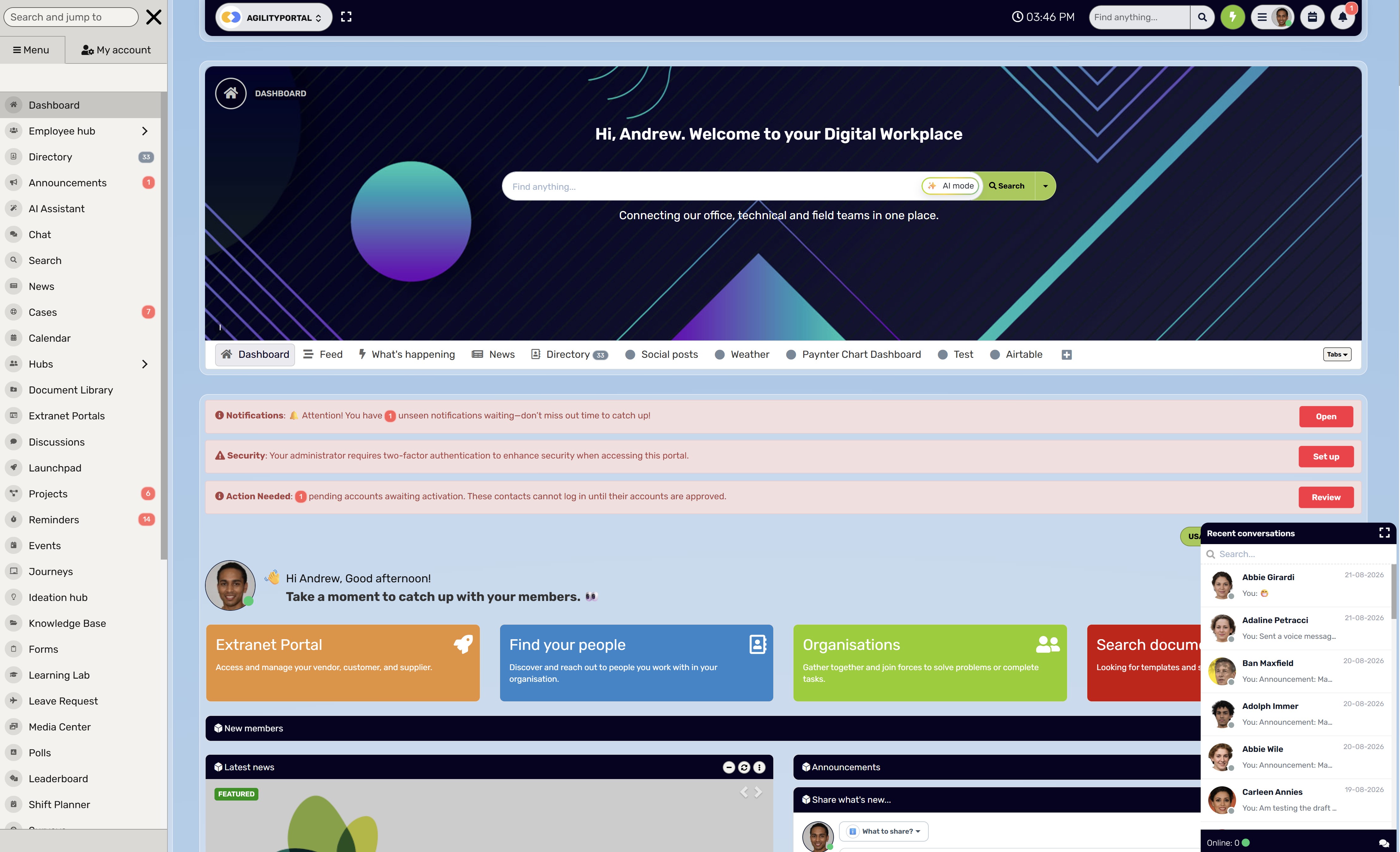
Where does AgilityPortal fit?
This guide is published by AgilityPortal, so it's worth explaining where our platform fits into the picture.
AgilityPortal brings employee communication, knowledge, documents and workplace resources into a shared digital workplace.
If your team's main frustration is finding the latest policy, keeping up with announcements or knowing where to ask a question, an employee portal could address those needs.
For example, a new starter can find onboarding materials, read team updates and access relevant documents in one place. Colleagues can return to those resources when they need them, including when nobody is available for a live conversation.
If you're looking for an immersive office with avatars and proximity-based conversations, assess platforms built around that experience.
The right choice depends on what your employees need help doing each day, whether that's connecting with colleagues, finding reliable information or both.
AGILITYPORTAL · YOUR PEOPLE AND INFORMATION, CONNECTED
Give your remote team a shared place to find answers
Quick conversations help people get unstuck. Your team also needs somewhere to find the latest documents, catch up on announcements and access onboarding resources when colleagues are offline. AgilityPortal brings employee communication, knowledge and workplace resources together in a shared digital workplace.
- Keep policies, guidance and onboarding materials organised.
- Connect colleagues through team spaces and conversations.
- Make updates and resources accessible across locations and working schedules.
Choose a workspace that fits how your team works
The best place to start is with the moments where your team gets stuck.
Do people struggle to find someone available for a quick conversation? Can they find the information they need? Or do both problems come up regularly?
Once you understand those frustrations, choosing a workspace becomes easier.
Virtual office software can support informal interaction and live collaboration, giving colleagues a shared place to ask questions, work through problems and spend time together. An employee portal or knowledge base can provide a reliable home for policies, updates and instructions that people need to access independently.
Your team may benefit from a combination. A new starter might talk through a process with their buddy in a virtual room, then return to the written instructions later. Someone working in another time zone might rely more on documented decisions and clear handovers.
Both should be able to get what they need without depending on everyone being online together.
Keep that everyday experience at the centre of your decision. An impressive workspace has limited value if employees find it confusing, distracting or difficult to access. Equally, a simple setup can be useful when people understand its purpose and feel comfortable using it.
Before committing, test a small setup with the people who will use it.
Give them a clear activity, agree on boundaries around availability and focus time, and ask for honest feedback:
- Did getting help become easier?
- Could people still concentrate without frequent interruptions?
- Could everyone access the features they needed?
- Were important answers and decisions easy to find afterwards?
- Did the benefits justify the cost and effort of another platform?
You don't need to recreate every part of a physical office online. You need a working environment that helps your colleagues connect, find answers and move tasks forward.
Ready to explore your options?
Compare virtual office tools using your team's needs, budget and working habits as your checklist. Look for the features that solve your actual problems, then use a pilot to see whether they deliver in practice.
Related Guides You May Want to Read Next
A virtual office is one part of supporting a remote team. These guides explore the tools, communication habits and shared resources that help colleagues work together across locations and working hours.
- Best Hybrid Work Collaboration Tools and Software for Effective Team Communication
- Digital Workplace Platform: The Complete 2026 Guide
- What Is an Employee Portal or Self-Service Portal?
- Remote Staff: 7 Ways to Fix Collaboration Problems and Keep Distributed Teams Connected
- Communication Framework: How to Rebuild Effective Communication for Remote and Distributed Teams
- What Happens When Your Teams Have Too Many Meetings and Nothing Gets Done—and How to Fix It
- Why Employees Stop Using Internal Collaboration Tools for Business With Poor UX
- What Working Remotely Teaches Leaders About Managing Global Teams
Start with the guide that matches your biggest challenge: choosing tools, making information easier to find, improving communication or supporting colleagues across time zones.
FAQ on Workplace Operations Platform
What is the difference between a virtual office and a virtual workspace?
A virtual office usually focuses on shared presence and live interaction, helping colleagues find each other and start conversations.
A virtual workspace is a broader term that can also cover shared documents, project tools and employee resources. When comparing virtual office management software, check what it actually helps your team do, because providers use these labels differently.
Is virtual office software the same as Zoom or Microsoft Teams?
The features can overlap, particularly around calls, chat and availability. Virtual office software typically places more emphasis on a shared space that remains available between meetings.
If you're searching for a Slack virtual office, decide whether you want to organise your existing channels more effectively or add a separate shared-presence platform.
Does virtual office software require VR equipment?
No, VR equipment isn't a requirement for the category. Check each platform's device requirements: a workspace with rooms or avatars doesn't necessarily require a headset.
During your research, phrases such as Sococo virtual office or Sococo office may appear; evaluate the specific product's access requirements rather than assuming every virtual office works the same way.
Can virtual office software replace an intranet?
It depends on the features and your organisation's needs. Live conversations don't automatically provide a reliable home for policies, announcements and onboarding materials.
Check document organisation, search, permissions and content ownership before replacing an intranet. The same applies when researching Zoho virtual office: identify the specific product and capabilities behind the search term.
What is the best virtual office software for small teams?
The best virtual office software for a small team is one that solves a recurring problem without adding unnecessary cost or administration.
Prioritise easy joining, reliable conversations, suitable privacy controls and manageable notifications.
Test it with your colleagues before committing, even if the demonstration looks straightforward.
Is free virtual office software worth trying?
Free virtual office software can be useful for testing a working approach before paying.
Check participant limits, guest access, room restrictions and which controls require an upgrade. Also consider what happens to your information if you stop using the service.
A free plan is only useful if its limits allow you to test your intended use case properly.
Can teams use a virtual office across different time zones?
Yes, but live conversations require overlapping working hours.
Use shared rooms during agreed collaboration periods, then document decisions and next steps for colleagues who join later.
A sticky notes online tool can support brainstorming, but important outcomes should also be recorded somewhere organised and accessible.
Is there an open-source option for virtual office software?
If you search for "virtual office software open source," check each project's licence, maintenance activity, documentation and deployment requirements.
Establish who will manage hosting, updates, backups and user support. Open-source software can offer flexibility, but it still requires time, skills and potentially paid infrastructure.
Is Office 365 Visual Studio a virtual office tool?
The search phrase "office 365 visual studio" relates to different software categories: Microsoft's productivity services and its development tools. It doesn't describe a virtual office platform.
If your goal is remote team collaboration, focus your comparison on communication, shared presence, information access and the integrations your employees need.
AI Summary
- Virtual office software gives remote colleagues a shared online space to see availability, start conversations and collaborate. Features vary between platforms.
- Virtual rooms, video, screen sharing, avatars and spatial audio can support live interaction, but teams still need written decisions and accessible resources for colleagues working different hours.
- A virtual office focuses on shared presence and interaction. An intranet or employee portal focuses on organised information and resources, so some teams may benefit from both.
- Choose a platform around a specific problem, such as onboarding support or frequent collaborative discussions. Check whether existing tools already meet that need.
- Evaluate accessibility, connection quality, privacy, guest permissions and account management. Include add-ons, training, billing commitments and administration when calculating total cost.
- Start with a small pilot, respect focus time and gather employee feedback. Availability indicators help coordinate conversations; they should not be treated as proof of productivity.
Most Popular Posts

Effective communication among team members is vital for the productivity and success of any organization. Surprisingly, 60% of companies lack a long-term internal communication strategy, which p...


Businesses thrive on communication for efficiency, productivity and accomplishment. When the right information is passed from the right designation in the organization, it promotes positivity an...

Categories
Blog
(3232)
Business Management
(396)
Employee Engagement
(235)
Digital Transformation
(222)
Growth
(151)
Intranets
(142)
Internal communications
(110)
Remote Work
(68)
Sales
(53)
Collaboration
(53)
Customer Experience
(33)
Culture
(30)
Knowledge Management
(29)
Project management
(29)
Leadership
(20)
Comparisons
(9)
News
(1)

Related Posts

What is virtual office software, and could it help your remote team feel more connected? Working from home has its perks, but having plenty of calls and messages doesn't always mean feeling part of a team. Gallup's 2026 State of the Global Work...

In today's competitive talent landscape, learning and development (L&D) has become a non-negotiable priority for enterprises. Organizations that invest in employee growth not only boost engagement and retention but also build agile, future-ready ...

Employee engagement is increasingly crucial in the fast-paced work world of today. Remote work is becoming the norm, hence companies have to use creative ideas to keep good morale and promote a friendly workplace. Feedback, sentiment analysis, ...

The best weather APIs can do more than put a temperature icon on your company homepage. Used thoughtfully, they can help employees check conditions at their workplace, give managers more context when planning outdoor work, and bring useful weat...

Have you ever welcomed a new employee, shared a mountain of information, and wondered how much they'll remember by tomorrow? A clear presentation can make the first day easier by showing new starters who to contact, where to find key informatio...


Jill Romford
I am a digital nomad, lover of exploring new places and making friends.
I love to travel and I love the internet. I take pictures of my travels and share them on the internet using Instagram.
Traveler, entrepreneur, and community builder. I share my insights on digital marketing and social media while inspiring you to live your fullest life.
Ready to learn more? 👍
One platform to optimize, manage and track all of your teams. Your new digital workplace is a click away. 🚀
Free for 14 days, no credit card required.