Insight Blog
Agility’s perspectives on transforming the employee's experience throughout remote transformation using connected enterprise tools.
35 minutes reading time
(7005 words)
How to Create a Presentation for Your New Employee Onboarding Process in Under an Hour

How to Create a Presentation for Your New Employee Onboarding Process in Under an Hour
Create a presentation for your new employee onboarding process in under an hour. Use this practical slide-by-slide guide to welcome new hires and support their first weeks.
How to Create a Presentation for Your New Employee Onboarding Process in Under an Hour

Have you ever welcomed a new employee, shared a mountain of information, and wondered how much they'll remember by tomorrow?
A clear presentation can make the first day easier by showing new starters who to contact, where to find key information and what happens next. It's one helpful part of a new employee onboarding process—but it can't replace support from a manager or training for the role.
That support matters: Gallup found that just 12% of employees strongly agree their organisation does a great job onboarding new employees.
That points to room for improvement across the onboarding experience; a presentation on its own won't solve it.
The good news is you don't need a huge slide deck or weeks of preparation.
In this article, you'll find a simple way to plan and draft an employee orientation presentation in under an hour, what to include, and how to make sure new hires know where to get help after the welcome session.
12%:
of employees strongly agree their organisation does a great job onboarding new employees
Gallup reports that just 12% of employees strongly agree their organisation does a great job onboarding new employees. This points to a wider onboarding experience gap. It does not measure the impact of an onboarding presentation by itself.
Source: Gallup, “Why the Onboarding Experience Is Key for Retention”
How a good onboarding presentation supports a stronger start
An onboarding presentation is more than a collection of slides.
It gives new employees a clear introduction to the organisation, their team and the support available to them.
When the information is relevant and easy to follow, it can help reduce first-day uncertainty and make it easier for people to understand what's expected.
The presentation can also reinforce how the organisation works and what matters in each role. But slides alone won't improve retention or productivity.
Those outcomes depend on the wider experience too: useful training, clear communication, working tools and managers who make time to support new starters.
A well-planned presentation helps bring those pieces together and gives employees somewhere to begin.
Key Takeaways
- A new employee onboarding presentation should welcome new starters, explain what they need to know first, and show them where to find further help.
- A focused first draft can be created in under an hour by using an existing template and gathering approved information before writing.
- Keep the company-wide introduction consistent, then tailor role expectations, contacts, tools and training to each employee’s needs.
- Use slides to introduce essential policies and link to the current source documents instead of copying lengthy or changeable guidance into the deck.
- HR, managers, IT and communications should review the parts they own, while feedback from new hires can show what needs improving.
What does a new employee onboarding presentation need to do?

What does a new employee onboarding presentation need to do?
A new employee onboarding presentation should help someone understand the basics of their new workplace: what the organisation does, who they'll work with, what's expected of them and where to find help.
It gives new starters a clear place to begin, especially when they're taking in a lot of information in their first few days.
It's useful to distinguish orientation from onboarding. Orientation is usually the welcome and introduction to the organisation. Onboarding is the wider process that helps an employee settle into their role and become part of the team.
CIPD describes induction as helping employees learn about their new employer and role, including the organisation, the people they'll work with, and their responsibilities.
That process may continue well beyond the first day.
A presentation can support that process, but it can't do all of it.
A slide deck won't replace a manager explaining the employee's priorities, a colleague showing them how the team works, or training that helps them do the job. Its purpose is to introduce the essentials and point new starters to information they can return to later.
29%:
of new hires felt prepared and supported to excel in their role
SHRM’s onboarding guide reports that 29% of new hires felt prepared and supported to excel in their role. A presentation can help introduce expectations and resources, but employees also need role training, working tools and manager support.
There's a reason to make that first introduction clear.
SHRM's onboarding guide reports that only 29% of new hires felt prepared and supported to excel in their role.
These figures describe the broader onboarding experience; they don't show that a presentation alone will improve it. They do highlight the importance of giving new employees clear information and support as they get started.
A useful presentation should leave employees knowing:
- Why the organisation exists and who it serves.
- Who they'll work with, including their manager, team and key contacts.
- What matters in their role during the first week.
- Which tools and resources they need, and where to get help if access fails.
- Where to find current policies, guidance and training after the presentation.
- What happens next, such as a team introduction or manager check-in.
Think of the deck as a friendly map, not an employee handbook squeezed onto slides. Its job is to make the first steps easier to follow and help each new starter know where to turn next.
Why a short presentation can help—and where it can fall short
A short presentation gives every new employee a consistent starting point.
Whether someone joins the London office, works remotely or starts on a frontline shift, they can get the same essential introduction to the organisation, its people and the help available to them.
It also gives HR and managers a useful structure to build on.
Instead of trying to remember everything they need to explain, they can follow a clear sequence: welcome the new starter, introduce their team, cover immediate expectations and show them where to find more information.
Microsoft recommends focusing an onboarding presentation on what new employees need to know and making useful resources available for later.
But a short deck can fall short if it tries to cover too much. Slides packed with policies, acronyms and instructions are hard to take in, especially on a busy first day.
There's also a risk that an outdated slide gives someone the wrong information—or that the organisation treats the presentation as the whole onboarding process.
A better approach is to use the deck as a signpost.
Explain the essentials, then link to maintained policies, training materials, checklists and support contacts that employees can return to when they need them. Assign someone to check those links and review the presentation when processes change.
That way, the presentation offers a clear welcome without asking new hires to memorise the employee handbook before lunch.
What should go into an employee orientation presentation?

What should go into an employee orientation presentation
A good employee orientation presentation gives new starters the information they need to feel welcome and take their first steps with confidence.
Use this employee orientation presentation example as a starting point, then adapt it to your organisation:
- Welcome and the plan for the day - Introduce the session, explain what you'll cover and let employees know what happens afterwards.
- What the organisation does - Describe what your organisation provides, who it serves and how different teams contribute.
- Mission and values in everyday work - Go beyond listing values. Give a simple example of how one of them might guide a decision or interaction.
- People they'll work with - Introduce the manager, immediate team, buddy and key contacts. Explain what each person can help with.
- Role expectations and first-week priorities - Outline the employee's main responsibilities and what they should focus on first. Their manager should discuss individual goals with them.
- How the team communicates and works - Explain which channels the team uses for updates, questions and meetings, and how employees are expected to collaborate.
- Essential tools and IT support - Show which systems employees need to use and where to go if they can't sign in or access something. Never include passwords or login details in the slides.
- Safety, conduct and key policies - Briefly introduce essential topics and link to the current, approved documents. Avoid copying long policies into the deck.
- Training and learning - Show what training is required, how to access it and who can answer questions.
- What happens next - Set out the next steps, such as a team introduction, first-week check-in and any agreed 30-, 60- or 90-day milestones.
Treat this as a core presentation, not a script that every employee must receive unchanged. A new starter in an office may need different details from someone working remotely or on a shift.
Keep the essential welcome consistent, and adjust the role, location, tools and support information to fit each person.
Before sharing the deck, check that links work and the information is current. Have the relevant teams approve policy or safety content, and keep confidential employee details out of a presentation intended for wider reuse.
How to build the first draft in under an hour
You can put together a useful first draft in an hour if you already have the key information and an approved slide template.
The aim is to create a clear structure that's ready for review—not a finished onboarding programme with every policy approved and every detail tailored to every role.
| Time | What to do | What you should have |
| 0–10 minutes | Set the audience and goal. Decide who the presentation is for and what new employees should understand by the end. | A one-sentence purpose and a clear audience |
| 10–20 minutes | Gather approved materials. Find the current policies, brand template, contact details, training resources and role information you'll need. | A short list of trusted sources and working links |
| 20–35 minutes | Plan the slide story. Write 8–10 slide headings in a logical order, then add the main point for each one. | A complete outline with one clear purpose per slide |
| 35–50 minutes | Add useful details. Include real examples, key contacts, first-week priorities and links to resources employees can revisit. | Practical information a new starter can act on |
| 50–60 minutes | Check the draft. Read it as if you were new to the organisation. Check names, links, readability and who needs to review each section. | A clear draft ready to share for review |
A few simple choices can make the draft easier to follow:
- Start with an existing brand template so you don't spend the hour choosing fonts and colours.
- Give each slide one main idea. If a slide is becoming crowded, split it or link to a fuller resource.
- Use plain language. Replace internal shorthand and unexplained acronyms with words a new starter will understand.
- Make slides easy to scan. Use clear headings, readable text and enough space between points.
- Link to longer materials such as the handbook or full policies instead of copying them into the deck.
- Leave review notes where needed. Mark details that need confirmation rather than guessing or presenting them as final.
Once the first draft is ready, ask the people responsible for HR, IT, communications and the relevant team to check their sections.
Their review—and the time it takes to make changes—comes after the first hour.
How to use ChatGPT to create an onboarding presentation
ChatGPT can help you turn existing onboarding materials into a slide outline, draft the text and, in some versions, create a presentation file.
Start with your approved content—such as the employee handbook, role guides, training materials or an existing slide deck—so the draft reflects your organisation rather than relying on generic assumptions.
ChatGPT supports attaching documents and presentations as source material.
- Start a ChatGPT conversation. If your account has ChatGPT Work or presentation tools, you can use those to create a presentation file. Features vary by plan and workspace.
- Attach approved source material. Include only documents your organisation permits you to share with the tool.
- Explain the audience and purpose. Say whether the presentation is for new hires, an internal transfer, a specific role or a particular location.
- Ask for a slide-by-slide draft. Request clear headings, concise text, speaker notes and links or placeholders for resources employees should revisit.
- Check the result against the originals. Verify policies, names, links, figures and role details. Ask ChatGPT to revise specific slides where needed.
- Review the finished slides. Check that the text is readable, the deck is accessible and the information suits the audience. AI can help with a first draft, but a responsible person still needs to approve it.
Another option for turning content into slides: If you'd prefer a dedicated presentation tool, DecksyAI says it can create slide decks from a prompt or uploaded files, then export them as editable PowerPoint files or PDFs.
You could use it to turn approved onboarding content into a first draft, then check every slide for accuracy and fit before sharing it.
Because onboarding materials may include internal or sensitive information, readers should check their organisation's rules before uploading documents to any third-party tool.
Turn the draft into a reusable template
Once the content is checked, ask ChatGPT to separate the reusable company-wide slides from details that should change by role, team or location.
For example, the welcome and organisation overview may stay consistent, while contacts, systems, training and first-week priorities may need updating.
Save the approved version as a template and assign an owner to review it when the source policies or processes change.
ChatGPT's official guidance also recommends reviewing generated slides against the source material and checking the finished presentation, rather than relying on the outline alone.
Who should review and own the presentation?
A new-hire presentation usually needs input from several people, but one person should be responsible for keeping it up to date.
The HR Director or a member of the People team is often a good owner because they can coordinate reviews and make sure the presentation fits the wider onboarding process.
Each reviewer should check the details they know best:
| Role | What they should review | Why it matters |
| HR Director or People team | The welcome, employee journey, people policies and links to official resources | Keeps the core information consistent and accurate |
| Hiring manager | Role expectations, team introductions and first-week priorities | Makes the presentation relevant to the employee's actual job |
| IT or IT service desk | Tools, account setup, access instructions and support contacts | Helps prevent new hires from following broken or outdated instructions |
| Internal communications | Tone, plain language, branding, readability and accessibility | Makes the information easier for employees to understand and use |
| Legal, compliance or Data Protection Officer | Regulated, legal or sensitive content, where relevant | Helps identify inaccurate or inappropriate guidance before it is shared |
| New hires and buddies | What was unclear, hard to find or missing from the welcome | Shows whether the presentation works for people experiencing onboarding first-hand |
The presentation owner should record who approved each section and when it was last checked.
Review it whenever a key policy, system or process changes, and schedule a regular check so small updates don't get missed.
Feedback from new hires can also reveal where a slide needs clearer wording or a better link.
What can go wrong when the deck becomes the onboarding plan?
A polished presentation can give a new employee a warm welcome, but it can't replace the support and preparation that should happen around it.
Imagine a remote employee starting their first day.
The presentation explains which systems the team uses, but their login doesn't work. Their manager is in back-to-back meetings, and the slides don't say who to contact for help.
The employee spends the morning waiting for access instead of meeting the team or learning what to do first.
- What happened: The company treated the presentation as the onboarding plan, but hadn't checked that the manager, accounts and first task were ready.
- The impact: The new starter is left unsure how to get help and may feel that the organised welcome in the slides doesn't match their actual experience.
- A better response: Use the deck to explain the first steps, while a manager or buddy is available to guide the employee. Check that accounts work before the start date, name a contact for access problems, and give the new starter a clear first task.
The presentation itself also needs upkeep. An old version might link to a retired system, show the wrong contact or describe a process that has changed.
Slides that rely only on colour, use tiny text or don't work well with assistive technology may also make important information harder to access. Location requirements and tools can differ too, so a single version may not fit every employee.
Assign an owner, show when the deck was last reviewed, and check links and key details before each new-hire session. Keep full policies and instructions in their official locations, and use the slides to point employees there.
That way, the presentation supports a well-prepared start instead of standing in for one.
How do you make the experience useful for remote, frontline and hybrid employees?
A presentation should work for the people who need to use it.
A remote employee may need clear instructions for setting up their equipment and accounts. A frontline worker may have limited time at a shared device, while a hybrid employee may split their week between home and the office.
Keep the company-wide welcome consistent, then add or link to information that fits each employee's role and location. Check that people can access the slides and resources on the devices they actually use.
If your workforce speaks different languages, consider whether key guidance needs translation.
Before sharing the presentation, check that:
- The text is readable on a phone or shared screen.
- Videos, links and documents work on the employee's device.
- Instructions account for different shifts, locations and access needs.
- Employees know where to find the latest version after the session.
- The materials are usable with assistive technology where needed.
How should the presentation connect to the rest of onboarding?
The presentation should make the first steps clear, then point employees towards the people and resources that will support them afterwards. Before the first day, prepare equipment, accounts and a welcome message.
After the presentation, make time for the manager and buddy to meet the new starter, answer questions and agree on the first priorities.
A simple onboarding journey might include:
- Before day one: Share the schedule, arrange access and prepare equipment.
- On the first day: Welcome the employee, introduce the organisation and explain where to get help.
- During the first week: Meet the team, review role expectations and begin essential training.
- During the first few months: Check progress, answer questions and update learning goals with the manager.
A digital workplace or intranet can give employees one place to find approved policies, contacts, checklists and training after the presentation.
For example, organisations may use AgilityPortal to bring employee communications and workplace resources together.
How will you know whether it helped?
A presentation is useful when employees can act on what they've learned—not simply when they've opened the slides or clicked through them. Ask new starters what was clear, what they still couldn't find and where they needed more help.
Their answers can show whether the presentation needs a clearer explanation, a working link or a better follow-up from a manager.
You can also check whether:
- New employees can locate key policies, contacts and support resources.
- Accounts, equipment and first-week tasks are ready and complete.
- The same questions keep coming up across new-hire groups.
- Managers and buddies are following up on agreed priorities.
- Employees say what was missing or confusing after the session.
Use the feedback to make small, regular improvements.
A short check-in with each new-hire group can help keep the presentation useful as roles, tools and processes change.
Tips for making your onboarding presentation useful
A good onboarding presentation should help new employees understand what to do next, where to find information and who can help them. It shouldn't try to squeeze the whole employee handbook into a slide deck.
Keep the main presentation focused, then link to fuller resources employees can read when they need them.
- Show the journey, not just the first day. Use a simple timeline to show what happens on day one, during the first week and over the next few months. Include useful milestones, such as an IT setup check, a meeting with the manager, required training and a 30-day conversation. This helps new starters see that onboarding continues after the welcome session.
- Keep a shared welcome, then tailor the details. A consistent introduction helps every employee understand the organisation and its culture. After that, adapt the role expectations, systems, contacts and training to the person's team, location or working pattern. A frontline employee on shifts may need different practical information from an office-based or remote employee.
- Make it easy to find the right person. Introduce key contacts by name, role and the kind of help they can offer. For example, say who to contact about IT access, pay, role questions or team support. If employees can't remember every name from the presentation, include a directory link or contact list they can revisit later.
- Bring values to life with examples. A slide that simply lists company values may not tell a new employee what those values look like in practice. Pair each value with a short workplace example, such as how a team handles a customer problem, shares feedback or makes a decision. Keep examples specific and grounded in real working practices.
- Organise training into steps. Group learning by when it's needed—on the first day, during the first week and later in the role. This helps new starters focus on the right material instead of facing a long list of courses all at once. Explain what's required, where to access it and who can answer questions.
- Make the slides easy to read and revisit. Use clear headings, short blocks of text and a readable font size. Check that colour contrast is strong and that the presentation makes sense on a phone or shared screen. Add working links to current policies, guides and support resources, and give the deck an owner who can update it when information changes.
A useful employee orientation presentation gives new hires a warm welcome and a clear path to follow. It sets out the essentials, connects employees with the right people and points them towards trusted information.
Keep the deck focused, check that every detail is accurate, and make sure support is available after the presentation ends.
Give every new starter a clearer path with AgilityPortal
Give every new starter a clearer path with AgilityPortal
A welcome presentation introduces the organisation, but new employees also need a clear way to work through their next steps.
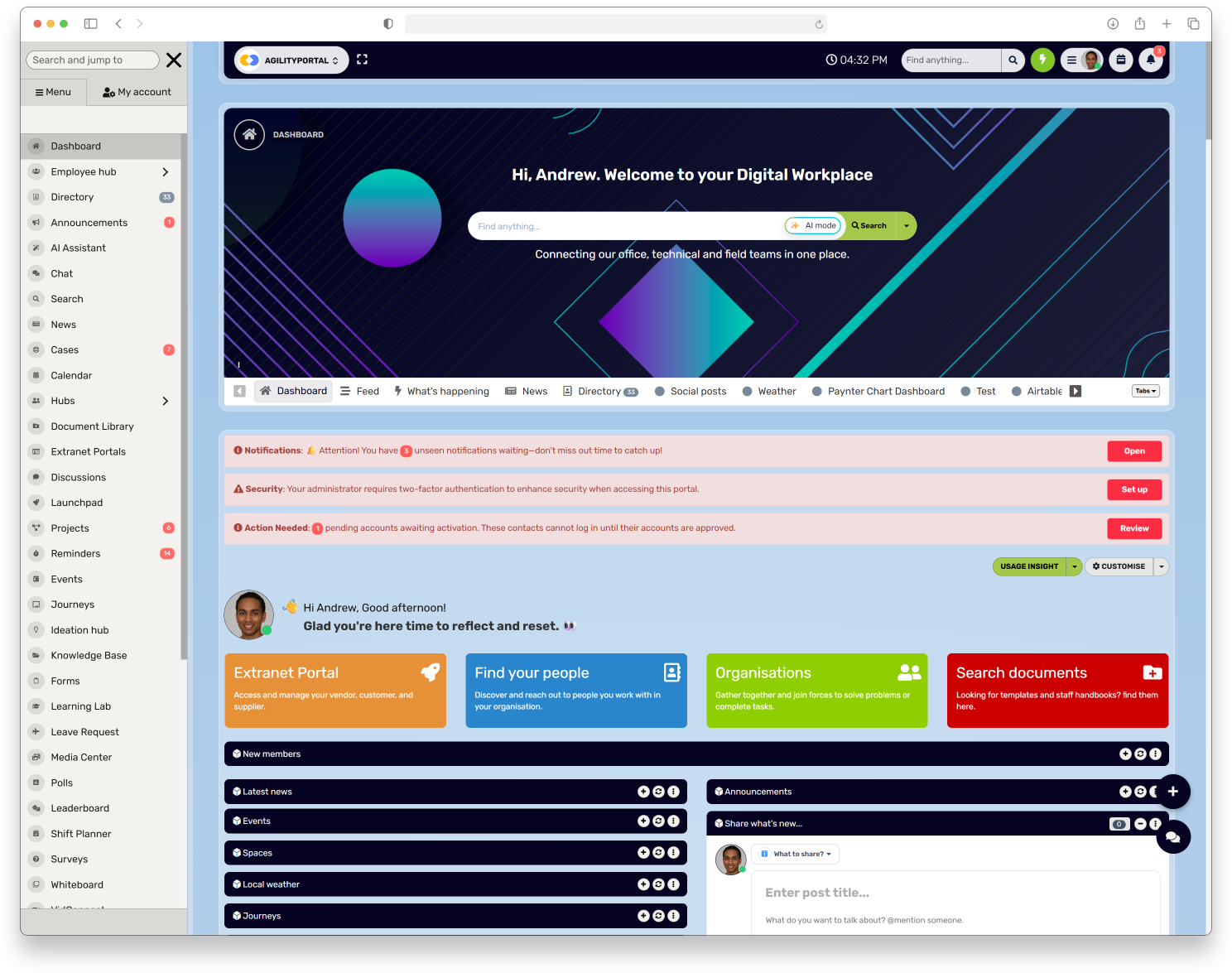
AgilityPortal's Pathways onboarding module helps you build structured journeys for new starters and organise resources in one place.
With Pathways, you can:
- Tailor onboarding journeys by role, team or department.
- Break the journey into pages with slide content, videos, images, links and documents.
- Add checklists with tasks, deadlines and supporting resources.
- Track progress so HR and managers can see what's complete and where someone may need help.
- Collect responses or feedback through forms.
This gives new employees a clearer route through their onboarding and helps HR and managers deliver a more consistent experience.
See how AgilityPortal can help streamline employee onboarding. Request a demo
Give every new starter a clear path to follow
A welcome presentation is a helpful first step, but new employees also need to know what to do next. AgilityPortal’s Pathways module helps you create structured onboarding journeys, so employees can work through relevant resources, tasks and training as they settle into their role.
- Create onboarding journeys tailored to different roles or teams
- Bring guidance, videos, documents and links together in pathway pages
- Use checklists to set tasks, deadlines and supporting resources
- Track progress and see where a new starter may need support
How could onboarding change as work changes?
As teams become more distributed and workplace tools change, onboarding materials need to be easy to access and keep up to date.
A new starter might be working from home, on a shift or in a different office, so a presentation should work on the devices they can use and link to information they can return to later.
AI can help create a first draft, adapt content for different roles or suggest a clearer structure.
But someone who understands the organisation still needs to check the facts, links, tone and local requirements.
Microsoft also advises reviewing AI-generated presentation content to make sure it accurately fits its audience and purpose.
The useful change isn't simply making more slides, or using AI to make them faster. It's making sure each new employee can find the right information, meet the right people and understand what to do next, wherever and whenever they start.
Related Guides on Employee Onboarding
These AgilityPortal guides explore practical ways to plan the onboarding journey, welcome new employees, organise role-specific training and support remote, frontline and international teams.
- How to Streamline Onboarding with a Digital Workplace + Digital Onboarding Examples
- How to Onboard Employees So They Won’t Bounce in 2024
- What Is Employee Onboarding? The Role of HR and Its Benefits for an Organization
- How to Onboard New Remote Employees Who Live in Multiple Countries
- How an Employer of Record Simplifies Global Hiring and Employee Onboarding in 2026
- How to Manage Remote Employees and Overcome Common Challenges
- 5 Ways a Digital Workplace Platform Can Help You Free Up Hours for Your Most Important Tasks
- How to Keep Remote and Frontline Teams Connected Without Relying on Email or WhatsApp
Together, these resources connect the welcome presentation to the wider onboarding experience—from preboarding and first-day introductions to role-based learning and ongoing support.
Final Thoughts
A good onboarding presentation doesn't need to explain everything about your organisation.
It should help a new employee feel expected, understand what matters first and know where to turn when questions come up. Keep the slides focused, make them easy to follow and connect them to current resources the employee can revisit later.
You can create a useful first draft in under an hour by choosing a clear audience, gathering approved materials and building a simple story from welcome to next steps.
Then ask HR, the manager, IT and communications to check the sections they know best.
Give new starters a chance to say what was missing or confusing, too. Their feedback can help you improve the presentation and the wider new employee onboarding process.
The deck can set a welcoming tone, but what happens around it matters just as much: working access, a prepared manager, a helpful colleague and clear answers after day one.
A strong start comes from giving new employees both the information they need and the support to put it to use.
FAQ
What is a new employee onboarding process?
It's the series of steps that helps a new employee understand their role, meet the people they'll work with and find the tools and information they need. A presentation can introduce those steps, but manager support, training and follow-up are part of the wider process.
What should be included in employee onboarding?
Include a welcome, an overview of the organisation, key contacts, role expectations, first-week priorities, essential tools, required training and next steps. Link to current policies and resources so employees can return to them later.
What should an employee orientation presentation include?
An employee orientation presentation should cover the essentials a new starter needs to know first: what the organisation does, who they'll work with, where to get help and what happens after the welcome session. Tailor details such as tools and training to the employee's role and location.
Can I use an employee onboarding presentation PPT as a template?
Yes. Start with an existing PowerPoint deck if it's accurate and approved, then update it for your organisation and audience. Check the links, policy references and role-specific information before sharing it with new hires.
Where can I find a new employee orientation presentation template?
You can adapt an existing company presentation or create a simple template with slides for the welcome, organisation overview, team contacts, role expectations, tools, training and next steps. Keep detailed policies in their official documents and link to them from the slides.
Do I need a new hire onboarding presentation template for each role?
Not necessarily. Use a shared presentation for company-wide information, then add or link to role-specific material where needed.
This helps keep the welcome consistent while making the practical details relevant to each employee.
What should an employee onboarding pack include?
An employee onboarding pack may include the presentation, a first-week plan, key contacts, links to the employee handbook and policies, training information, and any role-specific checklists.
Keep the documents current and make sure new starters know where to find them.
What are the best practices for an employee onboarding PowerPoint presentation?
Keep each slide focused on one main idea, use plain language and readable text, and show employees what to do next.
Include useful links and contact details, then ask HR, the manager and relevant teams to review their sections.
What should an employee onboarding checklist in the UK include?
A UK onboarding checklist can cover preparation before the start date, equipment and account access, introductions, role training, essential policies and manager check-ins.
Tailor it to the role and current organisational requirements, and ask the appropriate HR or legal contact to review compliance-related items.
AI Summary
- A new employee onboarding presentation introduces new hires to the organisation, their team, their role and the support available to them.
- Orientation is one part of the wider onboarding process. A presentation can guide a new starter, but it cannot replace manager support, role training or working tools.
- A useful presentation covers the welcome, organisation, key contacts, first-week priorities, essential tools, training and next steps.
- You can create a first draft in under an hour by using an existing template, gathering approved information and planning one main idea per slide.
- Keep the core introduction consistent, then adapt role, location, contact and training details for different employee groups.
- Link to current policies and resources instead of copying long or changeable guidance into slides. Assign an owner to check the deck and its links regularly.
- HR, managers, IT and communications teams should review the sections they own. Feedback from new hires can show what needs to be clarified or improved.
Most Popular Posts

Effective communication among team members is vital for the productivity and success of any organization. Surprisingly, 60% of companies lack a long-term internal communication strategy, which p...


Businesses thrive on communication for efficiency, productivity and accomplishment. When the right information is passed from the right designation in the organization, it promotes positivity an...

Categories
Blog
(3228)
Business Management
(396)
Employee Engagement
(235)
Digital Transformation
(220)
Growth
(151)
Intranets
(142)
Internal communications
(110)
Remote Work
(68)
Sales
(53)
Collaboration
(53)
Customer Experience
(33)
Culture
(30)
Knowledge Management
(29)
Project management
(29)
Leadership
(20)
Comparisons
(9)
News
(1)

Related Posts

Have you ever welcomed a new employee, shared a mountain of information, and wondered how much they'll remember by tomorrow? A clear presentation can make the first day easier by showing new starters who to contact, where to find key informatio...

What would your leadership team do if a serious allegation about your business started spreading online before anyone knew whether it was true? That's where crisis communication and management really matter. An employee spots the post, screensh...

AI for personal injury law firms is becoming part of everyday casework. These tools can help teams sort through medical records, build timelines, draft demand packages and find details buried in a big case file. That could free up attorneys and...

Ever left an online meeting unsure what was decided—and wondered how to run an effective meeting without wasting everyone's time? A call can bring a distributed team together quickly, but when it starts late, includes people who don't know why ...

Where can I send a fax from in my area when a document needs to go out today? The answer might be a nearby print or shipping shop, a library or an online fax service, but what's available depends on your location. The UPS Store lists a ne...


Annet Herges
I am a digital nomad, lover of exploring new places and making friends.
I love to travel and I love the internet. I take pictures of my travels and share them on the internet using Instagram.
Traveler, entrepreneur, and community builder. I share my insights on digital marketing and social media while inspiring you to live your fullest life.
Ready to learn more? 👍
One platform to optimize, manage and track all of your teams. Your new digital workplace is a click away. 🚀
Free for 14 days, no credit card required.