
Insight Blog
Agility’s perspectives on transforming the employee's experience throughout remote transformation using connected enterprise tools.
41 minutes reading time
(8135 words)
Best PDF Reviews: 5 Best PDF Software Picks That Could Save Your Team Hours (2026 Updated)

Best PDF Reviews: 5 Best PDF Software Picks That Could Save Your Team Hours (2026 Updated)
Best PDF reviews for 2026: compare five tools for quick edits, handwritten notes, team reviews, data extraction and free everyday PDF work.
Best PDF Reviews: 5 Best PDF Software Picks That Could Save Your Team Hours (2026 Updated)

Ever opened a PDF just before a meeting and realised you need to edit a page, pull figures from a scanned report, or gather everyone's comments?
What should be a quick task can turn into a frustrating search for the right tool.
That lost time adds up.
In Microsoft's Work Trend Index survey, 62% of respondents said they struggle with spending too much time searching for information during the workday.
That figure isn't specific to PDFs, but it shows why finding and working with the right document matters.
For busy teams, having the right tools can make everyday work easier.
struggle with time spent searching for information
62% of respondents said they struggle with spending too much time searching for information during the workday, according to Microsoft’s Work Trend Index. The finding covers workplace information generally, rather than PDFs specifically. It’s a reminder that employees need to be able to find the right document as well as work with it.
Source: Microsoft Work Trend Index
In these best pdf reviews, we look at five tools from a workplace perspective: Smallpdf for quick tasks, Goodnotes for handwritten annotations, Foxit PDF Editor for team reviews, Nitro PDF for reusing information from business documents, and PDFgear for employees who need a free editor.
By the end of this guide, you'll know what each tool does best, where it may fall short, and which one makes the most sense for your team's documents, budget and way of working.
Key Takeaways
- The best PDF software depends on the job your employees need to do, from quick edits to coordinated reviews.
- Smallpdf is our pick for everyday tasks such as converting, compressing, and combining PDFs.
- Goodnotes suits handwritten annotations and work notes, while Foxit PDF Editor is better suited to team document reviews.
- Nitro PDF is worth considering when teams need to extract and reuse information from business documents.
- PDFgear gives employees a free editing option, but businesses should still check whether it meets their document and IT requirements.
- Whichever tool you choose, give employees a clear way to find the final, approved version of each document.
First, what does a PDF editor actually do?
A PDF editor is a tool that lets you make changes to a PDF instead of simply opening and reading it.
Depending on the software, you can correct text, add images, rearrange pages, highlight important points, leave comments, fill in forms or sign documents.
Think about an onboarding pack that needs one updated policy page. Without an editor, someone might recreate the document or send a separate attachment and hope employees read both.
With the right tool, they can replace the page and share a cleaner, more useful file. Similarly, a manager could mark up a proposal, while an operations team might extract figures from a PDF report for further analysis.
Not every tool offers the same level of control. Some are designed for quick tasks in a browser; others focus on handwriting, collaborative reviews or working with scanned documents.
That's why it helps to start with the task your employees perform most often before deciding which PDF editor to use.
Why are businesses using PDFs in 2026?
Businesses use PDFs because they're a practical way to share documents that need to look consistent.
An employment contract, company policy or client proposal should be easy to open without its layout shifting from one device to another.
They're also useful when a document needs to move between teams or organisations. HR can share an onboarding pack, Finance can send an invoice, and Operations can distribute a report without requiring every recipient to use the software in which the document was created.
But sharing a PDF is only part of the job.
Employees may need to comment on it, sign it, search a scanned copy or pull information from it.
That's why businesses are looking beyond basic PDF readers and choosing tools that support the work surrounding the document.
The important question isn't whether your business uses PDFs. It's whether employees can complete those everyday tasks easily and still know which version is current, who approved it and where to find it.
PDF readers vs. PDF annotation apps vs. PDF editors
Before comparing the five tools, it helps to know what kind of PDF work you need to do.
These categories overlap, and the features vary by product and plan, but the distinction is useful:
- PDF readers let you open a file, move through its pages and search its text. Some also let you highlight passages, fill in fields or add a signature. They're enough when employees mainly need to read a document.
- PDF annotation app let you add feedback around the existing content. You might highlight a sentence, write a note in the margin, draw on a diagram or place a comment for a colleague. Goodnotes is a useful example when handwritten markup is the priority.
- PDF editors let you make changes to the document, such as correcting existing text, replacing an image, organising pages or converting the file. The exact editing features depend on the tool and subscription.
Here's a simple way to tell the difference: reading a policy means viewing it; annotating it means suggesting that a paragraph should change; editing it means making that change in the file.
This guide includes tools from more than one category because employees do more than one kind of PDF task. Choose based on what they need to accomplish, then check that the specific feature is included in the version you plan to use.
Why does choosing a PDF tool cause so much friction at work?
PDFs are easy to share, but the work doesn't stop once someone opens the file.
Employees may need to edit a sentence, comment on a proposal, sign a form, search a scanned document or move figures into a spreadsheet. A tool that handles one of those jobs well may be awkward for another.
The friction often appears when several people work on the same document:
- Feedback gets scattered. Reviewers return separate copies with different comments.
- Versions become confusing. Employees aren't sure which file contains the latest changes.
- Simple tasks take too long. Someone recreates a page because they can't make a small edit.
- Information gets trapped. Staff copy figures by hand from a PDF into another system.
- Sensitive files end up in the wrong place. Employees may use an unapproved tool to finish an urgent task.
Imagine HR sending a revised policy to five managers.
Each manager marks up their own copy and emails it back. HR must then compare the files, combine the feedback and work out which changes were approved. The PDF itself was easy to share; the review process was the problem.
The practical fix starts with the task.
Choose a tool that supports how people need to work on the document, name someone to approve the final version, and give employees one clear place to find it.
TL;DR: Our Best PDF Editors in 2026
Need a quick answer?
These are our five picks, each chosen for a different job employees need to do with PDFs.
| PDF tool | Best for | Workplace example | Check before choosing |
| Smallpdf | Quick, everyday PDF tasks | Compressing an onboarding pack or merging several forms | Is its browser workflow suitable for the files your team handles? |
| Goodnotes | Handwritten annotations and work notes | Marking up a training handout with a stylus | Will employees mainly annotate PDFs rather than edit their text? |
| Foxit PDF Editor | Team document reviews | Gathering comments on a revised company policy | How will reviewers resolve feedback and approve the final version? |
| Nitro PDF | Reusing information from business documents | Extracting tables or form data into Excel | Does it extract information accurately from your actual files? |
| PDFgear | Employees who need a free PDF editor | Editing or converting an occasional PDF | Does it meet your IT and document-handling requirements? |
Our quick verdict: Start with the task, not the longest feature list.
If employees mostly compress files, they don't need the same tool as a team reviewing policies or an analyst extracting data from scanned reports.
How we chose these five PDF tools
The best PDF editor for one employee may be the wrong choice for another.
We chose these five tools because each addresses a different task that regularly comes up at work, from making a quick edit to collecting team feedback or extracting information from a report.
For this comparison, we looked at:
- Everyday usability: Can an employee complete a common task without a complicated process?
- Editing and annotation: Can they change content, add notes or mark up a document?
- Team reviews: Can colleagues give feedback in a way that's manageable for the document owner?
- Conversion and extraction: Can the tool turn PDFs into useful files or recover information from scans?
- Cost and access: Is there a free option, and what might require a paid plan?
- Business fit: What should IT check before employees use it with company documents?
The table above is a quick guide to which tool is worth considering for each job, not a claim that one product is the best PDF editor for every business.
How we reviewed these tools: These are AgilityPortal's editorial picks based on the products' published features and their fit for common workplace tasks. We have not presented the table as a hands-on performance test. Features, plan limits and availability may change, so check the vendor's current terms and try each shortlisted tool with your own documents before making a company-wide choice.
What makes a good PDF editor for work?
Most PDF tools can handle basic tasks such as opening a file, adding a comment or filling in a form.
The differences become clearer when you give them a real workplace document: a scanned contract, a long policy with several reviewers or a report containing tables you need to reuse.
A good tool should help employees complete their usual tasks without damaging the document or adding unnecessary steps. Look at how clearly it displays files, which changes it allows, whether the finished PDF keeps its formatting and how easily colleagues can use it on their devices.
The best choice also depends on cost and frequency. If someone only signs an occasional form, a basic tool may be enough. If HR regularly coordinates policy reviews or Finance extracts information from reports, a more capable editor may justify its price.
That's why our five picks serve different needs. Choose the tool that fits the work your employees actually do, then test it with your own documents before rolling it out.
#1. Smallpdf: Best for quick, everyday PDF tasks (Browser, Windows, Mac, iOS, Android)
#1. 1. Smallpdf: Best for quick, everyday PDF tasks (Browser, Windows, Mac, iOS, Android)
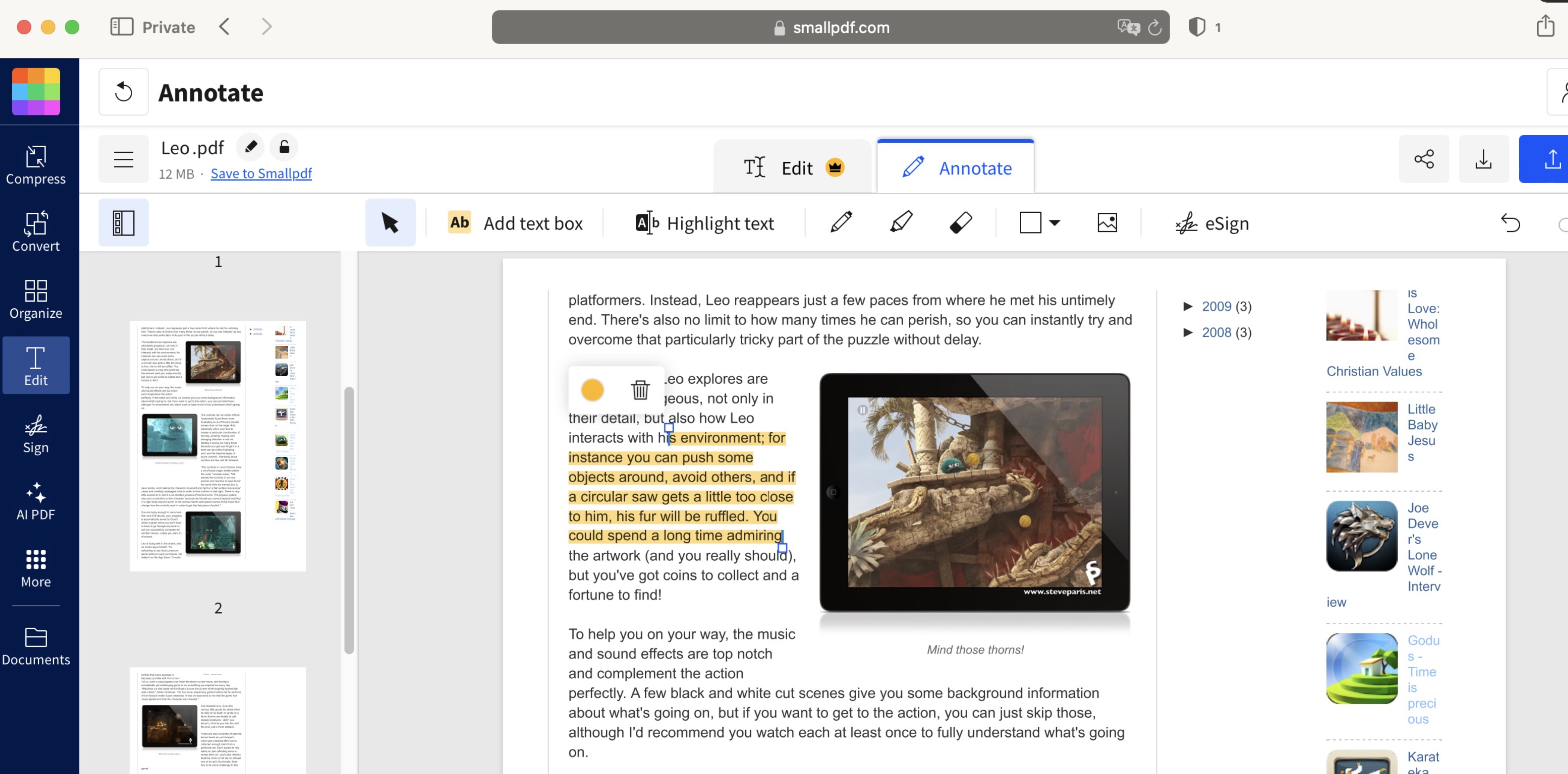
When you're putting together an onboarding pack or trying to email a proposal that's too large to attach, Smallpdf can help you get it ready to send.
It brings common PDF tools into your browser, so you can combine files, reduce their size or change their format without installing a desktop editor.
For employees who handle PDFs alongside their other work, having these tools in one place makes small jobs easier to manage. You can rearrange pages before sharing a document, and Smallpdf's OCR tool can make text in scanned paperwork searchable.
- Why we picked it: Its online tools cover familiar jobs such as compressing, merging, converting, organising and signing PDFs.
- Workplace example: An HR coordinator merges several induction documents and compresses the pack for distribution.
- What to discuss: Speed and ease for occasional users; which tasks require a paid plan; whether browser upload is appropriate for a given document.
- Verdict angle: A good first choice when employees need to finish a straightforward PDF task without learning a large editing suite.
Features:
- Convert PDFs to and from common Office formats.
- Merge files, split documents, and rotate or extract pages.
- Compress large PDFs so they're easier to share.
- Use OCR for scanned documents.
- Access editing features and team options through paid plans.
Pros:
- Handles several routine PDF tasks in one place.
- Works in a browser, which is convenient when employees switch computers.
- Offers a team plan for managing access and billing.
Cons:
- Free access has limits that may affect frequent users.
- Editing existing text and some advanced features require paid access.
Limitation: The online tools need an internet connection. IT should also check whether uploading a particular company document to a browser tool fits its rules for handling sensitive information.
Our verdict: Smallpdf is a practical choice for quick, everyday PDF tasks. Start by testing the tasks your employees do most often, then check whether the free or paid plan covers them.
Need to get a PDF ready to share? Consider Smallpdf
Smallpdf is useful for quick jobs such as merging an onboarding pack, compressing a large file or converting a PDF into another format.
- Convert, merge and compress PDFs
- Organise pages before sharing
- Check which features require a paid plan
#2. Goodnotes: Best for handwritten PDF annotations and work notes (Mac, iOS, Android, Windows, Browser)
#2. Goodnotes: Best for handwritten PDF annotations and work notes (Mac, iOS, Android, Windows, Browser)
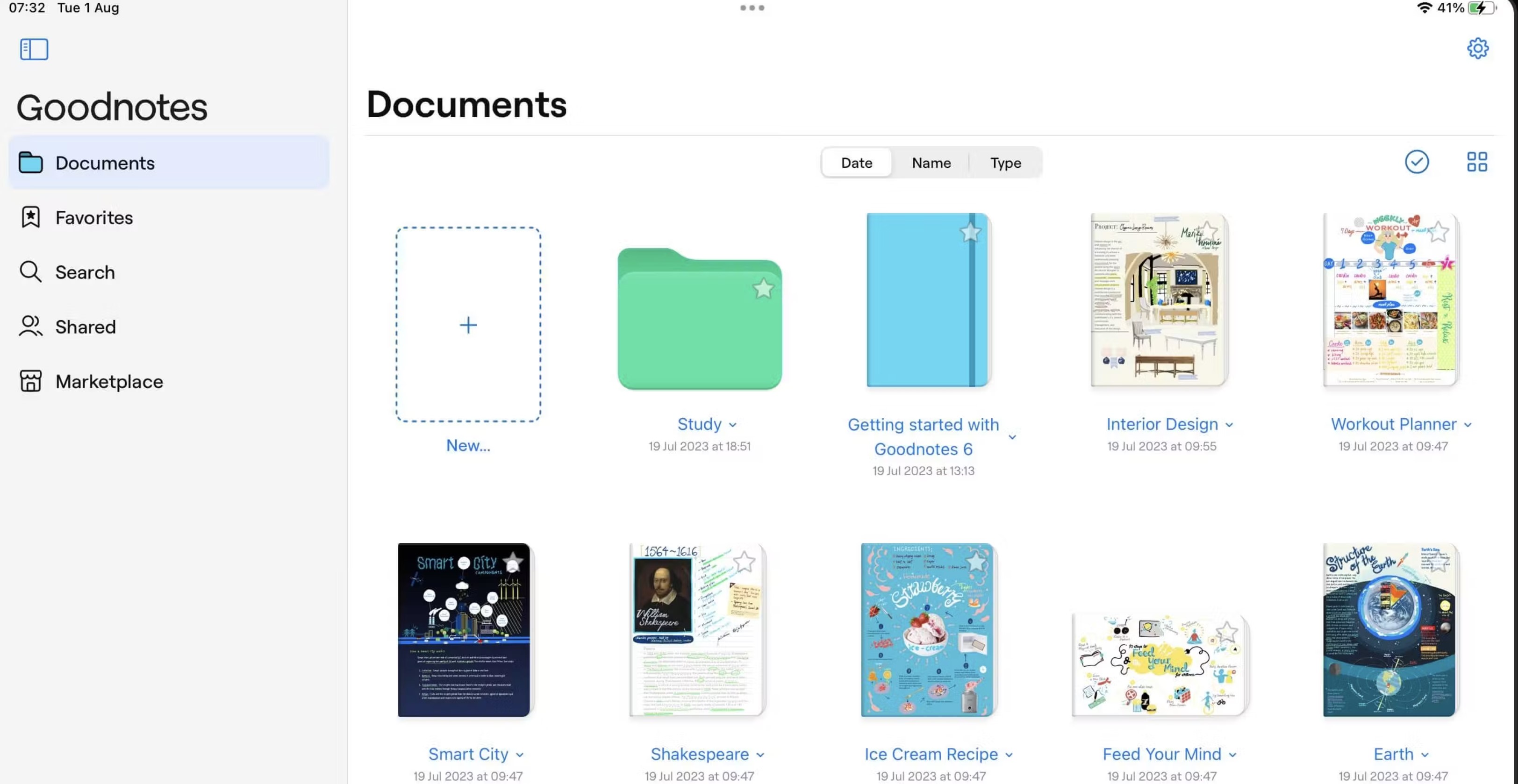
Some documents are easier to review with a pen. If a manager wants to circle a point in a training guide, sketch an idea beside a proposal or write questions on a meeting pack, Goodnotes offers a more natural way to work with the PDF.
You can import a PDF, add handwritten notes and highlights, then export the annotated document to share with colleagues. Goodnotes can search handwriting and text in PDFs, although an imported scanned PDF needs an existing OCR text layer for its printed text to be searchable.
- Why we picked it: It puts handwriting and note-taking at the centre of PDF annotation, making it useful for employees who prefer marking up documents with a stylus.
- Workplace example: A learning and development manager annotates a training handout during a workshop, then shares the marked-up copy with the team.
- What to discuss: Whether employees have suitable devices; how they'll export and share notes; whether they need to edit the PDF's original text as well as annotate it.
- Verdict angle: A strong choice for handwritten feedback and personal work notes, especially when marking up the document is more important than changing its underlying content.
Features:
- Import PDFs for annotation.
- Write, draw and highlight directly on documents.
- Organise PDFs alongside work notes.
- Search handwriting and eligible PDF text.
- Export annotated files to share with colleagues.
Pros:
- Makes handwritten review feel natural on a stylus-enabled device.
- Keeps annotations and related notes together.
- Makes handwritten notes searchable.
Cons:
- It isn't the most direct choice when the main task is editing existing PDF text.
- Its handwriting-focused workflow may offer less value to employees who mainly work with a keyboard and mouse.
Limitation: Goodnotes does not add OCR to imported scanned PDFs. If a scan has no existing text layer, its printed text will not become searchable simply because you imported it.
Our verdict: Choose Goodnotes when employees need to work through PDFs by handwriting, highlighting and taking notes. For a formal review involving several approvers, check whether a dedicated team review workflow would serve them better.
Prefer marking up PDFs by hand? Consider Goodnotes
Goodnotes lets employees write, highlight and draw on imported PDFs while keeping their notes organised.
- Annotate PDFs with handwriting
- Keep document feedback alongside work notes
- Check feature availability on your team's devices
#3. Foxit PDF Editor: Best for team document reviews (Windows, Mac, Browser, iOS, Android)
#3. Foxit PDF Editor: Best for team document reviews (Windows, Mac, Browser, iOS, Android)
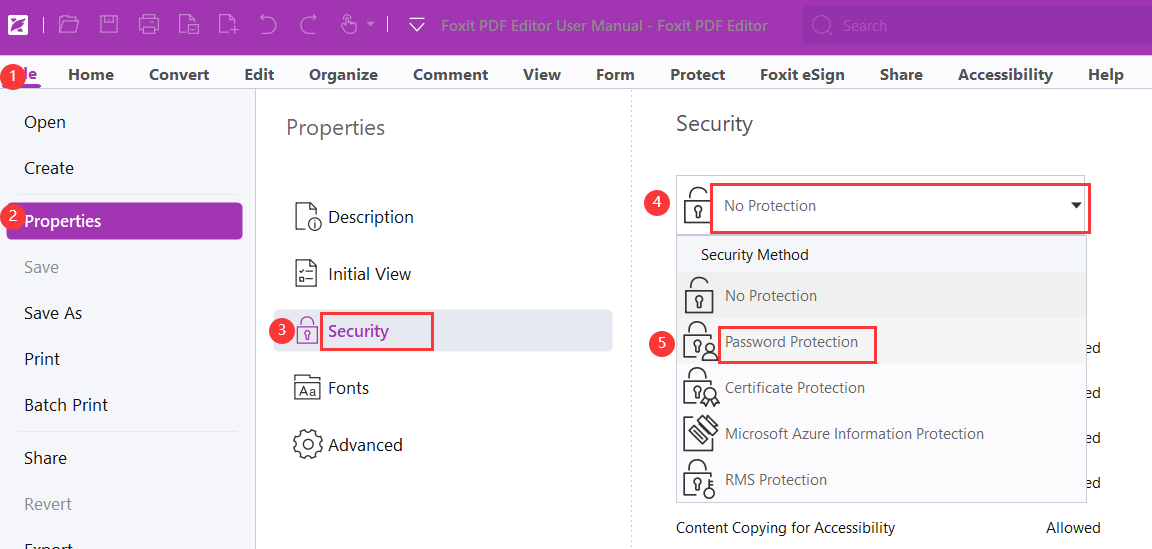
A PDF review becomes difficult when everyone sends back a different copy. Someone has to compare comments, resolve conflicting suggestions and work out which file is ready for approval. Foxit PDF Editor is our pick for teams that need a more organised way to gather feedback.
Foxit offers shared review features that let multiple reviewers comment on a document. That makes it worth considering for policies, proposals and other files that need input from several people before they are finalised.
The document owner still needs to decide which changes to accept and where to publish the approved version.
- Why we picked it: Its shared review features are designed for collecting comments from multiple people on a PDF.
- Workplace example: HR sends a revised policy to Legal and department managers, gathers their comments, resolves the feedback and prepares the approved copy.
- What to discuss: How reviewers access the file; where comments are stored; which integrations and licences the team needs; who is responsible for closing the review.
- Verdict angle: A good choice when coordinated feedback is the main task, rather than a quick edit by one employee.
Features:
- Add comments, highlights and other annotations.
- Invite participants to a shared document review.
- Edit, organise and convert PDFs.
- Work with PDF documents through supported cloud and workplace integrations.
Pros:
- Gives teams a structured way to collect feedback.
- Combines review tools with broader PDF editing features.
- Can fit workflows that already involve Microsoft Teams or related document services.
Cons:
- May be more software than an employee needs for occasional compression or conversion.
- Teams need to agree on a review process; the software cannot decide whose comments take priority.
Limitation: Check the exact plan, platform and review method before rollout. A shared review only helps if all participants can access the document and know who will approve the final changes.
Our verdict: Foxit PDF Editor is our pick when several colleagues need to review the same document. Give each review a clear owner and deadline so the comments lead to one approved file.
Need feedback from several reviewers? Consider Foxit PDF Editor
Foxit's shared review tools can help teams collect comments on policies, proposals and other documents before approval.
- Add comments and annotations
- Coordinate shared document reviews
- Confirm the required features in your chosen plan
#4. Nitro PDF: Best for reusing information from business documents (Windows, Mac, iOS, Browser)
#4. Nitro PDF: Best for reusing information from business documents (Windows, Mac, iOS, Browser)
A PDF can be easy to read but awkward to work with. Think of a supplier report containing tables that an analyst needs in a spreadsheet, or a batch of forms whose details must be checked against another system. Copying everything by hand takes time and creates opportunities for mistakes.
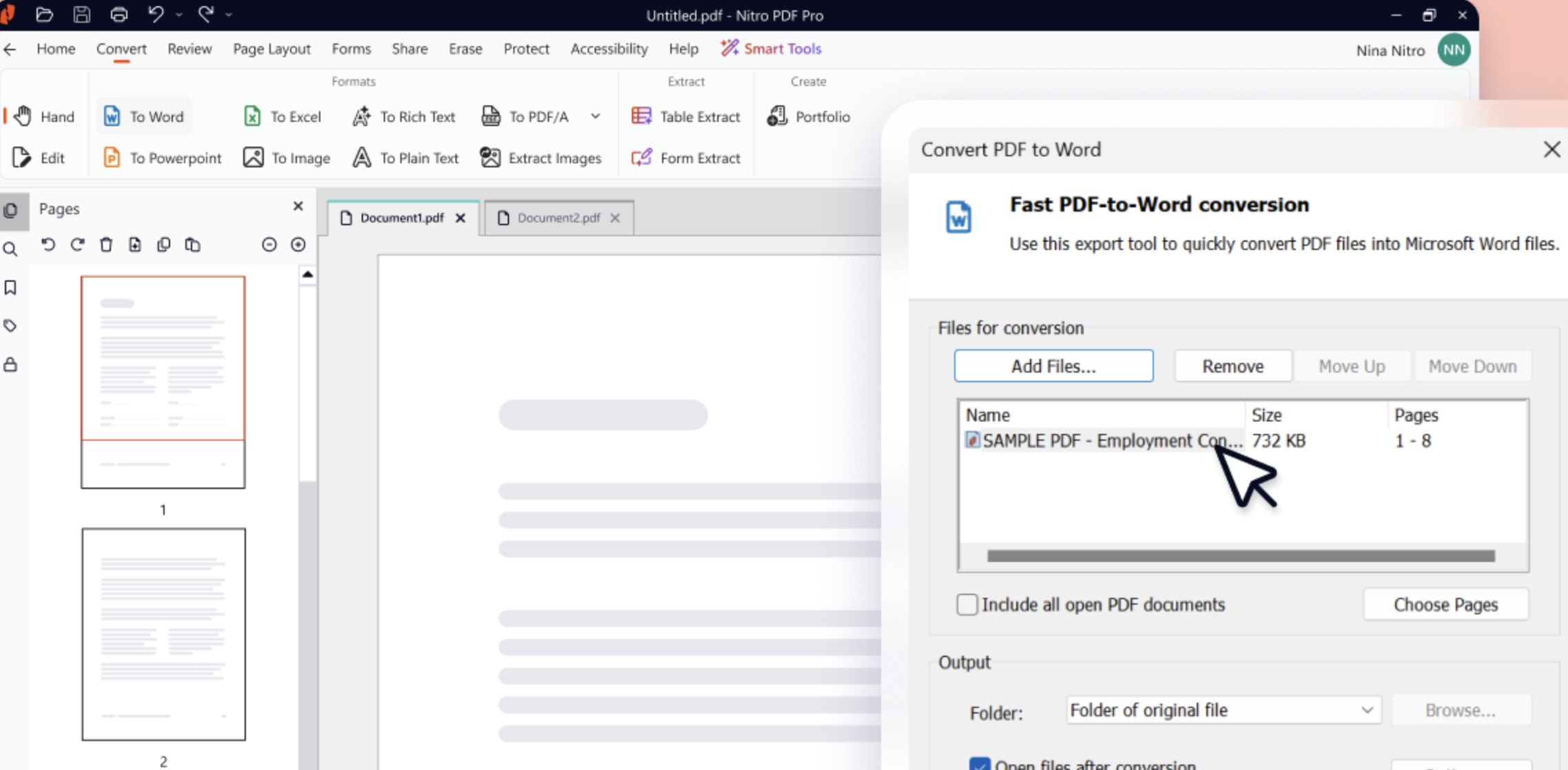
Nitro PDF is our pick for this kind of work because its PDF tools include conversion to Office formats and features for extracting table and form data. Nitro also describes OCR capabilities for scanned documents.
The real test is how well those features handle your files, especially when scans are unclear or tables have unusual layouts.
- Why we picked it: It focuses on getting useful information out of PDFs, including tables and forms, so teams can work with that data elsewhere.
- Workplace example: An operations analyst extracts figures from monthly supplier reports into Excel, then checks the results against the original PDFs.
- What to discuss: Extraction accuracy on real documents; whether the required features are included in the chosen plan and platform; who checks the output before it is used.
- Verdict angle: A strong option when employees repeatedly need to reuse information contained in business documents.
Features:
- Edit, annotate and convert PDFs.
- Export PDF content to Word, Excel and PowerPoint.
- Use OCR with scanned documents.
- Extract information from PDF tables and forms for use in Excel.
Pros:
- Helps reduce repetitive copying from PDFs into other applications.
- Covers editing and conversion alongside data extraction.
- Offers a practical workflow for teams handling reports and forms regularly.
Cons:
- Extraction results still need checking, particularly with complex tables or poor-quality scans.
- Employees who only need to merge or compress an occasional file may not use its broader capabilities.
Limitation: Don't assume extracted figures are correct because they appeared in a spreadsheet. Test Nitro with representative documents and compare important values with the source PDF before relying on the output.
Our verdict: Nitro PDF is worth evaluating when PDFs are a regular source of business data. Its value is clearest when employees can reuse that information accurately instead of repeatedly entering it by hand.
Need information out of business PDFs? Consider Nitro PDF
Nitro PDF is worth evaluating when employees need to convert reports or extract information from PDF tables and forms.
- Convert PDFs into Office formats
- Extract table and form information
- Check accuracy using your own documents
#5. PDFgear: Best for employees who need a free PDF editor (Windows, Mac, iOS, Android, Browser)
#5. PDFgear: Best for employees who need a free PDF editor (Windows, Mac, iOS, Android, Browser)
Not every employee needs a paid PDF subscription. Someone who updates a form once a month, converts an occasional file or adds comments to a document may simply need an editor that works when the task comes up. Paying for a full licence for every employee can be difficult to justify if most people only use a handful of features. PDFgear is our pick for employees in that position.
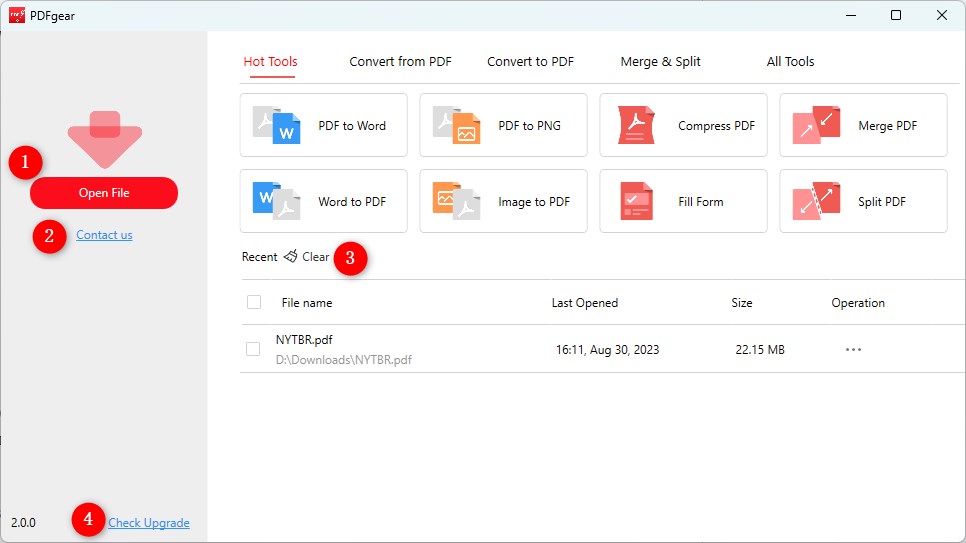
PDFgear says its PDF editing, OCR and conversion features are free, with no signup or watermark on exported files. That means an employee can do more than open and read a document: they can make changes, work with scanned text and convert a file into a format they can use elsewhere. PDFgear offers both online tools and desktop software, which gives teams a choice depending on how and where employees work.
For example, an operations coordinator might receive a scanned form that needs a small correction before it is filed. Rather than request a paid licence for that one task, they could assess whether PDFgear handles it well. The same applies to an employee who occasionally needs to rearrange pages or convert a PDF for further editing.
The free price is appealing, but it shouldn't be the only reason to choose a company tool. Before staff use it with business files, IT should test the tasks employees actually perform, decide whether the desktop or online version is appropriate, and check how each handles sensitive documents.
- Why we picked it: It provides a broad set of PDF editing features without requiring employees to buy a paid plan.
- Workplace example: An employee corrects an occasional PDF form, converts a scanned document or rearranges pages before sharing a file.
- What to discuss: Whether employees should use the desktop or online version; how the tool will be supported; whether its document handling meets company requirements.
- Verdict angle: A useful starting point for occasional PDF work when the business wants to avoid paying for licences employees rarely use.
Features:
- Edit PDF text and add annotations.
- Convert PDFs into other file formats.
- Use OCR to work with scanned documents.
- Organise and manage PDF pages.
- Choose from desktop software and online tools.
Pros:
- Offers editing, conversion and OCR without a paid subscription.
- Does not require signup for the free editor, according to PDFgear.
- Gives employees an option for occasional tasks without assigning a paid licence.
Cons:
- A free editor may not provide the same purchasing, deployment and support arrangements a business expects from a paid team product.
- It should not be treated as the default tool for sensitive documents without an IT review.
Limitation: "Free" answers the budget question, but it does not answer every business question. Test the functions employees need and confirm which version they can use with company files.
Our verdict: PDFgear is our pick for employees who need a free PDF editor for occasional work.
If the organisation needs formal team reviews, managed purchasing or a specialised data extraction workflow, assess those requirements separately before making it the standard tool.
Need a free PDF editor? Consider PDFgear
PDFgear offers free tools for employees who occasionally need to edit, annotate, convert or organise a PDF.
- Edit and annotate PDFs
- Convert files and work with scanned text
- Check its fit for your company documents
Which PDF tool should your team actually choose?
Start with the task employees do most often, then consider how often they do it.
Someone who compresses a PDF twice a month has different needs from an analyst who extracts figures from reports every day. Buying the tool with the longest feature list may leave employees with software that feels harder to use than the job itself.
- Mostly quick conversions, merging or compression? Start with Smallpdf. It suits employees who need to prepare and share files without spending much time learning a full editor.
- Handwritten feedback on a tablet? Look at Goodnotes. It makes more sense when people regularly mark up training materials, meeting packs or plans with a stylus.
- Several people reviewing the same document? Evaluate Foxit PDF Editor. Focus your trial on how colleagues add comments, respond to feedback and agree on a final version.
- Tables, forms or scanned records you need to reuse? Trial Nitro PDF with your own files. Check the extracted information against the originals, especially if the documents contain complex tables.
- Occasional editing with no software budget? Assess PDFgear. Test the free features employees need and ask IT which types of company file they can use with it.
Your organisation may have more than one of these needs. HR could use a shared review process for policy changes, while employees in other departments use a simpler tool to merge or convert files.
Give people clear guidance on which tool is approved for each task so they don't have to make that decision every time a PDF lands in their inbox.
It also helps to separate the PDF editor from the document workflow.
An editor lets someone change, annotate or extract information from a file.
The workflow determines who requested the change, who checks it, where the approved version is stored and how employees find it later. If those steps are unclear, even a capable editor can leave your team with several conflicting copies.
Before choosing, ask a small group of employees to complete their real PDF tasks in the shortlisted tools. Watch where they get stuck, check the finished files and include IT in any decision involving sensitive documents.
That gives you a stronger basis for choosing than a feature list alone.
How to Choose the Best PDF Editor for Your Actual Use Case
It's easy to get distracted by long feature lists, AI tools and promises that one PDF editor can do everything.
But the best PDF editor for your business isn't necessarily the one with the most features. It's the one that helps employees finish the work they actually do, without paying for tools they rarely use or creating confusion about which documents are approved.
Start by being specific.
What do employees need to do with PDFs, how often do they do it, and who else is involved? Someone who compresses a proposal twice a month has different requirements from an HR team collecting feedback on policies or an analyst extracting figures from reports every day.
Start with the document task, not the softwareHere are a few practical examples:
- Preparing an onboarding pack: If HR needs to combine files, rearrange pages and reduce the final file size, Smallpdf is a sensible place to start.
- Writing notes on training materials: If employees regularly highlight handouts and add handwritten feedback with a stylus, look at Goodnotes.
- Reviewing a company policy: If HR, Legal and managers all need to comment before publication, evaluate Foxit PDF Editor and give one person responsibility for the final version.
- Reusing figures from reports: If an operations or finance team needs tables and form data in a spreadsheet, trial Nitro PDF with real examples and check the extracted results.
- Making occasional edits on a tight budget: If employees only need to correct or convert PDFs from time to time, assess whether PDFgear covers those tasks.
- Handling confidential employee or customer records: Ask IT and your privacy team to review the chosen tool and workflow before staff upload or process those files.
A sensible rule is to test the smallest set of tools that covers your team's regular tasks. Give employees representative documents, check the finished files and find out where they struggled. Then decide which tool is approved for each job.
Finally, remember that a PDF editor handles the file; it doesn't manage the entire document lifecycle. Your business still needs to decide who approves changes, where the final copy lives and how employees know they're reading the current version.
What should HR and IT check before giving employees a new PDF tool?
Before adding a PDF editor to the company toolkit, find out what problem it needs to solve. If employees mostly merge forms, there's little value in choosing a complex review platform. If several departments approve policies together, a basic editor may leave them emailing competing versions back and forth.
Use this checklist to make the decision practical:
- Identify the most common tasks. Ask employees which PDF jobs they do regularly and where they get stuck. Focus on the top three rather than every possible feature.
- Gather realistic sample files. Include a scanned form, a document with tables, a file needing comments and a larger PDF. Use dummy information instead of real employee or customer details during initial tests.
- Set rules for sensitive documents. IT and the privacy or data protection lead should decide which files employees may process online and which require an approved desktop or internal workflow.
- Run the same tasks in each shortlisted tool. Compare how long the work takes, where users struggle and whether the finished file is correct.
- Inspect the output. Check formatting, readable text, accessibility, searchability and whether signatures or comments remain intact.
- Confirm the practical costs. Look at free-plan limits, paid features, licences, supported devices and how the organisation will manage accounts.
- Assign document roles. Decide who can edit a file, who can comment and who approves the final version. This is especially important for policies and contracts.
- Choose a home for approved files. Store final documents in an approved, searchable location so employees don't have to rely on an old email attachment.
- Give employees simple guidance. Explain which PDF tool to use for each task, which files need extra care and where to ask for help.
- Review what happens after rollout. Check whether people are using the approved tools and whether the same support questions or version problems keep appearing.
Who owns what? HR owns the content and approval process for employee documents. IT assesses deployment, access and support. The security or privacy lead reviews how sensitive files are handled. Department managers check whether the process works for their teams.
The goal is to make routine PDF work easier while keeping one clear path from a draft document to the version employees can trust.
What happens after the PDF is approved?
Finishing the edits is only one part of the job.
If the approved document stays in someone's inbox or a shared folder full of older copies, employees may still open the wrong version.
Take an updated leave policy.
HR might use a PDF editor to make the changes and gather feedback, but staff also need to know when the new policy takes effect and where to find it.
The document owner should remove or clearly archive outdated copies, publish the approved file in a recognised location and tell employees what changed.
An employee intranet can help with that final step.
AgilityPortal, for example, can give teams a central place to publish workplace documents and share updates so employees know where to look.
The PDF tool helps create and review the file; a clear publishing process helps people use the right information.
For important documents, assign someone to check links and review dates too.
That way, the policy employees find next month is still the one the business intends them to follow.
Conclusion: Choose for the work, then manage the document
The best PDF editor is the one that solves the document problems your employees face most often.
Smallpdf is our pick for quick everyday tasks, Goodnotes for handwritten annotations, Foxit PDF Editor for team reviews, Nitro PDF for reusing information from business documents, and PDFgear for employees who need a free editing option. There's no need to declare one winner when those jobs are so different.
Before choosing, run a small trial using the kinds of PDFs your team handles every week. Ask employees to complete real tasks, check the finished files and find out where the process slowed them down.
A feature list can tell you what a tool offers; a short trial shows whether it works for your people.
Saving a few clicks is useful, but the bigger gain comes from avoiding scattered comments, duplicate versions and documents nobody can find later. Decide who approves changes and where the final file will be published.
A good PDF tool helps employees finish the document. A good process helps everyone trust that they're using the right one.
Frequently asked questions about PDF software
What is the best PDF software for business use?
The best choice depends on the work your team does. Smallpdf suits quick everyday tasks, Goodnotes is useful for handwritten annotations, Foxit PDF Editor fits team reviews, Nitro PDF helps with data extraction, and PDFgear is a free option for occasional editing.
Test your most common tasks before choosing.
Which is the best paid PDF editor for a team?
For a team that regularly gathers comments on the same document, Foxit PDF Editor is worth evaluating because it offers shared review features.
If the main job is extracting information from reports and forms, Nitro PDF may be a better fit. Check current plans against the features your team needs.
Which PDF editor is best for team reviews?
Foxit PDF Editor is our pick for coordinated reviews. Its shared review tools can help several colleagues comment on a document, but your team should still assign someone to resolve feedback and approve the final copy.
What is the best PDF annotator for Mac?
That depends on how you annotate. If you prefer handwriting with a stylus, Goodnotes is worth considering. If you need typed comments as part of a formal team review, compare tools built around shared feedback.
Check the current Mac features and device requirements before choosing.
What is the best free PDF editor for employees?
PDFgear is our pick for employees who need free editing, conversion and OCR features. Test it with your own documents, and have IT confirm which version employees may use with company files.
What is the best free PDF editing software for Windows 10?
PDFgear is one option to assess, but confirm its current Windows 10 compatibility and the features you need on the vendor's site before installing it.
Also check whether your organisation permits employees to install software themselves.
What is the best PDF reader and editor for Windows?
If employees only need to read files and make occasional changes, start by comparing PDFgear with your existing approved software.
For more involved reviews, assess Foxit PDF Editor; for extracting information from business documents, consider Nitro PDF. The best fit comes down to the task, licence and IT requirements.
Is Goodnotes a PDF editor or a note-taking app?
Goodnotes is primarily a note-taking app that also lets you import and annotate PDFs. It's useful for handwriting, highlighting and keeping notes alongside documents.
If you need to change existing PDF text or run a formal approval process, check whether a dedicated PDF editor fits better.
Can Nitro extract tables from a PDF into Excel?
Nitro offers tools for extracting PDF table and form data into Excel.
Test them on representative files and check important figures against the original document, particularly when a scan is faint or a table has an unusual layout.
Can Smallpdf edit existing text in a PDF?
Yes, but editing existing text is listed among Smallpdf's paid features.
Its free tools may be enough for simpler jobs such as organising or converting files, depending on current plan limits.
Can I search handwritten notes in Goodnotes?
Goodnotes supports searching handwriting.
For the printed text inside an imported scanned PDF, however, the file needs an existing OCR text layer; importing the scan does not automatically make that text searchable.
Should employees upload confidential documents to an online PDF editor?
Only if the tool and workflow have been approved for that type of document.
Ask IT or your privacy lead to check how files are processed, who can access them and what your organisation's policy allows. Use dummy information when testing a new tool.
What should I look for in a PDF software review or best PDF editor review?
Look beyond a feature list. A useful PDF software review explains the tasks tested, the device and plan used, what happened to the finished file, and where the tool struggled.
A best PDF editor review should also make clear whether its conclusions come from hands-on testing or published product information.
What do searches for "best pdf review" and "free pdf review" usually mean?
They can mean different things: a comparison of PDF software, a review of one free editor, or a tool for reviewing and commenting on a PDF.
If you want software for your team, narrow the search to the job—such as free PDF editor for Windows or PDF tool for team document reviews.
Are "best pdf com review" and "best pdf com trustpilot" relevant to these five tools?
Those look like searches about a specific website or company, rather than general searches for the best PDF editor.
If you're assessing that service, check its exact website address and current independent customer feedback, including any Trustpilot listing, separately.
This guide compares Smallpdf, Goodnotes, Foxit PDF Editor, Nitro PDF and PDFgear; it does not review or rate Best PDF Com.
How should a business manage approved versions of PDF policies?
Give each policy an owner, record when it was approved, archive or clearly label older versions, and publish the current file in one place employees know to use.
When a policy changes, tell staff what changed as well as where to find the updated document.
AI Summary
- The best PDF software for a business depends on what employees need to do with a document, not simply how many features an editor offers.
- Smallpdf is our pick for quick everyday tasks such as converting, compressing, merging and organising PDFs.
- Goodnotes is our pick for handwritten PDF annotations and work notes, particularly for employees who prefer writing with a stylus.
- Foxit PDF Editor is our pick for team document reviews where several people need to comment on the same material.
- Nitro PDF is our pick for teams that need to extract and reuse information from reports, tables and business forms.
- PDFgear is our pick for employees who need a free PDF editor. Businesses should still check that any chosen tool fits their document security and support requirements.
Most Popular Posts

Effective communication among team members is vital for the productivity and success of any organization. Surprisingly, 60% of companies lack a long-term internal communication strategy, which p...


Businesses thrive on communication for efficiency, productivity and accomplishment. When the right information is passed from the right designation in the organization, it promotes positivity an...

Categories
Blog
(3186)
Business Management
(393)
Employee Engagement
(235)
Digital Transformation
(216)
Growth
(150)
Intranets
(141)
Internal communications
(106)
Remote Work
(68)
Sales
(53)
Collaboration
(52)
Customer Experience
(32)
Culture
(30)
Knowledge Management
(29)
Project management
(29)
Leadership
(20)
Comparisons
(9)
News
(1)

Related Posts

The best ai image editors can save a team hours of repetitive work. A marketing manager can remove a distracting background, an HR team can improve a staff event photo, and an online shop can turn a basic product shot into something ready to pu...

Ever opened a PDF just before a meeting and realised you need to edit a page, pull figures from a scanned report, or gather everyone's comments? What should be a quick task can turn into a frustrating search for the right tool. That lost time a...

Looking for a New Job Remotely can feel like a simple next step: update your CV, turn on job alerts and start applying. In reality, the strongest remote job searches start much earlier. You need to be clear about the work you want, the kind of ...

Hiring globally is easier than employing globally Have you found the right person for a role, only to realise they live in a country where your business has no legal entity? That's where EOR international hiring can be useful. An Employer of Re...

Sales operations and planning are essential to harmonizing sales objectives with operational capabilities, ensuring seamless coordination between departments like sales, marketing, production, and finance. This alignment enables businesses to forecas...


Annet Herges
I am a digital nomad, lover of exploring new places and making friends.
I love to travel and I love the internet. I take pictures of my travels and share them on the internet using Instagram.
Traveler, entrepreneur, and community builder. I share my insights on digital marketing and social media while inspiring you to live your fullest life.
Ready to learn more? 👍
One platform to optimize, manage and track all of your teams. Your new digital workplace is a click away. 🚀
Free for 14 days, no credit card required.