Insight Blog
Agility’s perspectives on transforming the employee's experience throughout remote transformation using connected enterprise tools.
37 minutes reading time
(7369 words)
5 Best AI Image Editors in 2026: Which One Is Actually Worth Your Money?

5 Best AI Image Editors in 2026: Which One Is Actually Worth Your Money?
ompare the 5 best AI image editors in 2026 for business visuals, photo repair and product images. See which tool fits your work and budget.
5 Best AI Image Editors in 2026: Which One Is Actually Worth Your Money?

The best ai image editors can save a team hours of repetitive work.
A marketing manager can remove a distracting background, an HR team can improve a staff event photo, and an online shop can turn a basic product shot into something ready to publish.
But a quick edit isn't automatically a good edit.
Strange details, altered product colours or an unrealistic employee portrait can create more work than the tool saves.
of ad executives say their companies use AI in the creative process
83% of ad executives said their companies had deployed AI in the creative process, according to the IAB’s January 2026 report. That’s up from 60% in its 2024 study. The survey concerns advertising executives and creative work broadly, rather than AI image editors specifically. For businesses choosing an image editor, it reinforces the need to test output quality and set a clear review process.
Source: IAB, The AI Ad Gap Widens
Businesses are already using AI in creative work.
In a January 2026 survey, the IAB reported that 83% of ad executives said their companies had deployed AI in the creative process, up from 60% in its 2024 study.
That makes the practical question less about whether AI image editing exists and more about which tool suits the image, the team and the approval process.
This guide compares five editors for different jobs: everyday image changes, detailed photo retouching, image repair, simple business design and ecommerce product photography.
You'll see where each one earns its place, what to check before paying, and how to keep a human review in the workflow.
Key Takeaways
- The best AI image editor depends on the job: everyday edits, photo retouching, image repair, branded design or product photography.
- Magic Hour is a flexible choice for online edits, while Luminar Neo is better suited to retouching photographs.
- Topaz Photo focuses on repairing weak images; Canva helps teams turn edited images into branded content.
- Photoroom is designed for ecommerce product images, where accurate colours and product details matter.
- Compare credits, export quality, commercial-use terms and the cost per approved image before paying for a plan.
- Always check an AI-edited image against the original before publishing it, especially when it shows a person or product.
What does an AI image editor actually do?
An AI image editor helps you change a picture you already have. Instead of carefully selecting every edge or adjusting every setting by hand, you can ask the tool to recognise parts of an image and do some of the work for you.
That could mean removing the background from a staff photo, improving the lighting in an event picture or sharpening an image that's too soft to use on your website.
Some editors also accept written instructions, such as "remove the chair behind this person" or "extend the background to fit a wider banner."
Common AI image-editing features include:
- Background removal: Separate a person or product from its surroundings.
- Object removal: Take an unwanted item out of a picture and fill the space behind it.
- Image upscaling: Increase an image's resolution for a larger layout.
- Sharpening and noise reduction: Improve a soft or grainy photograph.
- Lighting and colour adjustments: Brighten a dark image or make colours more consistent.
- Portrait retouching: Make selective changes to a person's photo.
- Image expansion: Extend the edges of a picture to fit a different format.
- Product staging: Place a product into a new scene or add a suitable background.
- Batch editing: Apply similar changes to many images.
These features don't all work in the same way. Some recognise a subject and make a targeted adjustment; others generate new pixels to replace or extend part of the picture. That difference matters. Removing a background may leave the product itself intact, while generating a new scene could change details you need to keep accurate.
For a business, the goal is straightforward: get a usable image with less manual work. The final check still belongs to a person, particularly when the picture shows a real employee, event or product.
What makes an AI image editor worth paying for?
An AI image editor helps you change a picture you already have.
You might remove a background, improve poor lighting, sharpen a blurry photo or extend an image to fit a different layout. That's different from an AI image generator, which creates a new image from a prompt.
Some tools do both, so it helps to know which job you're paying them to do.
Start with the finished image. Does it look good at the size you'll actually use? Check the details people will notice: faces, hands, text, logos and product colours.
A tool that produces an impressive preview but needs several rounds of correction may cost your team more time than it saves.
Then look at how the tool fits your work:
- Control: Can you change one part of an image without altering everything else?
- Speed and volume: Can your team edit one image quickly and handle larger batches when needed?
- Team workflow: Can colleagues share assets, follow brand guidelines and review the result?
- Export quality: Are the available file formats and resolutions suitable for your website, campaigns or print materials?
- Real cost: How do credits, usage limits, paid features and additional users affect the price?
- Commercial use: Do the plan's terms allow your organisation to use the finished images as intended?
The final check is a human one.
AI can make an employee photo look polished while subtly changing someone's face, or make a product image more attractive while altering its colour.
Before you publish, compare the edit with the original and ask: Is this image still an accurate representation of what we're showing?
AI image generators vs. AI image editors vs. AI photo enhancers
These tools can overlap, but they start with different jobs:
- AI image generators create a new image from a written prompt. Use one when you need a visual that doesn't already exist.
- AI image editors change an image you already have. You might remove an object, replace a background or expand the image to fit a layout. Magic Hour, Canva and Photoroom offer editing tools for these kinds of tasks.
- AI photo enhancers improve the quality of an existing photograph. They can adjust lighting, reduce noise, sharpen details or increase resolution. Luminar Neo and Topaz Photo are more focused on this work.
The distinction matters when you're choosing a tool. If a product photo has an untidy background, you need an editor. If an event photo is noisy or poorly lit, you need an enhancer.
If you have no suitable image to begin with, a generator may help—but check that the result is appropriate for what you intend to show.
TL;DR: Our Best AI image editors at a glance in 2026
Each of these tools solves a different image problem.
If you need to repair a noisy photograph, you'll judge an editor differently from someone preparing hundreds of product images or creating branded social posts.
| AI image editor | Best for | Key AI features | What to check before choosing |
| Magic Hour | Overall AI image editing | Background removal, image upscaling and prompt-based edits | Whether its credits and export options suit the number of images you produce |
| Luminar Neo | Photo retouching | Sky AI, Relight AI and portrait tools | Whether you need its detailed photographic controls and which licence suits you |
| Topaz Photo | Image repair and enhancement | Denoising, sharpening, upscaling and face recovery | Whether the improvement looks natural and your plan covers business use |
| Canva | Easy AI editing and design | Magic Eraser, Magic Expand and Background Remover | Whether you also need templates, brand tools and team collaboration |
| Photoroom | Ecommerce product images | Product staging, virtual models and ghost mannequin images | Whether the finished image represents the real product accurately |
The quick verdict: Choose Magic Hour for a broad range of online edits, Luminar Neo for photographic retouching, Topaz Photo for repairing image quality, Canva for turning images into branded content, and Photoroom for product photography workflows.
Pricing varies by plan, billing period and usage. Check each provider's current terms before publishing a price comparison.
How we chose these five AI image editors
We chose these five tools because they solve different image-editing problems.
A team fixing a blurry event photo needs something different from an online retailer preparing product listings, so we looked for a useful choice for each job:
- Magic Hour for flexible online edits.
- Luminar Neo for photo retouching.
- Topaz Photo for image repair and enhancement.
- Canva for turning edited images into branded content.
- Photoroom for ecommerce product photography.
We compared the editing features each provider describes, the types of work the tool is built for, its pricing structure and the limits a business should check before subscribing. We also considered how easily a team could review the finished image for accuracy.
These are editorial picks, not the results of a controlled hands-on test. We haven't assigned performance scores or claimed that one tool produced better images than another.
Before buying, test the relevant tools with your own images and compare the time, credits and cost needed to produce an approved result.
#1. Magic Hour — best for flexible online image edits
#1. Magic Hour — best for flexible online image edits
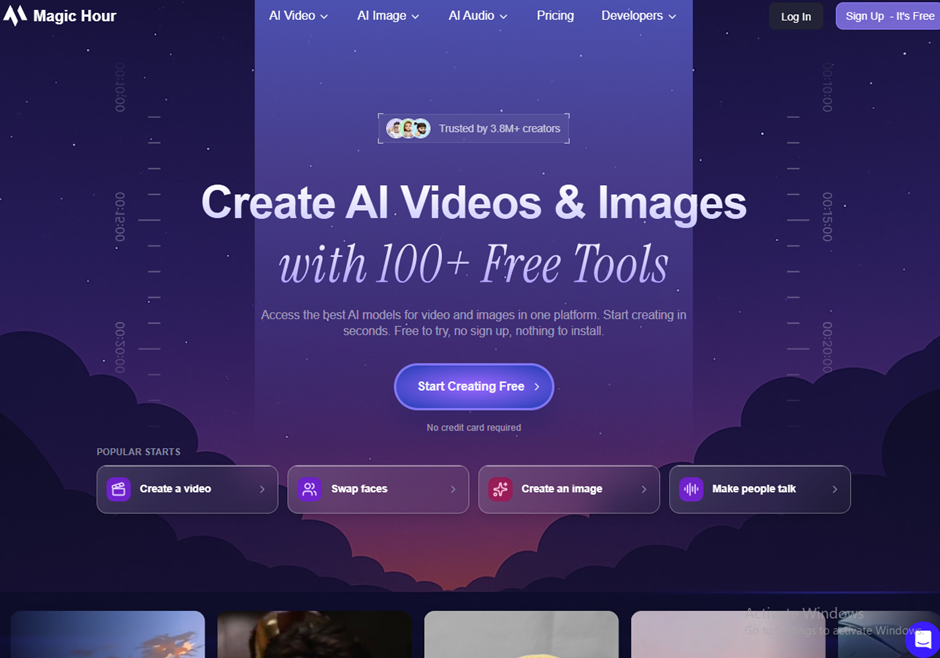
When you need to prepare a campaign image quickly, Magic Hour, an AI image editor, gives you several ways to work with an existing picture in your browser.
You can remove a background, make prompt-based changes and upscale an image for a larger layout. That makes it useful when a small marketing team needs several versions of the same visual without opening a traditional desktop editor.
The key test is how many attempts it takes to get an image you can actually publish. A quick first result matters less if repeated edits use up credits or change details you wanted to keep.
- Why we picked it: It brings general AI image editing together with tools for background removal and upscaling.
- Workplace example: A marketing coordinator removes a distracting background from a campaign photo, adjusts the image and prepares a larger version for a landing page.
- What to discuss: Credit usage, export size, how reliably it preserves the original subject and whether your team needs shared workflows.
- Verdict angle: A flexible choice for teams that want to handle different image tasks online.
Features:
- Edit existing images using prompts.
- Remove image backgrounds.
- Upscale images for larger uses.
- Create variations from a source image.
Pros:
- Covers several common editing jobs in one online toolkit.
- Useful for trying different creative directions quickly.
- Accessible through a browser.
Cons:
- Repeated attempts can affect the real cost of an edit.
- Prompt-based changes may alter details you intended to preserve.
Limitation: Check the credits and export options on the plan you intend to buy. Review logos, faces and product details against the original image before publishing.
Our verdict: Magic Hour is worth considering when your team needs a broad online editor for varied creative work. Test it with your own campaign images and count how many attempts it takes to produce a usable result.
Need one tool for different image edits? Consider Magic Hour
Magic Hour is useful when your team needs to remove a background, make prompt-based changes or upscale an image for a larger layout.
- Edit existing images with written prompts
- Remove backgrounds and upscale images
- Check how many credits a usable result takes
Pricing: Your draft lists a starting price of $10/month. Confirm the current plan price, billing period and credits before publishing.
Read Magic Hour reviews on G2 See user feedback before choosing a plan.#2. Luminar Neo — best for photo retouching
#2. Luminar Neo — best for photo retouching
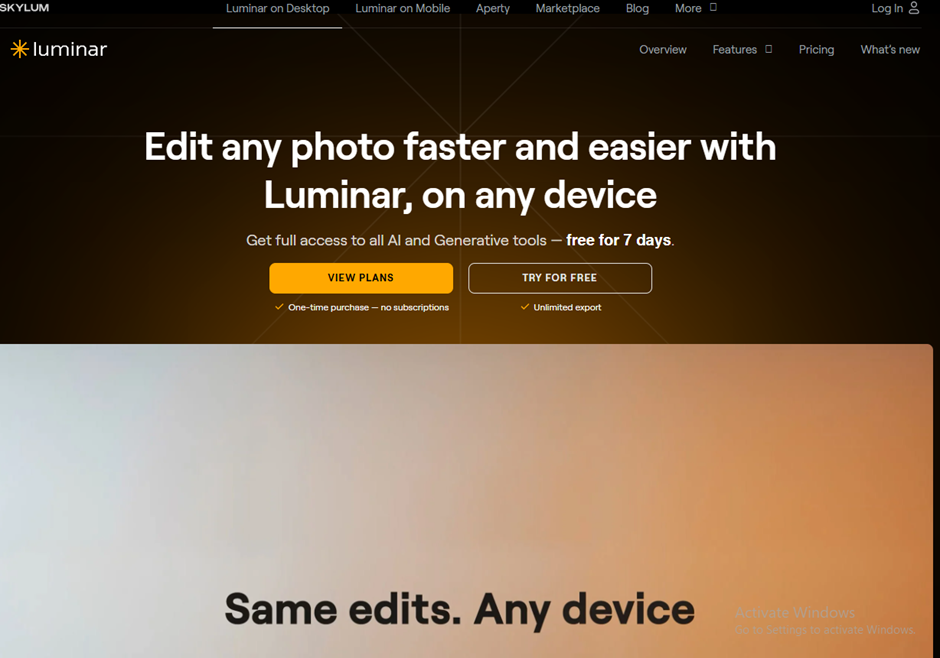
When you already have a good photograph but the lighting or presentation lets it down, Luminar Neo gives you more photographic control.
Its AI tools can help adjust light, replace a sky and refine portraits. That can be useful for event photography, office images and other business photos where the goal is to improve the picture you captured.
There's a line between improving a photo and changing what it appears to show. If you replace the sky in a workplace image or make significant portrait changes, consider whether the result is still suitable for the context in which you'll publish it.
- Why we picked it: Its AI features focus on photographic adjustments, including Sky AI and lighting tools.
- Workplace example: A communications manager improves the lighting in photos from a company event before selecting images for an internal news post.
- What to discuss: How much control your photographer needs, whether the edits look natural and which licence covers the intended use.
- Verdict angle: A strong fit when the source material is real photography and the team wants more control over the final look.
Features:
- Adjust lighting with AI-assisted tools.
- Replace or refine skies with Sky AI.
- Apply portrait enhancements.
- Make broader photographic adjustments within an editing workflow.
Pros:
- Built around improving photographs.
- Offers more control than a simple one-click enhancement tool.
- Useful when visual quality matters across a set of photos.
Cons:
- May be more software than a team needs for occasional background removal.
- Strong edits can make a real scene look less authentic.
Limitation: Check the current licence and included features before buying. Keep the original photograph so reviewers can judge whether an edited workplace image still represents the event fairly.
Our verdict: Luminar Neo makes the most sense for a team that regularly works with real photos and wants to refine them. It's a less obvious purchase if your main task is assembling quick social graphics.
Want more control over real photographs? Consider Luminar Neo
Luminar Neo helps teams improve photographs with AI-assisted lighting, sky and portrait adjustments. It suits event and workplace photos that need careful retouching.
- Adjust lighting and portraits
- Use Sky AI for appropriate creative images
- Compare the finished edit with the original photo
Pricing: Your draft lists $119/year. Confirm the current licence, included tools and any promotional pricing before publishing.
Read Luminar Neo reviews on G2 See how photographers rate the editing experience.#3. Topaz Photo — best for repairing weak images
#3. Topaz Photo — best for repairing weak images
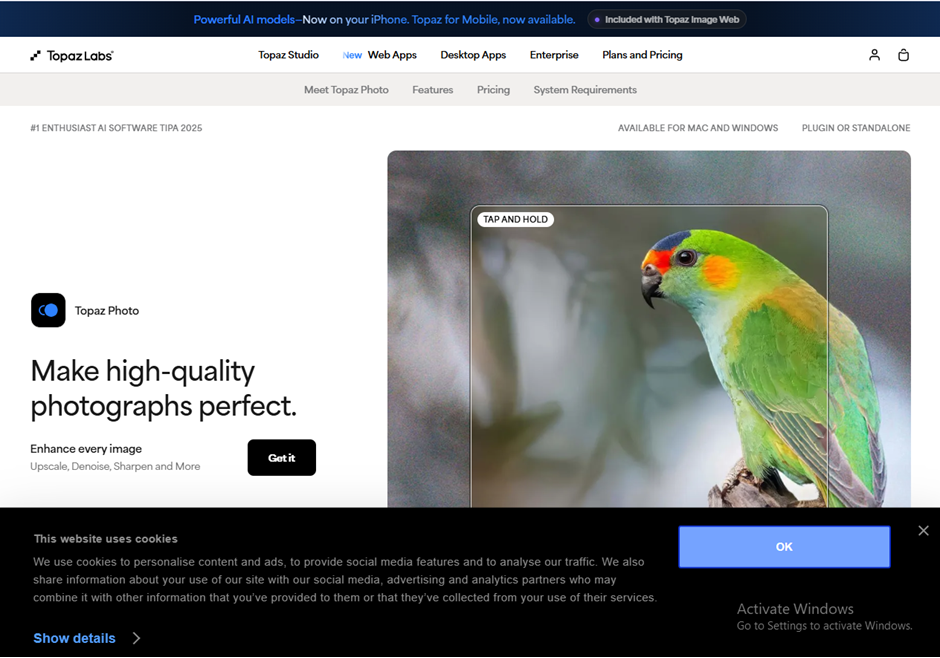
Sometimes the problem isn't the design. The original photograph is noisy, soft or too small for the place you need to use it. Topaz Photo focuses on improving that source image.
Its tools include denoising, sharpening, upscaling and face recovery. Those features can help when an otherwise useful image was taken in poor light or needs to appear at a larger size.
Image repair still needs a careful eye. An enhancement may produce convincing detail that wasn't clearly present in the original, especially around faces and text.
- Why we picked it: It specialises in improving image quality rather than building a complete design around the photo.
- Workplace example: A communications team receives a low-resolution event photograph and tests whether it can be improved enough for a company news article.
- What to discuss: Whether the result looks natural, how often your team needs image repair and which plan provides the required commercial-use rights.
- Verdict angle: A specialist choice when poor source quality is the recurring problem.
Features:
- Reduce image noise.
- Sharpen soft photos.
- Upscale images.
- Apply face recovery and other repair tools.
Pros:
- Focuses on a clear image-quality problem.
- Can help make existing photos more usable.
- Offers several enhancement tools within the same product.
Cons:
- It won't replace a general design tool for layouts and branded graphics.
- Aggressive enhancement can create unnatural-looking detail.
Limitation: Topaz's current product naming and plans should be checked before publication; its pricing information distinguishes personal use from full business commercial rights. Inspect enhanced faces, text and fine details at full size.
Our verdict: Choose Topaz Photo when your team repeatedly needs to rescue noisy, blurry or small images. Judge it by how many previously unusable photos become suitable for their intended purpose.
Need to rescue a weak photograph? Consider Topaz Photo
Topaz Photo focuses on improving image quality. It is worth testing when noise, softness or low resolution makes an otherwise useful photograph difficult to publish.
- Reduce noise and sharpen soft images
- Upscale photos for larger uses
- Inspect recovered faces and fine details closely
Pricing: Topaz Studio is listed at $399/year for personal use. Topaz Studio Pro is listed at $799/year for studios and commercial teams. Check whether a standalone Topaz Photo plan better fits your needs.
Read Topaz Photo AI reviews on G2 The G2 review page retains the Topaz Photo AI product name.#4. Canva — best for teams making branded content
#4. Canva — best for teams making branded content
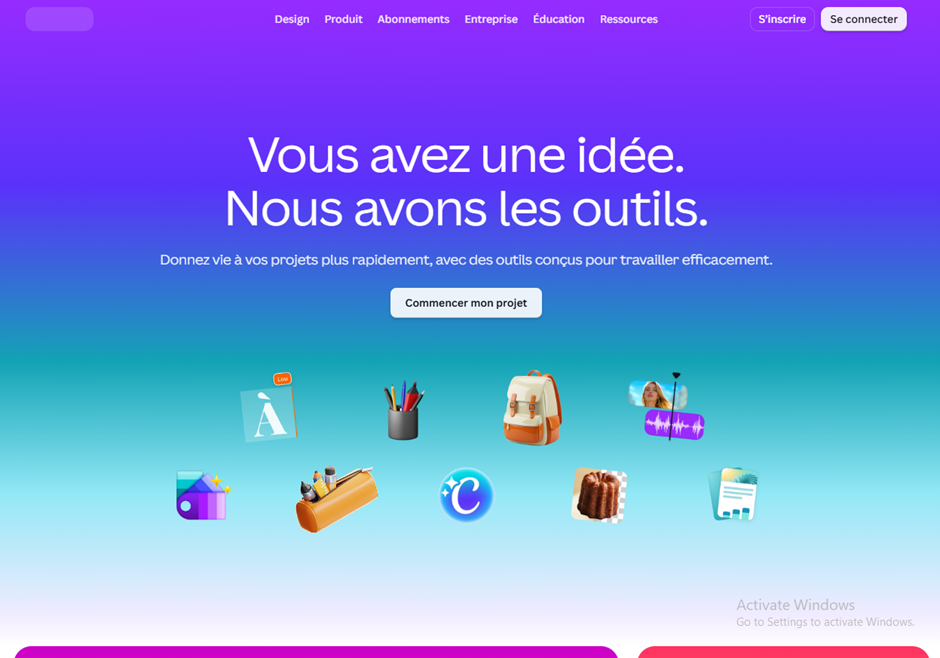
An edited photo is often only one part of the job. You may also need to add a headline, apply brand colours, resize the design and share it for approval. Canva brings those steps into the same workspace.
Its AI editing tools can help remove unwanted elements, expand an image or take out a background. The wider design platform then helps a team turn that image into a post, presentation or internal announcement.
That makes Canva particularly relevant to communications teams whose priority is producing finished content rather than making detailed photographic adjustments.
- Why we picked it: It combines accessible image edits with templates, design tools and brand workflows.
- Workplace example: An internal communications manager removes a distracting object from an event photo, adds it to a branded announcement and shares the design for review.
- What to discuss: Which AI features are included in the selected plan, how the team will manage brand assets and whether its photo-editing controls are sufficient.
- Verdict angle: A practical choice when the final deliverable is a branded design, not just an edited photograph.
Features:
- Remove backgrounds and unwanted elements.
- Expand images to suit different layouts.
- Place edited images into templates and designs.
- Use brand and collaboration features available on the relevant plans.
Pros:
- Connects image editing to the finished business asset.
- Approachable for employees who aren't specialist designers.
- Useful for teams producing several types of visual content.
Cons:
- It may offer less detailed photo-repair control than a specialist editor.
- Feature access varies by plan.
Limitation: Check which AI tools, usage allowances and team controls are included in the plan you're considering. A polished template still needs a person to check the image, wording and brand details.
Our verdict: Canva is the clearest fit for teams that need to create finished, branded communications from their images. If the main problem is repairing damaged or low-quality photographs, test a specialist tool as well.
Need a finished design as well as an edited image? Consider Canva
Canva helps a communications team edit a photo and turn it into a branded announcement, presentation or social graphic in the same workspace.
- Remove backgrounds and unwanted elements
- Expand images for different layouts
- Use templates and brand assets to finish the design
Pricing: Canva has a free plan. Your draft lists $18/month for a paid plan; confirm the current price, region, billing period and AI allowance before publishing.
Read Canva reviews on G2 Check feedback on ease of use and team workflows.#5. Photoroom — best for ecommerce product images
#5. Photoroom — best for ecommerce product images
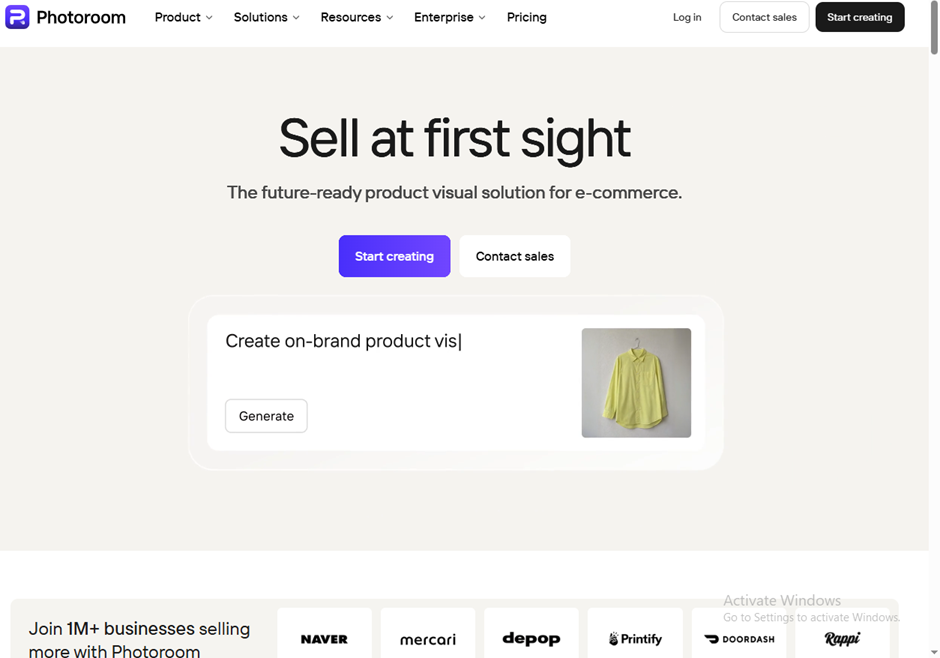
If your business publishes a large number of product photos, editing each background by hand can become a bottleneck. Photoroom is built around turning source product images into usable sales visuals.
It offers background removal, product staging and tools for presenting clothing on virtual models or as ghost mannequin images. Those options can help a retailer prepare consistent listings and experiment with different presentations.
Accuracy matters here. An image that changes a product's colour, texture, shape or fit may look attractive while giving a customer the wrong impression.
- Why we picked it: Its editing tools are closely tied to ecommerce product photography.
- Workplace example: An online retailer removes inconsistent backgrounds from a new product range and creates staged images for category pages.
- What to discuss: Product accuracy, output volume, usage limits and which specialist features are available on the required plan.
- Verdict angle: A focused choice for businesses producing product images regularly.
Features:
- Remove and replace product backgrounds.
- Create staged product scenes.
- Produce virtual-model imagery for suitable products.
- Create ghost mannequin presentations for clothing.
Pros:
- Designed for product-image workflows.
- Helps create a more consistent look across listings.
- Offers specialist options for fashion and ecommerce teams.
Cons:
- Less relevant for teams that mainly edit staff photos or general campaign imagery.
- Generated scenes or models can introduce details that need correction.
Limitation: Compare every finished image with the real product, particularly its colour, material, shape and fit. Confirm the plan's image allowances and feature access before committing to a high-volume workflow.
Our verdict: Photoroom is worth the closest look if product photography is your main editing expense. Its value comes from producing accurate, consistent images at the volume your store needs.
Producing lots of product photos? Consider Photoroom
Photoroom helps online sellers remove backgrounds and create more consistent product visuals. Its specialist tools also support staged scenes and clothing presentations.
- Remove product-photo backgrounds
- Create staged product images
- Check that colours, fit and product details remain accurate
Pricing: Your draft lists $12.99/month for a paid plan. Confirm the current regional price, billing period, AI credits and export allowance before publishing.
Read Photoroom reviews on G2 See what product-image teams say before choosing a plan.A simple test that reveals which editor is actually worth the money
The best way to compare AI image editors is to give them work your team really does.
A striking demo image won't tell you how well a tool handles your event photos, campaign graphics or product shots.
Choose three images that represent those jobs: a staff or event photo, a low-quality image that needs repair, and a product or campaign image. Then test each editor on the tasks it claims to handle.
Photoroom doesn't need to win a portrait-retouching test to be valuable to an online retailer; Topaz Photo doesn't need to build a social media layout to be useful for image repair.
For each edit, record:
- Time to a usable image: Start the clock when you upload the original and stop when the final version is approved—not when the first result appears.
- Accuracy: View the image at full size. Check faces, hands, edges, text, logos and product colours against the original.
- Attempts and credits: Count the versions you rejected and any credits they used.
- Export quality: Confirm the file format and resolution work for the website, email, social post or print material you need.
- Second-person review: Ask a colleague to check the result for accuracy and brand fit. They may notice changes the editor missed.
- Cost per approved image: Divide what you spent by the number of images you could actually use. A cheaper plan can be poor value if it takes many attempts to get each result right.
If you publish ratings, show readers how you arrived at them. Include the test date, the types of images used, the plan tested and the criteria you scored.
That gives someone with a different budget or workflow enough information to decide whether your winner would work for them, too.
Where AI image editing can go wrong at work
Imagine an internal communications employee improving a photo from a company event.
The AI tool fixes the lighting and removes a distracting object. The finished image looks ready to publish—until someone notices that the logo on an employee's uniform has changed.
It's a small detail with a real consequence.
The image no longer shows the event accurately, and the employee may be uncomfortable with how they appear. The team now has to correct or remove a post that could have been checked before it went live.
That's why every edited image should have an original to compare against. Review faces, uniforms, signs, logos and any other detail that matters to the story.
of marketers surveyed use generative AI for content creation
57% of marketers surveyed said they use generative AI for content creation, according to Jasper’s 2025 State of AI in Marketing report. This covers content creation broadly, not image editing alone. If your team uses AI to produce more content, the question is whether its image workflow can consistently deliver accurate visuals that are ready to publish.
Then have the appropriate person approve the final version before publication.
The same care applies beyond event photos:
- Employee images: Check that the organisation has permission to use the photo for its intended purpose. Avoid edits that materially change how a person looks without their knowledge.
- Confidential material: Don't upload images containing private information, unreleased products or sensitive workplace details to a tool unless it has been approved for that use.
- Product images: Make sure AI hasn't changed a product's colour, fit, features or finish in a way that could mislead customers.
- Commercial use: Check the plan's terms before using edited images in advertising, sales materials or other business content.
Ownership should be clear.
The marketing or communications lead checks the message and brand details. IT and security decide which tools are approved and what information employees may upload. HR helps set rules for employee photographs.
Legal or compliance should review questions about rights or claims when needed.
AI can take repetitive work out of image editing, but someone still needs to answer the final question: Does this picture accurately show what we intend to publish?
What should your team do before rolling out an AI image editor?
You don't need a lengthy policy before someone can remove a background from a campaign image.
You do need clear answers to a few practical questions: which tools can employees use, what can they upload, and who checks the result?
Start with a short trial using images your team would normally publish. Ask marketing, HR and IT to review what the tool produces and how it handles uploads.
Then set rules employees can follow without having to interpret them.
- Name the approved tools. Tell employees which editors they can use for work and which plan or account they should use.
- Define permitted images. Give examples, such as approved marketing assets or event photos that have already been cleared for use.
- Restrict sensitive uploads. Explain how to handle images containing personal information, confidential documents, unreleased products or private workplace areas.
- Check permission to use people's images. Make sure the intended edit and publication fit the permission you have.
- Keep the original. Store the source image alongside the edited version so reviewers can check what changed.
- Require human review. Assign someone to check faces, logos, text, product details and overall accuracy before publication.
- Decide when to disclose an edit. A simple lighting adjustment is different from creating a scene or person that wasn't photographed.
- Set ownership and storage rules. Specify where approved files live, who can access them and which version is final.
- Make corrections easy. Give employees a clear way to report an inaccurate image and identify who can replace or remove it.
Put the policy where employees already look for workplace guidance.
For example, a central knowledge base in AgilityPortal can hold the approved-tool list, examples of acceptable edits and the steps for getting an image reviewed.
Update it as your team learns which edits work well and which need more care.
Will AI replace the person editing the image?
AI can speed up parts of image editing, especially repetitive jobs such as removing backgrounds, resizing visuals or improving lighting.
But producing an image quickly isn't the same as deciding whether it's the right image to publish.
A person still has to choose a suitable original, give the tool clear instructions and inspect the result. They need to spot when a logo has changed, a product looks different from the one being sold or an employee's appearance has been altered in a way they wouldn't expect.
For many teams, the work shifts toward making those decisions well.
Designers and communications staff can spend less time on routine adjustments and more time selecting images, maintaining brand quality and approving finished content.
The useful question isn't whether an editor can make an image in seconds. It's whether your team can trust and stand behind the version it publishes.
Final Thoughts - So, which of the 5 best AI image editors is worth your money?
The right choice depends on the images your team produces most often.
Magic Hour is worth testing if you need a flexible online editor for different creative tasks.
Choose Luminar Neo if improving real photographs is the priority, or Topaz Photo if noisy, blurry and low-resolution originals are slowing you down.
Canva makes sense when the edited image needs to become a branded post, presentation or announcement. Photoroom is the specialist to consider if you regularly produce product images for an online store.
Don't decide on the subscription price alone.
Test each relevant tool with your own images, check the current plan terms and count how many attempts it takes to produce a final image your team approves.
That tells you more about value than a polished demo or a long feature list.
AI editing can help people create visuals faster. The image is only useful, though, if its details are accurate and the team is comfortable putting its name beside it.
Frequently asked questions
What are the best AI image editors for a small business?
The best AI image editors depend on what your business makes.
Canva is a practical choice for branded posts and presentations, Photoroom focuses on product images, and Magic Hour covers a broader range of online edits.
If your team mainly improves photographs, compare Luminar Neo for retouching and Topaz Photo for image repair.
Which AI image editor is best for product photos?
Photoroom is the most specialised product-photo tool in this comparison. Its background, staging and clothing-image features suit ecommerce workflows.
Check every finished image against the real product so its colour, shape and details remain accurate.
Which tool is best for fixing blurry or noisy photos?
Topaz Photo is the first of these five tools to test for sharpening, denoising and upscaling.
Use one of your own difficult photos and inspect the result at full size, especially around faces and text. An improved image should still look believable.
Are there AI image editors online that work without installing software?
Yes. Magic Hour, Canva and Photoroom offer browser-based workflows, so you can edit images without installing a desktop editor.
If you're searching for ai image editors online free, check each tool's current free access, export limits and credit allowances before starting a larger project.
Can I find a free AI app for photo editing?
Yes, but "free" may cover only certain features or a limited amount of use.
When comparing a free AI app for photo editing, try the exact task you need to complete and check whether you can export the finished image at a usable quality.
What is the best AI photo editor free of charge?
There isn't one free option that wins every task.
The best ai photo editor free for you is the one that handles your actual images and lets you export a result you can use. Test the available free options with a photo you know well, then check whether the features you need require payment.
Can I use an AI image editor to change a photo with a written prompt?
Yes. Prompt-based editing lets you describe a change, such as removing an object or adjusting part of a scene.
If you're looking for the best free AI image editor with prompt controls, check how many edits the free access allows and whether the tool preserves the parts of the original you wanted to keep.
Is there a best image editing AI without restrictions?
Be cautious of promises about the best image editing ai without restrictions. Tools commonly have limits involving credits, exports, image sizes or permitted uses, and those terms can change.
For business use, choose an editor whose rules are clear and whose limits fit your workflow.
Is AI photo editing safe for employee images?
It can be appropriate if your organisation has permission to use the photo and has approved the tool for that type of image.
Avoid uploading sensitive material to an unapproved service. Keep the original and have someone check that the edit hasn't changed the employee's appearance in a misleading way.
Can I use AI-edited images commercially?
That depends on the tool, your plan and the source image.
Check the current commercial-use terms, confirm you have the right to use the original, and review the result for misleading details before using it in advertising or sales materials.
How do I compare AI image editor pricing fairly?
Look beyond the monthly price.
Compare credits, failed attempts, export quality, team access and commercial-use rights. The most useful measure is your cost per approved image: what you spend divided by the number of finished images your team can actually publish.
Do AI image editors change important details in a photograph?
They can.
An edit may unintentionally alter a face, logo, sign, product colour or another small detail. Compare the final image with the original at full size, particularly when the photo is meant to document a real person, event or product.
AI Summary
- The best AI image editor depends on the work you need to do: quick edits, photo retouching, image repair, branded design or product photography.
- Magic Hour is our pick for flexible online edits, including background removal, prompt-based changes and image upscaling.
- Luminar Neo is our pick for retouching photographs, with tools for adjusting lighting, skies and portraits.
- Topaz Photo is our pick for improving noisy, blurry or low-resolution images.
- Canva is our pick for teams that need to turn edited images into branded posts, presentations and workplace communications.
- Photoroom is our pick for ecommerce product images. Whichever tool you choose, check the finished image for accuracy and compare the cost per approved image.
Most Popular Posts

Effective communication among team members is vital for the productivity and success of any organization. Surprisingly, 60% of companies lack a long-term internal communication strategy, which p...


Businesses thrive on communication for efficiency, productivity and accomplishment. When the right information is passed from the right designation in the organization, it promotes positivity an...

Categories
Blog
(3186)
Business Management
(393)
Employee Engagement
(235)
Digital Transformation
(216)
Growth
(150)
Intranets
(141)
Internal communications
(106)
Remote Work
(68)
Sales
(53)
Collaboration
(52)
Customer Experience
(32)
Culture
(30)
Knowledge Management
(29)
Project management
(29)
Leadership
(20)
Comparisons
(9)
News
(1)

Related Posts

The best ai image editors can save a team hours of repetitive work. A marketing manager can remove a distracting background, an HR team can improve a staff event photo, and an online shop can turn a basic product shot into something ready to pu...

Ever opened a PDF just before a meeting and realised you need to edit a page, pull figures from a scanned report, or gather everyone's comments? What should be a quick task can turn into a frustrating search for the right tool. That lost time a...

Looking for a New Job Remotely can feel like a simple next step: update your CV, turn on job alerts and start applying. In reality, the strongest remote job searches start much earlier. You need to be clear about the work you want, the kind of ...

Hiring globally is easier than employing globally Have you found the right person for a role, only to realise they live in a country where your business has no legal entity? That's where EOR international hiring can be useful. An Employer of Re...

Sales operations and planning are essential to harmonizing sales objectives with operational capabilities, ensuring seamless coordination between departments like sales, marketing, production, and finance. This alignment enables businesses to forecas...


Jill Romford
I am a digital nomad, lover of exploring new places and making friends.
I love to travel and I love the internet. I take pictures of my travels and share them on the internet using Instagram.
Traveler, entrepreneur, and community builder. I share my insights on digital marketing and social media while inspiring you to live your fullest life.
Ready to learn more? 👍
One platform to optimize, manage and track all of your teams. Your new digital workplace is a click away. 🚀
Free for 14 days, no credit card required.