Insight Blog
Agility’s perspectives on transforming the employee's experience throughout remote transformation using connected enterprise tools.
41 minutes reading time
(8297 words)
Intranet and Digital Signage: 7 Powerful Ways to Reach More Employees

Intranet and Digital Signage: 7 Powerful Ways to Reach More Employees
Discover how intranet and digital signage work together to reach frontline teams, keep updates consistent and turn workplace messages into measurable action.
Intranet and Digital Signage: 7 Powerful Ways to Reach More Employees

Are your company updates reaching everyone—or just the employees who have time to check their inbox?
Intranet and digital signage can help you connect with people who rarely sit at a desk, work different shifts or miss announcements buried between emails and chat messages.
The problem isn't always a lack of communication.
You might publish updates regularly, yet employees still struggle to find the right information, understand what's changed or know what to do next.
of surveyed employees said their work felt chaotic and fragmented
Microsoft’s 2025 Work Trend Index reported that 48% of surveyed employees felt their work was chaotic and fragmented. The survey covered knowledge workers, rather than a frontline-specific population. For intranet and digital signage planning, this highlights the importance of clear priorities, consistent information and simple next steps. It does not establish that adding workplace screens reduces fragmentation.
Microsoft's 2025 Work Trend Index found that 48% of surveyed employees said their work felt chaotic and fragmented.
The survey covered knowledge workers rather than frontline employees, but it highlights a familiar challenge: adding more communication channels doesn't automatically make information clearer. www.microsoft.com
A workplace screen can draw attention to an important deadline.
Your intranet can provide the full explanation, answer questions and give employees a clear next step. Connecting those experiences takes more than copying an announcement onto a bigger display.
In this article, you'll discover seven practical ways to use intranet and digital signage together, common mistakes to avoid, and a straightforward rollout plan to help you reach more employees and measure whether your messages lead to action.
Key Takeaways
- Intranet and digital signage connect short workplace announcements with detailed information, helping employees find guidance and take action.
- Reach frontline employees across different shifts and locations, with alternative access for people who cannot use personal phones.
- Keep messages consistent by using one approved source, assigning a content owner and setting clear update and expiry rules.
- Shared screens should display information appropriate for everyone nearby; confidential details belong in systems with suitable access controls.
- Measure employee understanding and completed actions alongside screen reliability, then use a small pilot to assess results before expanding.
More screens only help when the message is worth seeing
Adding a screen to a break room or staff entrance gives you another opportunity to put important updates in front of employees.
For someone who rarely checks company email, that could be a useful reminder about a training session, a benefits deadline or a change affecting their next shift.
But a screen can become easy to ignore. If it cycles through crowded slides, irrelevant announcements and events that finished last month, employees have little reason to pay attention.
More visibility only helps when the information is clear, current and useful.
Think about a benefits reminder. A slide saying "Don't forget your employee benefits!" doesn't explain whether employees need to do anything. A more useful message would say:
Choose your benefits by 20 November.
Review your options in the employee intranet, then submit your selection. Need help? Contact HR.
The second version gives employees a deadline, a next step and somewhere to get support. The intranet can hold the eligibility details and enrolment instructions without squeezing everything onto the screen.
Before publishing a message, check four things:
- Audience: Who needs to see it, and will they pass this screen?
- Approved source: Does it match the current information in your intranet?
- Expiry date: When should it stop appearing?
- Next step: What should employees do, and how can they do it?
Give someone responsibility for those checks. A useful screen should leave employees knowing what matters and where to go next.
How do Intranet and Digital signage solutions work together?
The intranet holds the detail; screens provide a short route into it
Intranet and digital signage work together by connecting brief workplace announcements with detailed information employees can access later.
Digital signage displays selected messages on shared screens, while the intranet provides the full explanation, searchable resources and a place to ask questions or take action.
Imagine your organisation is introducing a new holiday booking process.
A screen in the staff break room might show the launch date and where to find instructions. The intranet can explain the process, link to the booking system and tell employees who to contact for help.
Each channel supports a different moment. The screen helps employees notice the change during their working day. The intranet gives them somewhere to return when they need the details.
Give each channel a job
Employees need different ways to access information depending on where they work, the devices available to them and how much explanation a message requires.
| Channel | What it should do | Example |
| Digital signage | Show concise headlines, reminders and relevant local updates | "The new holiday booking process starts on Monday. Find instructions in your employee portal." |
| Intranet | Provide complete explanations, searchable resources and interaction | A guide covering the booking steps, approval process and support contact |
| Mobile app | Give employees access to workplace information away from desktops | An employee opens the guide on an approved mobile device |
| Manager briefing | Explain what changes for the team and answer questions | A supervisor walks through the process during a shift briefing |
A mobile app can provide access to the same intranet content, keeping employees connected to the current information wherever they work.
Manager briefings add a conversation when a written announcement needs clarification.
Make sure essential information is also accessible to employees who cannot use personal phones. A shared workplace device or manager-supported route can help close that gap.
One source does not mean one identical layout
Keep the underlying facts consistent, then adapt the presentation to each channel.
A detailed intranet article will usually contain too much information for a screen that employees glance at while passing.
One approved announcement can become:
- A short screen card: What is changing, when it happens and where to find the details.
- A detailed intranet post: Who is affected, what they need to do, instructions and a support contact.
- A manager briefing: The same approved facts, with practical talking points and answers to likely team questions.
Give the announcement a named owner and keep each version aligned when details change. That way, an employee who sees the screen, reads the guide and speaks to their manager receives a consistent answer.
Intranet and digital signage solutions examples: what does this look like at work?
Useful intranet and digital signage examples connect a short screen message with information employees can find and act on.
A break-room display might remind staff about a training deadline, while the intranet provides course details and booking instructions.
A staff-entrance screen could flag a temporary access change, with the full map and guidance available in the employee portal.
The same approach works for benefits reminders, onboarding resources, team recognition and employee feedback. Each example starts with a relevant message and gives employees a clear route to the next step.
The seven uses below explain how to put this into practice, including what to display, where to keep the details and how to check whether the communication worked.
7 ways to make intranet and digital signage work harder for your employees
Connecting intranet and digital signage gives you several ways to share an update.
The useful part is deciding how those channels help employees notice the message, find the details and do something with the information.
Here are seven practical ways to make that connection work.

7 ways to make intranet and digital signage work harder for your employees
1. Reach frontline employees during the moments they actually have
Employees working in warehouses, shops, healthcare facilities or hospitality venues may have limited opportunities to check company email.
Place relevant screen messages in areas they already use, such as break rooms, staff entrances and shift-change areas, where viewing them won't interrupt work or create a distraction.
Imagine a staff entrance is closing temporarily for maintenance. A screen could display:
Staff entrance changes from Monday.
Use the east entrance from 12 October. Find the access map and instructions in your employee portal.
The intranet should hold the complete information, including the map, accessibility arrangements, dates and a contact for questions. Supervisors can explain the change during shift briefings.
Check that the message reaches evening and night shifts too. Employees who cannot use phones should have an alternative through a shared workplace device or manager-supported access.
To assess whether it worked, ask a sample of employees across shifts which entrance they should use. Screen operating hours alone won't tell you whether people understood the change.
2. Keep company updates consistent across locations
When every site creates its own version of an announcement, small differences can become confusing. One office might display an old deadline while another adds instructions that conflict with the company policy.
Start with one centrally approved announcement in the intranet. Local teams can add relevant details—such as their support contact or briefing time—while keeping the underlying facts consistent.
For example, a screen might say:
The updated expenses process starts on 1 November.
Read the guide in your employee portal. For local support, contact your site administrator.
The intranet provides the current process, instructions and any approved location-specific guidance. Employees can then check what applies to them before submitting their next claim.
Give the announcement a named owner, an effective date and a review or expiry date. When information changes, check every published version and remove superseded screen messages.
Measure how often conflicting information appears, how quickly corrections reach each location and whether employees still need to ask which version is current.
3. Turn a passing glance into a useful next step
A screen can draw attention to an opportunity, but employees need a clear route to act on it. "Training available" leaves too much unanswered. Which training? Who is it for? How do you book?
A more useful announcement would say:
Book your place on the supervisor workshop by Friday.
Scan the QR code or open "Supervisor Workshop" in your employee portal.
The intranet page can explain the session, eligibility, available dates and booking process. Keep the destination specific so employees arrive at the information they expected.
QR codes and short URLs can make access easier, but test them on the devices employees actually use, including what happens when someone needs to sign in. Provide a shared-device or manager-assisted booking route where personal phones are unavailable.
Measure completed enrolments alongside scans and page visits. A scan shows that someone interacted with the access route; it doesn't show that they successfully booked a place.
4. Reinforce safety and operational changes without losing the detail
Short screen reminders can help bring attention to an approved procedure change. They need to connect employees with the full instructions and any explanation or training required.
For example:
The loading-area procedure changes on Monday.
Attend your shift briefing and review the updated instructions before using the area.
The intranet should contain the current procedure, its effective date and supporting materials. Supervisors can explain what has changed, demonstrate the process where appropriate and check employees' understanding.
Keep immediate emergencies within your organisation's established alarm and safety procedures. Workplace screens can support communication, but an ordinary signage playlist should not become the only route for urgent instructions.
Measure briefing or training completion and check whether employees understand the revised process. Displaying a reminder does not prove that someone has received training or acknowledged a procedure.
5. Make recognition and leadership updates relevant to local teams
Company communication can feel distant when it mainly features head-office news. Include achievements from frontline, evening and night-shift teams so employees can see their work represented.
A screen might highlight:
Thank you to the overnight maintenance team.
Their work helped prepare the site for Monday's reopening. Read the team's story in your employee portal.
The intranet can provide the full story and a place for colleagues to respond. Check names, photographs and the details being shared before publishing them on a communal display.
Leadership messages can follow the same approach. Use a short, captioned extract on screen, then link to the complete update and a channel for questions.
Assess whether employees find the content relevant and whether different teams are represented over time. Screen exposure alone doesn't establish an improvement in engagement; employee feedback helps you understand whether the message connected.
of employees worldwide were engaged at work in 2025
Gallup’s State of the Global Workplace: 2026 Report found that 20% of employees worldwide were engaged at work in 2025. This provides context for workplace recognition and employee voice. Use intranet and digital signage to share relevant stories, invite feedback and explain resulting actions, while assessing employee experience beyond screen exposure. The statistic does not show that signage alone improves engagement.
6. Help employees find onboarding, training and everyday resources
New starters often need information before they know where to look for it. Existing employees can face the same problem when they need an unfamiliar form, policy or support contact.
A simple screen message can provide a starting point:
New here? Start with your first-week checklist.
Open the onboarding section in your employee portal, or ask your manager for help accessing it.
The intranet can bring together onboarding guidance, learning resources, key contacts and everyday instructions. Organise these around employee tasks so people can find what they need without knowing the organisation's internal terminology.
Give employees a clear login-support route too. An announcement directing someone to the portal is only useful if they can access it.
Measure completion of onboarding tasks, recurring support questions and feedback on how easy resources are to find. Use those findings to improve both the screen message and the information behind it.
7. Give employees a way to respond, not just receive
Employees need opportunities to ask questions and raise issues as well as receive announcements. A screen can invite that participation during the working day.
For example:
What would make shift handovers easier?
Share your suggestion in this week's employee poll or speak to your supervisor.
The intranet can host an appropriate poll, Q&A or discussion with clear ownership and moderation. Explain who will review responses, when employees can expect an update and how questions will be handled.
If you describe a survey as anonymous, confirm that its actual configuration supports that promise. Give employees another route to contribute when digital access is limited.
Then close the loop. A follow-up screen message could say:
You asked for clearer handover notes.
A new template is being trialled this month. Find it in your employee portal and tell us what works.
Measure participation across shifts and locations, unanswered questions and the changes made following feedback. Employees should be able to see what happened after they took the time to respond.
What should go on a screen, and what belongs behind a login?
Before publishing a message, ask: Would this information be appropriate for everyone who could see the screen?
That includes employees from other departments, visitors and contractors who might pass through the area.
Use workplace screens for brief, relevant information that is suitable for a shared audience.
Keep detailed instructions, personal information and individual actions in the appropriate authenticated system.

What should go on a screen, and what belongs behind a login?
| Message | What to show on screen | Where employees go next |
| Benefits deadline | A brief reminder, deadline and access route | Intranet guidance for eligibility, with private enrolment through the approved benefits system |
| Policy change | What changed, who it affects and the effective date | The complete policy and an acknowledgement process where needed |
| Recognition | An approved summary suitable for the audience | The full story and a place for colleagues to respond |
| Training | Topic, intended audience and booking or completion deadline | Course information, learning materials and individual completion recordsfeatures |
| Confidential HR matter | General guidance on contacting HR, without individual case details | A restricted process accessible only to authorised people |
For example, a screen can remind employees that benefits enrolment closes on Friday.
An employee's selections, eligibility decisions or personal circumstances belong in the private enrolment process.
The same distinction applies to training.
A shared reminder can explain who needs to complete a course, while individual results and completion records stay within the appropriate permissions.
Location targeting does not provide individual privacy.
Sending a message only to a warehouse screen controls where it appears, but anyone nearby may still see or photograph it. Even a screen connected through an authenticated account displays its content to a shared audience.
Give publishers clear rules for staff-only and visitor-accessible areas.
Before displaying employee names, photographs or internal performance information, check that the content is appropriate for that audience. A login protects access to a system; it does not protect information once it appears on a communal screen.
How do you connect an intranet to workplace screens?
Connecting an intranet to digital signage starts with deciding which approved content should appear on your screens and how it will stay current.
The right setup depends on your employee communication platform, signage software, devices and access requirements.
Before choosing a connection, ask what happens when someone edits an announcement, changes a deadline or removes a post.
A useful intranet digital signage integration needs to handle those everyday changes reliably.
Check whether you need a native connector, a feed or a manual workflow
There are three common approaches to displaying intranet content on workplace screens.
Check which your chosen systems support.
| Connection method | How it works | What needs maintaining |
| Native connector | A supported integration sends selected intranet content to the signage platform | Permissions, configuration, supported content types and compatibility after updates |
| Feed or API connection | The signage system retrieves approved content through a feed or application interface | Credentials, refresh intervals, content mapping and error handling |
| Manual workflow | A publisher creates screen messages from approved intranet announcements | Version checks, uploads, corrections and removal dates |
A native connector may reduce duplicate publishing, but confirm which information it transfers. Headlines and images might be supported while scheduling, audience rules or content expiry behave differently.
A feed or API can offer flexibility when you need to integrate digital signage with an intranet, but someone must own the connection. IT should check what information it can retrieve, how credentials are protected and what happens when access expires.
A manual workflow can suit a small pilot. Give every screen card a source announcement, a named owner and a removal date so changes don't depend on someone remembering to update a separate slide.
Whichever route you choose, publish only content approved for a shared audience. Keep private intranet pages protected and use an appropriate connection for distributing selected messages.
Test the content lifecycle, not just the first successful display
Seeing an announcement appear on a screen is a useful first check.
Before expanding digital signage for internal communications, test whether the information stays accurate throughout its life.
| Test | What to check |
| Publish an announcement | The correct message appears on the intended screens |
| Edit its details | Changes reach the screens within the expected refresh period |
| Schedule its start | The announcement appears at the intended time |
| Set an expiry date | The message stops displaying when it is no longer relevant |
| Delete or withdraw it | Superseded content is removed, including cached copies where applicable |
| Disconnect the network | The screen follows an agreed fallback behaviour |
| Restore connectivity | Current content returns without leaving stale messages in rotation |
Include login and permission checks in your testing. A connection that works during setup may fail later when a session expires or an account's access changes.
For example, change a training deadline in the intranet and check the actual screens.
Then disconnect one player and observe what remains visible. This helps you establish whether workplace digital signage will keep showing an old deadline while offline.
Assign someone to investigate failed updates and define how urgent corrections will reach employees while a screen is unavailable.
Existing meeting-room screens may help, but compatibility matters
If you already have meeting-room displays, check whether your existing setup supports digital signage before buying more hardware.
Microsoft Teams Rooms provides one example.
Supported deployments can display signage when rooms are not being used for meetings. Microsoft specifies compatible software versions, a Teams Rooms Pro licence and access to the management portal.
Supported third-party signage providers require separate subscriptions.
There are also important source restrictions. For Microsoft's custom web-URL option, the page must use HTTPS, load without authentication in an InPrivate browser window and permit the required embedding. SharePoint and OneDrive for Business URLs are not supported as custom signage sources.
That means displaying intranet content on meeting-room screens requires a compatibility check. An ordinary authenticated intranet URL may not work through that route.
Before proceeding, ask IT to confirm the supported connection, licensing, content permissions and display behaviour. That gives you a clearer picture of whether existing screens can support your employee communication strategy and what additional setup they need.
What will this cost beyond the software subscription?
When planning intranet and digital signage for employee communication, look beyond the monthly software fee.
Your total budget depends on the screens you already own, the connection between your systems and the work needed to keep messages useful.
An existing display may help reduce hardware spending, but check whether it supports the intended operating hours, viewing conditions and signage player.
| Cost area | What to include in your budget |
| Displays and media players | New screens, compatible players, mounts and replacement equipment |
| Installation | Fitting, cabling, power connections and site visits |
| Networking | Connectivity, network configuration and troubleshooting |
| Software licences | Intranet and signage subscriptions, including how users, screens or devices are charged |
| Connectors and integration | Setup, configuration, development where needed and ongoing maintenance |
| Content production | Writing, design, approvals and adapting announcements for screens |
| Translation and accessibility | Language review, captions and accessible alternatives |
| Support and maintenance | Monitoring, repairs, publisher training and technical assistance |
A useful planning formula is:
First-year cost = hardware and installation + annual software licences + integration + content production and accessibility + support and maintenance.
When assessing the cost of connecting an intranet to digital signage, ask suppliers which connectors, support services and device-management features are included. Also check who handles problems when content stops updating between platforms.
Start with a communication problem you can measure. A small pilot can help you decide whether the benefits justify expansion before committing to screens across every location.
What happens when the screen shows the wrong information?
An outdated announcement can leave employees acting on instructions that no longer apply.
When connecting intranet and digital signage, you need a reliable way to update or withdraw messages across both channels.
Imagine this illustrative workplace scenario: HR brings a training enrolment deadline forward from Friday to Wednesday. The intranet announcement is updated, but a separately uploaded screen slide still shows Friday.
Several night-shift employees rely on the break-room screen and miss the revised deadline. They now need help securing places, while HR handles avoidable enquiries and managers explain why the two channels gave different instructions.
The immediate response should address both the incorrect message and the employees affected:
| Team | What they should do |
| HR | Confirm the correct deadline, identify affected employees and arrange an appropriate remedy |
| Internal communications | Withdraw the stale slide and publish a clear correction through relevant channels |
| IT | Check whether the problem involves syncing, refresh intervals, cached content or a failed connection |
| Site managers | Explain the correction during affected shifts and help employees take the next step |
The underlying problem might be missing ownership rather than a technical fault.
If nobody is responsible for checking screen content after an intranet update, even a working signage system can display the wrong information.
To prevent a repeat, give each announcement an approved source, a named owner and an expiry date. Define how changes reach screens, test what happens to cached messages and provide a route for employees to report conflicting information.
When measuring digital signage for employee communication, include how quickly your team can correct a message—not just how quickly it can publish one.
Can every employee actually use what you publish?
A message appearing on screen does not mean everyone can read, understand or act on it.
Effective intranet and digital signage for frontline employees needs to account for the conditions in which people encounter the information.
Start by viewing the screen from where employees normally stand or walk. A layout that looks clear on a designer's laptop might be difficult to read across a bright break room.
Check these practical details:
- Viewing distance: Can employees read the headline and next step from their usual position?
- Lighting: Do glare, reflections or changing daylight obscure the message?
- Clear text: Is the wording concise, with readable lettering and strong contrast?
- Display time: Does the slide remain visible long enough to read comfortably?
- Captions: Can employees follow a video without hearing its audio?
- Language: Is the message understandable to its intended audience, with important translations reviewed?
- Alternative access: Can employees obtain the same information without seeing the screen or using a personal phone?
For video, W3C guidance supports captions, transcripts and descriptions of important visual information where needed. An accessible intranet version can give employees another way to understand content that is difficult to follow on a shared display.
However, web accessibility guidance does not determine whether a physical screen is mounted at a suitable height or readable under workplace lighting. Those conditions need testing at the site.
Ask employees from different shifts, language groups and accessibility needs to try the complete experience. Can they understand the announcement, find the full explanation and complete the action?
Provide suitable alternatives, such as accessible intranet content, an approved shared device or a manager briefing. A QR code is useful for some employees, but essential workplace information should also have an access route for people who cannot scan it.
Who should own the message, the screen and the follow-up?
Connecting intranet and digital signage involves more than choosing software.
Someone needs to approve the information, keep the screens working and make sure employees receive an answer when they have questions.
Without clear responsibilities, an announcement can remain on screen after its deadline, a technical fault can go unreported or employee feedback can sit unanswered.
Assign ownership before launching, including who provides cover when the usual owner is unavailable.
of surveyed leaders said their work felt chaotic and fragmented
Microsoft’s 2025 Work Trend Index reported that 52% of surveyed leaders felt their work was chaotic and fragmented. This is knowledge-worker survey context, rather than a measure of signage performance. When coordinating intranet and digital signage, give each message an owner, an approved source and a clear follow-up route.
| Role | Responsibility |
| Internal communications | Set editorial standards, coordinate announcements and adapt approved messages for screens, intranet posts and briefings |
| HR | Check the accuracy of employee policies, benefits, onboarding and training information, and handle related questions |
| IT and security | Manage connections, device access and credentials; investigate failed updates and test recovery after outages |
| Operations and site managers | Check local relevance, include every shift and explain changes that affect day-to-day work |
| Facilities | Coordinate screen installation, power, mounting, physical maintenance and suitable placement |
| Privacy lead | Review personal information displayed in shared areas and advise on relevant analytics and data-handling practices |
| Named content owner | Maintain the source announcement, review dates, update screen versions, remove expired messages and coordinate follow-up |
For example, HR might own the details of a benefits deadline, while internal communications prepares the announcement and screen reminder.
IT supports the connection, site managers help employees access the information, and the named content owner checks that every version reflects any deadline changes.
In a smaller organisation, one person may cover several roles. What matters is that each responsibility has an owner and a clear escalation route.
Record a simple process for approvals, urgent updates, expiry, corrections and employee questions. For every announcement, your team should know who checks it, who fixes it and who responds to employees.
Start with a 30-day pilot before adding more screens
Before rolling out intranet and digital signage across every location, test whether the combination solves a specific communication problem.
A focused pilot gives you time to check the publishing process, identify access barriers and assess results before spending more.
Choose one site, include employees from different shifts and use the following 30-day plan as a starting point.
Week 1: Identify the problem and establish a baseline
Start with an update employees regularly miss, such as training deadlines, benefits reminders or changes to site procedures.
Define what success would look like. If the problem is missed training enrolments, record the current completion rate, recurring questions and time spent sending reminders. Those figures give you something useful to compare against later.
Select a pilot location that includes different working patterns. Ask day, evening and night-shift employees where they encounter information and whether they can access the intranet during work.
Assign owners for the content, screens and employee follow-up. Agree which messages are suitable for shared displays and where the complete information will live.
Week 2: Test the connection and employee access
Prepare the publishing workflow before launching the campaign. Check that a message appears on the intended screen, then test what happens when you edit, expire or withdraw it.
Disconnect a screen or player to check its offline behaviour. Does it display cached content, and could that information become outdated? Confirm how current messages return when connectivity is restored.
Test the employee journey too. Follow each link or QR code, check the sign-in process and provide an alternative for employees who cannot use phones.
Week 3: Run three useful message types
Keep the pilot manageable with three distinct messages:
| Message type | Screen content | Intranet follow-up |
| Action reminder | A training or benefits deadline with a clear next step | Full instructions and the appropriate booking or enrolment route |
| Operational update | A relevant change, affected audience and effective date | Detailed guidance and a support contact |
| Recognition or feedback | A team achievement or a specific question | The full story, poll or discussion |
Observe the screens under normal working conditions. Ask employees whether the messages are readable, relevant and clear about what to do next.
Collect action data alongside feedback. Track completed tasks, access problems and recurring questions rather than relying on screen playback or QR scans alone.
Week 4: Review the results before expanding
Compare the pilot with your baseline. Did more eligible employees complete the intended action? Did questions become easier to resolve? Were any shifts or employee groups still being missed?
Also record the cost and effort involved, including setup, publishing, corrections and support. A workflow that needs constant manual attention may require changes before it can support more locations.
Use this checklist to make your expansion decision:
- The communication problem is clearly defined.
- Employees across the selected shifts can access the information.
- Content and technical responsibilities have named owners.
- Updates, expiry and offline behaviour have been tested.
- Messages have clear actions and suitable follow-up routes.
- Employee feedback and completed actions have been reviewed.
- Costs and ongoing workload are understood.
Expand when the results justify it.
If employees still struggle to understand a message or reach its destination, improve that experience before adding more screens.
How do you know whether the messages are working?
A screen can run all day without helping employees understand an update.
To measure intranet and digital signage effectiveness, separate technical delivery from the employee outcomes you want to achieve.
Start with the purpose of the message. Are employees supposed to book training, understand a procedure change or submit feedback? That action should guide your measurement.
| Measure | What it tells you | What it does not prove |
| Screen uptime | Whether the device was available during the intended period | That employees noticed the message |
| Proof of play | Whether the content played on the screen | That a particular employee saw or understood it |
| QR scans | Whether someone interacted with the access route | That they completed the task; repeat scans may also occur |
| Sampled comprehension | Whether the employees questioned understood the message | Understanding across the entire workforce |
| Completed actions | Whether employees carried out the intended task | That signage alone caused the result |
| Publishing time | The administrative effort needed to prepare and distribute content | Better employee understanding |
Measure the action behind the announcement
Imagine you are promoting a training course to 200 eligible employees. By the deadline, 120 have completed the required enrolment.
Illustrative calculation: 120 completions ÷ 200 eligible employees × 100 = 60% completion.
This is an example, not a customer result. It shows how to calculate an outcome using a clearly defined audience.
Compare that figure with your baseline and record the campaign period, eligibility rules and other channels used.
If managers also delivered briefings and employees received email reminders, report the result as part of the combined campaign. A higher completion rate does not establish that screens alone caused the improvement.
Ask employees what they understood
Action data becomes more useful when you understand the experience behind it.
Ask a sample of employees across locations and shifts:
- What was the announcement asking you to do?
- Did you know where to find the full information?
- Could you access it and complete the task?
- What was unclear or difficult?
Use the answers to identify where the communication broke down. A message may attract attention but lead to a confusing page, a login problem or an unclear instruction.
Review these findings alongside screen reliability and publishing effort. That gives you a practical basis for improving the message, its access route and the process supporting it.
What will this cost beyond the software subscription?
The software subscription is only part of the cost of connecting an intranet to digital signage.
Your budget also needs to cover the equipment, setup and ongoing work that keeps messages accurate and screens operating.
Start by checking what you already have.
Existing displays may reduce upfront spending, but confirm that they suit the viewing conditions, operating hours and signage system you plan to use.
| Cost area | What to budget for |
| Displays and media players | Screens, compatible playback devices, mounts and replacement equipment |
| Installation | Screen fitting, cabling, power connections and site visits |
| Networking | Reliable connectivity, network configuration and troubleshooting |
| Software licences | Intranet and signage subscriptions, including charges per user, screen or device |
| Connectors and integration | Configuration, development where needed and ongoing connection maintenance |
| Content production | Writing, design, approvals and adapting announcements for different channels |
| Translation and accessibility | Language review, captions and accessible alternatives |
| Support and maintenance | Monitoring, repairs, software maintenance and publisher training |
Use this planning formula:
First-year cost = hardware + installation and networking + annual software licences + integration + content production, translation and accessibility + support.
Separate one-off setup costs from recurring expenses.
A connector may require an initial configuration fee and continuing support, while content production needs staff time throughout the year.
When comparing digital signage software for employee communication, ask how licensing works, which integrations are included and who handles faults between systems. Check whether existing screens need separate players and whether remote monitoring or support costs extra.
Your pilot should record both spending and staff effort.
That helps you assess the cost of extending intranet and digital signage across multiple locations—and whether the improvement in employee communication justifies it.
How AgilityPortal supports intranet and digital signage
How AgilityPortal supports intranet and digital signage
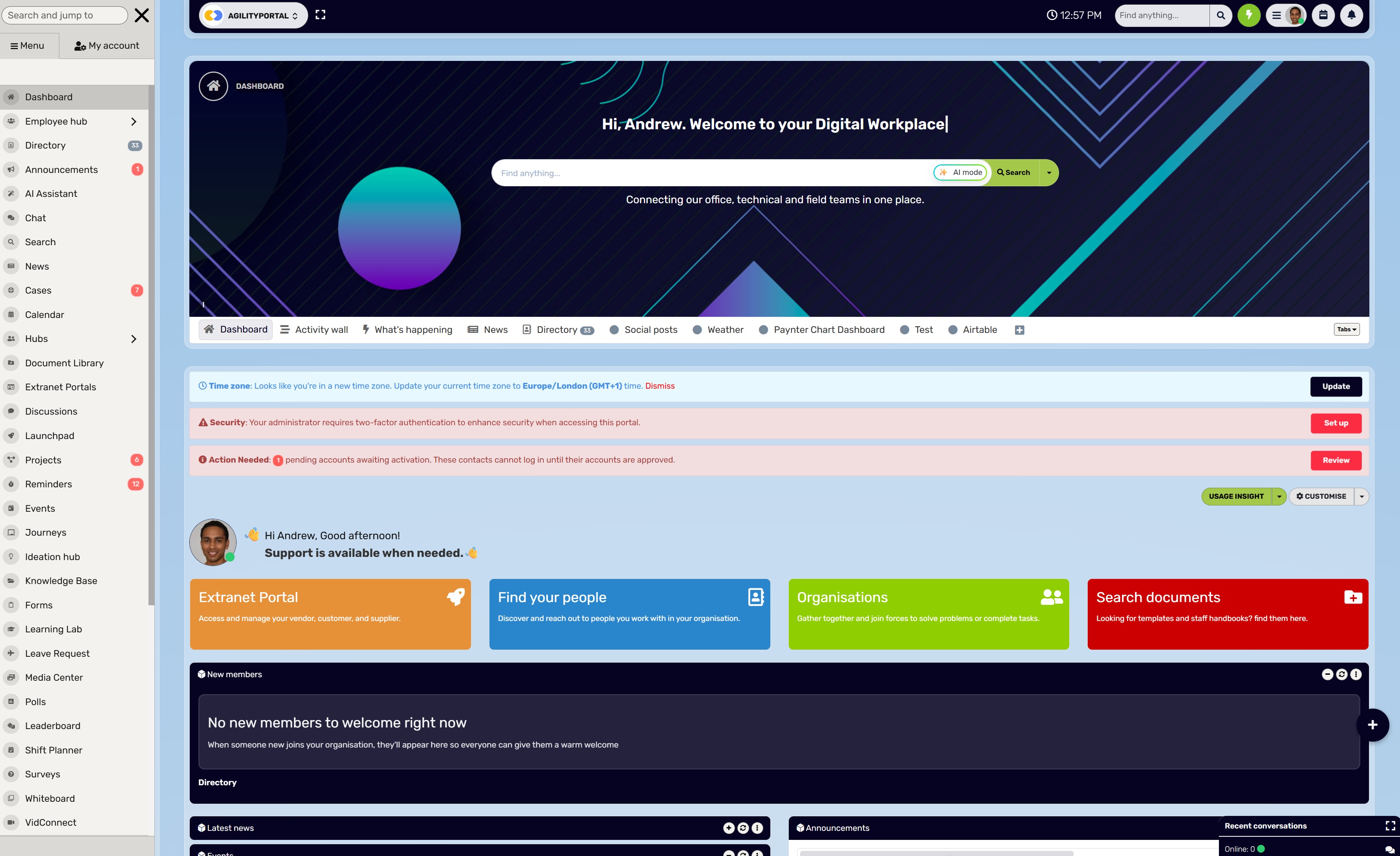
AgilityPortal provides a central place for employee announcements, knowledge resources, discussions, polls, events and training.
When planning an AgilityPortal digital signage workflow, organisations should confirm how approved content will move from the intranet to workplace screens, including the supported connection, update process and content permissions.
A short screen message needs somewhere employees can find the full story.
AgilityPortal can support that part of your employee communication strategy for frontline and hybrid teams by bringing announcements, resources, knowledge and conversations into a central workplace platform.
Depending on your setup, employees can use announcements for company updates, knowledge resources for guidance, discussions and Q&A for questions, polls for feedback, and events or learning tools for relevant activities.
Consider a new staff training programme.
The communication workflow could look like this:
- Publish the full announcement in AgilityPortal. Explain who the training is for, available dates, the deadline and how to book.
- Prepare an approved screen message. Keep it brief: "Book your customer service training by Friday. Find the details in AgilityPortal."
- Give employees a suitable access route. Use a tested link or QR code where appropriate, with an alternative for employees who cannot use phones.
- Provide a place for questions. Direct employees to the relevant discussion, Q&A or named contact.
- Review the outcome. Check bookings, recurring questions and barriers to access.
This gives each channel a clear purpose: screens introduce the message, while AgilityPortal provides detail and interaction.
Before setting up digital signage connected to an employee intranet, confirm the supported connection between AgilityPortal and your chosen signage system.
Check content transfer, scheduling, expiry and permissions so the publishing workflow matches the capabilities available in your configuration.
Give employees a clear place to find the full story
Planning your intranet and digital signage strategy? Bring the information behind your workplace messages into AgilityPortal. Give frontline, office and hybrid teams a central place to find announcements, access resources, ask questions and stay connected.
- Keep company announcements, policies and knowledge organised
- Support employee conversations through chat, discussions and polls
- Make workplace information accessible through web and mobile apps
What changes as workplace communication becomes more connected?
A connected publishing process can give communications teams more time to improve messages when it reduces repeated copying, formatting and uploading.
The opportunity is to spend that time understanding which employees are being missed and what makes information easier to act on.
For organisations exploring how to improve internal communication across multiple locations, useful questions include:
- Do employees on every shift receive relevant updates?
- Can they find the complete information afterwards?
- Is the next step clear and accessible?
- Are recurring questions revealing gaps in the explanation?
AI-assisted tools may help prepare shorter screen summaries, suggest layouts or produce draft translations. Those outputs still need review. A shortened message can lose an important exception, while a translation can change the meaning of an instruction.
Check dates, eligibility, required actions and support details before publishing. Give safety-critical instructions and sensitive HR information appropriate human review.
Managers also remain part of the process. They explain how changes affect their teams, answer questions and help employees who have limited digital access.
The value of using an intranet signage app comes from making communication easier to follow. Employees should be able to notice an update, understand its relevance and reach the information or person they need next.
Wrapping up
Intranet and digital signage work best when they help employees understand an update and take the right next step.
A workplace screen can bring a message into someone's day, while the intranet provides the detail, resources and opportunity to ask questions.
For frontline, hybrid and distributed teams, that connection can help close gaps in access. But it depends on clear messages, current information and routes that work for employees across different shifts, locations and device needs.
Start with one communication problem. Give each announcement an owner, an approved source and an expiry date. Test what happens when details change, check whether employees can reach the full information and measure completed actions alongside their feedback.
A small pilot will help you identify what needs improving before expanding. You may need clearer wording, better screen placement or a simpler access route rather than additional displays.
The goal is to make important information easier to find, trust and use during the working day. Employees should finish a workplace update knowing what it means for them and what to do next.
What is the difference between workplace operations software and project management tools?
Enter your text here ...
Which workplace operations platform is best for frontline employees?
Enter your text here ...
Can workplace operations platforms replace intranet software?
Enter your text here ...
AI Summary
- Intranet and digital signage work together by connecting brief messages on workplace screens with detailed information, resources and employee interaction in the intranet.
- Practical examples include training deadlines, benefits reminders, operational updates, team recognition, onboarding guidance and invitations to share feedback.
- Keep messages accurate through one approved source, named content owners, clear update procedures and expiry dates.
- Plan for different shifts, languages and accessibility needs, with alternative access for employees who cannot use personal phones.
- AgilityPortal can provide the announcements, knowledge resources and conversations behind screen messages; confirm the supported signage connection and publishing workflow for your setup.
- Start with a 30-day pilot and measure employee understanding, completed actions, publishing effort and screen reliability before expanding.
Most Popular Posts

Effective communication among team members is vital for the productivity and success of any organization. Surprisingly, 60% of companies lack a long-term internal communication strategy, which p...


Businesses thrive on communication for efficiency, productivity and accomplishment. When the right information is passed from the right designation in the organization, it promotes positivity an...

Categories
Blog
(3200)
Business Management
(395)
Employee Engagement
(235)
Digital Transformation
(218)
Growth
(150)
Intranets
(142)
Internal communications
(106)
Remote Work
(68)
Sales
(53)
Collaboration
(52)
Customer Experience
(33)
Culture
(30)
Knowledge Management
(29)
Project management
(29)
Leadership
(20)
Comparisons
(9)
News
(1)

Related Posts

Are your company updates reaching everyone—or just the employees who have time to check their inbox? Intranet and digital signage can help you connect with people who rarely sit at a desk, work different shifts or miss announcements buried betw...

How many customers could your business lose while your team is too busy to answer—and could a customer service AI agent help close that gap? Missed calls and unanswered messages can mean lost bookings, frustrated customers and more pressure on employ...

Could AI produce your next workplace video faster—and still deliver a message your employees can trust? As more businesses use video for onboarding, training and leadership updates, one question keeps coming up: will AI replace video editors in...

Could the best machine learning systems help your employees spend less time sorting requests, updating spreadsheets and chasing information—and more time doing useful work? That's the opportunity, but finding the right system starts with knowin...

What would happen to your team's work and customer information if an employee's MacBook disappeared today? If you're wondering how to protect your Mac physically, the answer goes beyond buying a case. A MacBook used at home, on a train or in a ...


Annet Herges
I am a digital nomad, lover of exploring new places and making friends.
I love to travel and I love the internet. I take pictures of my travels and share them on the internet using Instagram.
Traveler, entrepreneur, and community builder. I share my insights on digital marketing and social media while inspiring you to live your fullest life.
Ready to learn more? 👍
One platform to optimize, manage and track all of your teams. Your new digital workplace is a click away. 🚀
Free for 14 days, no credit card required.