
Insight Blog
Agility’s perspectives on transforming the employee's experience throughout remote transformation using connected enterprise tools.
39 minutes reading time
(7707 words)
How Outdated Workplace Technology Quietly Drains Employee Productivity

How Outdated Workplace Technology Quietly Drains Employee Productivity
utdated workplace technology may save money upfront but quietly damages productivity, employee experience and security. Learn how to spot and fix it.
How Outdated Workplace Technology Quietly Drains Employee Productivity

Outdated workplace technology rarely looks like a major business problem.
It usually appears as a slow computer that takes several minutes to start, unreliable Wi-Fi that drops during meetings, a malfunctioning printer, incompatible software or confusing communication tools that leave employees unsure where to find information.
Each delay seems minor, but repeated across an entire workforce, those lost minutes quickly become expensive.
Saving £100 on a device is easy to see on a purchase order.
The employee time lost using it is spread across months and is much harder to measure.
80%
lack time or energy
Microsoft’s 2025 Work Trend Index found that 53% of leaders believed productivity needed to increase, while 80% of employees and executives said they lacked the time or energy to complete their work.
Source:
Microsoft 2025 Work Trend Index
That matters when businesses are already under pressure to achieve more with limited time.
Microsoft's 2025 Work Trend Index found that 53% of leaders believed productivity needed to increase, while 80% of employees and executives said they lacked the time or energy to complete their work.
Meanwhile, Pega's 2026 research found that 64% of working adults believed their workplace tools or systems slowed them down to some degree.
This article explains how to identify technology friction, calculate its real cost and prioritise meaningful improvements without unnecessarily replacing everything.
Key Takeaways
- Outdated workplace technology creates hidden costs through employee waiting time, repeated work, technical support and lost concentration.
- Cheap office technology becomes a poor investment when maintenance, downtime and employee frustration outweigh the original saving.
- Older technology can increase security risks when operating systems, applications and devices no longer receive reliable updates.
- Businesses should assess total lifetime cost, employee requirements and measurable performance before repairing or replacing technology.
- Reducing disconnected systems can help employees find information, communicate and complete everyday tasks more efficiently.
What counts as outdated workplace technology?
Outdated workplace technology doesn't simply mean old technology.
A device or system becomes outdated when it can no longer meet the practical needs of the employees who depend on it.
For example, a four-year-old laptop might still work perfectly well for someone who mainly answers emails and edits documents.
Give that same laptop to an employee producing videos, analysing large datasets or running several demanding applications at once, and it could quickly become a productivity problem.
Age is only one part of the picture.
Reliability, performance, security, compatibility and suitability all matter. Even relatively new equipment can hold employees back if it was purchased without considering how it would actually be used.
It isn't limited to computers and printers
When people think about outdated office technology, slow laptops and unreliable printers normally come to mind first.
However, workplace technology includes almost every device, application and digital process employees use to complete their work.
Common examples include:
- Slow or unreliable laptops
- Poor Wi-Fi coverage
- Ageing mobile devices
- Unreliable printers and scanners
- Meeting-room equipment that regularly fails
- Unsupported operating systems
- Slow business applications
- Disconnected communication platforms
- Duplicate software performing similar functions
- Systems that don't work properly on mobile devices
- Manual processes that could reasonably be automated
The problem isn't always the type of equipment being used.
Reliable business laser printers can be a sensible investment for organisations that regularly produce large volumes of documents.
But a printer that is too slow for the workload, frequently disconnects or requires constant maintenance can waste far more employee time than its original purchase price saved.
The same principle applies to software.
A communication platform may have been suitable when the company had 20 employees, but it might become confusing and difficult to manage once the workforce grows across different teams, locations and working patterns.
Cheap, old and unsuitable aren't the same thing
These terms are often used interchangeably, but they describe different problems:
- Cheap technology: Equipment or software selected mainly because it had the lowest initial price. It may still perform well if it matches the organisation's requirements.
- Outdated technology: A device or system that is no longer properly supported, secure, compatible or capable of handling current workloads.
- Unsuitable technology: Technology that may be modern and reliable but doesn't match the employee's role or working environment.
- Poorly implemented technology: A capable tool that creates problems because it hasn't been configured, integrated or explained properly.
This distinction matters because replacing everything with newer equipment won't automatically solve the underlying problem.
Businesses first need to determine whether employees are being held back by the technology itself, the way it has been introduced or a process that was inefficient from the beginning.
Why outdated workplace technology costs more than it appears to save
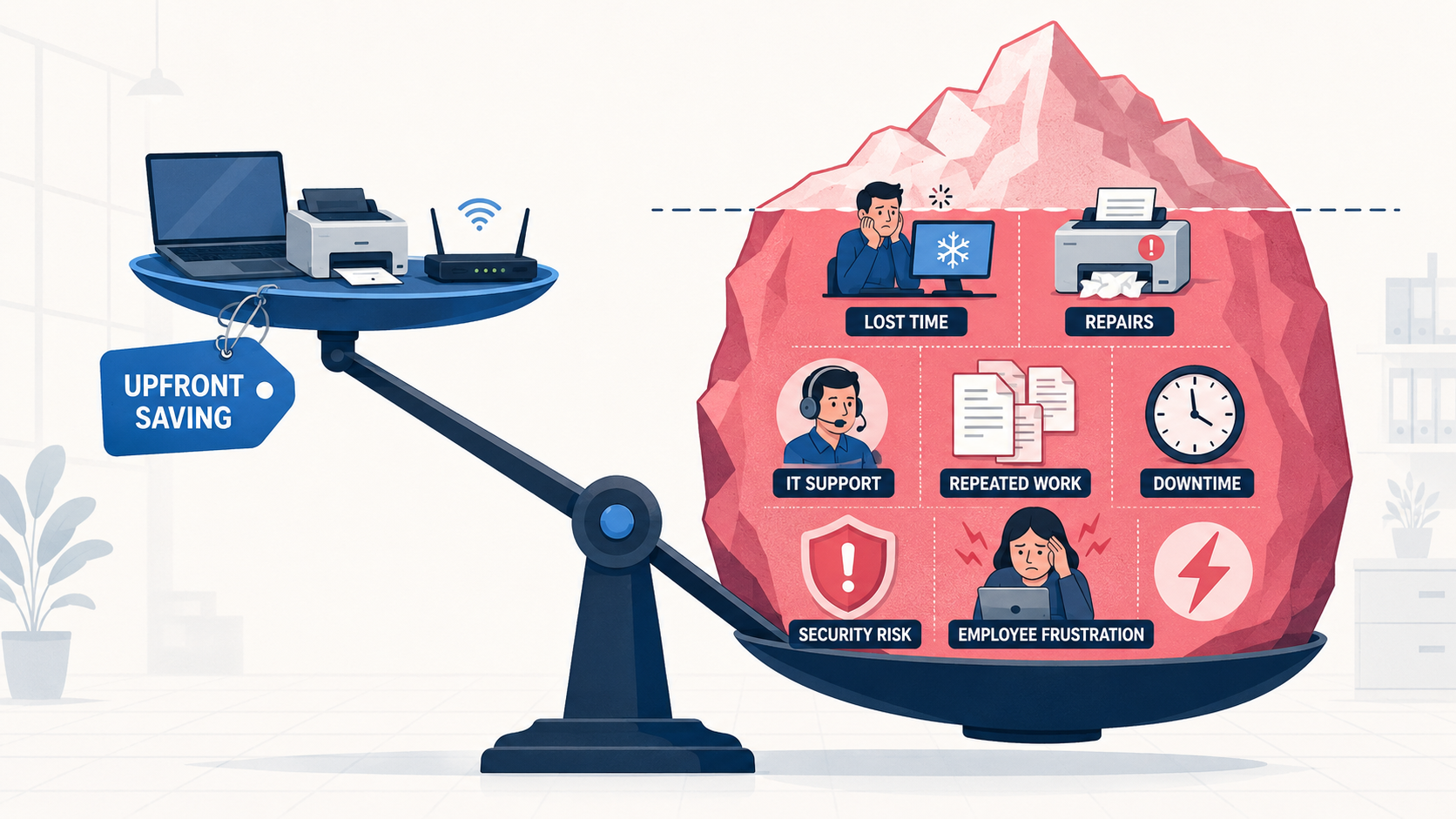
Why outdated workplace technology costs more than it appears to save
The purchase price is only one part of what technology costs a business.
To understand whether a device or system represents good value, organisations need to consider its total cost of ownership.
Total cost of ownership includes the original price alongside the cost of operating, maintaining and supporting the technology throughout its useful life. More importantly, it should account for the employee time lost when that technology doesn't work properly.
Consider a low-cost office printer.
The business may save money when purchasing it, but those savings can quickly disappear if employees regularly deal with paper jams, failed print jobs and expensive replacement cartridges.
Even everyday supplies such as Printer paper can be wasted when an unreliable device repeatedly prints incorrect, incomplete or duplicate documents.
The same hidden costs apply to slow computers, unstable Wi-Fi and incompatible software. An employee waiting three minutes for an application to load may not submit an IT ticket, so the delay never appears in a support report.
But if that happens several times a day across an entire workforce, the financial impact can become substantial.
The real cost of inadequate workplace technology can include:
- Employee waiting time
- IT support requests
- Repairs and replacement parts
- Wasted equipment and consumable supplies
- Software incompatibility
- Repeated or duplicated work
- Missed deadlines
- Delayed customer service
- Security exposure
- Employee frustration
- Additional electricity consumption
- Lost confidence in company systems
These costs don't always appear under "technology" in a financial report.
They may show up indirectly as overtime, lower output, increased support demand, customer complaints or employees struggling to meet deadlines.
| Workplace problem | What employees experience | Hidden business cost |
| Slow laptop | Delayed startup and frozen applications | Lost working time and reduced output |
| Unreliable printer | Failed jobs, repeated attempts and manual workarounds | Interruptions, wasted supplies and support costs |
| Poor Wi-Fi | Dropped calls and slow access to files | Meeting delays and customer frustration |
| Disconnected software | Information must be entered into several systems | Duplication, errors and inconsistent records |
| Outdated meeting equipment | Calls start late or remote attendees struggle to participate | Lost meeting time and an unequal employee experience |
| Unsupported software | Missing updates and limited compatibility | Greater security and compliance exposure |
| Complicated document storage | Employees cannot find the correct information | Repeated questions, duplicated work and poor decisions |
A cheaper product can still be the right choice when it reliably meets the organisation's requirements.
The mistake is judging value entirely by the initial price while ignoring what employees will spend their time doing after the purchase.
Related Workplace Technology Guides You May Want to Read Next
Fixing outdated workplace technology involves more than replacing old computers and unreliable office equipment. These related AgilityPortal guides explore digital employee experience, technology integration, app fatigue, information findability and the practical steps organisations can take to build a more productive digital workplace.
- Digital Employee Experience (DEX): A 2026 Guide
- Does Technology Integration in Business Boost Employee Productivity?
- How the Impact of Technology in the Workplace Shapes the Service Industry
- The Surprising Way Cloud Managed IT Services Can Increase Employee Productivity
- How to Introduce New Technology to an Organisation
- 15 Digital Workplace Best Practices to Improve Employee Productivity and Collaboration
- The Digital Workplace Strategy Playbook Every HR and IT Leader Needs
- Reducing App Fatigue: Replace Too Many Apps With One Internal Comms Platform
- Employees Can’t Find Information at Work — Here’s Why It’s Costing More Than You Think
- Digital Workplace Platform: The Complete 2026 Guide
Together, these guides build a stronger topic cluster around outdated workplace technology, employee productivity, digital friction, technology integration, app overload, information findability, digital employee experience and the connected workplace systems employees need to work efficiently.
How outdated workplace technology drains employee productivity
Outdated workplace technology doesn't need to stop working completely to damage productivity.
More often, it creates small delays throughout the day: a slow login, an application that freezes, a document that won't open or a video call that must be restarted.
Each incident may only cost an employee a few minutes, which makes it easy to dismiss.
The real problem becomes clear when those minutes are multiplied across an entire workforce.
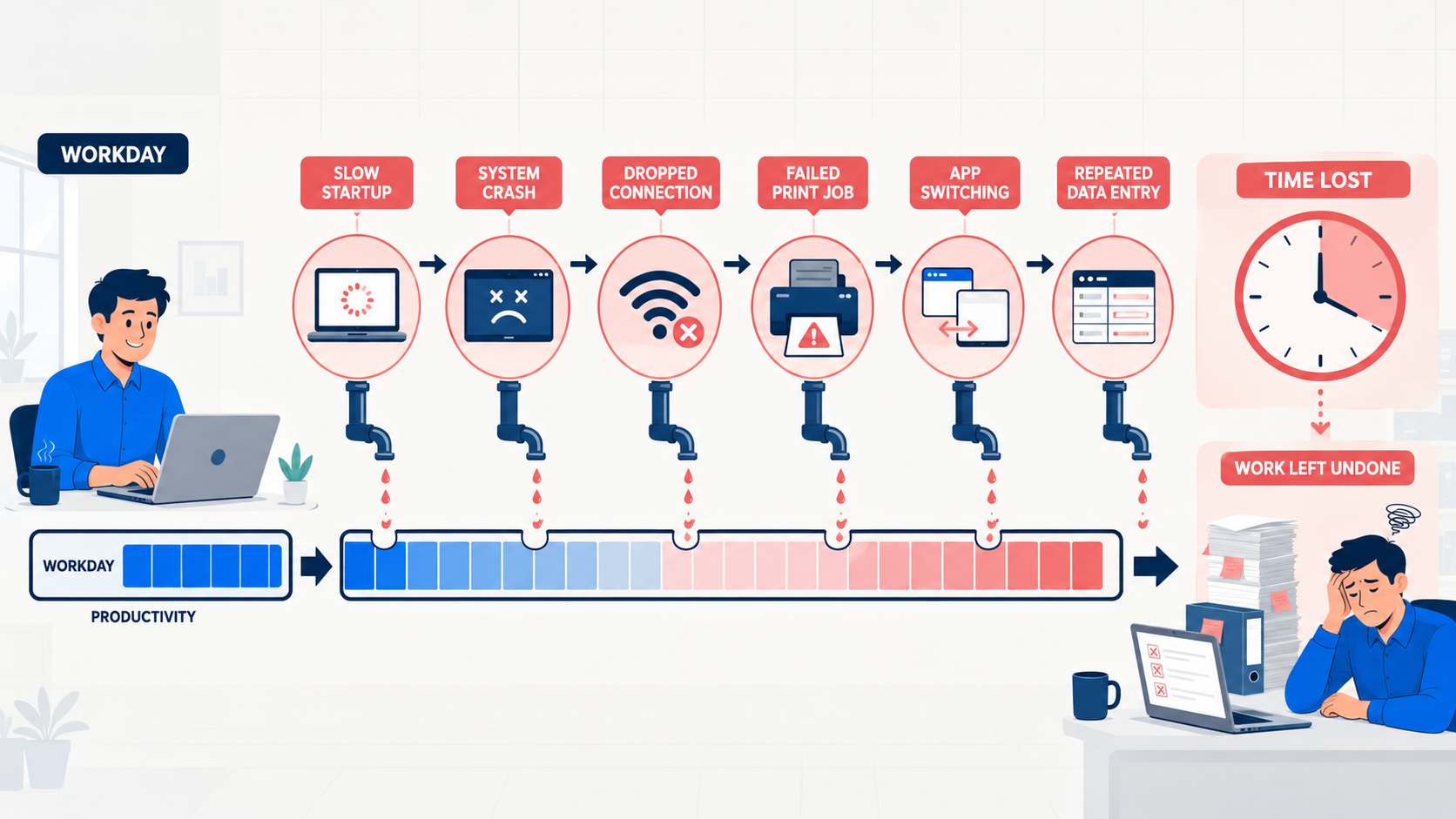
How outdated workplace technology drains employee productivity
A few wasted minutes become hundreds of lost hours
Imagine a business with 100 employees.
If each person loses just ten minutes per working day to slow devices, unreliable software and avoidable technical problems, the organisation loses approximately 4,167 working hours over a 250-day year.
That figure is an illustrative calculation rather than an external statistic, but it shows how quickly minor technology delays accumulate.
The calculation is straightforward:
Employees × minutes lost per day × working days ÷ 60 = annual hours lost
For this example:
100 × 10 × 250 ÷ 60 = 4,167 hours
The business may have saved money by keeping older equipment or choosing cheaper systems, but that decision becomes harder to justify when thousands of paid working hours are being lost.
Businesses can make this calculation more useful by multiplying the annual hours lost by the average hourly employment cost. This should include salary and, where possible, additional employment expenses.
The result won't be exact, but it provides a more realistic estimate of what technology friction may be costing the organisation.
Every technical problem breaks concentration
The productivity cost isn't limited to the time an application remains frozen or a device takes to restart.
Employees must also remember what they were doing, reopen documents, reconstruct their train of thought and rebuild their concentration.
This matters because modern employees are already working in highly interrupted environments.
Microsoft's 2025 Work Trend Index found that the 20% of users receiving the highest volume of digital activity could experience a meeting, email or chat notification approximately every two minutes during the working day.
That doesn't mean every employee receives the same number of interruptions. However, it does illustrate how fragmented work can become for heavily connected employees.
Slow or unreliable technology adds another unnecessary layer of disruption.
An employee may wait only two minutes for a system to respond, but the total interruption can last much longer if they check their email, answer a message or begin another task while waiting.
Workarounds quietly become normal processes
When employees encounter the same technology problem repeatedly, they don't always continue reporting it.
They may assume IT already knows, believe nothing will change or decide that creating a workaround is faster than asking for help.
Those workarounds can include:
- Sending company files to personal email accounts
- Saving documents locally because shared storage is too slow
- Creating unofficial spreadsheets to track information
- Using unapproved messaging applications
- Re-entering the same information into different systems
- Asking colleagues for documents because workplace search is unreliable
- Avoiding useful features because they regularly fail
- Keeping separate copies of files "just in case"
These behaviours may help employees complete an immediate task, but they can create duplication, security risks and inconsistent information.
They also hide the original problem from decision-makers.
If employees have stopped reporting a recurring issue, a quiet support dashboard doesn't necessarily mean the technology is working well. It may mean the workforce has simply learned to work around it.
Imagine paying someone to wait for a £99 printer
Imagine a 30-person office sharing a low-cost printer. It looked like a sensible purchase because the business only paid £99 for it.
Unfortunately, it regularly jams, disconnects from the network and runs out of memory when employees send larger documents.
At first, these incidents seem like minor inconveniences. An employee leaves their desk, walks over to the printer and discovers that nothing has printed.
They return to their computer, cancel the job, restart the printer and try again. If that doesn't work, they ask a colleague for help or contact IT.
What should have been a 30-second task can easily become a ten-minute interruption.
What happened?
The printer was selected mainly because of its low purchase price.
Nobody properly considered how many employees would use it, how many pages it would need to process or whether it could handle several print jobs at once.
As problems became more frequent, employees created their own workarounds. Some used another department's printer, while others resent the same job several times.
This resulted in wasted paper, duplicated documents and more interruptions for colleagues.
What was the real impact?
The business only paid £99 for the printer, but that wasn't its real cost.
The organisation continued paying employees while they waited, retried jobs and troubleshot problems.
IT also spent time responding to repeated support requests, while the company paid for replacement cartridges, repairs and wasted supplies.
If ten employees each lose ten minutes a week dealing with the printer, the business loses more than 86 working hours over a 52-week year. That is another illustrative calculation, but it demonstrates how quickly a small technical problem can outweigh a modest upfront saving.
There is also a less visible cost.
Employees become frustrated, urgent documents are delayed and people gradually lose confidence in the equipment they are expected to use.
What should have happened?
Procurement should have evaluated the printer according to the organisation's actual requirements, including:
- Expected monthly printing volume
- Number of employees sharing the device
- Printing speed and memory capacity
- Network reliability
- Warranty and technical support
- Maintenance requirements
- Cartridge and consumable costs
- Energy consumption
- Expected useful life
- Employee time lost when the device fails
The cheapest printer isn't necessarily the least suitable one. It becomes a poor investment when the savings made at checkout are repeatedly lost through wasted time, support requests and unreliable performance.
The same logic applies to laptops, Wi-Fi equipment, meeting-room screens and business software.
A low purchase price may look attractive, but value should be measured by how reliably the technology helps employees complete their work.
The employee experience suffers before the financial reports show it
Poor workplace technology doesn't always cause an obvious financial loss.
There may be no major outage, failed project or unusually large invoice. Instead, the damage appears gradually in the way employees feel about their work.
When someone repeatedly struggles with a slow computer, unreliable software or a confusing communication platform, the message they receive is simple: their time isn't being valued.
A task that should take five minutes becomes a 20-minute exercise.
Employees must wait for applications to respond, enter the same information into several systems or search across different platforms for a document that should be easy to find.
Eventually, frustration becomes part of the normal working day.
The human consequences can include:
- Employees feeling that their time and effort aren't respected
- Simple tasks requiring unnecessary steps
- Frontline and remote workers receiving inferior tools
- New starters forming a poor first impression of the organisation
- Managers mistaking technical delays for poor employee performance
- Employees becoming reluctant to adopt future technology
- Repeated digital friction contributing to stress and disengagement
- Teams losing confidence in official company systems
The impact may be particularly noticeable during onboarding.
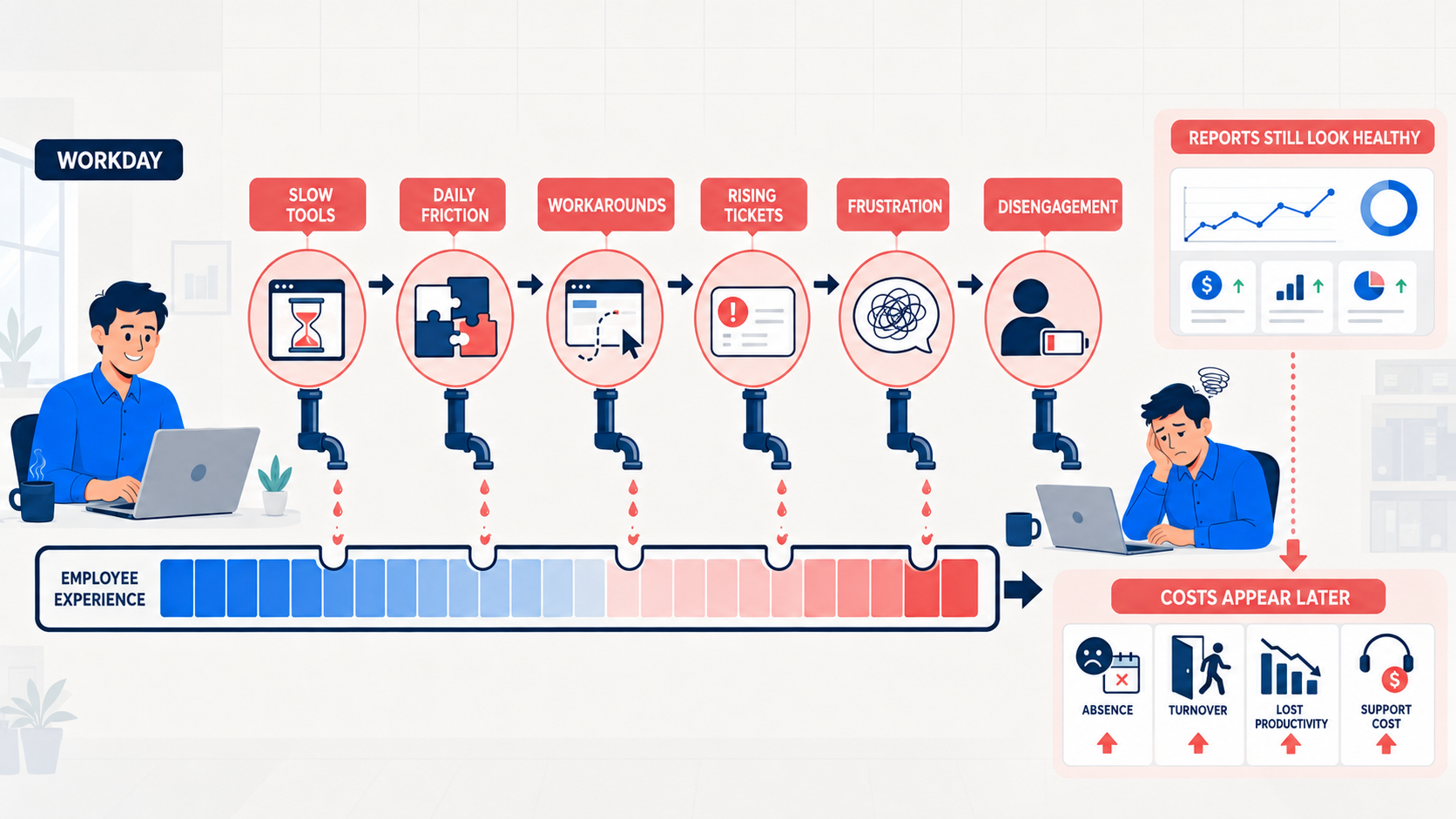
The employee experience suffers before the financial reports show it
A new starter who receives an unreliable laptop, outdated instructions and access to several disconnected systems may immediately question how well the organisation is managed.
Instead of focusing on learning the role, they spend their first few days requesting access, searching for information and asking colleagues how to work around technical problems.
Frontline and remote employees can also be overlooked. Head-office teams may receive better devices and easier access to support, while employees working from home, travelling or operating across different locations struggle with mobile access, poor connectivity and systems designed mainly for desktop users.
There is also a danger that managers interpret lower output as an employee problem. If a system is slow or unreliable, the person using it may appear less productive even though the real obstacle is the technology they have been given.
Vendor-sponsored research published by Pega in 2026 found that more than one-third of surveyed workers would consider leaving their employer if their technology needs weren't met.
This doesn't mean inadequate technology will cause every frustrated employee to resign, but it does show that workplace tools can influence how people judge their overall employment experience.
Employees notice when an organisation expects high performance but doesn't provide reliable tools.
That frustration may not appear immediately in a financial report, but it can surface through disengagement, reduced trust, resistance to new systems and, eventually, higher employee turnover.
Here's where cheap technology becomes a security problem
Cheap or outdated workplace technology doesn't automatically create a security breach.
However, it can make an organisation harder to protect, particularly when devices and software no longer receive updates or support modern security controls.
An ageing laptop might still open documents and access email, but that doesn't mean it remains suitable for business use. If its operating system is unsupported, security vulnerabilities may no longer be fixed.
Older hardware may also struggle to run current antivirus software, encryption, endpoint monitoring or other protections required by the organisation.
Practical security risks can include:
- Unsupported operating systems
- Missing software and security patches
- Devices that can't run modern security controls
- Hardware that can't be centrally monitored or managed
- Software vendors that no longer provide updates
- Shared accounts and passwords
- Inconsistent access controls across disconnected applications
- Personal devices being used to access company information
- Company files being copied to consumer storage services
- Unapproved applications being used to complete everyday work
- Former employees retaining access to forgotten systems
The connection between poor technology and weak security isn't always obvious. It often begins with an employee trying to complete a legitimate task.
Imagine that the company's document system is slow and difficult to access remotely. An employee needs to finish a report at home, so they send it to a personal email address or upload it to their private cloud storage account.
The employee may not intend to break a rule. They are simply looking for the fastest way to complete their work.
Unfortunately, the organisation may lose control over where that file is stored, who can access it and whether it will ever be deleted.
The same thing can happen when official communication tools are unreliable. Employees may create an unofficial messaging group, share passwords to avoid a difficult access process or install an unapproved application without involving IT. These workarounds improve short-term convenience but can create security, privacy and compliance problems.
Poor usability and weak security can therefore reinforce each other. If approved technology makes everyday work unnecessarily difficult, employees become more likely to search for unofficial alternatives.
Those alternatives may be easier to use, but they may not meet the organisation's requirements for encryption, data retention, access control or regulatory compliance.
The answer isn't to blame employees for every workaround. Businesses should provide secure tools that are practical enough for people to use under real working conditions.
IT and security teams should also investigate why employees are bypassing approved systems. In many cases, the workaround is evidence that the official process or technology no longer meets the needs of the workforce.
Is replacing everything really the answer?
Not necessarily.
Newer technology isn't automatically better, and replacing every device or application can create unnecessary costs, disrupt employees and increase electronic waste.
A new system can even make productivity worse if it doesn't match the way people actually work.
Before approving a replacement, businesses should identify the real source of the problem. A slow computer may have insufficient memory, but it could also be affected by poor configuration, unnecessary software or an unreliable network.
Similarly, employees may struggle with an application because it lacks an important integration, duplicates another system or was introduced without adequate training.
The process itself may also be responsible.
Buying faster equipment won't fix a workflow that requires employees to enter the same information several times or wait for unnecessary approval.
Technology problems can also continue when ownership is unclear and nobody is responsible for reviewing performance, managing updates or responding to employee feedback.
Sometimes replacement is the correct decision, particularly when equipment is unreliable, insecure, unsupported or unable to handle current workloads.
In other cases, a repair, configuration change, software integration or short training session may solve the problem at a much lower cost.
The objective shouldn't be to own the newest technology. It should be to provide reliable tools that help employees work safely and efficiently.
Who should take responsibility for workplace technology?
Workplace technology shouldn't be treated as the sole responsibility of the IT department.
IT may manage the infrastructure, but technology decisions affect employee experience, security, operational performance and company spending.
Effective governance requires input from the people who select the technology, support it and use it every day.
Without that shared responsibility, businesses can end up buying equipment based on price, renewing unnecessary software or introducing systems that don't reflect how employees actually work.
| Role | Main responsibility | Why it matters |
| CIO or IT Director | Leads technology strategy, infrastructure planning and equipment lifecycle management | Prevents reactive purchasing and ensures technology supports wider business objectives |
| IT support team | Tracks faults, downtime, recurring incidents and common employee complaints | Reveals where employees repeatedly lose time and where replacement or improvement is needed |
| HR Director or Chief People Officer | Connects technology decisions with employee experience, accessibility and role requirements | Ensures workplace tools reflect how employees actually work |
| Operations Manager | Identifies workflow delays, duplicated effort and manual processes | Connects technology friction with operational performance |
| CISO or security lead | Reviews security, access, device management and vendor-support risks | Prevents convenient short-term fixes from creating security exposure |
| Procurement or Finance | Evaluates total lifetime cost rather than looking only at the purchase price | Helps the business avoid false short-term savings |
| Department managers | Report role-specific requirements and productivity barriers | Prevents one-size-fits-all purchasing decisions |
| Employees | Provide practical feedback and report recurring problems and workarounds | Reveals issues that may not appear in dashboards, invoices or support reports |
Clear ownership is essential.
The organisation should appoint a senior leader to oversee workplace technology performance, while each department remains responsible for reporting problems and explaining changing requirements.
Employees also need an accessible way to provide feedback without every issue becoming a formal support ticket.
Short surveys, technology reviews and conversations with frontline teams can reveal recurring friction before it becomes an expensive operational problem.
Ultimately, the best technology decisions combine technical evidence, employee feedback, security requirements and financial analysis. No single department has the complete picture.
How to audit outdated workplace technology before it becomes expensive
A workplace technology audit should reveal more than the age of each device.
Its purpose is to identify where unreliable equipment, disconnected systems and badly designed processes are wasting time, increasing risk or making employees' jobs unnecessarily difficult.
Use the following 15-step framework to assess what is working, what needs attention and where investment will have the greatest impact.
1. List the technology employees depend on
Create an inventory of the hardware, software and digital services employees use.
Include laptops, mobile devices, printers, scanners, Wi-Fi equipment, meeting-room technology, communication platforms, document storage and specialist business applications.
2. Identify which roles use each device or system
Record who uses each technology and what they need it to do.
The requirements of a graphic designer, frontline worker and HR administrator will be very different. This prevents the business from applying the same technology standards to every role.
3. Review IT support tickets from the previous 6–12 months
Look for repeated faults, slow applications, login problems and devices requiring frequent repairs.
One isolated incident may not justify investment, but dozens of similar requests could reveal a wider problem.
4. Ask employees where technology slows down their work
Support tickets only show reported problems.
Ask employees which tasks take too long, what regularly frustrates them and which systems they avoid using.
Anonymous surveys may encourage more honest feedback.
5. Measure startup time, loading time and downtime
Replace assumptions with evidence.
Measure how long devices take to start, how quickly essential applications respond and how often systems become unavailable.
Test performance during busy periods rather than under ideal conditions.
6. Find recurring repairs and temporary fixes
Identify devices that are repeatedly repaired, restarted or temporarily patched.
A series of inexpensive fixes can eventually cost more than a reliable replacement while continuing to interrupt employees.
7. Identify unsupported hardware and software
Check whether operating systems, applications and devices still receive updates from their vendors.
Unsupported technology may continue to function, but it can create growing compatibility and security risks.
8. Review security patching and access controls
Confirm that devices receive current security patches and that access is removed when employees leave or change roles.
Look for shared passwords, unmanaged devices and applications using inconsistent permission settings.
9. Map duplicate applications and overlapping licences
Businesses often pay for several tools that perform similar functions.
Identify duplicate communication, file storage, project management and collaboration applications. Consolidation may reduce costs and make the employee experience less confusing.
10. Look for manual data entry between systems
Find processes where employees copy information from one application into another.
Repeated data entry wastes time and increases the likelihood of mistakes. An integration or workflow change may solve the problem without requiring a complete replacement.
11. Identify unofficial tools and employee workarounds
Ask whether employees use personal email accounts, private messaging applications, local spreadsheets or consumer storage services to complete their work.
Don't assume they are simply ignoring company rules. These workarounds often reveal that an approved system is too slow, complicated or restrictive.
12. Estimate the employee time being lost
alculate how often each problem occurs, how many employees it affects and how long each interruption lasts.
Even a reasonable estimate can help decision-makers understand the scale of the problem.
A simple calculation is:
Employees affected × minutes lost × frequency = estimated productivity loss
13. Calculate maintenance and support costs
Include repair bills, replacement parts, IT support time, licence charges, energy consumption and employee downtime.
Compare the total with the cost of repairing, upgrading or replacing the technology.
14. Prioritise improvements by business impact
Not every problem needs to be fixed immediately. Prioritise issues affecting customer service, security, large numbers of employees or business-critical processes.
A minor inconvenience affecting one person shouldn't automatically take priority over a recurring failure affecting an entire department.
15. Review performance after making changes
An audit shouldn't end when new technology is installed.
Compare performance, support requests and employee feedback before and after the improvement. If the expected benefits haven't appeared, investigate whether configuration, training or the underlying process still needs attention.
The audit must include frontline, remote and deskless employees, not only people based at head office. These groups may rely on shared devices, mobile access or slower connections and can experience problems that central IT teams rarely see.
A useful audit listens to employees as well as reviewing technical data.
The objective isn't to create a shopping list of new equipment. It is to understand where technology is getting in the way of work and make improvements that deliver a measurable benefit.
What should businesses measure before buying replacements?
Replacing workplace technology without measuring the original problem makes it difficult to know whether the investment has worked.
A newer laptop might look better and start faster, but the wider productivity problem could remain if employees are still dealing with unreliable Wi-Fi, disconnected software or an inefficient process.
Businesses should establish a performance baseline before approving a replacement.
This means measuring what employees experience while completing real tasks, not relying entirely on technical specifications or the age of a device.
Useful measures include:
- Time required to complete common tasks: Measure how long employees take to access a document, update a customer record, submit a form or complete another frequent activity.
- Device startup time: Record how long employees wait before they can begin working.
- Application load time: Track how quickly essential software opens and responds during normal working conditions.
- Crashes and disconnections: Identify how often devices, applications, Wi-Fi connections and video calls fail.
- IT tickets per device or system: Look for equipment or applications generating repeated requests.
- Average resolution time: Measure how long employees remain affected after reporting a problem.
- Meeting delays: Record meetings that start late because screens, cameras, microphones or connections fail.
- Employee satisfaction: Ask employees whether their essential tools are reliable, accessible and suitable for their roles.
- Repeated data entry: Identify information being manually copied between disconnected systems.
- Unplanned downtime: Calculate how often essential services become unavailable and how many employees are affected.
- Security support status: Confirm whether devices and applications still receive vendor updates and security patches.
- Cost per productive working hour: Compare purchase, maintenance and support costs with the amount of reliable working time delivered.
- Adoption after implementation: Measure whether employees actually use the replacement and whether old workarounds disappear.
These measures should be collected again after the repair, upgrade or replacement. Comparing the results will show whether tasks have become faster, support demand has fallen and employees are experiencing fewer interruptions.
Businesses should be careful about using the number of support tickets closed as their main measure of success. A reduction in tickets doesn't always mean the underlying problem has been solved.
But employees may stop reporting recurring faults because they don't believe another ticket will lead to a meaningful improvement.
Technical data should therefore be considered alongside employee feedback and operational results. The right question isn't simply, "Did we install the new technology?" It is, "Did this change make work faster, safer and less frustrating for the people using it?"
Choosing technology employees will actually use
The best workplace technology isn't necessarily the product with the longest feature list or the most impressive specification. It is the technology that reliably helps employees complete their work.
A purchasing decision can appear sensible in a demonstration but fail once the product reaches the workforce.
That usually happens when the business focuses on technical features without considering employee roles, working conditions and existing processes.
Start with the job, not the product specification
Begin by understanding what employees need to accomplish. Different roles require different levels of processing power, mobility, battery life, connectivity and security.
An employee who mainly works with documents and email may not need the same laptop as a designer working with large media files.
A frontline worker may value mobile access, simple navigation and offline functionality more than advanced desktop features.
Businesses should ask employees which tasks they complete most frequently, where they work and what currently slows them down. These practical requirements should shape the specification.
Calculate lifetime value rather than upfront price
A low purchase price doesn't automatically represent good value. Businesses should evaluate what the technology will cost throughout its useful life.
This assessment should include:
- Expected useful life
- Warranty and technical support
- Likely repair frequency
- Consumables and replacement parts
- Licence and subscription charges
- Energy consumption
- Security updates and vendor support
- Compatibility with existing systems
- Employee time required to use and maintain it
- Disposal and eventual replacement
A more expensive device may provide better value if it lasts longer, requires fewer repairs and saves employees time. Equally, paying for advanced features employees will never use creates unnecessary expense.
Test it with the people doing the work
Product demonstrations take place under controlled conditions.
The real test is whether the technology works for employees during a normal working day.
Run a small pilot with representative users before making a larger commitment. Include employees with different levels of technical confidence, accessibility requirements and working arrangements.
Remote, frontline, deskless and head-office employees may experience the same product very differently.
Ask participants to complete common tasks and report where they encounter delays or confusion. Their feedback can uncover usability problems, missing integrations and training requirements before the technology is introduced across the organisation.
Reduce the number of disconnected systems
Even reliable technology can create frustration when employees must switch constantly between separate applications.
They may need one platform for announcements, another for documents, a third for conversations and several more for training, forms and company knowledge.
Reducing unnecessary fragmentation can make the overall employee experience more consistent. A digital workplace or employee intranet can provide a central location for communications, documents, knowledge and collaboration.
Platforms such as AgilityPortal can help organisations reduce digital friction by bringing company communications, workplace knowledge, documents and collaboration into one accessible environment.
That doesn't replace every business application, but it can give employees a clearer starting point for finding information and staying connected.
The objective isn't to force every activity into a single system. It is to reduce unnecessary switching, duplication and confusion while giving employees a dependable route to the information and tools they use most.
A practical workplace technology checklist
Technology purchases and renewals shouldn't be based entirely on price, product specifications or what a vendor promises during a demonstration.
Businesses need to understand whether the product will solve a genuine problem and provide reliable value throughout its useful life.
Before purchasing, renewing or replacing workplace technology, ask the following questions.
1. Does it match the employee's actual role?
Identify who will use the technology, what they need to accomplish and where they normally work. Avoid giving every employee the same equipment simply because standardisation is easier.
2. Can it handle current workloads?
Test the device or application using realistic files, workloads and user numbers. Technology that works during a demonstration may struggle under normal business conditions.
3. Is it supported by the vendor?
Confirm how long the vendor intends to provide technical support, software updates and replacement parts. Unsupported technology can become difficult and expensive to maintain.
4. Does it receive security updates?
Check whether vulnerabilities will be patched throughout the expected life of the product. Security support should be confirmed before purchase, not after a problem appears.
5. Can IT manage it remotely?
Remote management allows IT teams to install updates, monitor performance and resolve some problems without physically accessing the device.
This is particularly important for distributed and hybrid workforces.
6. Does it integrate with existing systems?
Understand how the technology will exchange information with current applications.
Poor integration can create repeated data entry, inconsistent records and additional manual work.
7. Is it accessible on the devices employees use?
Check desktop, mobile and tablet access where relevant.
Frontline, remote and deskless employees shouldn't receive a poorer experience because a system was designed mainly for office-based users.
8. Does it create duplicate work?
Map the full process before introducing the product.
A tool that adds another login, database or approval stage may increase complexity rather than remove it.
9. How much training will employees need?
Consider both initial training and ongoing support.
A powerful product can still fail if employees don't understand how or when to use it.
10. What happens when it fails?
Establish how employees will continue working during an outage.
Business-critical technology should have a clear recovery process, backup option or temporary workaround.
11. Is reliable support included?
Review support hours, response targets and escalation routes.
The cheapest support package may not be suitable when a failure can stop an entire department from working.
12. What is its expected useful life?
Estimate how long the technology should remain reliable, compatible and secure.
A low-cost device that requires early replacement may offer worse value than a more durable alternative.
13. What will maintenance cost?
Include repairs, replacement parts, consumables, licence fees, energy use and internal IT time.
These costs should be considered alongside the original price.
14. How much employee time could it save?
Estimate how often the current problem occurs, how many employees it affects and how much time an improvement could recover.
This helps connect the purchase to a measurable business outcome.
15. Have representative employees tested it?
Run a pilot involving people with different roles, working locations, technical abilities and accessibility needs.
Their feedback can expose problems that decision-makers and vendors may overlook.
16. What metric will show whether it worked?
Agree on success measures before making the investment.
These might include faster task completion, fewer technical failures, reduced support demand, improved employee satisfaction or lower maintenance costs.
Not every answer needs to be perfect, but serious gaps should be investigated before the business commits. This checklist helps organisations move beyond the upfront price and select technology based on reliability, usability, security and measurable value.
Cheap technology isn't cheap when employees pay with their time
Outdated workplace technology doesn't need to cause a major outage to become expensive.
Its real cost is often hidden in the minutes employees lose every day, the workarounds they create and the frustration that gradually becomes part of their working experience.
A printer that regularly jams, a computer that takes too long to start or a communication platform that employees struggle to navigate may appear to be a minor inconvenience.
But when these problems affect multiple employees over several months, the lost time, support requests and repeated work can easily outweigh the original saving.
That doesn't mean businesses should replace every device or chase every new technology trend. Newer isn't automatically better. Organisations need to understand where work is getting stuck, identify the cause, calculate the full cost and invest where an improvement will make a measurable difference.
Sometimes replacement will be necessary. In other cases, better configuration, training, integration or support may solve the problem more effectively.
Fragmented communication and information systems are another common source of digital friction.
AgilityPortal helps organisations bring company updates, workplace knowledge, documents and collaboration into one accessible digital workplace.
By giving employees a clearer place to find information and stay connected, businesses can reduce unnecessary searching, system switching and repeated questions.
Because when employees have reliable tools and easier access to the information they need, more of their time can be spent doing the work they were hired to do.
Frequently asked questions
How does outdated technology affect employee productivity?
Outdated technology reduces productivity by making everyday tasks take longer. Employees may wait for devices to start, applications to load or systems to recover after a failure.
They may also need to repeat lost work, enter the same information into several systems or use manual workarounds.
Technical interruptions can break concentration, meaning the employee loses more time than the failure itself suggests.
What are the signs of outdated workplace technology?
Common signs include frequent crashes, slow performance, compatibility problems and rising numbers of support requests.
Unsupported software, missing security updates and equipment that requires repeated repairs are also warning signs.
Businesses should pay attention when employees begin using unofficial spreadsheets, personal messaging applications or consumer storage services because approved systems are too difficult or unreliable.
Is cheap office technology always a bad investment?
No. Lower-cost technology can provide good value when it reliably supports the intended workload.
It becomes a poor investment when frequent failures, maintenance, consumables, support requests and employee downtime cost more than the original saving.
Businesses should compare total lifetime cost rather than purchase price alone.
How often should businesses replace office computers?
There is no single replacement schedule suitable for every business or employee.
The decision should reflect the computer's workload, performance, repair history, security support and expected useful life.
A device may remain suitable for basic administrative work but be inadequate for data analysis, design or video production. Replacement should be based on evidence rather than age alone.
How can a business calculate productivity lost to IT problems?
A simple starting formula is:
Employees affected × minutes lost per day × working days ÷ 60 = annual hours lost
For example, if 50 employees each lose ten minutes per day over 250 working days, the organisation loses approximately 2,083 hours. This is an estimate and should be checked against task observations, system-performance data, employee feedback and IT support records.
Who should decide when workplace technology is replaced?
IT should normally lead the technical assessment, but the decision shouldn't belong to IT alone. HR can ass
Department managers and employees should also provide evidence about role requirements, recurring faults and the practical effect on daily work.
Can poor workplace technology affect employee retention?
Yes. Persistent technology problems can make employees feel frustrated, unsupported and unable to perform at their best.
Over time, that friction can damage trust in the organisation and contribute to disengagement.
However, technology is normally one of several factors influencing an employee's decision to leave, alongside management, pay, workload, flexibility and career opportunities.
AI Summary
- Outdated workplace technology includes any device, application or system that no longer meets employees’ practical, performance or security requirements.
- Low-cost technology can become expensive when employee waiting time, technical support, repairs, repeated work and lost concentration outweigh the original saving.
- Slow computers, unreliable Wi-Fi, malfunctioning printers, unsupported software and disconnected communication tools can quietly reduce employee productivity.
- Older or poorly supported technology can increase security risks by missing updates, limiting modern security controls and encouraging employees to use unofficial workarounds.
- Businesses should calculate total lifetime cost rather than judging technology by its purchase price alone. This includes maintenance, support, licences, energy use and employee time.
- Replacing everything isn’t always necessary. Better configuration, integration, training, repairs or clearer ownership may solve the problem more effectively.
- AgilityPortal helps reduce digital friction by bringing employee communications, workplace knowledge, documents and collaboration into one accessible digital workplace.
Most Popular Posts

Effective communication among team members is vital for the productivity and success of any organization. Surprisingly, 60% of companies lack a long-term internal communication strategy, which p...


Businesses thrive on communication for efficiency, productivity and accomplishment. When the right information is passed from the right designation in the organization, it promotes positivity an...

Categories
Blog
(3214)
Business Management
(396)
Employee Engagement
(235)
Digital Transformation
(219)
Growth
(150)
Intranets
(142)
Internal communications
(107)
Remote Work
(68)
Sales
(53)
Collaboration
(53)
Customer Experience
(33)
Culture
(30)
Knowledge Management
(29)
Project management
(29)
Leadership
(20)
Comparisons
(9)
News
(1)

Related Posts

Choosing the best ERP for Shopify often starts when the workarounds stop working. Your store shows stock that the warehouse can't find. Wholesale orders live in spreadsheets. Finance spends days reconciling payouts, while customer service...

Could choosing the wrong proxy disrupt your team's work or increase costs without improving results? When comparing rotating proxies vs static proxies, the answer depends on what your business needs: a consistent IP address for an ongoing sessi...

What happens when a buyer asks Google for the best employee communication platform—and discovers competing brands before reaching your website? Choosing the best link building services can help a digital workplace business strengthen its broade...

Could gaps in digital accessibility be stopping your employees from completing the training they need to do their jobs? Imagine a new starter opening a mandatory course, only to discover they can't follow the audio, navigate the quiz with a keyboard ...

The Amazon advertising agency landscape has changed dramatically over the past two years. With the introduction of AI-powered shopping experiences, Amazon Rufus, advanced attribution reporting, Sponsored Brands Video, and Amazon DSP enhancement...


Annet Herges
I am a digital nomad, lover of exploring new places and making friends.
I love to travel and I love the internet. I take pictures of my travels and share them on the internet using Instagram.
Traveler, entrepreneur, and community builder. I share my insights on digital marketing and social media while inspiring you to live your fullest life.
Ready to learn more? 👍
One platform to optimize, manage and track all of your teams. Your new digital workplace is a click away. 🚀
Free for 14 days, no credit card required.