
Insight Blog
Agility’s perspectives on transforming the employee's experience throughout remote transformation using connected enterprise tools.
25 minutes reading time
(4966 words)
How to Compress Video Files and Reduce Video Size for Internal Communication

How to Compress Video Files and Reduce Video Size for Internal Communication
Learn how to compress video files and reduce video size for internal communication without losing quality. Discover tools, formats, and best practices for sharing videos faster across teams.
How to Compress Video Files and Reduce Video Size for Internal Communication

Are you preparing some videos for your business?
Maybe it's a training session, a product walkthrough, an onboarding guide, or even a quick internal update for your team.
Video has become one of the easiest and most effective ways companies communicate today.
Whether it's onboarding new employees, sharing leadership updates, delivering training, or recording quick product demos, video helps information land faster and feel more engaging.
The problem? Video files can get big—really big. When that happens, uploads take forever, employees deal with buffering or slow playback, and internal platforms can start to feel sluggish.
That's why it's important to know how to compress video files and reduce video size before sharing them.
When videos are optimized properly, they upload faster, stream smoothly, and are much easier for employees to access across devices.
In this guide, we'll walk through some simple ways to reduce video size without sacrificing quality, along with the tools and formats teams commonly use to keep their video content efficient and easy to share.
60%+
mobile traffic
Research from Statista shows that over 60% of global internet traffic now comes from mobile devices. This means many employees are accessing business content, training videos, and internal updates from smartphones or tablets — often on slower or less stable connections.
Source: Statista Global Digital Traffic Research
Why Businesses Need to Reduce Video Size

Why Businesses Need to Reduce Video Size
If you're creating videos for your business—training sessions, onboarding guides, product demos, or internal announcements—you've probably run into this problem: the file is huge.
You upload it to your platform, and suddenly it takes ages to process, employees complain about buffering, or the file is too large to send through email or collaboration tools.
This happens more often than you might think. According to Cisco, video traffic accounts for over 80% of all internet traffic globally.
80%+
internet traffic
According to Cisco, video now accounts for more than 80% of global internet traffic. As organizations rely more on video for training, communication, and collaboration, managing video file size becomes essential to avoid slow uploads, buffering issues, and unnecessary storage costs.
Source: Cisco Annual Internet Report
That means companies are producing and sharing more video content than ever before, especially as hybrid and remote work continue to grow.
But big video files can slow things down across your organisation.
Here's where compressing video files and reducing video size really helps.
When a video file is several gigabytes, uploading it to your intranet, learning platform, or cloud storage can take a long time.
Platforms like Microsoft and Google both recommend optimizing video before uploading to services such as SharePoint, Google Drive, or internal knowledge bases to improve performance and reduce processing time.
Simply compressing the video can reduce upload times dramatically.
Key Takeaways
- Large video files slow uploads, create buffering issues, and make it harder for teams to share content across collaboration platforms.
- Compressing video files reduces file size by optimizing bitrate, resolution, codecs, and frame rate without significantly affecting viewing quality.
- Smaller video files upload faster, stream more smoothly, and are easier for employees to access on mobile devices and slower internet connections.
- Formats such as MP4 using the H.264 codec provide the best balance between compression efficiency, video quality, and device compatibility.
- Tools like Clideo, HandBrake, Adobe Media Encoder, and VLC make it easy for businesses to reduce video size before uploading content to websites or intranet platforms.
Improved Streaming for Remote and Frontline Workers
If employees are watching videos from home, in the field, or on mobile networks, large files can lead to buffering and poor playback.
Research from Statista shows that over 60% of global internet traffic now comes from mobile devices, which means many employees are accessing content on slower or less stable connections.
Smaller, optimized videos stream much more smoothly in those situations.
Video files take up a lot of space. A single hour of uncompressed HD video can easily exceed 10GB depending on the format.
Cloud storage providers like Amazon Web Services and Dropbox charge based on storage usage, so companies that store hundreds of training or marketing videos can see their storage costs increase quickly.
60%+
mobile traffic
Research from Statista shows that over 60% of global internet traffic now comes from mobile devices. This means many employees are accessing business content, videos, and internal updates from smartphones or tablets, often on slower or less stable network connections.
Source: Statista Global Internet Usage Research
Compressing videos helps organisations keep storage costs under control without sacrificing usability.
Not every employee is sitting at a desk with high-speed internet.
Many frontline workers rely on smartphones to watch training videos or company updates.
Organizations using mobile-first platforms—like Slack Technologies or Workvivo—often compress video content before uploading it so employees can watch quickly without downloading massive files.
Another common problem is simple sharing.
Email providers typically limit attachments to 25MB or less, and many collaboration platforms struggle with very large files.
By reducing video size, teams can share content through messaging apps, intranets, and project tools much more easily, making video communication practical instead of frustrating.
In short, reducing video size isn't just about saving storage space.
It's about making sure your videos actually work for the people who need them—loading quickly, streaming smoothly, and being easy to share across your organisation.
What Happens When Video Files Are Too Large
If you've ever tried uploading a large video to your company platform, you probably already know the frustration.
Everything seems fine while recording the video, but once it's time to upload or share it, the problems start showing up.
Large video files can create several challenges for organisations, especially when teams rely on digital platforms to communicate and collaborate.

Slow Uploads That Waste Time
Slow Uploads That Waste Time
One of the first issues teams notice is how long large videos take to upload.
A training video recorded in high resolution can easily reach 1–2GB, and uploading that file to your intranet, learning platform, or cloud storage can take a significant amount of time.
For example, platforms like Google and Microsoft recommend compressing video files before uploading them to services like Google Drive or SharePoint because oversized files can slow down processing and content delivery.
Playback Buffering and Poor Viewing Experience
Another common problem is buffering during playback.
When employees try to watch large video files—especially from slower internet connections—the video may pause repeatedly or fail to load properly.
Research from Cisco shows that video now represents more than 80% of internet traffic, which means networks are already under heavy demand.
Large uncompressed videos only make the situation worse.
For employees working remotely or accessing content on mobile networks, this can quickly become frustrating.
Email Attachment Limits
Many businesses still share quick videos through email, but that's where another limitation appears.
Most email providers restrict attachment sizes to around 20–25MB, according to data from Google and Microsoft.
That means even a short HD video can be too large to send directly.
Without compression, teams often end up relying on external file transfer services, which adds extra steps and delays.
Cloud Storage Gets Expensive
Video files also consume a lot of storage space.
A single hour of HD video can exceed 10GB, depending on the format and recording settings.
Cloud providers like Amazon Web Services and Dropbox charge organisations based on storage usage, so businesses that store large libraries of training videos or internal updates can quickly see costs increase.
Poor Mobile Performance
Not everyone watches videos from a high-speed office connection. Many frontline employees rely on smartphones or tablets.
According to Statista, more than 60% of global web traffic now comes from mobile devices, which means large video files can be difficult to stream on slower networks.
When videos aren't optimized, employees may avoid watching them entirely because they take too long to load.
Imagine an HR team recording a 2GB onboarding video for new employees and uploading it to the company intranet.
Everything looks fine internally, but when remote workers try to watch it from home or on their phones, the video constantly buffers or fails to load.
Instead of helping employees learn faster, the video becomes a source of frustration.
This is exactly why many organisations compress video files and reduce video size before uploading them.
Smaller, optimized videos are faster to upload, easier to stream, and far more practical for everyday business communication.
What It Means to Compress Video Files
If you've ever tried uploading a video and realized the file size is massive, compression is usually the solution.
In simple terms, video compression reduces the size of a video file so it's easier to upload, store, and stream.
The goal is to make the file smaller while keeping the visual quality good enough for viewers.
Think of it like packing a suitcase. You're not throwing things away—you're just organizing everything more efficiently so it takes up less space.
When you compress video files, the software adjusts several technical elements of the video.
These changes allow the file to shrink significantly without noticeably affecting how the video looks or plays.
The Main Factors That Affect Video Size
Here are the main things compression tools adjust when reducing video size:
| Video Element | What It Means | Impact on File Size | Practical Example |
| Bitrate | Bitrate controls how much data is used every second of the video. Higher bitrate means more detail but also larger files. | Lowering bitrate is one of the fastest ways to reduce video size. | A 10 Mbps video might shrink dramatically if reduced to 4 Mbps. |
| Resolution | Resolution determines the dimensions of the video (e.g., 4K, 1080p, 720p). | Lower resolution reduces the number of pixels the video contains. | Converting a 4K video to 1080p can reduce file size by more than 50%. |
| Encoding Format (Codec) | The codec controls how the video data is compressed and stored. | Modern codecs compress video more efficiently. | H.265 files are often smaller than H.264 with similar quality. |
| Frame Rate | Frame rate refers to how many frames are displayed per second. | Lower frame rates slightly reduce file size. | Reducing from 60fps to 30fps cuts data usage in half. |
By adjusting these settings, video compression tools can significantly reduce file size while keeping the video watchable.
For most business videos—such as training sessions, internal updates, or product demonstrations—these optimizations are usually invisible to the viewer.
Lossy vs Lossless Video Compression
Another important concept to understand is how compression affects video quality. There are two main approaches.
| Compression Method | Description | Advantages | Limitations | Typical Use Case |
| Lossy Compression | Removes some visual data that the human eye is unlikely to notice. | Produces much smaller files and faster streaming. | Slight quality reduction may occur. | Online video, streaming platforms, internal communication videos. |
| Lossless Compression | Reduces file size without removing any visual data. | Maintains original video quality. | Files remain relatively large. | Professional editing, archiving, film production. |
Most businesses use lossy compression, simply because it provides the best balance between video quality and file size.
Platforms such as YouTube, Zoom Video Communications, and Microsoft all rely on advanced lossy compression to deliver video smoothly across different devices and internet speeds.
In short, compressing video files is about making your videos smaller, faster, and easier to share—without noticeably affecting the viewing experience.
Best Video Formats for Smaller File Sizes
If you're preparing videos for your business—whether it's training, onboarding, product demos, or internal announcements—the format you choose can make a huge difference to the final file size.
Not all video formats are created equal. Some are designed for high-quality editing, while others are optimized for smaller file sizes and faster streaming.
That's why many organizations choose formats that balance quality, compatibility, and compression efficiency.
For most business use cases, a few formats stand out.
MP4 (H.264)
MP4 using the H.264 codec is the most widely used video format in the world. If you've ever uploaded a video to a platform like YouTube, LinkedIn, or Microsoft Teams, chances are it was processed as an MP4 file.
The reason is simple: it offers an excellent balance between high video quality and relatively small file sizes.
MP4 files also work on nearly every device—laptops, smartphones, browsers, and business platforms—making them ideal for internal communication and training content.
Why businesses use MP4 (H.264):
- Highly compatible across devices and platforms
- Good compression without major quality loss
- Works well for streaming and downloads
- Supported by most editing and compression tools
For most companies, MP4 is the safest and most practical option.
H.265 (HEVC)
H.265, also known as High Efficiency Video Coding (HEVC), is a newer compression standard designed to reduce video file sizes even further.
Compared to H.264, H.265 can often cut file sizes by around 30–50% while maintaining similar quality.
Large streaming platforms such as Netflix use this technology to deliver high-quality video efficiently across different internet speeds.
However, there's a trade-off. Some older devices and browsers don't fully support H.265, which means playback compatibility can sometimes be an issue.
Why organizations use H.265:
- Better compression efficiency
- Smaller file sizes for high-resolution videos
- Ideal for 4K or large video libraries
But because of compatibility limitations, many businesses still prefer H.264.
WebM
WebM is an open-source video format designed specifically for web streaming and modern browsers.
It's commonly supported in browsers like Google Chrome and Mozilla Firefox, making it a popular format for web applications and online platforms.
WebM can produce relatively small files and works well for embedded videos on websites.
However, it's not always as universally supported across editing tools and enterprise platforms compared to MP4.
Why WebM is used:
- Optimized for web streaming
- Open-source and efficient
- Works well for browser-based video delivery
Video Format Comparison
| Format | Compression Efficiency | Compatibility | Best Use Case | File Size |
| MP4 (H.264) | High | Excellent | Internal communication, training videos, business platforms | Medium |
| H.265 (HEVC) | Very High | Moderate | High-resolution video libraries, 4K video | Small |
| WebM | High | Good (browser focused) | Website streaming and embedded video | Small |
Why MP4 Is Usually the Best Option for Businesses
If you're unsure which format to use, MP4 with H.264 encoding is usually the best choice for business videos.
It works almost everywhere, compresses well, and delivers consistent playback across devices and platforms.
That's why many organizations rely on it when uploading videos to internal systems, collaboration tools, or digital workplace platforms.
In most cases, choosing MP4 allows teams to compress video files, reduce video size, and maintain compatibility across their entire organization.
Benefits of Compressing Video Files Before Uploading
If you're preparing a video for your business—whether it's a training session, product demo, onboarding guide, or internal update—it's always a good idea to compress the video file before uploading it.
Many people skip this step and upload the raw file directly from their camera or editing software.
The problem is that these files are often extremely large, which can create unnecessary challenges for your team and your platform.
Compressing the video first helps ensure the content is faster, easier to share, and more accessible for everyone who needs to watch it.
Faster Upload Speeds
One of the biggest advantages of compressing video is simply speed.
Raw video files can easily reach 1GB or more, especially if they're recorded in high resolution.
Uploading files of that size to cloud storage, collaboration platforms, or an intranet can take a long time.
When you compress the video file first, the size can often be reduced by 40–70%, which means uploads complete much faster and employees spend less time waiting for content to process.
Smoother Video Playback
Large videos can also cause playback issues, especially for employees working remotely or using mobile networks.
Compressed videos stream more efficiently because they require less bandwidth.
This means employees are far less likely to experience buffering, lag, or slow loading times when watching company content.
For businesses that rely on video for training or communication, this can make a huge difference in the overall viewing experience.
Lower Storage Requirements
Video files can quickly consume a large amount of storage space.
For companies that regularly create training videos, webinars, or internal announcements, the storage requirements can grow rapidly.
Compressing videos before uploading them helps reduce the amount of storage needed, which is especially useful when using cloud platforms like Amazon Web Services or Google Cloud Storage where usage directly affects cost.
Smaller files also make it easier to organize and manage large video libraries.
Easier Sharing Across Platforms
Another common issue with large video files is sharing them.
Most email providers limit attachments to around 25MB, which means raw video files often cannot be sent directly.
Even collaboration tools may struggle with extremely large uploads.
Compressed videos are much easier to share through internal platforms, messaging tools, or email links without requiring additional file transfer services.
Better Accessibility for Mobile Users
Not everyone watches company videos from a high-speed office connection.
Many employees—especially frontline workers—access content using smartphones or tablets.
According to Statista, more than 60% of global web traffic now comes from mobile devices, which means video content needs to be optimized for smaller screens and slower connections.
Compressed videos load faster on mobile networks and are far easier for employees to access when they're on the move.
| Benefit | Why It Matters |
| Faster uploads | Reduces waiting time when uploading videos to internal platforms |
| Better streaming performance | Minimizes buffering and playback issues |
| Lower storage usage | Helps control cloud storage costs |
| Easier sharing | Allows videos to be sent through email or collaboration tools |
| Improved mobile access | Ensures employees can watch videos on smartphones and tablets |
In short, compressing video files before uploading them makes the entire process more efficient for both the person sharing the video and the employees watching it.
It ensures videos load faster, stream smoothly, and remain accessible across devices and platforms.
Best Tools to Compress Video Files
If you're looking to compress video files and reduce video size, the good news is you don't need expensive software to do it.
There are several reliable tools that businesses and content creators use every day to shrink video files while keeping quality intact.
Some tools are better for professional editing workflows, while others are perfect if you just need a quick and simple compression before uploading a video.
Here are some of the most commonly used options.
| Tool | Best For | Key Advantages | Limitations |
| Clideo Video Compressor | Quick online compression | No installation required, simple interface, works directly in the browser | Upload speed depends on internet connection, free version may include limits |
| HandBrake | Free open-source compression | Powerful compression settings, supports many formats, completely free | Interface can feel technical for beginners |
| Adobe Media Encoder | Professional editing workflows | High-quality exports, integrates with Adobe Premiere Pro and After Effects | Requires Adobe subscription |
| VLC Media Player | Simple conversion and compression | Free, widely installed, quick format conversion | Limited advanced compression controls |
| CloudConvert | Online video compression | No installation needed, works directly in the browser | Upload limits and slower with large files |
Clideo – Fast Online Video Compression
If you want a very quick and easy way to reduce video size, Clideo Compressor is often one of the easiest tools to start with.
Because it runs directly in your browser, you don't need to install any software. You simply upload your video, let the tool compress it automatically, and then download the smaller version.
This makes it especially useful if you:
- need to compress a video quickly
- don't want to install additional software
- want a simple interface without technical settings
Many teams use online tools like this when preparing videos for presentations, internal training, or website uploads.
The only thing to keep in mind is that large video files will take longer to upload depending on your internet connection.
HandBrake – A Powerful Free Compression Tool
HandBrake is one of the most popular video compression tools available today. It's open-source and completely free, which makes it a favorite among developers, content creators, and IT teams.
With HandBrake, you can adjust things like:
- video resolution
- bitrate
- frame rate
- codec settings
These controls allow you to dramatically reduce video size while maintaining good quality.
The only downside is that the interface can feel a little technical at first. However, once you learn the basics, it becomes a very powerful compression tool.
Adobe Media Encoder – Ideal for Professional Workflows
If your business already uses Adobe Premiere Pro or After Effects, then Adobe Media Encoder is often the easiest solution.
It allows teams to export videos in optimized formats for:
- web streaming
- internal platforms
- social media
- training libraries
Because it integrates directly with other Adobe tools, many media teams use it to automatically export compressed versions of videos after editing.
The main limitation is cost, since it requires an Adobe Creative Cloud subscription.
VLC Media Player – A Simple Quick Fix
Most people know VLC Media Player as a video player, but it also includes basic video conversion and compression features.
If you already have VLC installed on your computer, you can:
- convert large video files to smaller formats
- reduce resolution
- change video codecs
It's not as powerful as dedicated compression tools, but it works well when you just need a quick and simple way to shrink a video file.
CloudConvert – Compress Videos Online
Sometimes you don't want to install any software at all. That's where CloudConvert can help.
CloudConvert is an online service that lets you upload a video file and compress it directly from your browser.
It's useful when:
- you're working on a computer without editing software
- you only need to compress a video occasionally
- you want a fast online solution
The downside is that large uploads can take longer depending on your internet speed, and free plans may limit file size.
Which Tool Should You Use?
The best tool really depends on your situation.
| If You Need… | Recommended Tool |
| Quick browser-based compression | Clideo |
| Free professional compression | HandBrake |
| Editing workflow integration | Adobe Media Encoder |
| Quick basic compression | VLC Media Player |
| No software installation alternative | CloudConvert |
In most business environments, tools like Clideo, HandBrake, and Adobe Media Encoder make it much easier to compress video files and reduce video size before uploading them to internal platforms or sharing them with teams.
How Intranet Platforms Help Manage Video Content
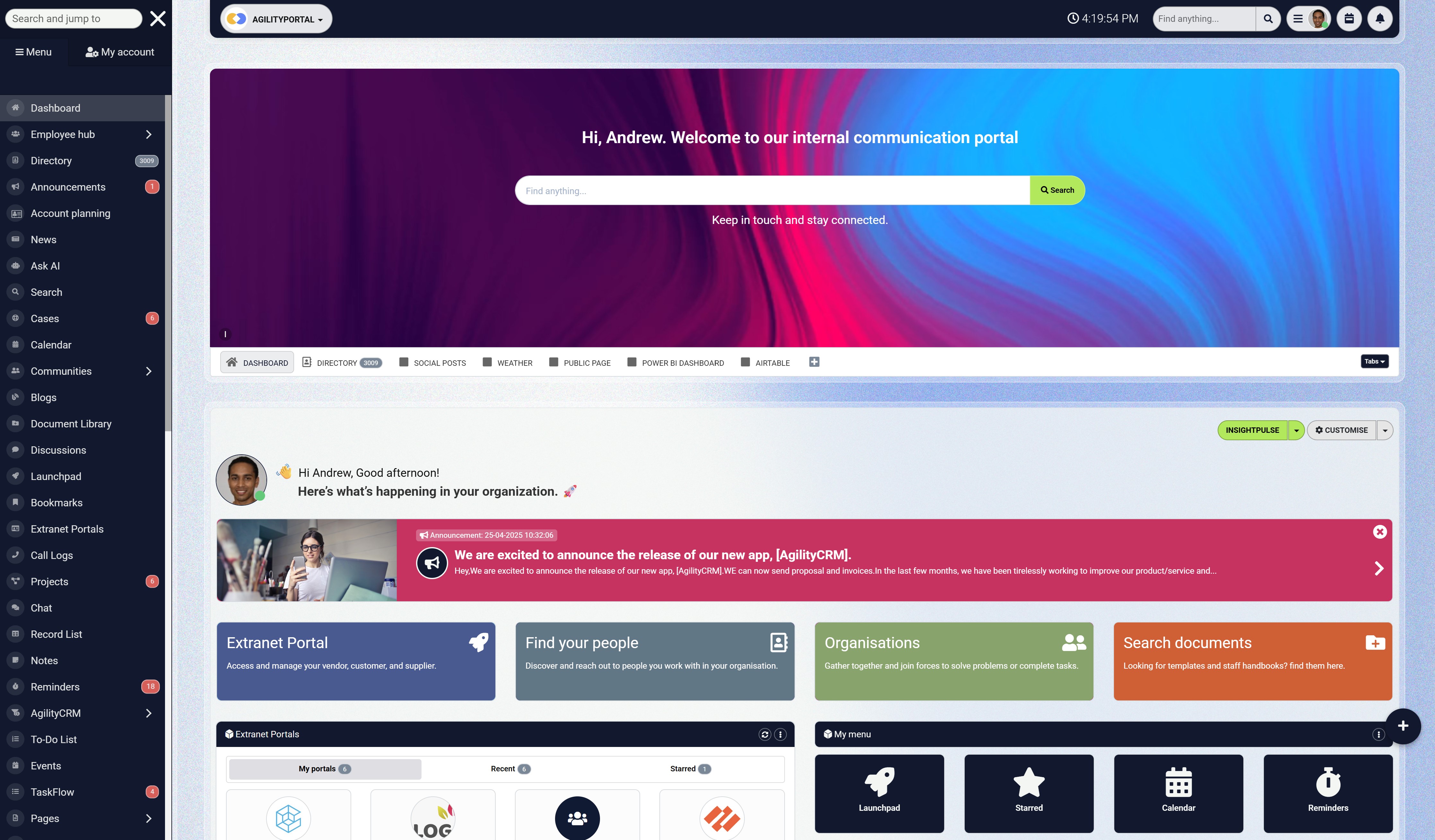
How Intranet Platforms Help Manage Video Content
If your organization is creating more video content—training materials, onboarding guides, leadership updates, or internal announcements—you'll quickly run into a simple challenge: where do all these videos live, and how do employees easily access them?
This is where modern intranet and digital workplace platforms make a big difference.
Instead of sending large video files through email or storing them across multiple cloud folders, companies can manage everything in one centralized environment.
Platforms like AgilityPortal are designed to help teams store, organize, and distribute video content in a way that keeps it accessible without slowing down the system.
Centralized Video Libraries
One of the biggest advantages of using an intranet platform is having a central location for all company videos.
Instead of videos being scattered across different drives or messaging apps, teams can upload them into a structured library where employees can easily find what they need.
For example, videos can be organized into categories such as:
- onboarding and HR training
- product tutorials
- leadership announcements
- department training materials
This makes it much easier for employees to search for and access the content they need.
Faster Internal Streaming
When videos are uploaded to a modern digital workplace platform, they are often optimized for internal streaming.
This means employees can watch videos directly in the platform without downloading large files.
Compressed videos load faster and use less bandwidth, which improves the viewing experience—especially for remote employees or teams working on slower internet connections.
Role-Based Access Controls
Not every video should be available to everyone in the organization. Intranet platforms allow administrators to control who can view specific content.
For example:
- HR videos can be restricted to employees
- leadership updates can be shared company-wide
- department training can be limited to specific teams
This helps organizations manage sensitive information while still keeping content easy to access.
Mobile Accessibility for Frontline Teams
Many employees today don't work behind a desk.
Frontline workers, field staff, and remote employees often rely on mobile devices to access company information.
Modern intranet platforms allow employees to watch videos directly from their smartphones or tablets, making training and communication more accessible wherever employees are located.
Organized Training and Knowledge Libraries
Over time, companies can build a complete internal knowledge base of video content.
Instead of repeating the same training sessions over and over, organizations can record videos once and store them in the intranet for employees to access anytime.
This creates a scalable way to share knowledge and helps new employees learn faster.
A Better Way to Share Business Videos
Without a centralized system, video content often becomes difficult to manage.
Files get lost in email threads, storage costs increase, and employees struggle to find the information they need.
Digital workplace platforms like AgilityPortal help solve this by providing a structured environment where organizations can upload, compress, organize, and securely share video content across the entire company—without creating performance issues.
Wrapping
Video continues to play a growing role in internal communication, but large file sizes can slow down collaboration and make content harder to share.
By learning how to compress video files and reduce video size, organizations can make internal video content faster to upload, easier to stream, and accessible to employees across any device.
Using the right formats, tools, and compression settings ensures that teams can continue sharing video without sacrificing quality or performance.
AI Summary
- Large video files can slow uploads, cause buffering, and create storage challenges — which is why businesses compress video files to reduce video size before sharing content.
- Video compression reduces file size by optimizing bitrate, resolution, codecs, and frame rates while maintaining a watchable level of quality.
- Optimized video files upload faster, stream more smoothly, and improve accessibility for employees watching content on mobile devices or slower networks.
- Most organizations use formats such as MP4 (H.264) because they provide a strong balance between compression efficiency, quality, and device compatibility.
- Tools like Clideo, HandBrake, and Adobe Media Encoder make it easy to compress video files before uploading them to websites, intranet platforms, or collaboration tools.
- Reducing video size also lowers storage costs and makes it easier for teams to share training videos, product demos, and internal communication content.
Most Popular Posts

Effective communication among team members is vital for the productivity and success of any organization. Surprisingly, 60% of companies lack a long-term internal communication strategy, which p...


Businesses thrive on communication for efficiency, productivity and accomplishment. When the right information is passed from the right designation in the organization, it promotes positivity an...
Categories
Blog
(2976)
Business Management
(373)
Employee Engagement
(223)
Digital Transformation
(192)
Growth
(142)
Intranets
(137)
Remote Work
(63)
Sales
(53)
Collaboration
(48)
Customer Experience
(30)
Culture
(29)
Knowledge Management
(28)
Project management
(28)
Leadership
(20)
Comparisons
(9)
News
(1)

Related Posts

What's next for AI-powered image generation? Rapid generative AI advancements have revolutionised how businesses, artists, and marketers create visual content. As we move into 2026, the industry is poised for even more significant t...

The digital workplace has become the foundation of modern business operations. Whether employees work remotely, in the office, or in a hybrid environment, organizations need effective systems that keep people connected, informed, and productive. This...

If you're searching for a Highspot alternative, you're probably evaluating more than just sales enablement features. Today's organizations need platforms that not only help sales teams find content and engage buyers but also support employee co...

This is why many organizations are investing in a modern client and partner portal to create a centralized, secure environment where external users can access documents, collaborate with teams, complete onboarding tasks, receive updates, and find the...

Partner collaboration has become a critical part of business growth, especially for organizations that rely on distributors, resellers, suppliers, affiliates, consultants, and channel partners to generate revenue. Yet surprisingly, many compani...


Jill Romford
I am a digital nomad, lover of exploring new places and making friends.
I love to travel and I love the internet. I take pictures of my travels and share them on the internet using Instagram.
Traveler, entrepreneur, and community builder. I share my insights on digital marketing and social media while inspiring you to live your fullest life.
Ready to learn more? 👍
One platform to optimize, manage and track all of your teams. Your new digital workplace is a click away. 🚀
Free for 14 days, no credit card required.