
Insight Blog
Agility’s perspectives on transforming the employee's experience throughout remote transformation using connected enterprise tools.
37 minutes reading time
(7432 words)
How to Use WiFi QR Code for Your Workplace: A Simple Guide for Employees and Visitors

How to Use WiFi QR Code for Your Workplace: A Simple Guide for Employees and Visitors
Learn how to use a WiFi QR code for your workplace so employees and visitors can connect quickly, while keeping guest access simple and secure.
How to Use WiFi QR Code for Your Workplace: A Simple Guide for Employees and Visitors

A visitor arrives for a meeting, sits down at reception and asks a question almost every office has heard before: "What's the WiFi password?" Someone then has to find it, spell it out, or point them towards a password written on a card somewhere.
Learning how to use WiFi QR code for your workplace offers a much simpler option. Employees, contractors and visitors can scan a code with their phone and connect without manually typing a long network name or password.
And workplace WiFi matters more than you might think.
According to the UK Government's 2025/26 Public Engagement Survey, 55% of internet users who accessed the internet away from home had connected using WiFi at work.
At the same time, the Government's Cyber Security Breaches Survey found that just 38% of businesses maintained separate WiFi networks for staff and visitors in 2025/26.
Among large businesses, that figure was much higher at 85%.
55%
Connected Using WiFi at Work
According to the UK Government's 2025/26 Public Engagement Survey, 55% of internet users who accessed the internet away from home had connected using WiFi at work, highlighting just how important workplace connectivity remains to the everyday employee experience.
Source: UK Government – Public Engagement Survey 2025/26
So, while a WiFi QR code can make getting connected almost effortless, businesses still need to think about what network they're actually giving people access to.
In this guide, we'll explain what a WiFi QR code is, how to create and use one in the workplace, where to display it, and how to give employees and visitors convenient WiFi access without overlooking basic network security.
Key Takeaways
- WiFi QR codes make it easier for employees, visitors, contractors, and event attendees to connect without manually entering network credentials.
- Businesses should avoid using publicly displayed QR codes for their main corporate network and provide separate guest WiFi where appropriate.
- QR codes can be useful at reception, in meeting rooms, during employee onboarding, at training sessions, and across shared workplace spaces.
- A WiFi QR code improves convenience, but it is not a security control; network separation, access policies, and credential management still matter.
- Workplace WiFi information should be kept current and easy to find, with outdated QR codes replaced whenever network credentials change.
- An employee intranet can centralise WiFi instructions alongside office information, IT support, onboarding resources, policies, and other workplace knowledge.
What Is a WiFi QR Code, and How Does It Actually Work?
A WiFi QR code is simply a QR code that contains the information a phone or tablet needs to connect to a wireless network. Instead of asking someone to type a network name and a password such as OfficeGuest-WiFi-2026!, you give them a code they can scan.
For a workplace, that can make a surprisingly big difference. Think about a new employee arriving on their first day, a client waiting for a meeting, or 50 people attending a company event.
Rather than asking IT or reception for the WiFi password, they can open their phone's camera or a compatible WiFi QR code scanner, scan the code and connect.
Most WiFi QR codes contain three important pieces of information:
- SSID – this is the name of the WiFi network employees or visitors see on their device.
- Password – the password required to connect to that network.
- Security type – this tells the device what type of WiFi security the network uses, such as WPA or WPA2.
A QR generator takes those details and converts them into a machine-readable pattern.
When someone scans it with a compatible smartphone, their device reads the network information and normally presents an option to connect. They confirm, and the phone joins the network without them having to manually enter the credentials.
The basic journey looks like this:
Employee or visitor → scans QR code → phone reads WiFi details → user confirms → device connects to WiFi
This is also why you'll see plenty of free WiFi QR code generators online. For a simple static guest network, businesses don't necessarily need specialist software just to create the code.
However, before entering a workplace WiFi password into any third-party service, IT should consider how that service processes or stores the information.
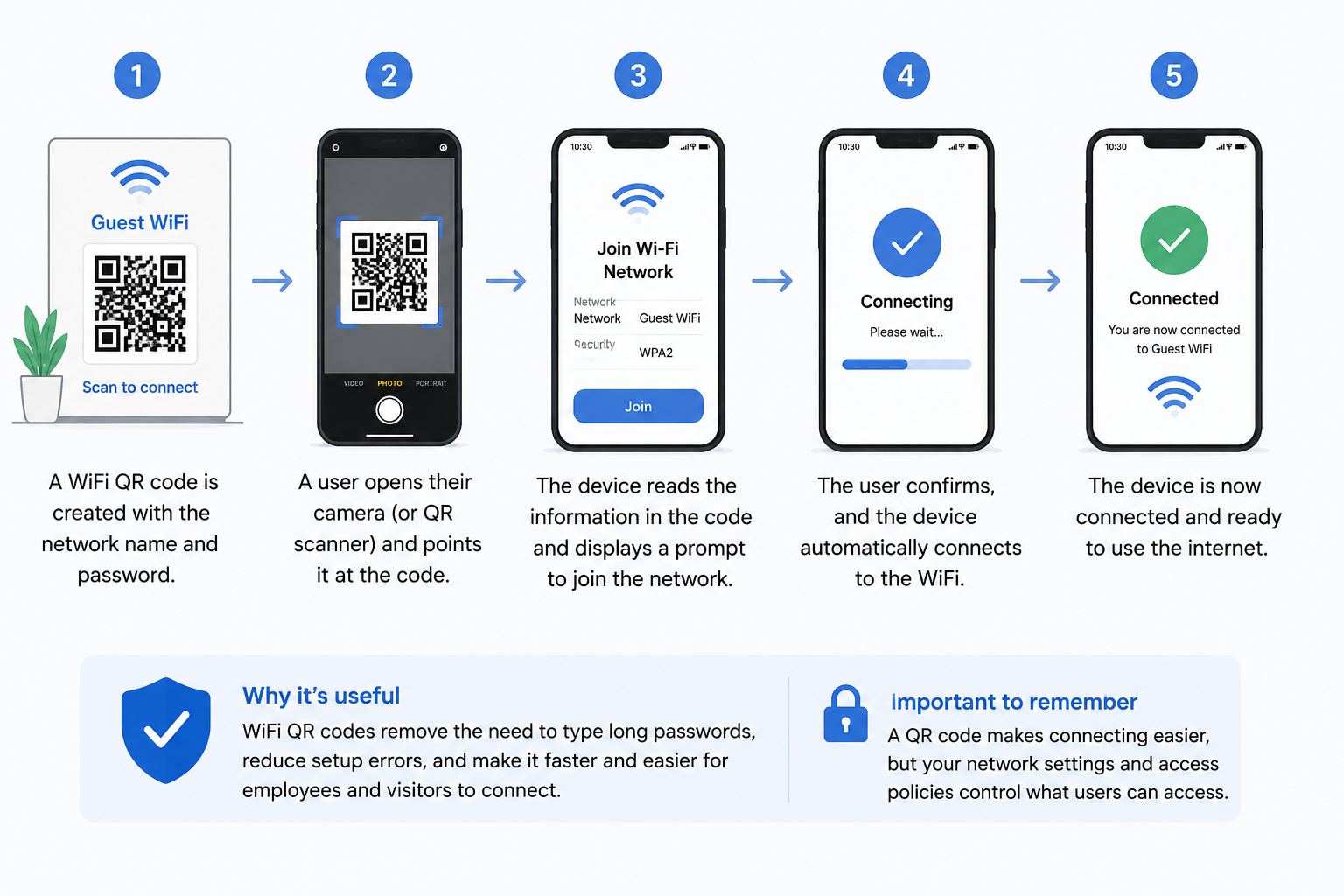
What Is a WiFi QR Code, and How Does It Actually Work
Static vs changeable WiFi QR codes
There's another practical issue businesses should understand. A standard WiFi QR code is generally static because the network information is encoded directly into it.
If you change the guest WiFi password, the old QR code doesn't magically update. You'll usually need to create a new code and replace the old copies around the workplace.
That's easy enough when there's one sign at reception. It's more annoying when the same code has been printed in 20 meeting rooms, added to onboarding documents and displayed around several offices.
So before rolling WiFi QR codes out everywhere, decide who will own them, where they'll be published and what happens when the network credentials change.
What's actually stored inside the QR code?
Here's the part that's easy to misunderstand: turning a WiFi password into a QR code doesn't make the password secret.
The QR code is essentially another way of representing the network information. A compatible WiFi QR code scanner can read that information so the device knows which network to join and which credentials to use.
That means you shouldn't think of the QR code itself as a security feature.
For example, putting your main corporate WiFi credentials into a QR code and sticking it on the reception desk could make those credentials available to far more people than intended. A better approach is usually to create a separate guest network and generate the QR code for that network instead.
A free WiFi QR code can make workplace connectivity much more convenient. The important part is making sure the convenience is built around the right network, the right users and sensible access controls.
Why Use a WiFi QR Code in Your Workplace?
The biggest reason to use a WiFi QR code at work is simple: it removes an unnecessary bit of friction.
Think about what normally happens when someone needs internet access in an office. A visitor asks reception for the password. A new employee messages IT. Someone in a meeting reads a complicated password from a card on the wall, only for the person connecting to type an uppercase letter incorrectly.
None of these are major problems on their own. But when you have hundreds of employees, regular visitors, contractors, training sessions and multiple offices, those little interruptions quickly add up.
A WiFi QR code gives people a much easier route. They scan, confirm the network and connect.
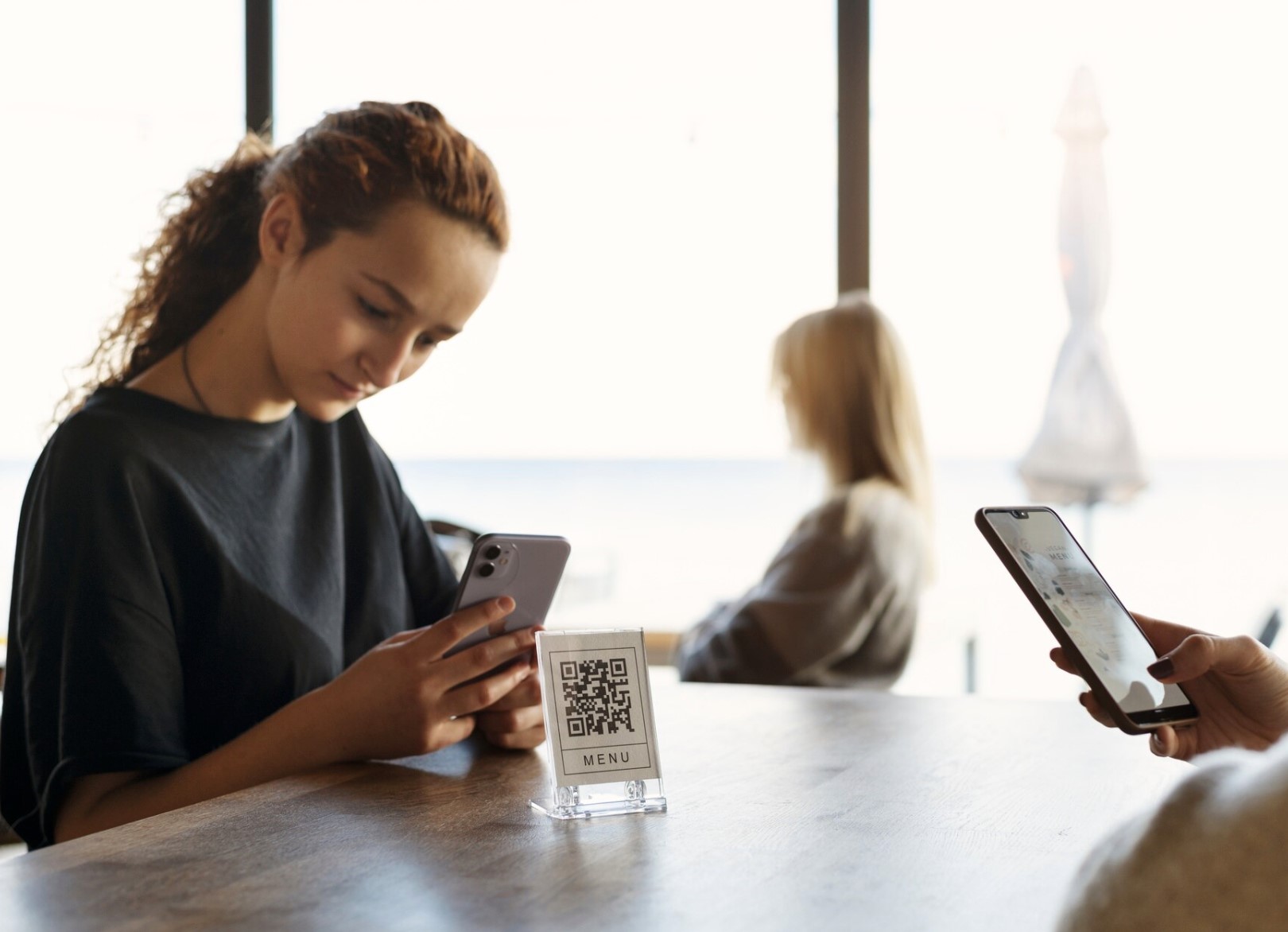
Why Use a WiFi QR Code in Your Workplace
Where do WiFi QR codes make sense at work?
There are plenty of practical situations where this works well:
- Reception areas – visitors can connect while waiting for a meeting without asking reception for credentials.
- Meeting and conference rooms – clients and external partners can access guest WiFi when they arrive.
- Employee onboarding – new starters can find WiFi access alongside the rest of their first-day information.
- Contractors and temporary workers – short-term workers can be directed towards an appropriate guest or restricted network.
- Training rooms – attendees can connect before a workshop begins rather than spending the first ten minutes asking for passwords.
- Coworking areas – shared spaces can make guest connectivity much easier to manage.
- Company events – attendees can scan a code from signage, screens or event information.
- Multiple offices – organisations can provide location-specific QR codes for each workplace rather than expecting employees to know different network credentials.
The key is putting the QR code where people actually need it. A code hidden three pages deep inside an IT document isn't particularly useful when a visitor is standing at reception trying to connect.
Imagine 40 people arriving for the same training session
Here's a simple example.
Imagine you're running an external training day and 40 people arrive within half an hour. Most need internet access for the session.
Without a QR code, reception might have to give the same WiFi password to dozens of people. Some will mistype it. Others will ask again. The trainer may eventually write it on a whiteboard for everyone to see.
Instead, you place a guest WiFi QR code at reception and another inside the training room.
Attendee arrives → scans the code → joins guest WiFi → gets on with the session.
It's a small change, but that's exactly why it's useful. Good workplace technology doesn't always need to introduce another complicated system. Sometimes it simply removes repetitive tasks that shouldn't have been taking up people's time in the first place.
Static or dynamic: which approach makes more sense?
This is where businesses should think about how often their guest WiFi details change.
A static QR code works well when the underlying information rarely changes. If you have a fixed office guest password, you can generate the code, test it and display it where appropriate.
But what if IT regularly rotates the guest password?
You don't necessarily want to reprint signs across reception areas, meeting rooms and multiple offices every time something changes.
There is an important distinction here, though. A dynamic QR code that points to an editable page isn't the same thing as a standard WiFi QR code that directly contains the network credentials. Users may first be taken to a page containing the latest connection information rather than being connected automatically.
For a home or fixed office password, static is usually fine. For a frequently rotated guest network, a dynamic approach can be worth the extra step because the destination can be updated without replacing every printed QR code.
Convenience still needs some boundaries
There is one thing businesses shouldn't do simply because QR codes make WiFi sharing easy: give everyone access to the same network.
Employees, visitors, contractors and event attendees don't necessarily need identical network access.
A QR code displayed at reception, for example, should normally lead visitors towards an appropriately configured guest network rather than exposing credentials for the main corporate network.
That's the balance we're looking for throughout this guide.
Make connecting easy, but be deliberate about what you're giving people access to.
Done properly, workplace WiFi QR codes can improve the experience for employees and visitors while reducing repetitive questions for reception, facilities and IT teams.
How to Use WiFi QR Code for Your Workplace Step by Step
If you're wondering how to use WiFi QR code for your workplace, the actual process isn't particularly complicated.
The mistake is jumping straight into a free QR code generator without first deciding which network employees, visitors and contractors should be allowed to access.
For most workplaces, the sensible approach is to sort out the guest network first, generate the QR code second, and then think about where and how people will use it.
Here's how to set it up.
Step 1 — Create a Separate Guest WiFi Network
Before creating an office WiFi QR code, decide exactly what network you're going to share.
Your everyday corporate network may connect employees to internal systems, printers, shared drives and other business resources. A visitor sitting in reception probably doesn't need access to any of that.
A simpler structure is:
- Corporate WiFi → Employees and managed company devices
- Guest WiFi → Visitors, clients, contractors and temporary users
Network segmentation is a well-established security principle because separating users and systems can help limit unnecessary access between different parts of a network. CISA recommends segmentation as one of the measures organisations can use to reduce the impact of network intrusions. (CISA)
That makes a guest WiFi QR code particularly useful. You're making internet access easier without automatically handing visitors the credentials used by employees.
If your business doesn't currently have separate employee and guest networks, speak with whoever manages your network before printing QR codes around the office.
Step 2 — Find Your WiFi Network Name, Password and Security Type
Next, gather the information needed to create the QR code.
You'll normally need:
- Network name (SSID): the WiFi name displayed on someone's phone, such as
AgilityPortal-Guest. - Password: the password required to join the network.
- Security type: typically WPA/WPA2 or another security option supported by your network.
- Hidden network setting: some generators ask whether the SSID is hidden.
Double-check everything before generating the code. One incorrect character in the password can leave you wondering why every visitor suddenly says the office WiFi QR code isn't working.
And don't use a real workplace password on a random QR website without checking who operates it and how the information is processed.
Step 3 — Generate Your WiFi QR Code
Now you can create the code itself.
Searches such as how to create a WiFi QR code for office or free WiFi QR code generator bring up plenty of options. Some phones, routers and business WiFi systems can also generate or share WiFi QR codes directly.
For a basic static code, the process usually looks like this:
- Enter the guest WiFi network name.
- Select the appropriate security type.
- Enter the WiFi password.
- Generate the QR code.
- Save the finished code for testing.
A static code can be perfectly adequate when your guest WiFi password rarely changes.
Businesses that regularly rotate guest credentials may prefer a more manageable setup.
For example, a dynamic QR code could direct users to an editable guest-access page. That lets the destination information change without replacing the QR graphic printed around the workplace.
Whichever approach you choose, remember that a QR code is primarily making the connection process easier. It shouldn't replace proper WiFi security or access controls.
Step 4 — Test the WiFi QR Code Before Publishing It
This sounds obvious, but don't print 30 copies before testing one.
Take the finished QR code and try it as if you were a visitor who knows nothing about your network.
Test it using:
- An iPhone
- An Android phone
- The standard phone camera
- A compatible WiFi QR code scanner
- Different screen brightness levels
- Different scanning distances
- A printed version
- The digital version
The experience should be straightforward:
Open camera → Scan QR code → Tap WiFi notification → Join network
You should also check that the device is connecting to the guest network you intended, rather than another saved network on the test phone.
If you're wondering how to scan a WiFi QR code on iPhone, recent iPhones can generally recognise supported QR codes through the Camera app or Code Scanner. Google similarly provides built-in QR scanning capabilities across supported Android devices. (Apple Support) (Google)
Don't assume that because it works perfectly on your phone it will behave identically across every device your employees and visitors carry.
Step 5 — Put the QR Code Where People Actually Need WiFi
Now think about the physical and digital employee experience.
Where does someone normally realise they need internet access?
Probably not while reading page 37 of the IT handbook.
Put workplace WiFi QR codes at the point of need.
- Reception → Visitors and clients
- Meeting rooms → External meeting attendees
- Training rooms → Employees and course attendees
- Onboarding area → New starters
- Employee intranet → Authorised employees
- Event signage → Event attendees
- Coworking areas → Temporary workers and guests
For example, a new employee could open their onboarding page in the company intranet and find office information, IT support contacts, workplace policies and WiFi instructions in the same place.
That approach is much easier than expecting someone to remember an email containing a password that was sent three weeks before they started.
There is a security consideration, though. Don't automatically display the same QR code publicly and internally. The location of the code should reflect who is supposed to access that particular network.
Step 6 — Give Employees and Visitors Simple Instructions
Don't assume everyone knows how to connect to WiFi with a QR code.
The instructions beside the code don't need to become another IT manual. In fact, three steps are normally enough:
1. Open your phone camera
2. Point it at the WiFi QR code
3. Tap the notification and join the network
You could add the guest network name underneath so users can confirm they're connecting to the correct WiFi.
For example:
Guest WiFi: AgilityPortal-Guest
Scan → Tap → Connect
If scanning doesn't work, provide a simple fallback such as the guest network name and instructions for contacting reception or IT.
Step 7 — Decide Who Will Keep the QR Code Updated
This is the step many businesses forget.
Someone creates a free WiFi QR code, prints it, sticks it in six meeting rooms and then nobody thinks about it again.
Six months later, IT changes the guest password.
Now every QR code points people towards credentials that no longer work.
Assign an owner—typically IT, workplace operations or facilities—who is responsible for updating the code whenever network settings change.
Keep a simple record of where QR codes have been published:
- Reception
- Meeting rooms
- Printed visitor packs
- Employee intranet
- Onboarding pages
- Digital signage
- Training materials
- Event signage
When credentials change, you then know exactly what needs updating.
That's ultimately what how to use WiFi QR code for your workplace comes down to.
Creating the code takes a few minutes. Making sure it's connected to the right network, available in the right places, tested properly and kept up to date is what turns it into something genuinely useful for employees and visitors.
Should Employees and Visitors Use the Same WiFi QR Code?
Not automatically. In fact, one of the biggest mistakes a business can make is treating everyone who walks through the door as though they need the same level of network access.
A WiFi QR code makes connecting easier, but it doesn't decide what someone should be allowed to access. That's still the responsibility of your network configuration and IT security policies.
Think about the difference between an employee and a visitor. An employee may need access to internal applications, printers, shared resources and other business systems. A client visiting for a one-hour meeting probably just needs enough internet access to check email and join a video call.
Giving both people the same WiFi QR code could therefore provide far more access than necessary.
A better approach is to match the network to the person using it.
| User | Recommended Access | Why |
| Employees | Managed corporate access | Employees may require access to approved internal resources and business systems. |
| Visitors | Guest WiFi | Keeps general internet access separate from the main corporate network. |
| Contractors | Guest or restricted access | Contractors should only receive the level of access required for their work. |
| Event attendees | Temporary guest access | Suitable for conferences, workshops and other short-term visitors. |
| Managed company devices | IT-controlled connection | Allows IT to apply appropriate security, configuration and access policies. |
Why separate guest WiFi from employee WiFi?
This comes down to a basic security principle: people should only have access to the systems and resources they actually need.
The UK's National Cyber Security Centre (NCSC) recommends controlling access according to business requirements and applying the principle of least privilege, where users are only given the permissions necessary to perform their role.
The same thinking makes sense when you're deciding how to share WiFi with visitors at work.
If someone is attending a two-hour meeting, there's usually no reason for their personal laptop or smartphone to sit on the same network segment as corporate devices.
Instead, you might have:
- Employee → Corporate WiFi → Approved workplace resources
- Visitor → Guest WiFi → Internet access
- Contractor → Restricted network → Only resources required for the job
The WiFi QR code then becomes the convenient front door to the appropriate network rather than a one-size-fits-all key.
What about employees using personal devices?
This is where things can become more complicated.
An employee's company-managed laptop and their personal smartphone aren't necessarily the same from a security perspective.
Your IT team might allow managed devices onto the corporate network while directing personal phones, tablets and other bring-your-own-device (BYOD) equipment towards a separate network.
For example, imagine an employee arrives with a company laptop, personal iPhone and smartwatch. Giving all three devices access to the same internal network simply because they belong to an employee may not fit the organisation's security policy.
The QR code should support that policy, not bypass it.
Should you display the employee WiFi QR code publicly?
Generally, a QR code containing credentials for an internal employee network shouldn't be treated like a poster for the reception window.
Remember, anyone who can access the code may potentially be able to scan, photograph or share it.
That's why placement matters.
A guest WiFi QR code for visitors could be displayed at reception, in meeting rooms or inside visitor information.
An employee-only QR code might instead be provided through controlled internal channels, such as:
- The employee intranet
- New-starter onboarding information
- An internal IT knowledge base
- Workplace support pages
- Approved device setup instructions
Even then, businesses should follow whatever network access and device-management controls their IT and security teams have established.
One QR code isn't always enough
For a small office, having one guest WiFi QR code may be perfectly reasonable.
For a larger organisation, the setup could look very different.
A London headquarters might have separate employee and visitor networks, while a warehouse, regional office and training centre could each have their own WiFi credentials and access requirements.
Rather than asking, "Can we create one WiFi QR code for everyone?", the better question is:
"What does this person actually need access to?"
Once you've answered that, deciding which WiFi QR code they should receive becomes much easier.
The goal isn't to make workplace WiFi complicated. It's to keep the convenience of scan, tap and connect while making sure employees, visitors, contractors and managed devices are connected to the network that's actually appropriate for them.
Here's the Security Problem Most WiFi QR Guides Skip
WiFi QR codes are convenient, but there's an important security point that often gets lost in the conversation: a QR code isn't an encrypted vault for your WiFi password.
When you create a standard WiFi QR code, the network details needed to connect are encoded into the code. A compatible device or QR code scanner can read those details and use them to join the network.
So if someone can scan, photograph or keep a copy of that QR code, you should assume the credentials could potentially be shared with someone else.
That doesn't mean businesses shouldn't use WiFi QR codes. It means they need to treat them for what they are: a convenient way to distribute network access, not a security control in themselves.
Someone can photograph the QR code
Imagine you've placed a guest WiFi QR code on the reception desk.
A visitor scans it and connects. Great—that's exactly what you wanted.
But they could also take a photograph of the code. That image might remain on their phone long after they've left your workplace, or it could be forwarded to somebody else.
For a café offering public WiFi, that may not matter much. For an office where guest access needs tighter control, it's something IT should consider.
This is another reason to avoid putting corporate WiFi credentials into publicly accessible QR codes. If you want visitors to scan and connect, give them access to a network designed for visitors.
Old QR codes can quickly become a headache
Changing a WiFi password is easy. Finding every old QR code containing the previous credentials isn't always so easy.
Your guest WiFi QR code might appear in:
- Reception
- Meeting rooms
- Training areas
- Visitor packs
- Onboarding documents
- Employee intranet pages
- Digital signage
- Event materials
If IT changes the password but nobody replaces those codes, employees and visitors are left scanning something that no longer works.
This creates a frustrating experience and usually results in exactly what the QR code was supposed to prevent: people asking reception or IT for the password.
Keep a record of where codes are published and make updating them part of the password-change process.
Don't turn your corporate WiFi password into a public QR code
The biggest issue isn't really the QR technology. It's what network you've attached it to.
Imagine a business has one wireless network used by employees, printers, company laptops and other workplace systems.
Someone creates a QR code containing those credentials and places it in a meeting room because clients regularly ask for internet access.
The business has now made its corporate WiFi credentials much easier to distribute.
A better setup would normally be:
- Corporate WiFi → Employees and approved devices
- Guest WiFi QR code → Visitors and temporary users
The National Cyber Security Centre recommends applying the principle of least privilege so users receive only the access they need. That principle is useful here too: a visitor who needs internet access shouldn't automatically receive broader access simply because it's easier to share one password.
Watch out for uncontrolled distribution
There's another practical problem with sharing a WiFi password using a QR code: once you've distributed it, controlling where it goes becomes harder.
Someone could:
Scan it → Screenshot it → Send it → Store it → Reuse it later
For many guest networks, that may be an acceptable risk. But the business should make that decision deliberately rather than assuming the QR code prevents people from accessing the underlying information.
If guest access needs to be tightly controlled, businesses can consider additional measures such as periodically changing credentials, time-limited access, captive portals or centrally managed guest WiFi systems.
The appropriate option depends on the organisation, its network and the sensitivity of the systems around it.
What happens when a contractor leaves?
Contractors are another good example.
Suppose a contractor works from your office for three months and receives a QR code to connect their devices. Their contract ends, but the network credentials haven't changed.
Potentially, they still possess the information required to connect.
Again, the problem isn't the QR code itself. The same issue could happen if you gave them the password in an email.
The QR code simply makes sharing and retaining that access information easier.
That's why guest and contractor access should be included in normal IT access reviews rather than being forgotten because "it's only WiFi."
There's also the risk of QR-code tampering
Here's a less obvious problem: what if someone replaces your QR code?
Physical QR codes can be covered with another sticker or substituted entirely. A visitor may assume they're scanning the company's official guest WiFi code when they're actually scanning something else.
The UK's National Cyber Security Centre has warned that malicious QR codes can direct people towards fraudulent websites and other harmful destinations, particularly because users often can't see where a QR code will take them before scanning it.
For workplace QR codes, this means physical placement deserves some thought.
Reception or facilities teams should periodically check codes displayed in public areas, particularly:
- Reception desks
- Building entrances
- Meeting rooms
- Conference spaces
- Shared coworking areas
- Event venues
Adding the expected guest network name beside the code can also help users confirm they're joining the correct WiFi network.
Review WiFi QR code access periodically
A QR code shouldn't become another piece of workplace infrastructure that gets created once and forgotten for five years.
Build it into your normal network review.
Ask:
- Is this QR code still required?
- Does it still connect to the correct network?
- Are the credentials current?
- Is the guest network still appropriately separated?
- Are old printed copies still circulating?
- Who currently has access?
- Do former contractors or temporary workers still have valid credentials?
- Have publicly displayed codes been checked for tampering?
- Does IT know everywhere the QR code has been published?
For a small business, this might take a few minutes. For an organisation with multiple offices, hundreds of employees and regular visitors, ownership becomes much more important.
The key point is simple: don't rely on the QR code to provide security.
Think of it as an access-distribution mechanism. Your guest network configuration, authentication, segmentation, password management and access policies provide the actual security.
Get those foundations right, and a WiFi QR code can do what it's supposed to do—make getting online easier without creating unnecessary risk.
Printed WiFi QR Code or Digital? Which Works Better at Work?
Once you've created a code, there's another practical decision to make: how are people actually going to find it?
A printed sign at reception might be perfect for a visitor who has just walked into the building. But it isn't much help to a new starter working through their onboarding checklist from another floor. Likewise, putting connection instructions on your employee intranet works well for staff, but an external client probably can't access your intranet in the first place.
That's why the best approach often isn't choosing between physical and digital. It's using the right format for the situation.
| Method | Best For | Main Consideration |
| Reception sign | Visitors | Easy visibility |
| Meeting-room card | Clients | Convenient |
| Employee intranet | Employees | Centralised access |
| Digital signage | Offices/events | Easy distribution |
| Onboarding page | New starters | Part of wider orientation |
| Printed poster | Events | Simple access |
Printed codes work well when people need access immediately
Physical signs are difficult to beat for simplicity.
Imagine a client arriving ten minutes early for a meeting. They don't want to search your website or ask somebody to send them instructions. A small sign at reception gives them what they need immediately.
Printed codes can work particularly well in:
- Reception and waiting areas
- Conference rooms
- Training facilities
- Shared workspaces
- Event venues
- Visitor lounges
- Temporary project spaces
The important thing is visibility. The code needs to be large enough to scan comfortably and positioned somewhere people would naturally look.
You should also include the network name beside it. That gives visitors another way to confirm they're joining the correct service.
Digital access makes more sense for employees
Employees have different needs.
They may work across several locations, use different devices or need connection information before arriving at another company office. In those situations, storing workplace connectivity information digitally can make more sense.
An employee intranet or internal knowledge base could provide location-specific information such as:
- London office → connectivity details → IT support → meeting-room information
- Manchester office → connectivity details → building access → local contacts
- New York office → connectivity details → visitor procedures → office facilities
Instead of another document floating around in somebody's inbox, staff have one place to find the latest information.
This also connects to broader searches around employee self-service, digital employee experience, workplace knowledge management and new employee onboarding rather than relying on the same QR-related keywords throughout the article.
Think about the new-starter experience
The first day at a new company usually involves dozens of small questions.
Where do I sit? Who do I contact about IT? Where are the meeting rooms? How do I access the building? Where can I find company policies?
And, inevitably: how do I get online?
Adding connectivity instructions to a digital onboarding hub gives new starters one less thing to chase.
For example, an onboarding page could contain:
- Office opening information
- Building access instructions
- Technology setup
- Internet connectivity details
- IT helpdesk contacts
- Employee directory
- Workplace policies
- Training requirements
- Frequently asked questions
The point isn't really the code anymore. It's about making everyday workplace information easier to discover.
That's particularly important for organisations with hybrid teams, multiple offices or employees who regularly move between locations.
Digital signage can work well for events and shared spaces
Another option is displaying connection information through office screens.
This can work well for conferences, company-wide meetings, training days and other situations where large groups arrive at roughly the same time.
Rather than printing temporary signs, the facilities or communications team can display access information on existing screens around the venue.
Once the event finishes, the content can be removed.
This makes digital signage useful for visitor experience, office wayfinding, workplace communications and event connectivity, particularly in larger buildings.
There's still a problem with screenshots
Putting information online doesn't automatically give you complete control over it.
An employee can screenshot something. A visitor can photograph a reception sign. Someone attending an event can save an image displayed on a screen.
That's why businesses shouldn't base network security on whether connection information is printed or digital.
The access controls behind it matter far more.
If the information is intended for visitors, it should direct them towards an appropriately configured visitor network. If it's internal information, businesses should consider whether it belongs behind authenticated employee access.
What works best for a hybrid workplace?
For many organisations, the answer will be a combination.
You might use:
Reception signage for external guests.
Meeting-room cards for clients.
An employee intranet for staff.
Onboarding resources for new starters.
Digital screens for conferences and large gatherings.
Temporary signage for training sessions.
This creates a much better workplace experience because people receive information where they're most likely to need it.
It also gives facilities, IT and internal communications teams an opportunity to think beyond connectivity. The same approach can be used to make office maps, emergency information, room-booking instructions, support contacts and other workplace resources easier to discover.
So, printed or digital?
Neither is universally better. Printed works well at the physical point of need, while digital works better when information needs to be centrally managed, accessed remotely or incorporated into the wider employee experience.
For most modern workplaces, using both is likely to be far more practical than trying to force every employee, visitor and new starter through the same route.
Where Should You Put WiFi QR Codes Around the Workplace?
A WiFi QR code is only useful if people can find it when they actually need to connect.
For visitors, that might be the moment they arrive at reception. For employees, it could be during onboarding or when visiting another company location.
Good places to consider include:
- Reception and visitor waiting areas
- Meeting and conference rooms
- Training and breakout spaces
- Event areas
- Employee intranet pages
- New-starter portals
- Digital signage and office screens
But visibility should match the level of access you're providing. A guest network code can make sense in a reception area, while internal network information may belong somewhere restricted to employees.
Don't plaster reusable network credentials across publicly accessible spaces simply because it's convenient. Think about who needs access, where they'll need it and which network they should be connecting to.
For organisations with several locations, it can also help to publish office-specific connectivity information through the employee intranet, giving staff one reliable place to find the correct details wherever they're working.
A Practical Workplace WiFi QR Code Checklist
Before rolling out WiFi QR codes across your office, it's worth running through a quick checklist.
The goal is to make access easy without creating unnecessary work for IT or giving people access to networks they don't need.
- Decide who needs access – Identify whether the code is for employees, visitors, contractors or event attendees.
- Separate different users – Employees and external visitors don't necessarily need the same network access.
- Use a guest network where appropriate – Keep visitor internet access separate from important internal resources.
- Check your security settings – Confirm the network name, password and security configuration before creating anything.
- Generate the QR code – Use a trusted tool and verify that all network details are correct.
- Test before publishing – Scan the code using both iPhone and Android devices.
- Choose printed or digital – Decide whether reception signage, meeting-room cards, digital screens or an internal page makes the most sense.
- Control where it's displayed – Make the code available only where its intended audience needs it.
- Add simple instructions – Something as short as "Open camera → Scan → Connect" is usually enough.
- Assign an owner – Make IT, facilities or another appropriate team responsible for maintaining it.
- Update codes when credentials change – Don't leave employees scanning outdated information.
- Remove old copies – Check meeting rooms, reception areas, documents and digital pages for obsolete codes.
- Review guest access periodically – Make sure your current setup still matches your security requirements.
- Include it in workplace information – Add relevant connectivity instructions to employee onboarding and visitor guidance.
The QR code itself takes minutes to create. The bigger job is making sure the right people can find it, it stays current, and it connects them to the right network.
Put WiFi Access Where Employees Already Look for Workplace Information
Creating easy WiFi access is useful, but employees shouldn't have to search through old emails, message a colleague or contact IT every time they need basic workplace information.
This is where an employee intranet can make a real difference. Instead of treating WiFi instructions as a standalone resource, businesses can keep them alongside the other information employees regularly need, including:
- Office WiFi instructions and QR codes
- IT support and helpdesk details
- Building access information
- Office maps and facilities
- Workplace policies
- New-starter resources
- Frequently asked questions
- Location-specific office information
For organisations with several offices, this becomes even more useful. An employee travelling to another location could open that office's intranet page and immediately find its connectivity details, opening hours, local contacts and other essential information.
AgilityPortal provides a central employee intranet and digital workplace where organisations can publish and organise this kind of workplace knowledge. Rather than employees relying on scattered emails and documents, they have one place to find current information when they need it.
And that's the bigger opportunity. A WiFi QR code solves one small problem, but making everyday workplace knowledge easier to find can remove friction across the entire employee experience.
Conclusion — Make WiFi Access Simple Without Making Network Access Careless
Learning how to use WiFi QR code for your workplace isn't really about the QR code itself. The bigger opportunity is removing one of those small but repetitive frustrations employees and visitors experience every day.
Nobody arriving for a meeting should have to hunt for a password, and new employees shouldn't need to contact IT just to find basic office information. A well-placed WiFi QR code can turn that process into something as simple as scan, tap and connect.
But convenience shouldn't come at the expense of sensible network management. Businesses still need to separate guest and employee access where appropriate, control where codes are displayed, keep credentials current and assign someone responsibility for maintaining them.
The same principle applies across the wider digital employee experience. Whether someone needs WiFi details, an office map, a policy, an IT contact or onboarding information, routine workplace knowledge should be easy to find at the moment it's needed.
The best workplace technology often isn't the technology employees notice most. It's the technology that quietly removes friction and lets people get on with their day.
AI Summary
- WiFi QR codes make workplace network access faster by allowing employees, visitors and contractors to scan a code and connect without manually typing a network name or password.
- A WiFi QR code can contain the network name, security type and password, helping reduce login errors and repetitive requests to reception, facilities or IT teams.
- Workplaces can use WiFi QR codes in reception areas, meeting rooms, coworking spaces, staff areas and event spaces where guests regularly need temporary or shared internet access.
- A free WiFi QR code is usually suitable for a fixed guest network, while dynamic QR code solutions can be more useful when passwords, destinations or access information change regularly.
- Employees and visitors can normally connect using their phone camera or a WiFi QR code scanner, although organisations should still separate guest networks from internal business systems and apply appropriate network security controls.
- Business QR code platforms such as LLP can support editable destinations and scan tracking, which can be useful for offices, cafes and events that frequently rotate guest WiFi credentials or want better visibility into usage.
Most Popular Posts

Effective communication among team members is vital for the productivity and success of any organization. Surprisingly, 60% of companies lack a long-term internal communication strategy, which p...


Businesses thrive on communication for efficiency, productivity and accomplishment. When the right information is passed from the right designation in the organization, it promotes positivity an...

Categories
Blog
(3196)
Business Management
(395)
Employee Engagement
(235)
Digital Transformation
(218)
Growth
(150)
Intranets
(141)
Internal communications
(106)
Remote Work
(68)
Sales
(53)
Collaboration
(52)
Customer Experience
(32)
Culture
(30)
Knowledge Management
(29)
Project management
(29)
Leadership
(20)
Comparisons
(9)
News
(1)

Related Posts

Could AI produce your next workplace video faster—and still deliver a message your employees can trust? As more businesses use video for onboarding, training and leadership updates, one question keeps coming up: will AI replace video editors in...

Could the best machine learning systems help your employees spend less time sorting requests, updating spreadsheets and chasing information—and more time doing useful work? That's the opportunity, but finding the right system starts with knowin...

What would happen to your team's work and customer information if an employee's MacBook disappeared today? If you're wondering how to protect your Mac physically, the answer goes beyond buying a case. A MacBook used at home, on a train or in a ...

Welcome to AgilityPortal's guide to the best VPN for Remote teams. How do you give employees secure access to company systems when they work from home, the office and everywhere in between? It's a question more businesses need to answer: 28% of worki...

Have you ever left a meeting thinking everyone agreed on the next step, only to discover a week later that each person remembered something different? Open source meeting transcription can help teams keep a searchable record of the conversation...


Jill Romford
I am a digital nomad, lover of exploring new places and making friends.
I love to travel and I love the internet. I take pictures of my travels and share them on the internet using Instagram.
Traveler, entrepreneur, and community builder. I share my insights on digital marketing and social media while inspiring you to live your fullest life.
Ready to learn more? 👍
One platform to optimize, manage and track all of your teams. Your new digital workplace is a click away. 🚀
Free for 14 days, no credit card required.